![How to Restore Old Photos & Photographs — 5 Methods Compared (Free & Paid) [2026]](https://pub-05c3e18376404381bd479b1c68f374b0.r2.dev/blog/3af1ea2b-c1c8-4a9e-959f-fc607a27b092.jpg)
On this page
- How to Restore Old Photos: 5 Methods Compared Step by Step
- What causes old photographs to deteriorate
- Types of photo damage and what is actually fixable
- How to digitize old photos for restoration
- Option A: Flatbed scanner (best quality)
- Option B: Photograph prints with your phone
- Scanning tips for damaged photos
- Method 1: Restore old photos with AI (fastest)
- How AI photo restoration works
- Best for
- Tips for better AI results
- Cost
- Limitations
- Method 2: Restore old photos in Photoshop
- Key Photoshop tools for photo restoration
- Step-by-step Photoshop restoration workflow
- Best for
- Limitations
- When to combine AI + Photoshop
- Method 3: Restore old photos without Photoshop (free alternatives)
- GIMP (desktop — free, open source)
- Snapseed (mobile — free)
- Paint.NET (Windows — free)
- Canva (web — free tier)
- Method 4: Restore old photos on iPhone and Android
- iPhone workflow
- Android workflow
- Phone vs. computer: which is better?
- Method 5: Professional restoration services
- Best for
- Where to find professional restoration services
- Limitations
- Side-by-side comparison: all methods
- How to restore old black and white photos
- Step 1: Fix damage first
- Step 2: Colorize (optional)
- How to restore a picture step by step (complete workflow)
- Common mistakes when restoring old photographs
- How to preserve photos after restoration
- Digital preservation
- Physical print preservation
- How much does it cost to restore old photos?
- Can you restore old pictures without the negatives?
- Frequently asked questions
- How do I restore old photos for free?
- Can severely damaged photos be restored?
- Is AI photo restoration as good as professional restoration?
- What is the best app to restore old photos?
- How long does photo restoration take?
- How do I restore old photos without Photoshop?
- Can I restore old photos on my iPhone?
- How do I restore old black and white photos?
- Should I restore the original print or a digital copy?
- How do I restore an old photograph?
- Can a torn picture be repaired?
- How do I restore old family photos that are falling apart?
How to Restore Old Photos: 5 Methods Compared Step by Step
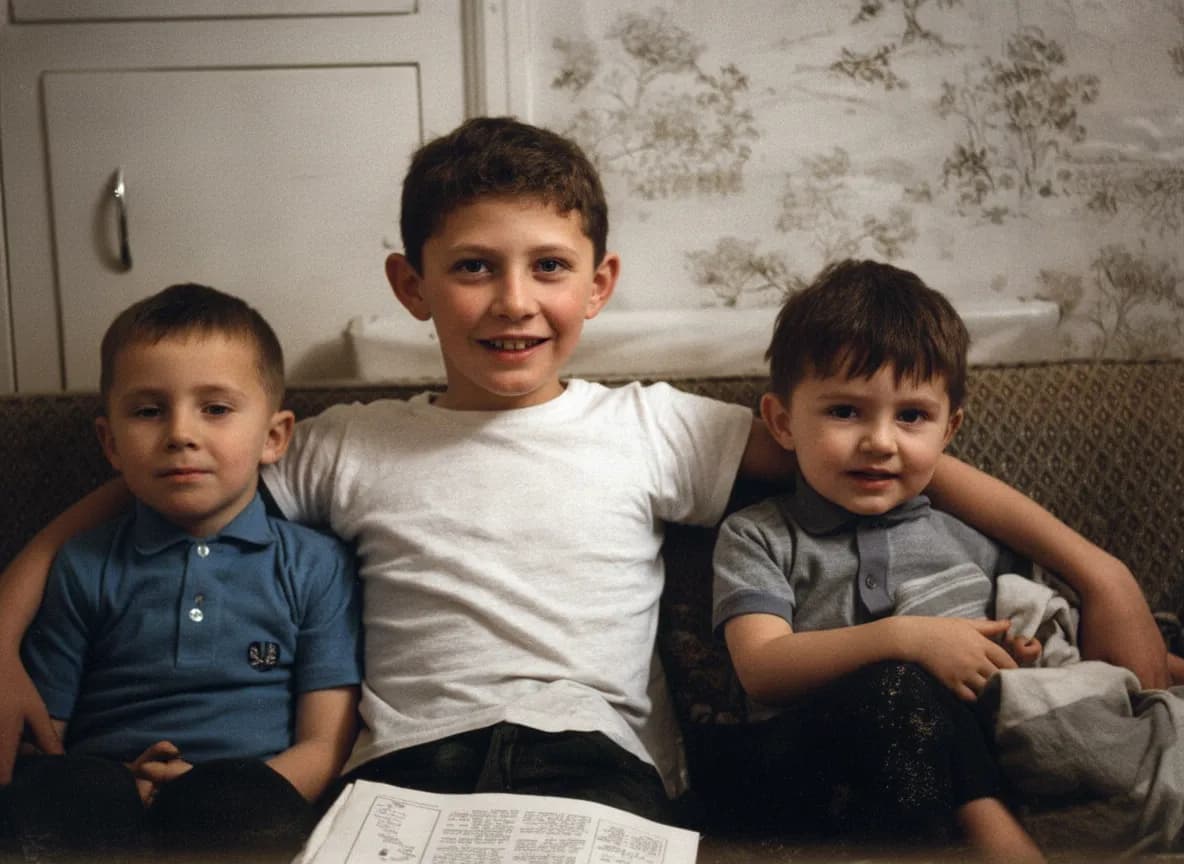
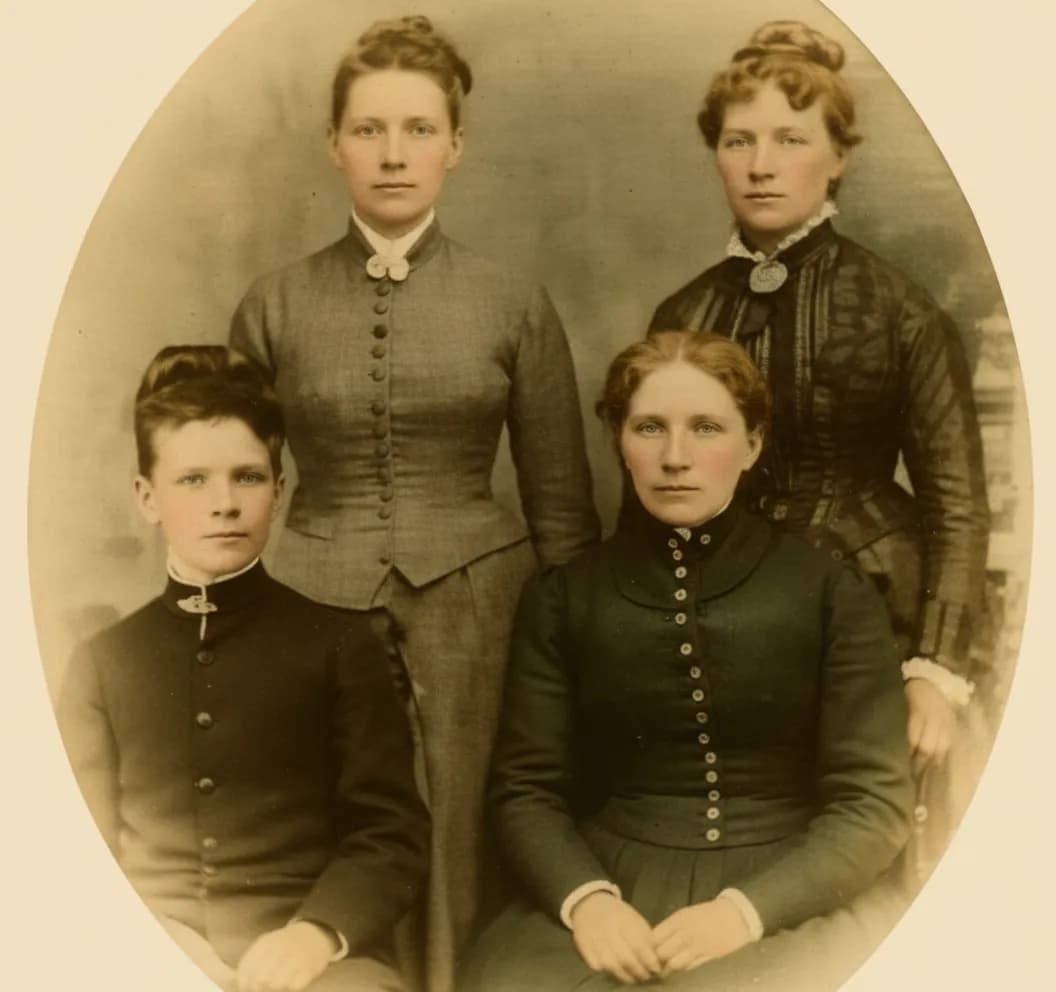
This guide walks you through how to restore old photos and photographs using five different approaches: AI tools, Photoshop, free software, your phone, and professional services. We cover step-by-step instructions, honest pros and cons, real costs, and tips for each method so you can pick the best one for your situation.
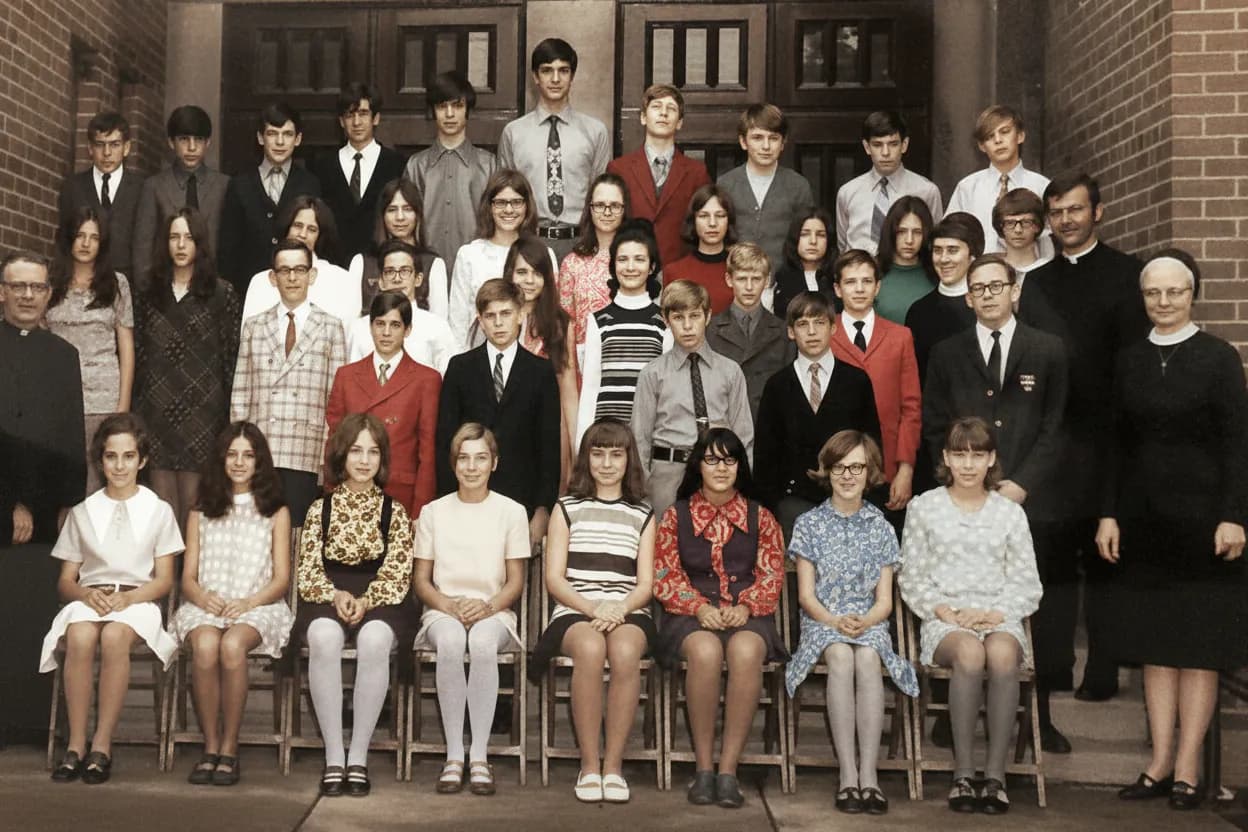
Whether you have one precious family portrait, a torn black and white photograph, or a shoebox full of faded pictures, you will find a method that works. The steps are the same whatever you call the thing you are saving — photo, picture, or photograph — and whatever era it comes from.
What causes old photographs to deteriorate
Before you restore anything, it helps to understand why photos degrade. Knowing the cause tells you how fixable the damage is.
Light exposure breaks down the chemical emulsion that forms the image. Colors fade, contrast drops, and details disappear. This happens faster with direct sunlight but even ambient room light degrades prints over decades.
Humidity and water cause stains, warping, and mold growth. Water leaves mineral deposits that cloud the image. Mold eats into the emulsion itself, causing permanent image loss.
Physical handling creates scratches, creases, fingerprints, and tears. Photos stored loose in boxes get the worst of this. Every time someone picks up a print, they risk bending it or leaving oils on the surface.
Chemical reactions in the print materials themselves cause yellowing and color shifts. Color prints from the 1960s–1980s are especially prone to this as the cyan, magenta, and yellow dye layers break down at different rates.
Poor storage accelerates all of the above. Attics (hot), basements (humid), and old albums with adhesive pages all damage photos faster.
Types of photo damage and what is actually fixable
Different types of damage have very different recovery rates. Here is what to expect:
 Photo by Suzy Hazelwood / Pexels
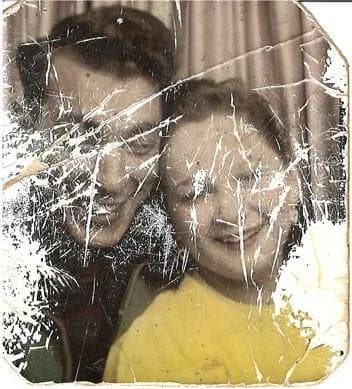
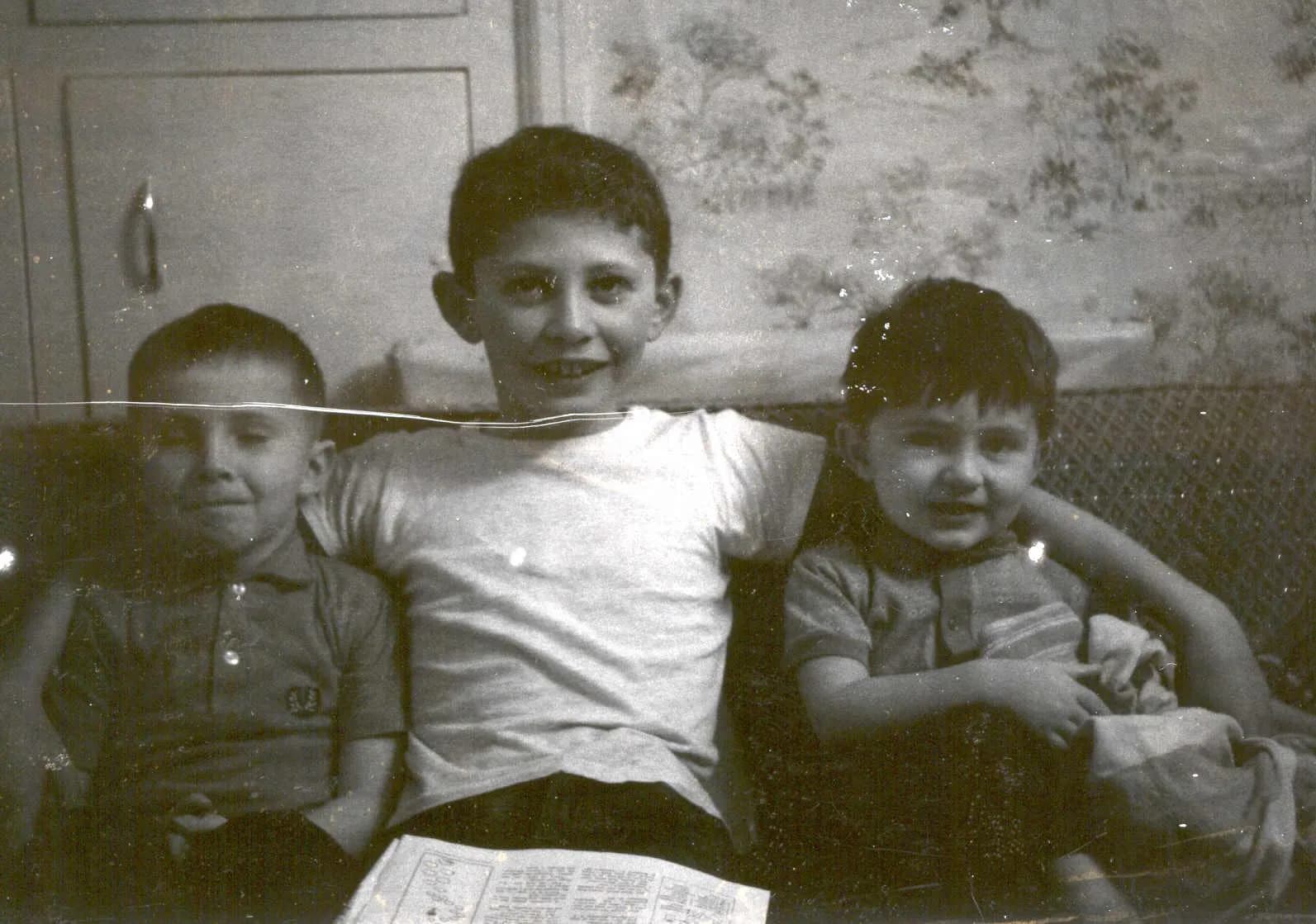
Surface damage (scratches, creases, dust spots) — The image underneath is intact. The damage sits on top of the photo. This is the easiest type to fix. AI tools handle it almost perfectly, and Photoshop's clone stamp works well too. Recovery rate: 95%+.
Fading and yellowing — The image data is weakened but still present. Silver gelatin prints lose contrast over decades. Color prints shift toward yellow and magenta as dyes break down. Both AI and Photoshop can recover faded old photos, though AI tends to produce more natural-looking color correction. Recovery rate: 85–95%.
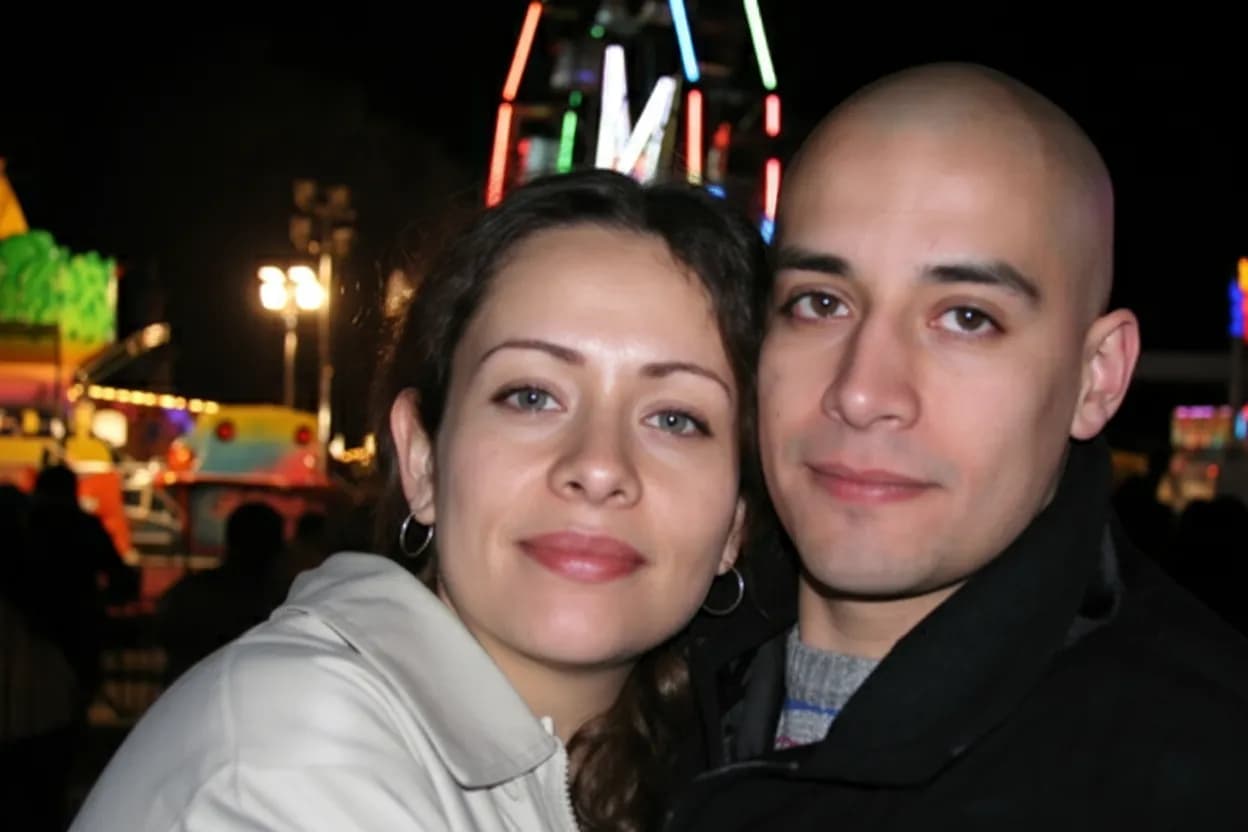
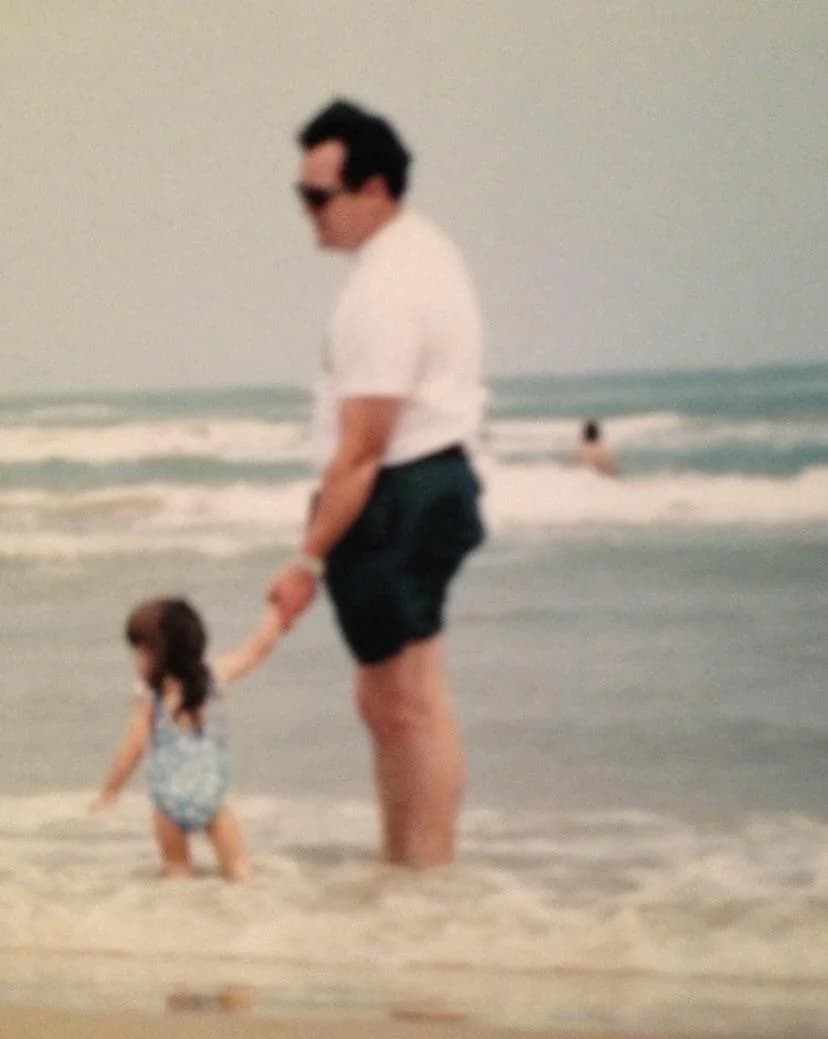
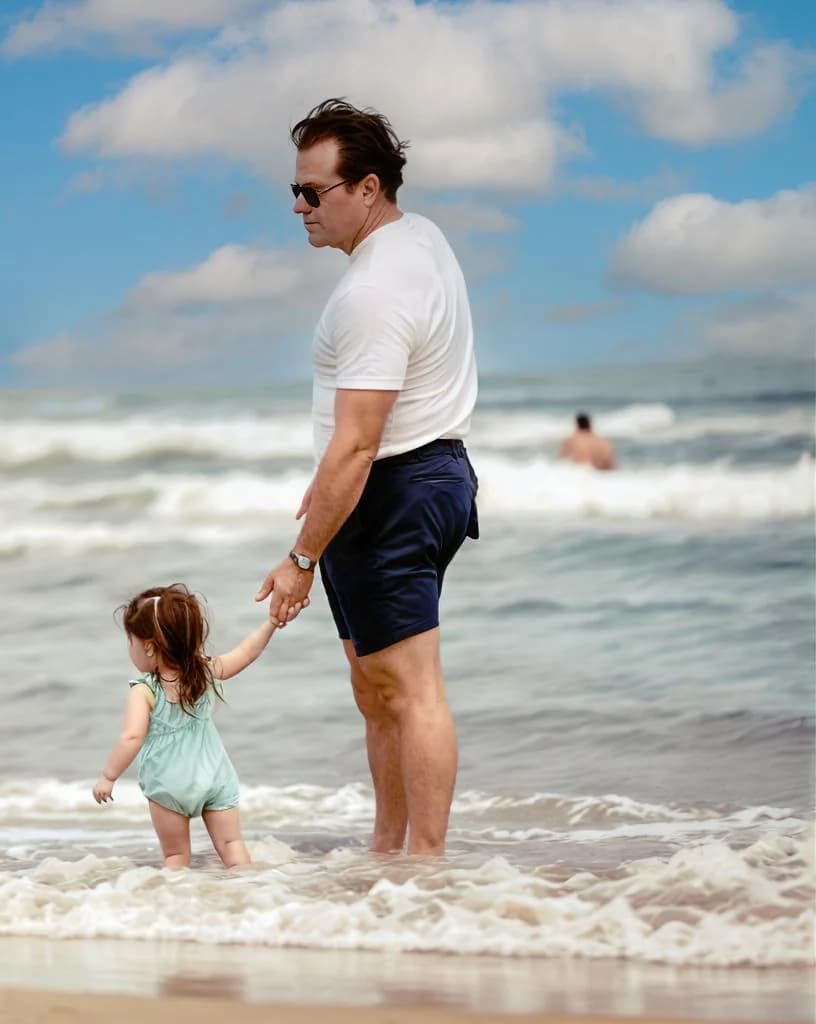
Blurriness and softness — Old photos often look blurry due to low-resolution cameras, camera shake, or degraded emulsion. AI upscaling and sharpening tools can restore old blurry photos to surprising clarity, especially faces. Recovery rate: 70–90% depending on how much detail remains.
Water damage (stains, warping, mold) — Water leaves mineral deposits that obscure parts of the image. AI tools can separate the stain pattern from the original photo and remove it. Severe water damage where mold has eaten into the emulsion is harder. Recovery rate: 60–90% depending on severity.
Physical destruction (tears, missing corners, holes) — The image data is physically gone. No tool can recover details that no longer exist. AI reconstructs what was plausibly there based on surrounding context. A professional restorer does the same thing manually. Recovery rate: 40–70%.
How to digitize old photos for restoration
The quality of your restoration depends entirely on the quality of your scan. Garbage in, garbage out.
 Photo by Skylar Kang / Pexels
Option A: Flatbed scanner (best quality)
A flatbed scanner produces the highest quality digitization. If you are serious about restoring old family photos, this is the way to go.
- Scan at 600 DPI minimum. 300 DPI is fine for viewing on screen, but 600 DPI gives restoration tools much more detail to work with. For small prints (wallet size), scan at 1200 DPI.
- Scan in color mode, even for black-and-white photos. The tonal information in color scans helps AI tools distinguish between damage and original image data.
- Do not use auto-correction features in the scanner software. Scan the raw image. You want the restoration tool (not the scanner) to make corrections.
- Clean the scanner glass before every session. Dust on the glass shows up as spots on every scan.
- Scan each photo individually. Do not batch multiple prints on the glass at once — it makes cropping harder and can confuse AI tools.
Option B: Photograph prints with your phone
No scanner? A modern smartphone camera captures enough detail for good restoration results.
- Shoot in bright, even, natural light near a window. Overcast days work best — no harsh shadows.
- Hold the phone directly above the print, parallel to the surface. Shooting at an angle creates distortion.
- Avoid flash — it creates glare spots that look like additional damage to the AI.
- Use your phone's built-in document scanner (Google PhotoScan, Apple Notes scanner) for automatic cropping and perspective correction.
- For small or heavily damaged prints, use macro mode if your phone has it.
Scanning tips for damaged photos
- Do not flatten curled photos by force. Place a clean sheet of glass over the photo on the scanner bed. This flattens it gently without cracking.
- Scan torn pieces separately, then stitch them together digitally before restoration.
- Leave borders and edges in the scan. Do not crop tightly. The AI uses context from the full image, including edges.
Method 1: Restore old photos with AI (fastest)
AI restoration is the fastest and easiest way to restore old photos. No editing skills needed. Upload a photo, wait 30 seconds, download the result.
How AI photo restoration works
AI models are trained on millions of photographs from every era. They learn what undamaged photos look like, how different types of prints degrade over time, and what patterns constitute damage versus original image content.
When you upload a damaged photo, the AI:
- Identifies the damage type (scratches, fading, tears, noise)
- Separates damage from the original image
- Reconstructs the clean image underneath
- Sharpens faces and enhances details
- Corrects color balance and contrast
The entire process takes about 30 seconds. Tools like RestorePhotos handle all of this in a single pass.
Best for
- Faded family portraits where faces need to be clear again
- Scratched and creased photos from old albums or shoeboxes
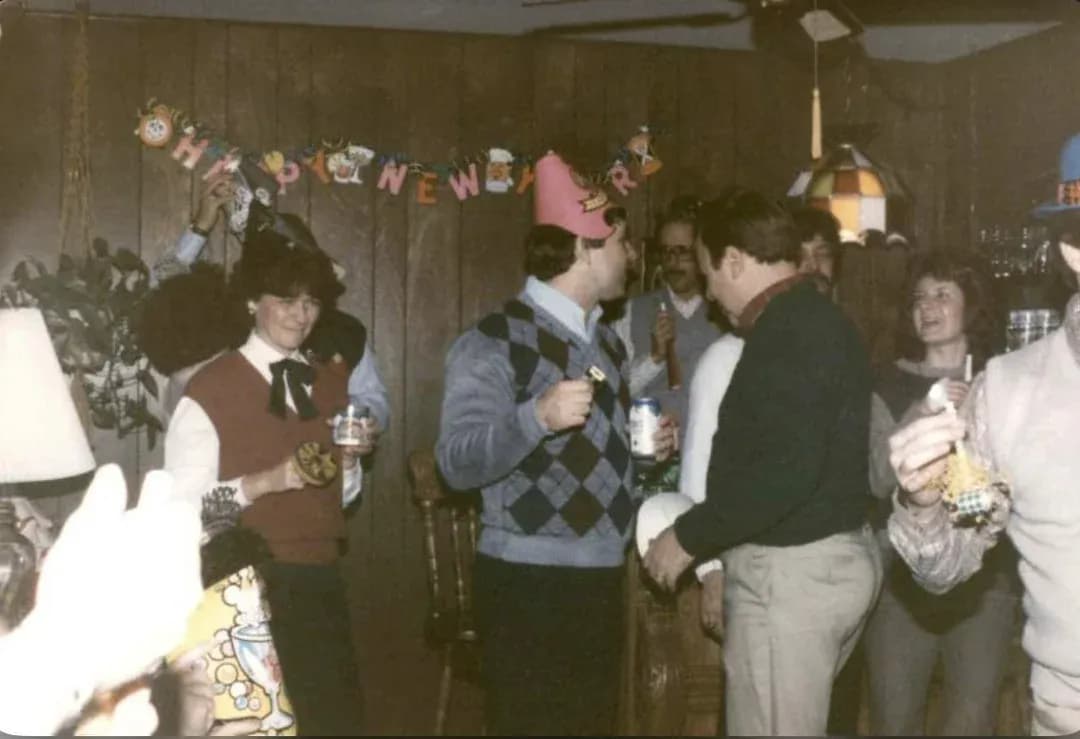
- Yellowed color photos from the 1970s–1990s
- Old blurry photos that need sharpening
- Large batches (dozens or hundreds of photos to restore)
- People who have never used photo editing software
Tips for better AI results
- Upload the highest quality scan you have — 600 DPI scans produce noticeably better results than phone photos.
- Upload the full image — do not crop before restoration. The AI uses context from the entire photo to understand what is damage and what is image.
- Run two passes on severely damaged photos — restore once, download the result, then upload and restore that result again. The second pass catches details the first missed.
- Restore damage first, then colorize — if your photo is black and white, fix scratches and fading first with restoration mode, then run the clean result through AI colorization. Doing it in this order produces cleaner colors.
- Try different tools for comparison — results vary between AI services. Test your most important photo on 2-3 tools before committing to one.
Cost
Most AI restoration tools charge $0.10 to $0.50 per photo. RestorePhotos offers 2 free restorations per account (no credit card required), then credit packs starting at $4.99 for 10 photos. Compare that to $50–$150 per photo at a professional restoration shop.
Limitations
- Cannot recover details that are completely destroyed (large missing sections, burned areas)
- May smooth over very fine textures like fabric weave in extreme enhancement cases
- Works best when damage covers less than 40% of the image area
Method 2: Restore old photos in Photoshop
Adobe Photoshop gives you pixel-level control. It is the professional standard for photo restoration, but requires real skill and significant time per photo.
Key Photoshop tools for photo restoration
- Clone Stamp Tool — copies pixels from an undamaged area to paint over scratches and tears. Your most-used tool for restoration.
- Healing Brush — blends damaged areas with surrounding pixels. Good for dust spots and small scratches.
- Content-Aware Fill — automatically fills selected areas based on surrounding content. Useful for removing stains and filling small gaps.
- Curves and Levels — corrects fading, adjusts contrast, and fixes color casts. Essential for restoring old faded photos.
- Camera Raw Filter — adjusts exposure, white balance, highlights, shadows, and clarity in one panel.
- Neural Filters > Photo Restoration — Photoshop's built-in AI restoration (added in 2023). Good for a first pass before manual work.
Step-by-step Photoshop restoration workflow
- Open your scan. Duplicate the background layer (never edit the original layer).
- Use Curves to fix overall exposure and contrast.
- Use Hue/Saturation to correct yellowing and color casts.
- Switch to the Healing Brush and remove dust spots and small scratches.
- Use the Clone Stamp for larger damage areas like creases and tears.
- Use Content-Aware Fill for missing corners or large stains.
- Apply selective sharpening (Unsharp Mask) to faces and important details.
- Final pass: zoom to 100% and check for any remaining artifacts.
Best for
- Photographers and designers who already know Photoshop
- Photos that need very specific, targeted fixes in one area
- Cases where AI produces artifacts you want to manually correct
- Creative restorations where you want artistic control over every detail
Limitations
- Steep learning curve for beginners (weeks to become proficient)
- Takes 30 minutes to 4 hours per photo depending on damage severity
- Requires a Photoshop subscription ($22.99/month)
- Results depend entirely on your skill level
When to combine AI + Photoshop
The practical workflow for heavily damaged photos: run AI restoration first to fix 90% of the damage automatically, then open the result in Photoshop to manually fix any remaining issues. This hybrid approach saves hours compared to doing everything manually while giving you full control over the final result.
Method 3: Restore old photos without Photoshop (free alternatives)
You do not need expensive software to restore old photos digitally. Several free tools produce good results.
GIMP (desktop — free, open source)
GIMP is the closest free alternative to Photoshop. It has clone stamp, healing, curves, and layer support. The interface is less polished than Photoshop, but it can do everything needed for basic to intermediate photo restoration. Download it from gimp.org.
Snapseed (mobile — free)
Google's Snapseed is the best free photo editing app for restoration work on your phone. The Healing tool removes scratches and spots. Tune Image adjusts brightness, contrast, and color. The Details tool sharpens soft areas. Available for both iPhone and Android.
Paint.NET (Windows — free)
A simpler alternative to GIMP with a cleaner interface. Has clone stamp, blur/sharpen tools, and basic layer support. Good enough for light restoration work like removing dust spots and correcting fading.
Canva (web — free tier)
Canva's free tier includes basic photo editing tools and some AI enhancement features. Not designed specifically for restoration, but can handle simple fixes like brightness correction and minor blemish removal.
Method 4: Restore old photos on iPhone and Android
 Photo by cottonbro studio / Pexels
You can restore old photos directly on your phone without a computer. Here is how:
iPhone workflow
- Scan the photo using the Notes app camera (tap +, then Scan Documents) or download Google PhotoScan for better results with glossy prints.
- Upload to an AI restoration tool like RestorePhotos in Safari. The web app works fully on mobile.
- Fine-tune in Snapseed if needed — adjust sharpness, fix remaining blemishes, or crop.
- Save to Photos app and enable iCloud Photos to back up automatically.
Android workflow
- Scan with Google PhotoScan (captures multiple angles to remove glare) or use your camera in document mode.
- Upload to an AI restoration tool in Chrome.
- Fine-tune in Snapseed (available on Google Play).
- Save and back up to Google Photos.
Phone vs. computer: which is better?
For quick restorations of lightly damaged photos, your phone is perfectly fine. For severely damaged photos or when you need maximum quality, scanning with a flatbed scanner and using desktop tools gives better results.
Method 5: Professional restoration services
Professional restorers are trained artists who manually repair photos using digital tools and artistic judgment.
Best for
- Museum-grade archival restorations
- Photos with extreme damage (large missing sections, fire damage)
- Irreplaceable originals where you want a human checking every detail
- Historical photos requiring period-accurate reconstruction
Where to find professional restoration services
- Local photo labs and print shops
- Dedicated restoration studios (search "photo restoration near me")
- Freelance restorers on Fiverr or Upwork (quality varies, check reviews and portfolios)
- Some pharmacy chains (Walgreens, CVS) offer basic restoration services — though quality is limited compared to dedicated specialists
Limitations
- Cost: $50 to $150+ per photo (complex restorations can exceed $300)
- Turnaround: 1 to 4 weeks per photo
- Quality varies wildly between providers — always ask for sample work
- Not practical for large collections
Side-by-side comparison: all methods
| Factor | AI tools | Photoshop | Free software | Phone apps | Professional | |--------|----------|-----------|---------------|------------|-------------| | Cost per photo | $0.10 – $0.50 | $0 (with sub) | Free | Free | $50 – $150+ | | Time per photo | 30 seconds | 30 min – 4 hrs | 30 min – 2 hrs | 5 – 15 min | 1 – 4 weeks | | Skill needed | None | Advanced | Intermediate | Beginner | N/A | | Best damage type | All common types | Specific targeted fixes | Light damage | Light damage | Severe destruction | | Batch capability | Yes (hundreds) | No | No | No | No | | Quality ceiling | Very high | Highest | Medium | Medium | Very high |
How to restore old black and white photos
Black-and-white photos have two separate restoration needs: fixing damage and adding color.
Step 1: Fix damage first
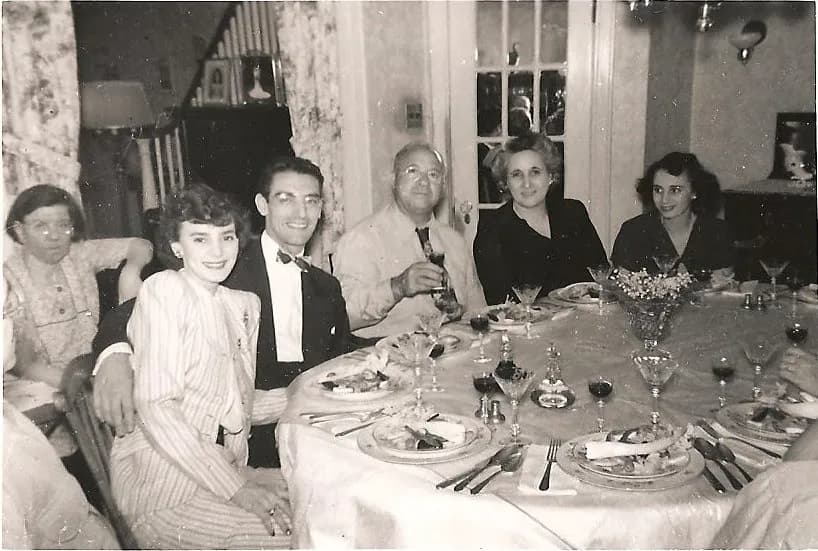
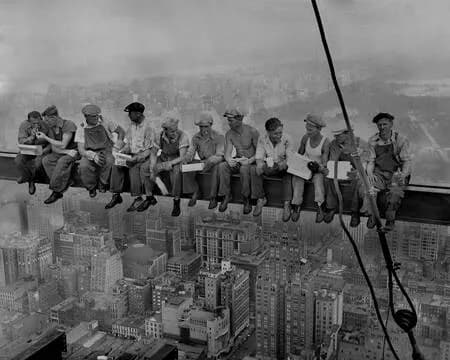
Always restore scratches, fading, tears, and stains before doing anything else. Use AI restoration or Photoshop to get a clean black-and-white image. Trying to colorize a damaged photo produces poor results — the AI confuses damage artifacts with image content.
Step 2: Colorize (optional)
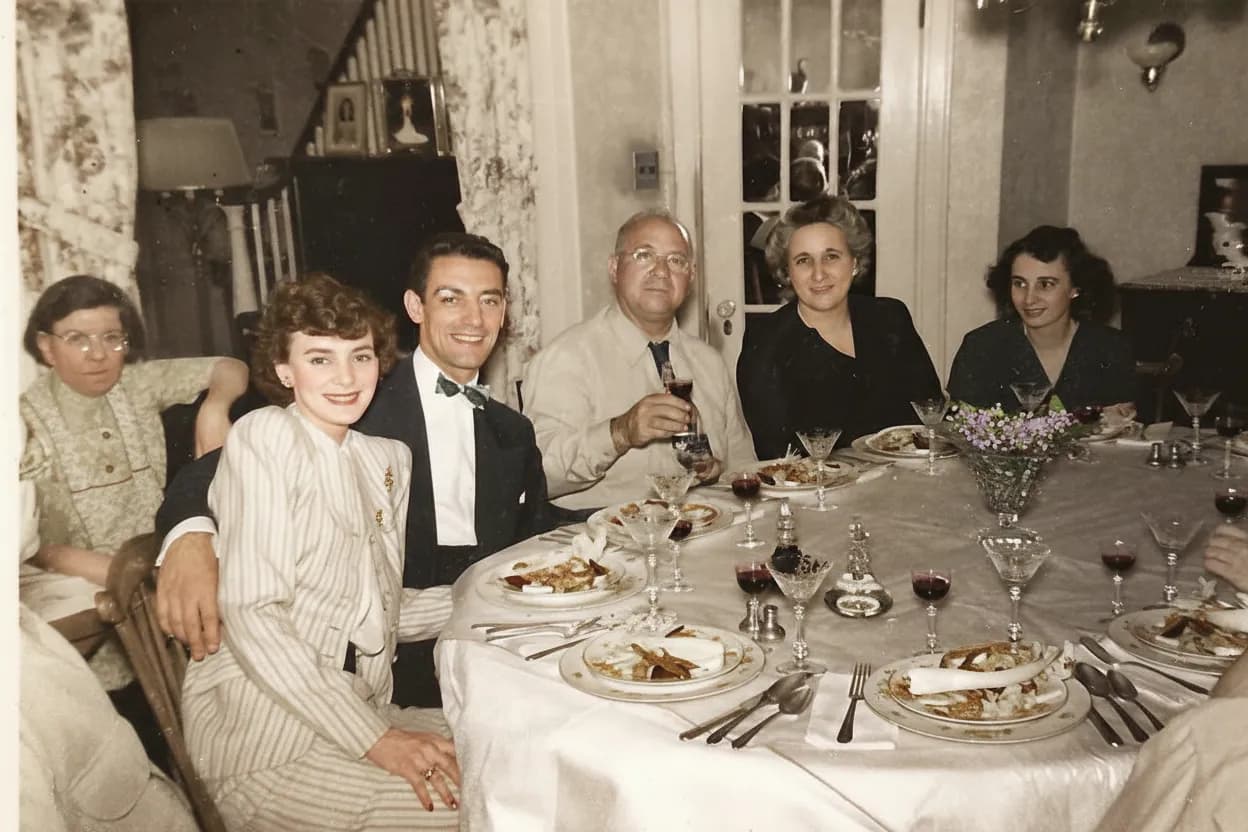
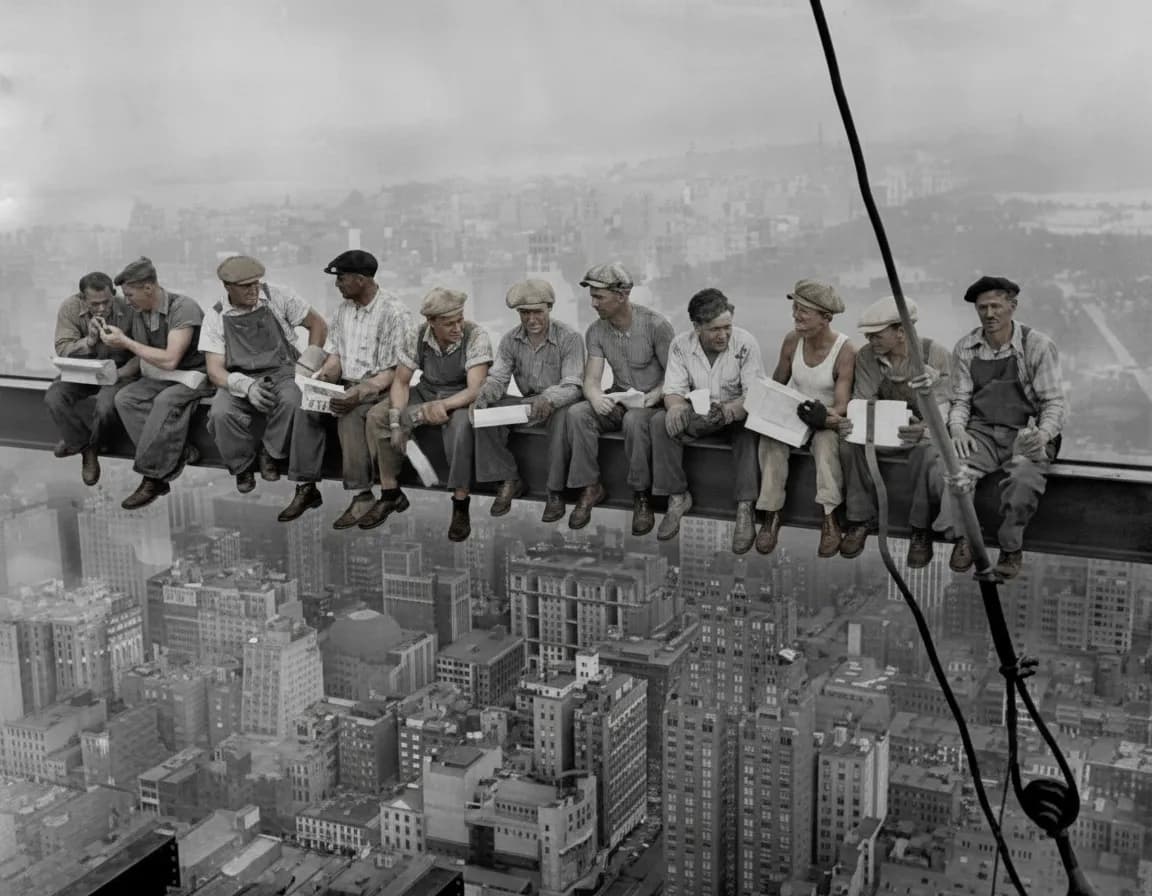
Once the photo is clean, you can add realistic color using AI colorization. The AI analyzes the scene content — skin tones, sky, foliage, clothing — and applies historically plausible colors.
For best results:
- Start with the highest-resolution clean scan you have
- Restore damage first, colorize second
- If the AI gets a color wrong (like a red dress that should be blue), some tools let you provide hints
Colorization is optional. Many people prefer the original black-and-white look, especially for historical family photos.
How to restore a picture step by step (complete workflow)
Here is the complete workflow that works for any restoration method:
 Photo by Anton Zhuk / Pexels
Step 1: Digitize — Scan at 600 DPI with a flatbed scanner, or photograph the print with your phone in good natural light. Save as TIFF or high-quality JPEG.
Step 2: Assess the damage — Look at the photo and categorize the damage:
- Fading only? → AI restoration (one pass)
- Scratches and creases? → AI restoration handles these well
- Water stains? → AI restoration, may need two passes
- Tears or missing sections? → AI for small gaps, professional for large ones
- Multiple damage types? → Start with AI, refine in Photoshop if needed
Step 3: Restore — Use the method that matches your damage type, skill level, and budget. For most old family photos, AI restoration is the best starting point.
Step 4: Enhance — After restoration, optionally enhance the photo: increase resolution, sharpen faces, correct color balance.
Step 5: Colorize (if B&W) — Run the restored black-and-white photo through AI colorization for natural color.
Step 6: Save and back up — Save the restored photo in at least two locations: cloud storage (Google Drive, iCloud, Dropbox) plus a local external drive or USB stick.
Common mistakes when restoring old photographs
Over-sharpening — Pushing sharpening too high creates halos and artifacts around edges. A slightly soft photo looks more natural than an over-processed one.
Over-smoothing faces — Some AI tools and Photoshop filters smooth skin so aggressively that people look plastic. If this happens, dial back the enhancement intensity or use a different tool.
Cropping before restoration — Always restore the full image first. AI tools use context from the entire photo to understand what is damage vs. image. Cropping removes that context.
Editing the original file — Always work on a copy. Keep the original scan untouched so you can try again with a different method or better tool in the future.
Skipping the backup — The entire point of digital restoration is creating a permanent record. One copy on one device is not a backup. Use cloud storage plus a physical drive.
Trying to restore from a printed copy of a copy — Each generation of printing loses quality. Go back to the oldest available print or negative for the best starting point.
How to preserve photos after restoration
Once restored, protect both the digital files and any remaining physical prints.
 Photo by fish socks / Pexels
Digital preservation
- Save restored files in TIFF format (lossless) for archival and JPEG for sharing
- Store copies in at least two locations: cloud storage + external drive
- Use descriptive file names:
1965-grandparents-wedding-restored.tiffnotIMG_4523_restored.jpg - Add metadata (date, names, location) while you still remember who is in the photos
Physical print preservation
- Store original prints in acid-free sleeves or archival photo boxes
- Keep them in a cool, dry, dark place (not attics or basements)
- Handle prints by the edges only — fingerprint oils damage the emulsion
- Never use albums with adhesive pages or magnetic sheets
How much does it cost to restore old photos?
| Method | Cost per photo | Best for | |--------|---------------|----------| | AI tools (e.g., RestorePhotos) | $0.10 – $0.50 | Most family photos | | Free tools (GIMP, Snapseed) | $0 | Light damage, if you have skills | | Photoshop | $0 per photo ($22.99/month subscription) | Complex targeted edits | | Professional restoration | $50 – $150+ | Severe damage, archival work |
For most people with typical old family photos — fading, scratches, yellowing — AI restoration offers the best value. You can test it for free with 2 complimentary restorations, no credit card required.
Can you restore old pictures without the negatives?
A common worry: the negatives are long gone, so is the print all you have? Good news — negatives are not needed at all. Every method in this guide works from a scan or phone photo of the print itself. The print is the source.
If you do still have negatives or slides, they are actually a bonus: film holds more detail than the prints made from it. Scan them with a film scanner (or a phone adapter), then restore the scanned image the same way you would restore a print. We cover the specifics in our guides to restoring photo negatives and restoring 35mm slides.
Frequently asked questions
How do I restore old photos for free?
RestorePhotos offers 2 free AI restorations per account with no credit card required. For a fully free manual approach, GIMP (free Photoshop alternative) can do restoration work, but requires editing skills. Snapseed on your phone handles basic fixes for free.
Can severely damaged photos be restored?
Yes, but results depend on the type and extent of damage. Fading, scratches, and yellowing can be restored to near-original quality. Photos with large missing sections or severe physical destruction can be improved, but some details will be reconstructed by AI rather than recovered from the original. For extreme cases, consider a professional restorer.
Is AI photo restoration as good as professional restoration?
For roughly 90% of typical old family photos — fading, scratches, yellowing, minor water damage — AI produces results that are comparable to professional work. For extreme cases (large tears, missing faces, museum-grade archival requirements), a skilled human restorer still has an edge because they can apply artistic judgment to reconstructed areas.
What is the best app to restore old photos?
For AI-powered restoration that requires no editing skills, RestorePhotos works in any browser on phone or desktop. For manual editing on your phone, Snapseed (free, iOS and Android) is the best option. For desktop manual editing, Adobe Photoshop is the professional standard and GIMP is the best free alternative.
How long does photo restoration take?
AI restoration takes about 30 seconds per photo. Manual Photoshop restoration takes 30 minutes to 4 hours depending on damage severity and your skill level. Professional restoration services typically have a 1 to 4 week turnaround per photo.
How do I restore old photos without Photoshop?
Use AI restoration tools like RestorePhotos for one-click repair, GIMP (free, open source) for manual editing, or Snapseed on your phone for quick fixes. AI tools produce the best results for most common types of damage without requiring any editing skills.
Can I restore old photos on my iPhone?
Yes. Scan the photo using the Notes app or Google PhotoScan, then upload it to an AI restoration web app like RestorePhotos in Safari. For additional manual edits, use Snapseed (free from the App Store). The entire process can be done on your phone.
How do I restore old black and white photos?
First, fix any damage (scratches, fading, tears) using AI restoration. Then, optionally add realistic color using AI colorization. Always restore damage first and colorize second — this order produces much better results.
Should I restore the original print or a digital copy?
Always work with a digital copy. Never alter the physical original. Scan or photograph the print first, then restore the digital file. Keep the original print stored safely in an acid-free sleeve as a historical artifact.
How do I restore an old photograph?
Digitize it first (scan at 600 DPI or photograph it with your phone in good light), then upload the digital copy to an AI restoration tool. The AI repairs fading, scratches, creases, and blurry faces automatically in about 30 seconds. For old photographs with large missing sections, combine AI restoration with manual Photoshop work or a professional service.
Can a torn picture be repaired?
Yes, in most cases. If you still have all the pieces, scan them together in position and AI restoration can digitally rejoin small and moderate tears. Large missing areas are harder: the AI reconstructs plausible detail, but a professional restorer gives you more control over what fills the gap. See our dedicated guide to restoring torn photos.
How do I restore old family photos that are falling apart?
Handle fragile photos carefully — do not try to unfold or flatten them by force. Scan each piece individually on a flatbed scanner with a sheet of clean glass gently placed on top. If the photo is in multiple torn pieces, scan each piece separately and stitch them together digitally before running AI restoration. For extremely fragile prints, consider having a local photo lab digitize them for you.
Keep reading