On this page
Why family photos fade, and why now is the time to fix them
Every year your family photos lose a little more. Sunlight bleaches colors. Humidity makes the paper warp and stick together. The acid in cheap photo paper slowly eats the image from inside. A photo that looked fine 10 years ago already looks worse today, and in another 10 years it will be worse still. AI restoration creates a permanent digital copy that stops the clock. Once the photo is restored and saved digitally, it can never fade, scratch, or yellow again. The original print is still aging in the shoebox, but now you have a version that looks the way it did in 1975.
- Stop the damage before prints fade beyond recovery
- Create digital copies that never scratch, yellow, or stick together
- Share restored photos with relatives across the world instantly
- Print restored versions on archival paper that lasts 100+ years
- Build a family photo archive for future generations
What to expect
Which family photos can be restored, and what to expect
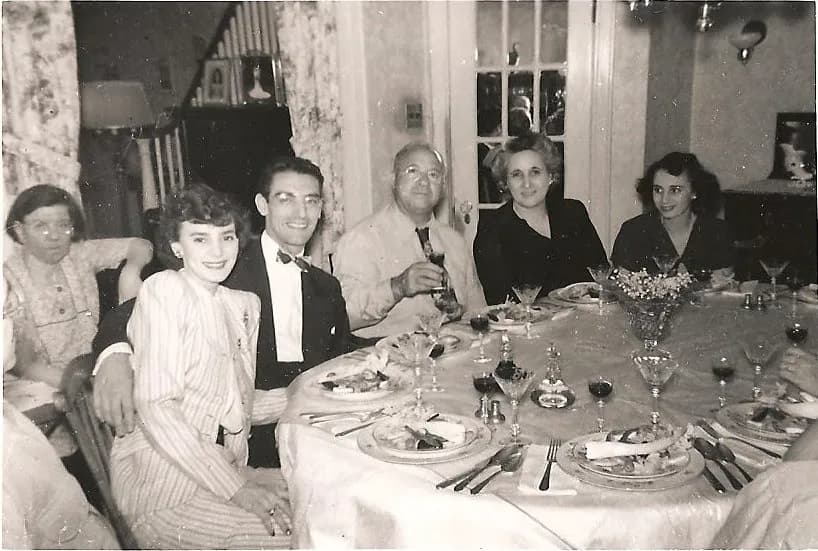
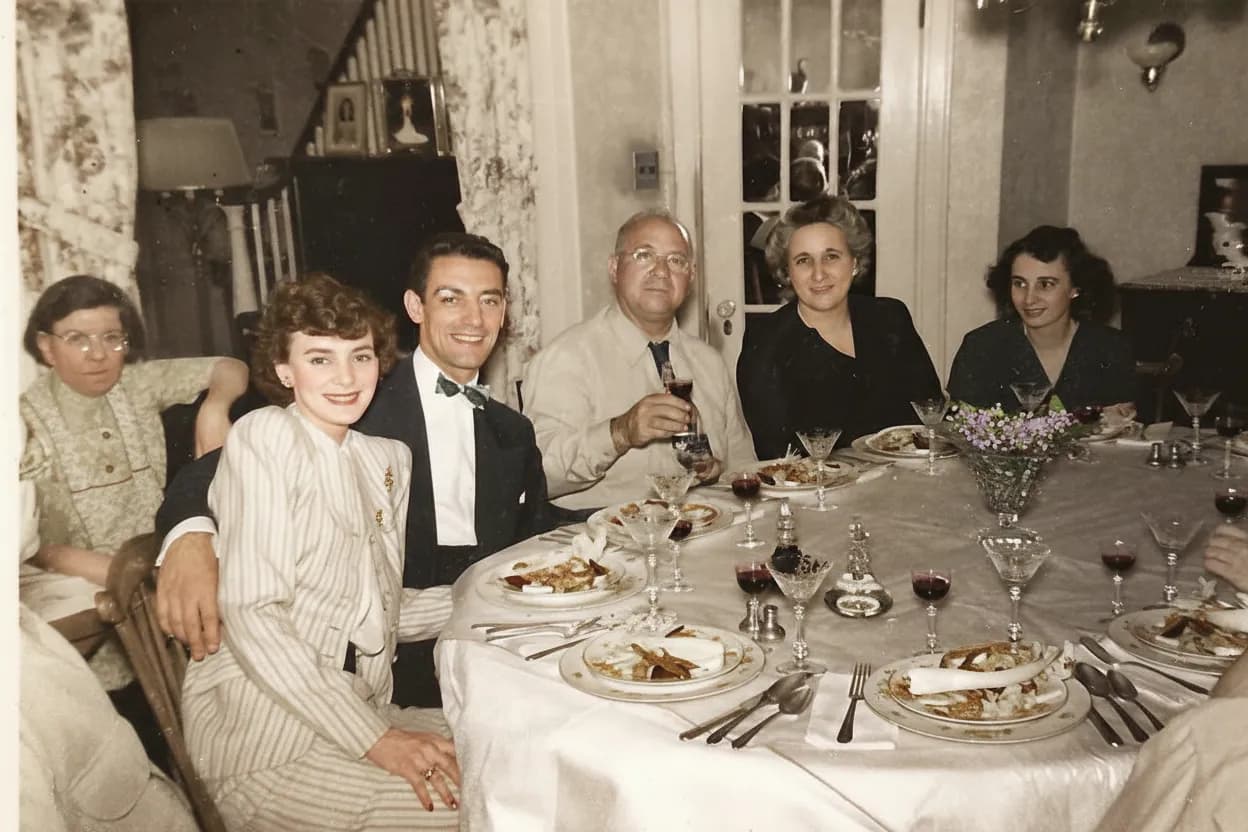
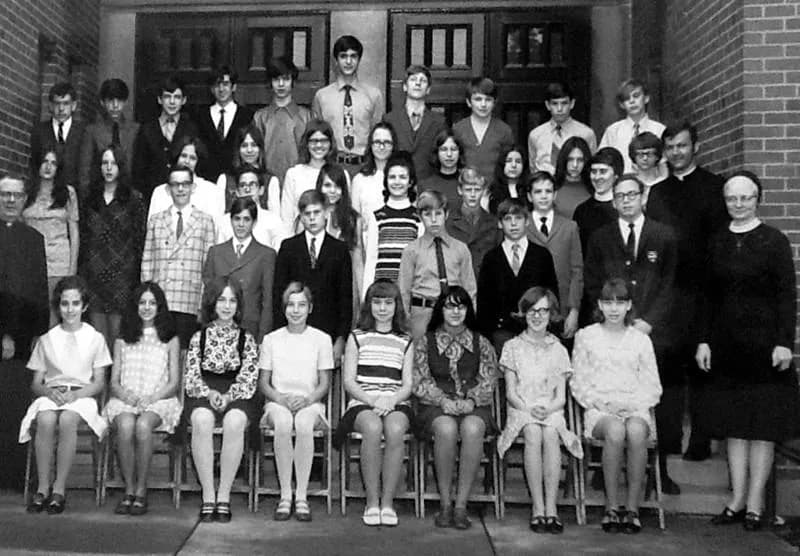
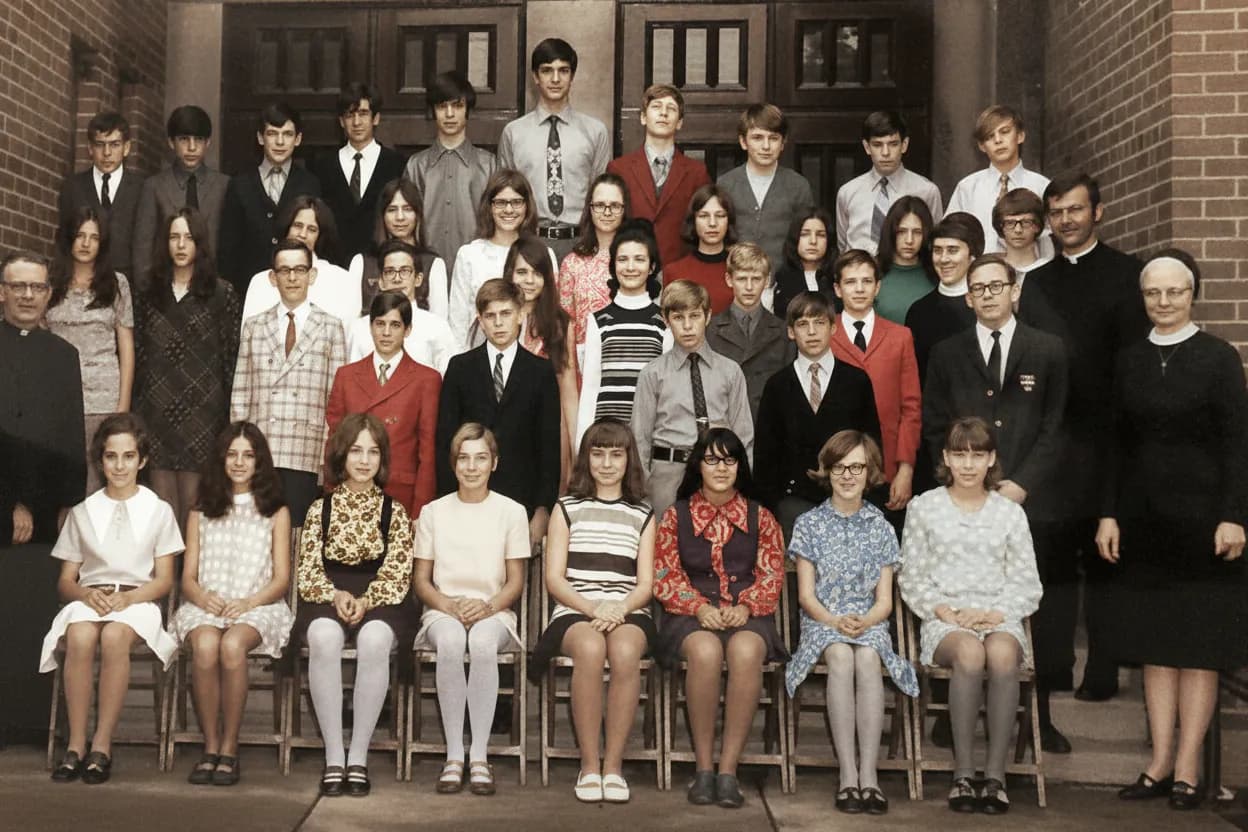
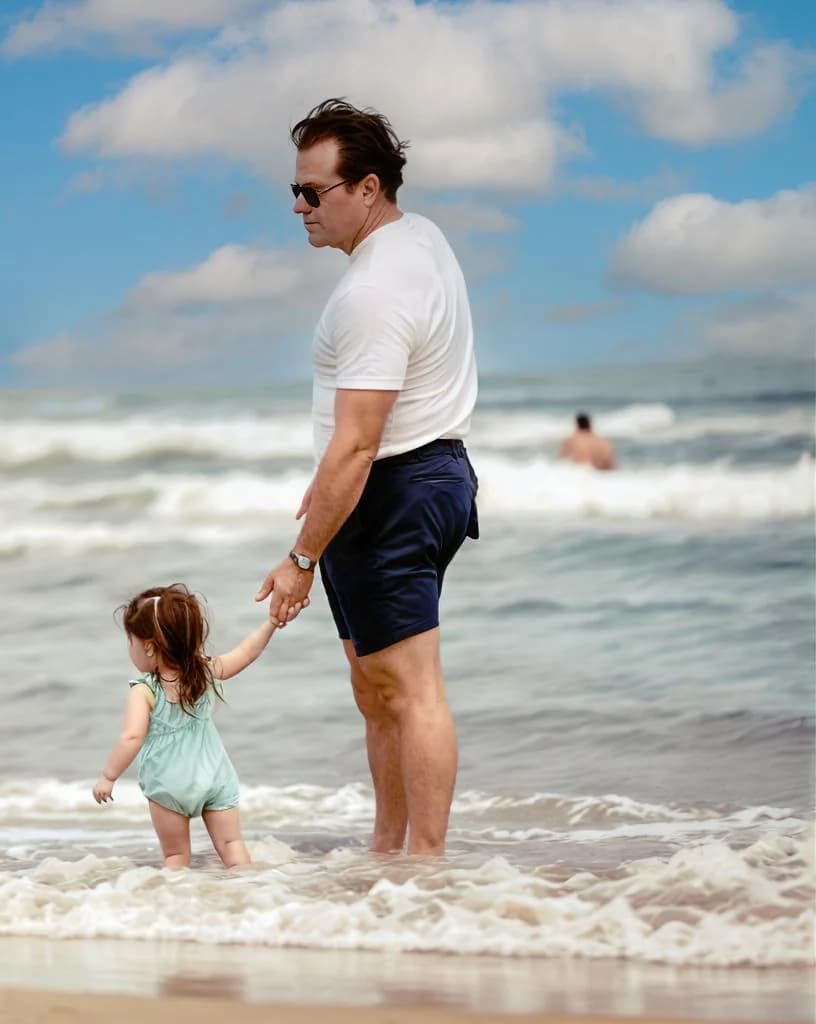
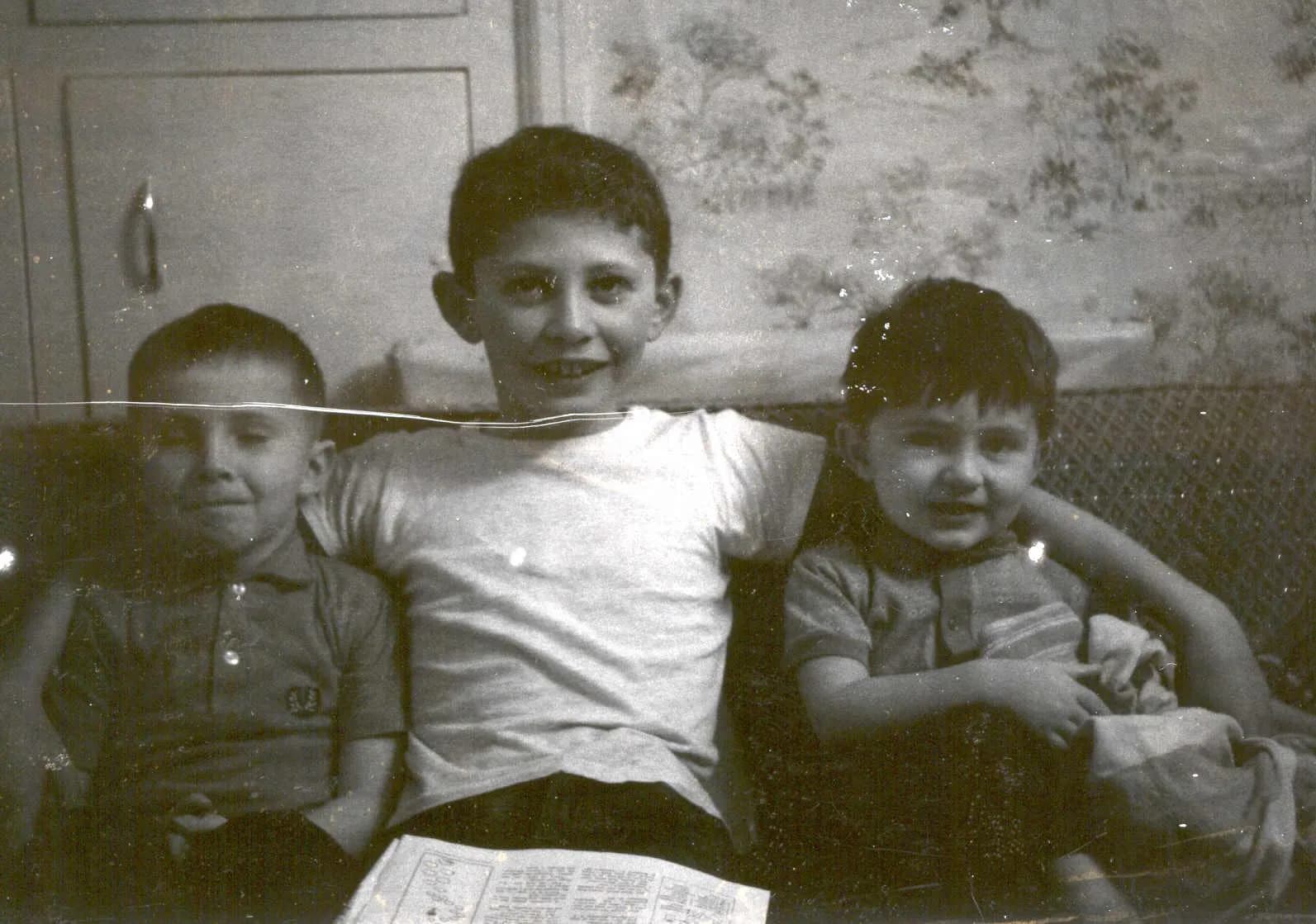
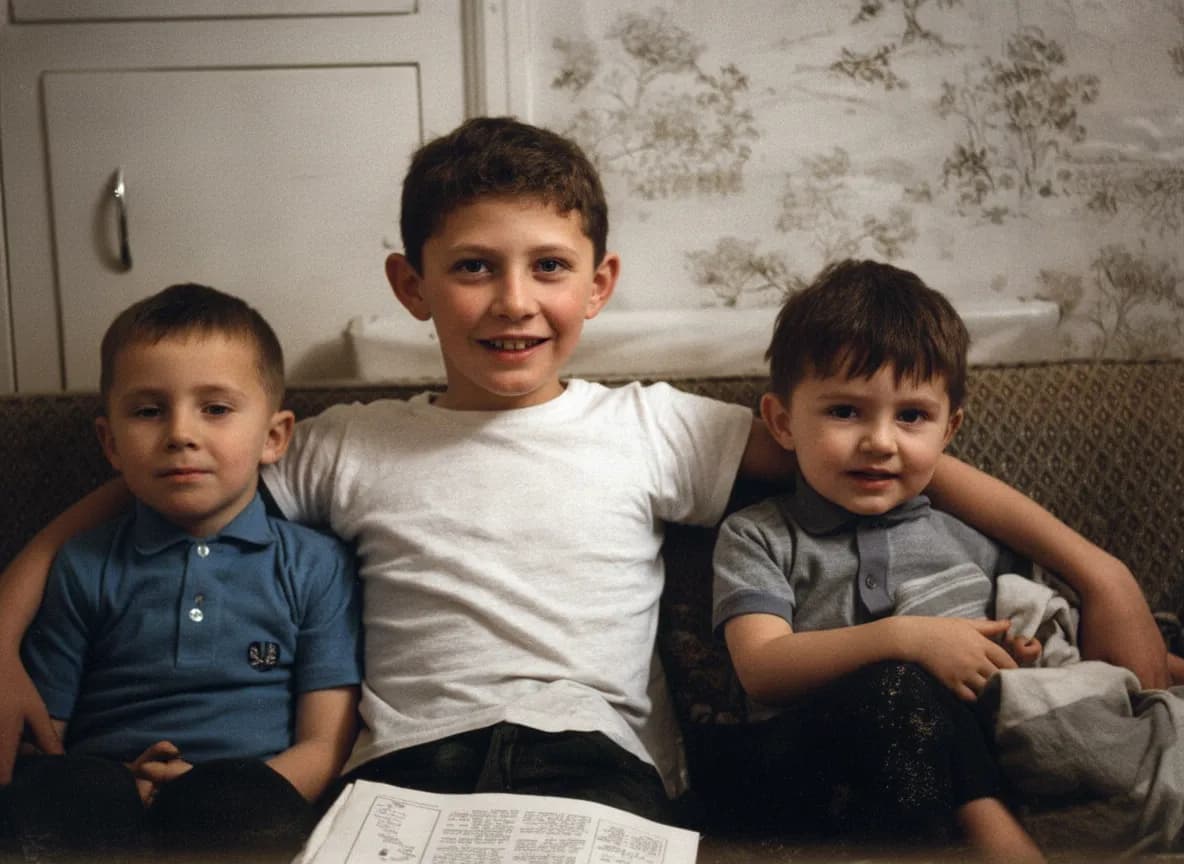
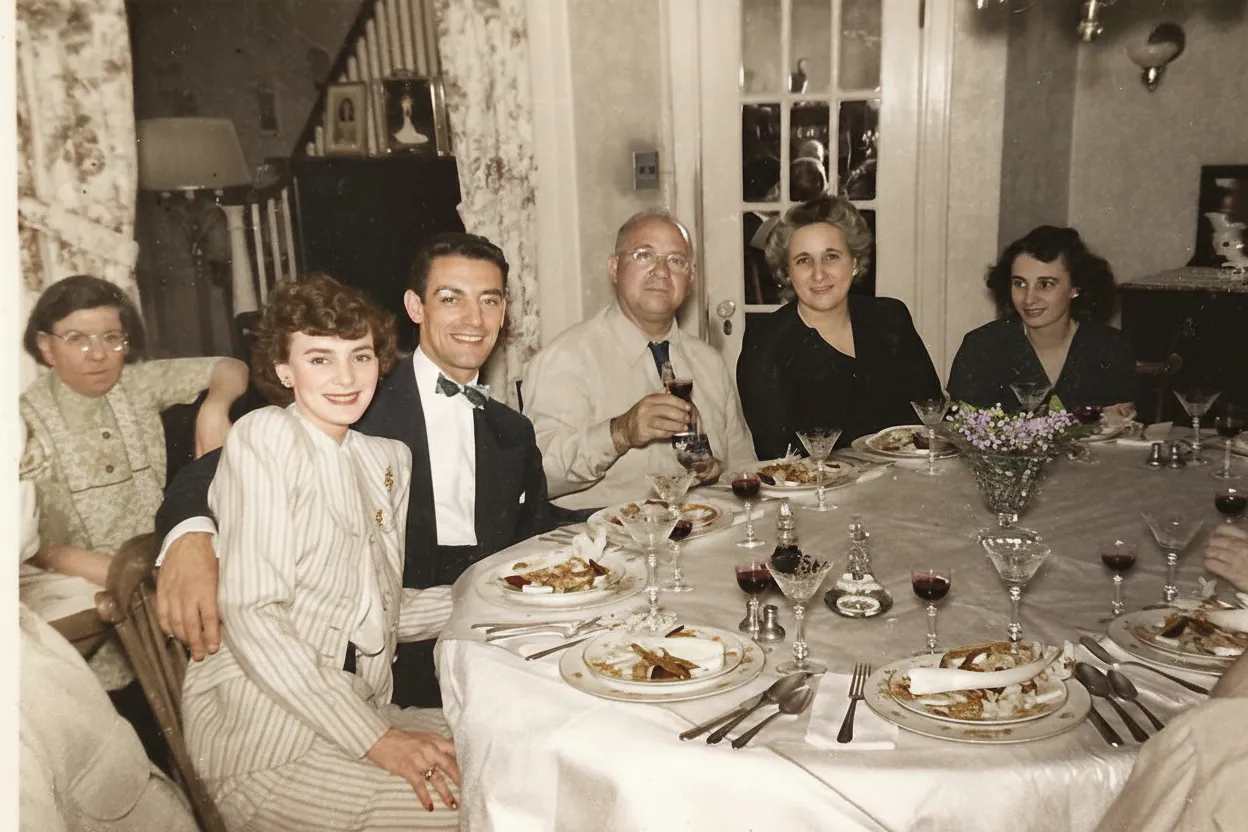
Faded portraits and group photos. This is 80% of family photo restoration. The photo is intact but the colors have shifted to yellow, orange, or pink and the faces look washed out. AI handles this perfectly. Expect the colors to come back to natural and faces to sharpen dramatically. This is the easiest kind of restoration and the results are consistently excellent.
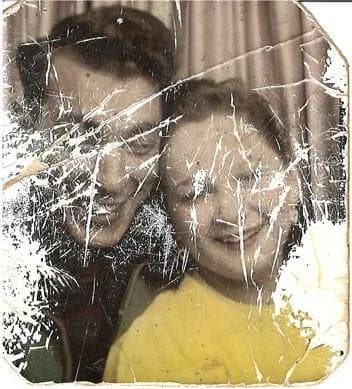
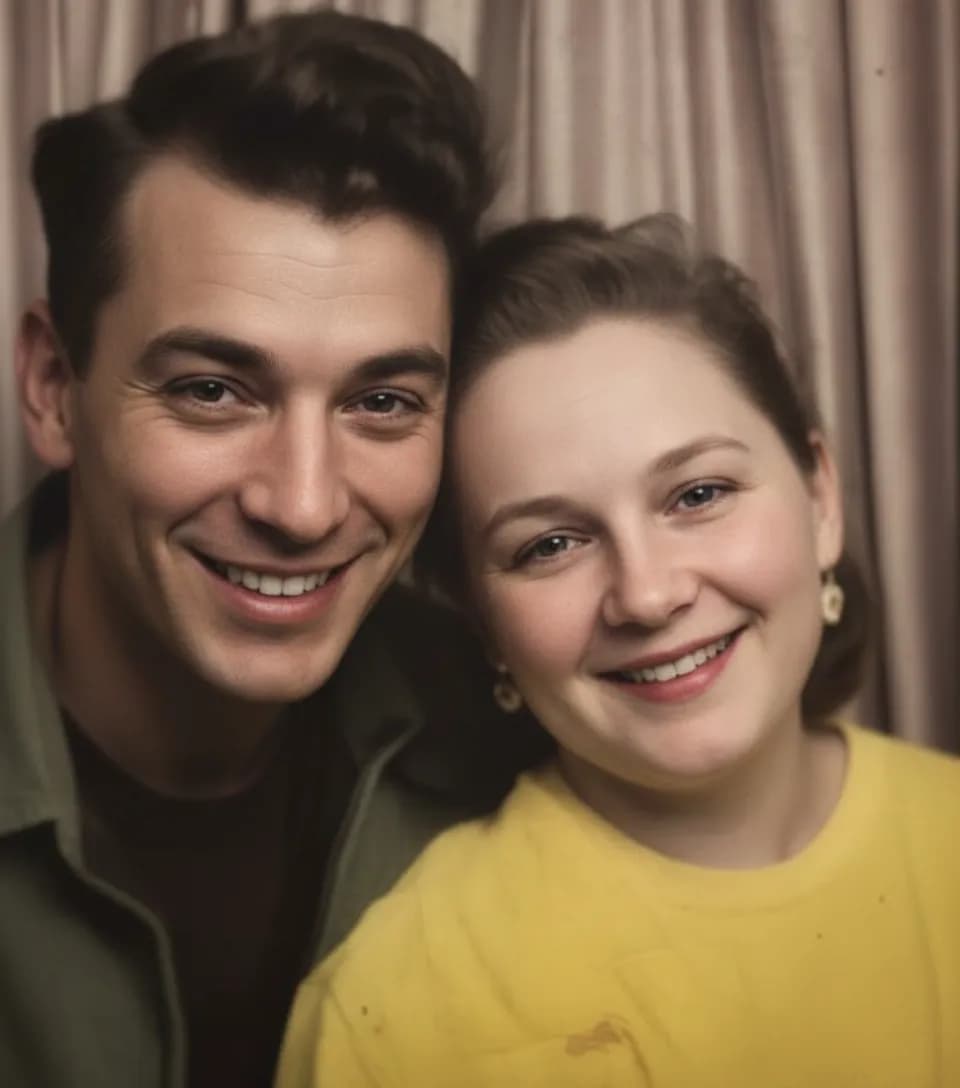
Scratched and creased photos from handling. Photos carried in wallets, stacked in shoeboxes, or pulled from sticky albums always have scratches and creases. The AI lifts scratches off faces, clothing, and backgrounds and rebuilds what was underneath. For best results, run "Restore" first to fix fading, then "Repair" to remove physical damage.
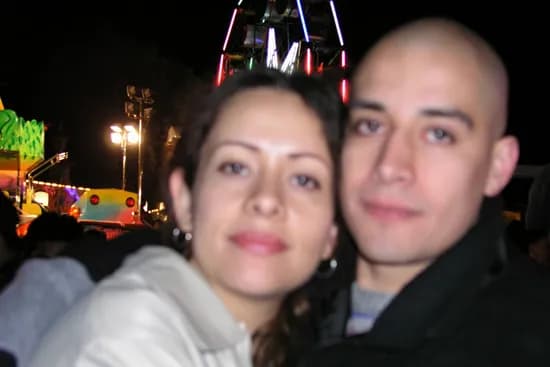
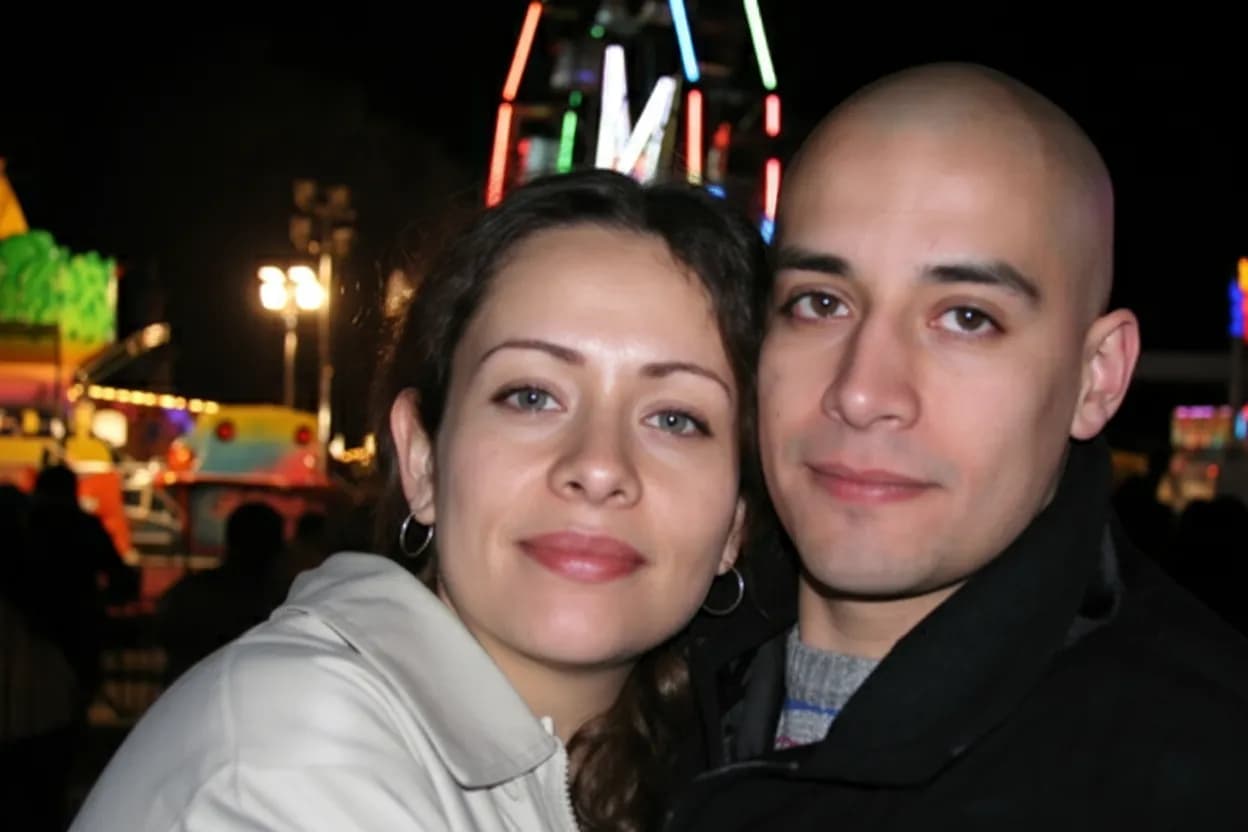
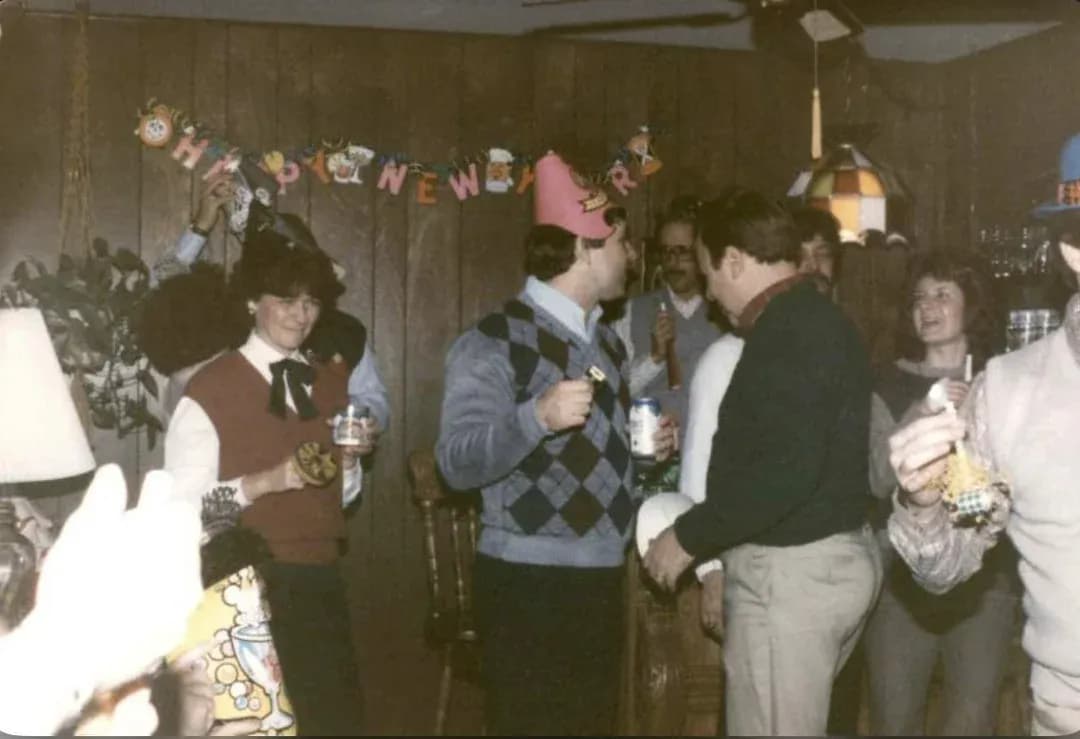
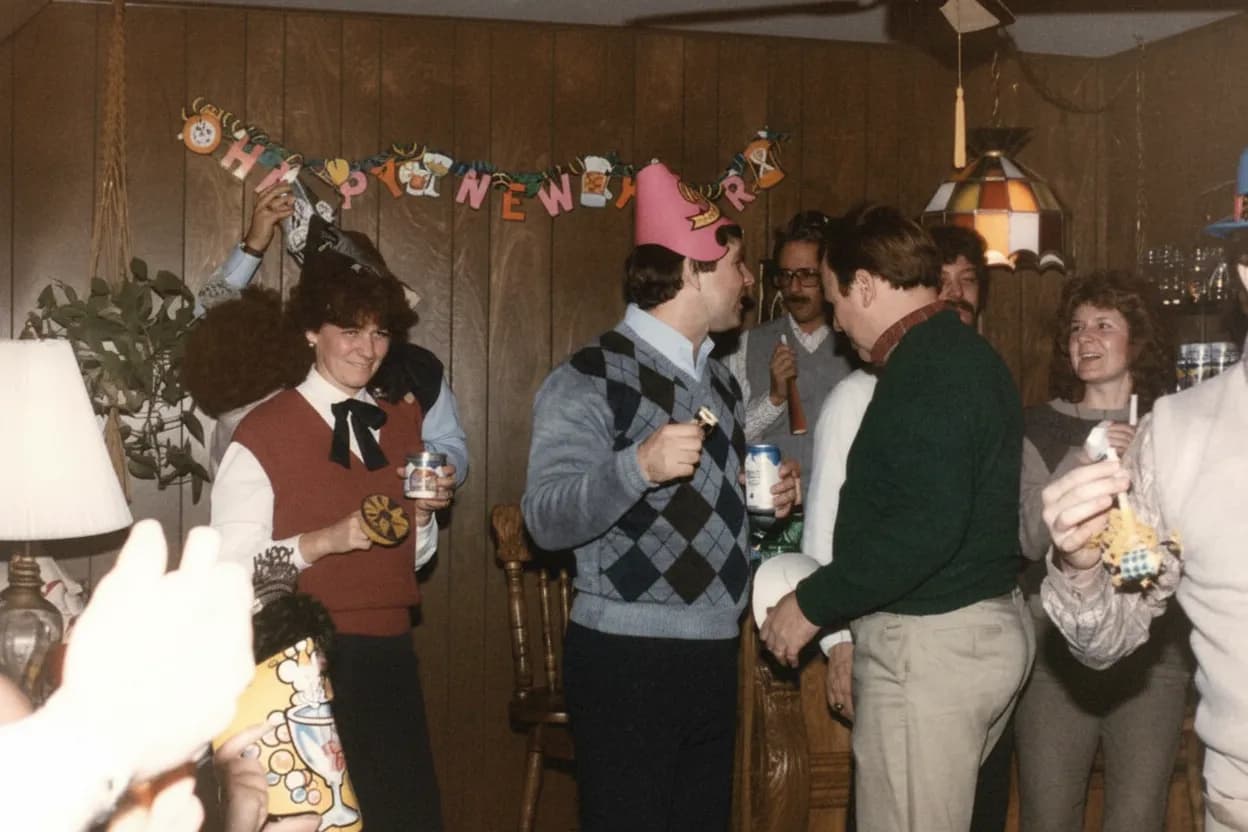
Blurry group photos and low-light shots. Family gatherings in the 1970s and 1980s were often shot with cheap cameras, bad flashes, and slow film. The resulting photos are dark, blurry, and often slightly out of focus. AI sharpening brings faces back into focus and brightens underexposed shots. Do not expect miracles on extremely blurry photos, but moderately blurry ones improve dramatically.
Water-damaged photos from floods or leaks. If you rescued a box of family photos from a flooded basement, air-dry them face-up for 24 hours first (no heat). Then scan and upload. The brown water stains and mold spots lift off surprisingly well. Faces under water stains usually come back clean.
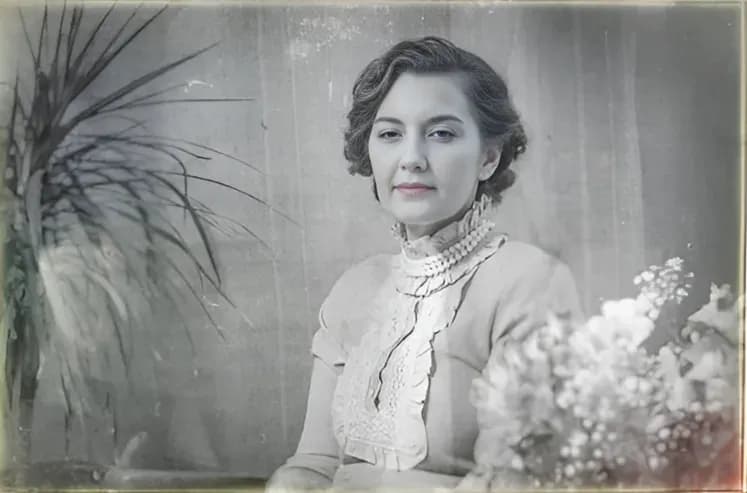
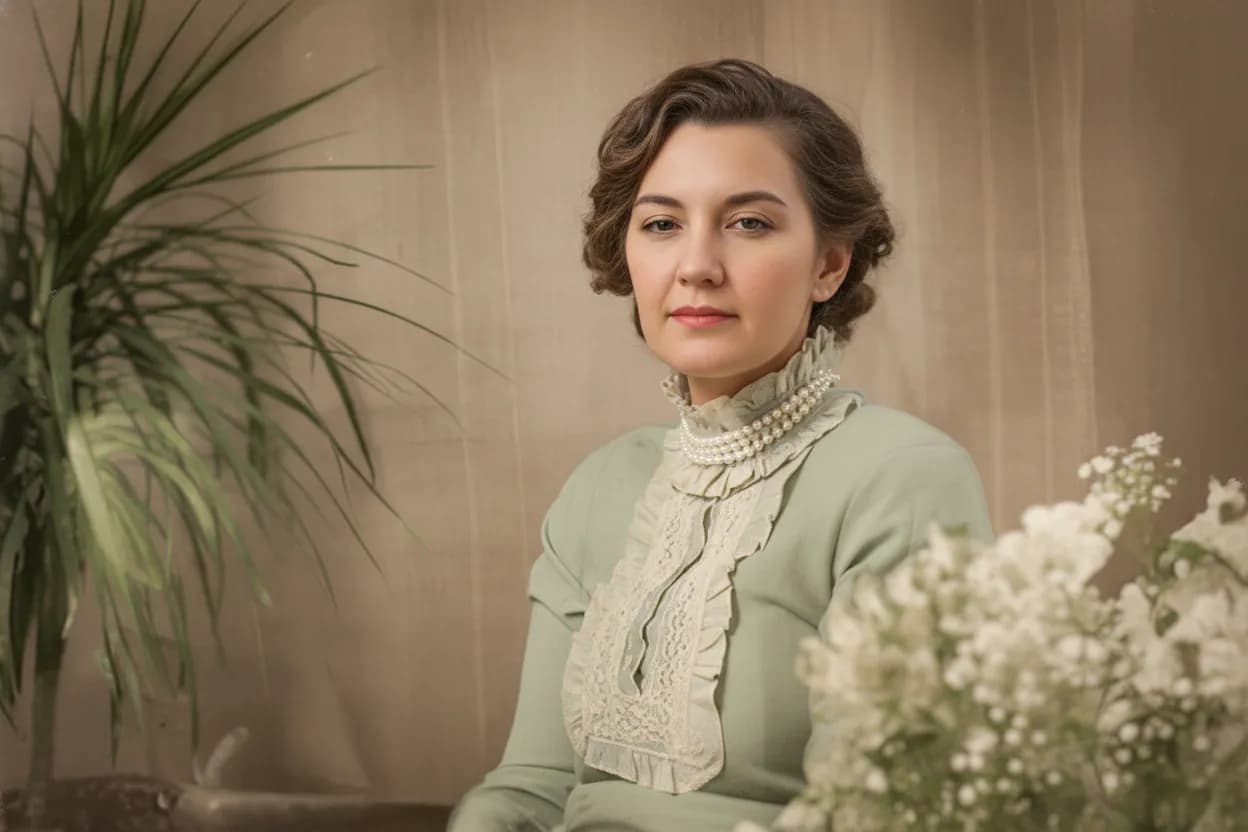
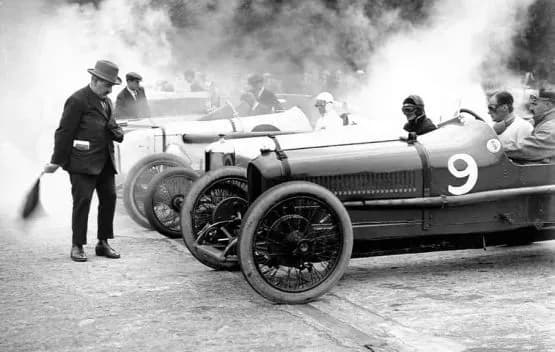
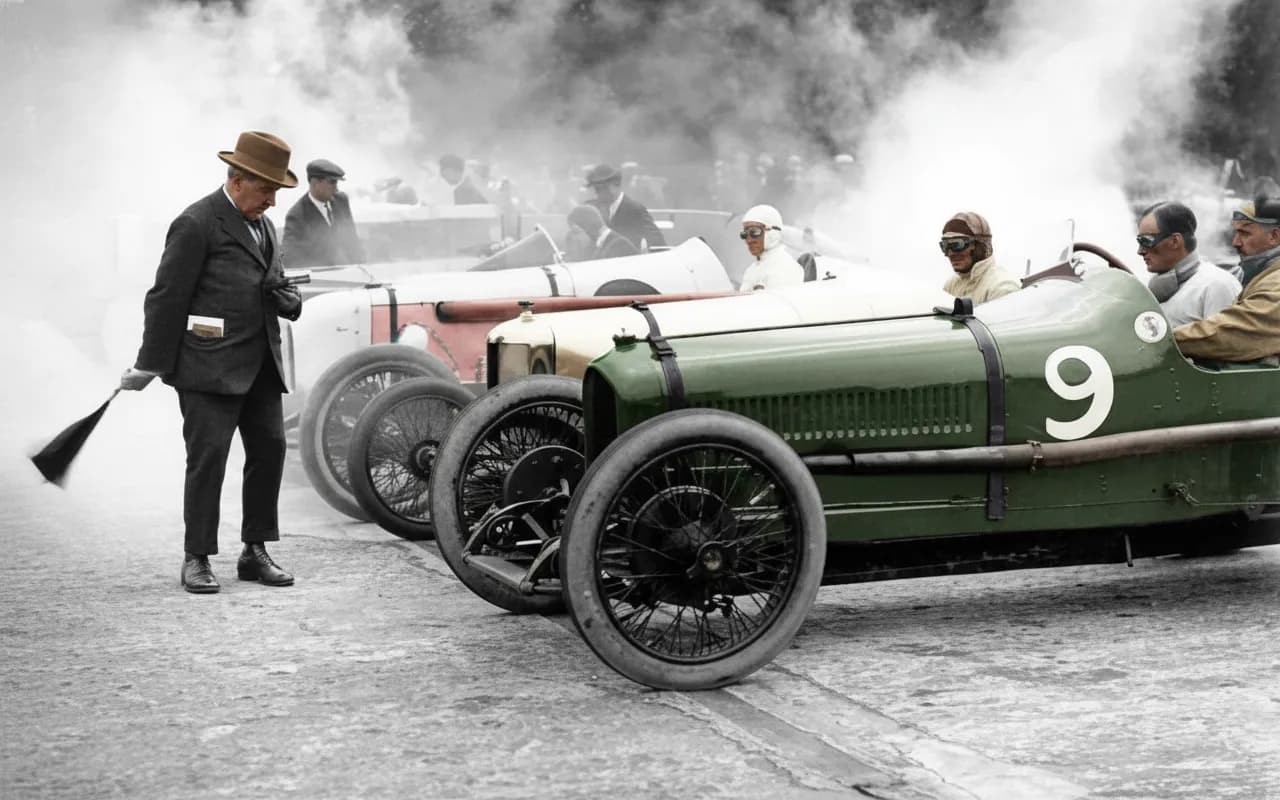
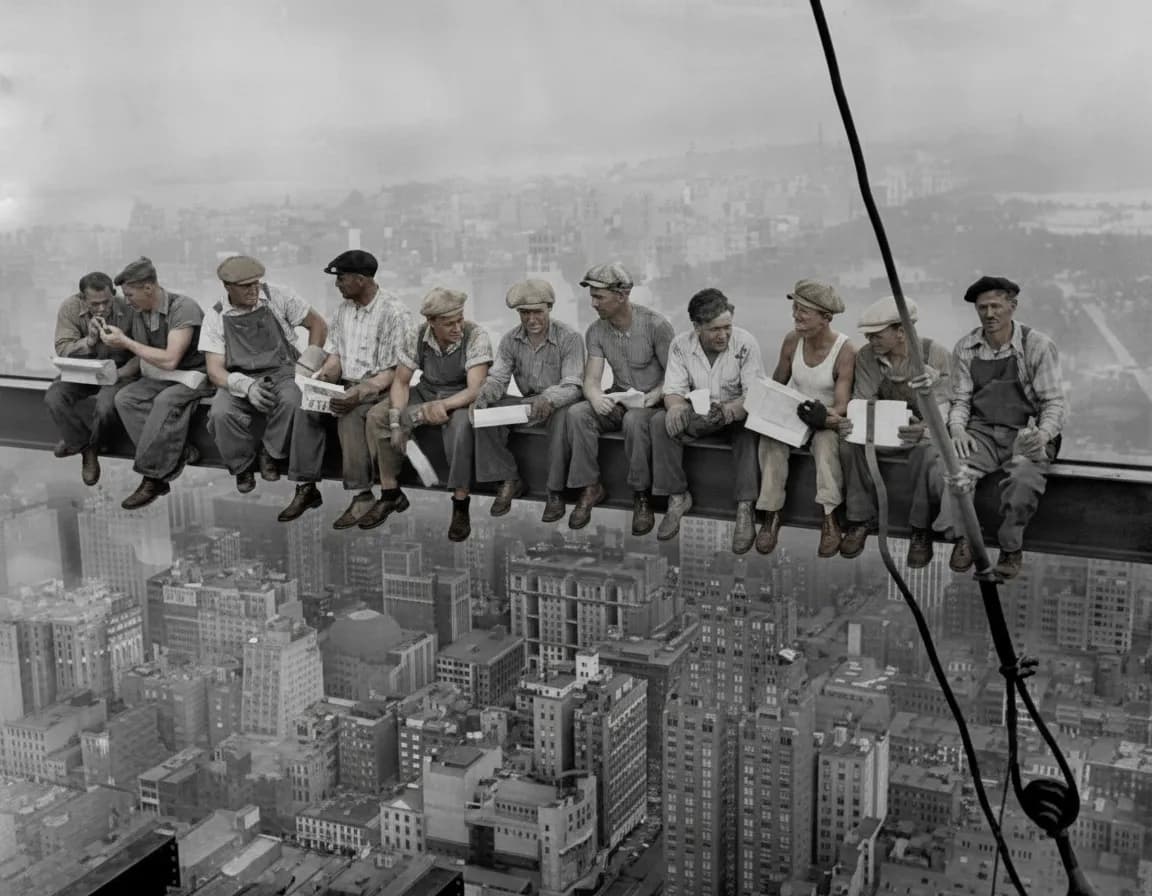
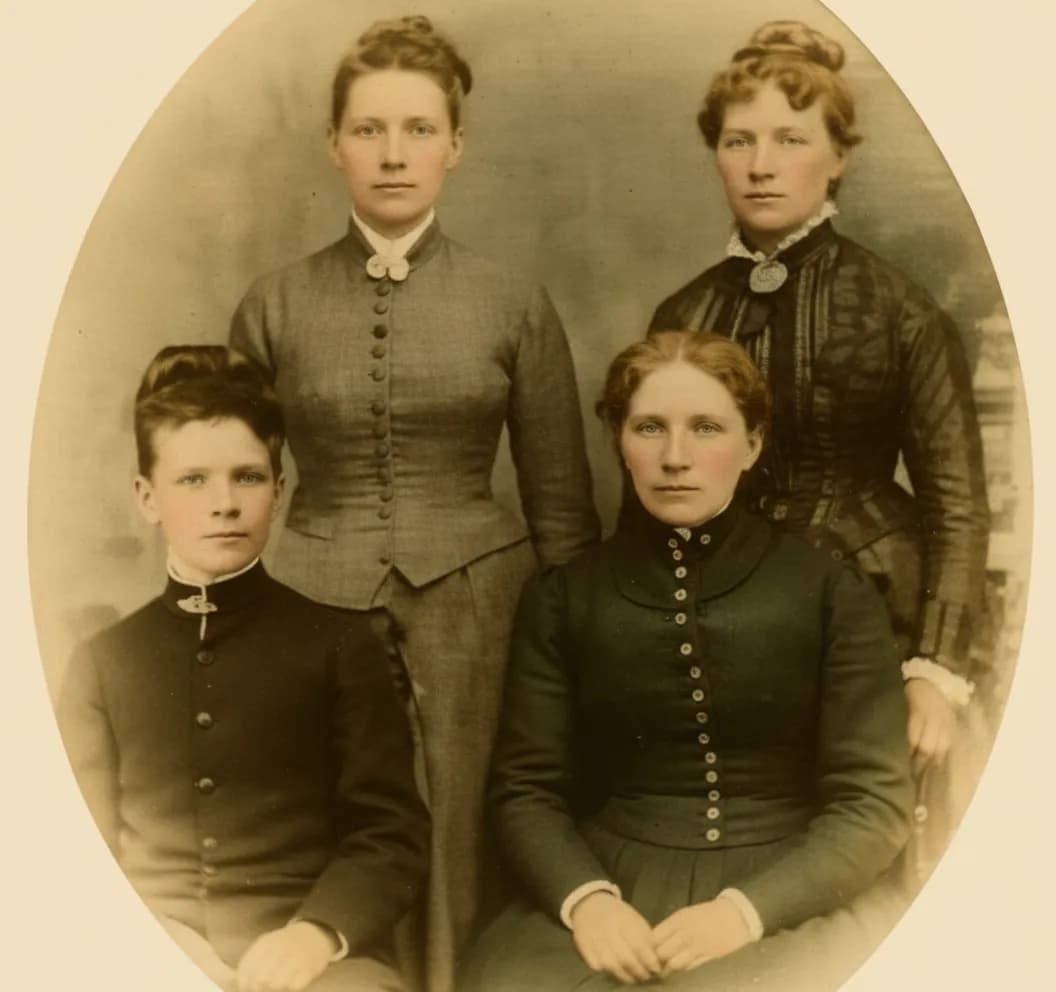
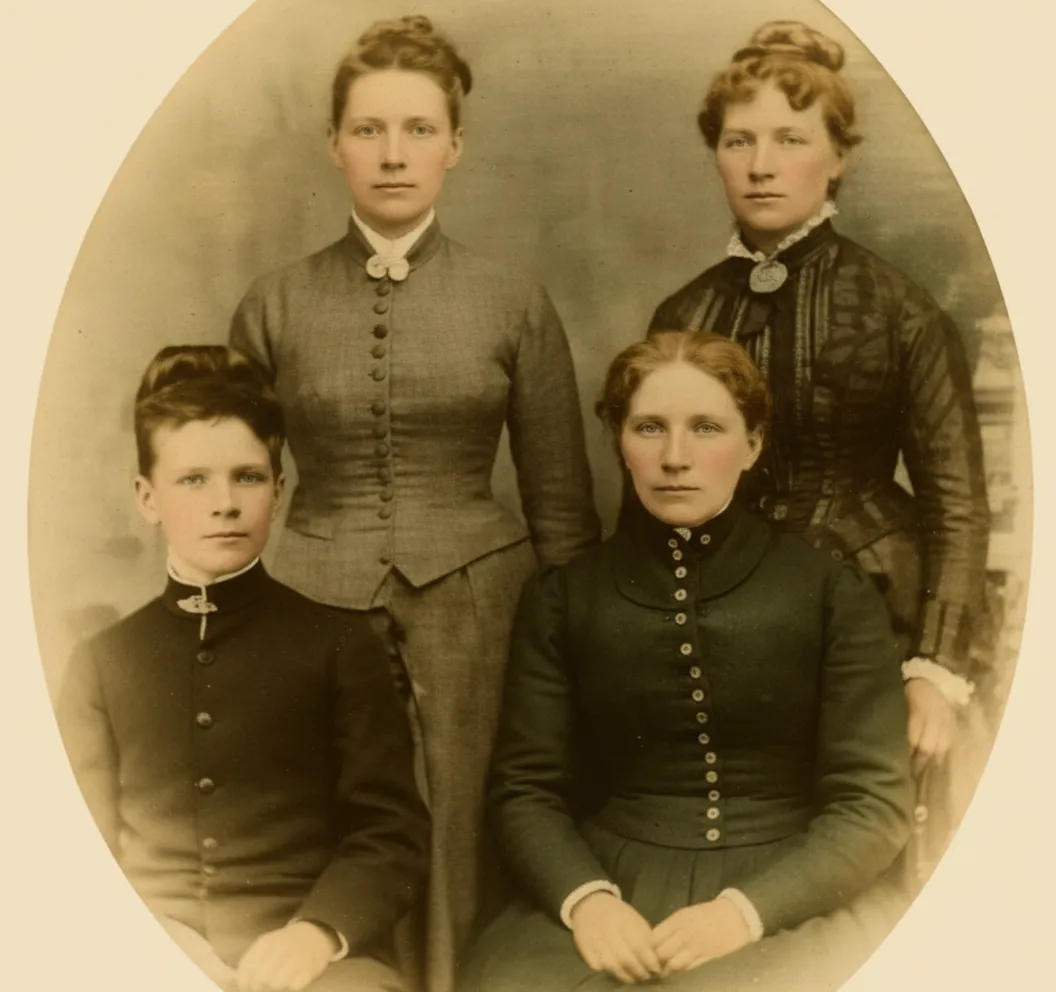
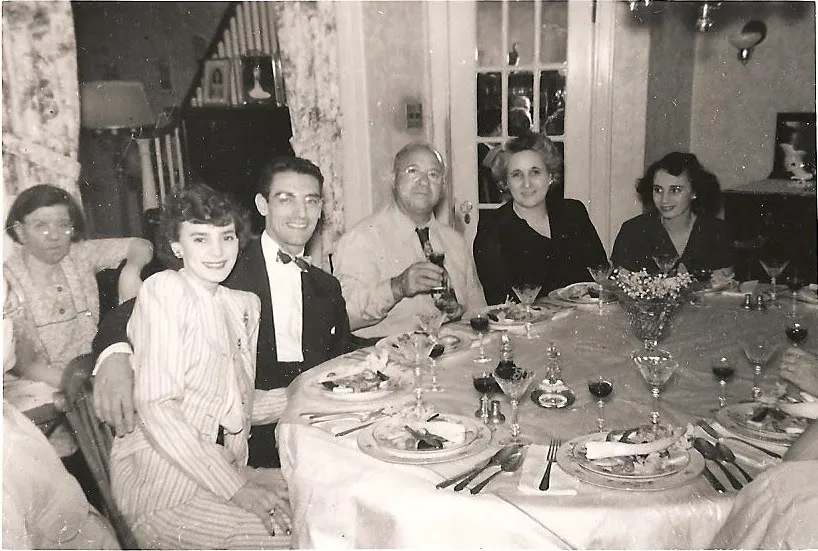
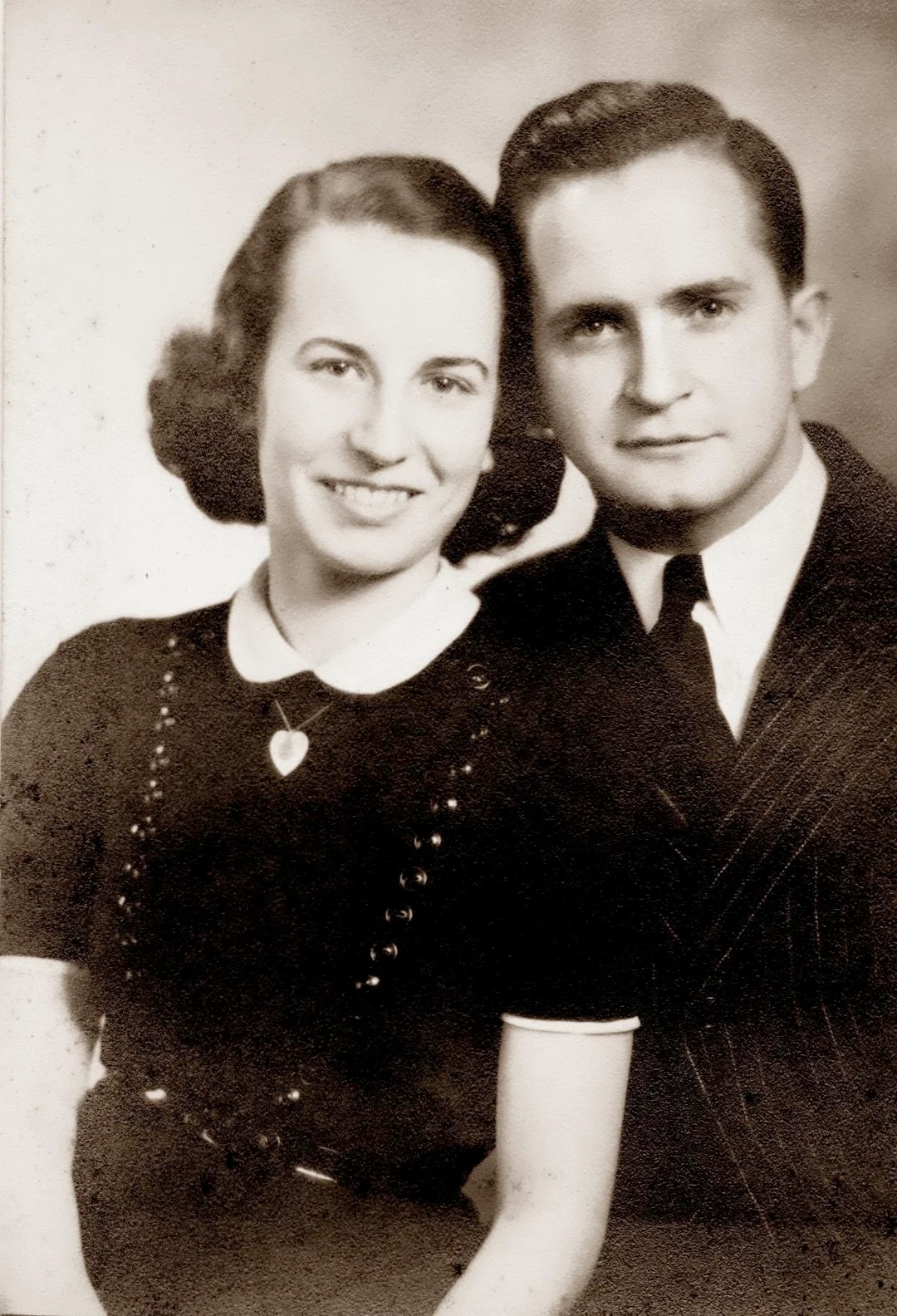
Very old family photos (1900s-1940s). Black-and-white prints from great-grandparents and earlier work well. Expect excellent restoration of fading and damage. If you want to see them in color, run "Colorize B&W" after restoration. Seeing a great-grandparent in color for the first time is one of the most popular uses of our tool.

“My grandma cried when she saw her wedding photo restored. Absolutely incredible.”
Maria K.

“Uploaded a blurry photo from the 70s and got back a crystal clear image. Like magic.”
James T.

“Finally recovered old family photos I thought were lost forever. So easy to use.”
Sarah M.
How it works
3 simple steps.
Family Restoration
Fixes what time did to your family photos.
Most family photos were printed on consumer paper and stored in albums, shoeboxes, or frames for 20 to 60 years. The result is always the same: colors fade to yellow or orange, faces lose sharpness, and handling leaves scratches and creases. Our AI reverses all of that. It rebuilds faded faces, removes scratches, corrects color casts, and sharpens details that you can barely see in the print. The restored version looks like the photo did on the day it was taken.
- ✦Fixes yellow and orange color casts from aging paper and sunlight
- ✦Sharpens blurry faces in group photos and portraits
- ✦Removes scratches, creases, and minor tears from handling
- ✦Brightens dark photos from old cameras with weak flashes
No Scanner Needed
Take a photo of the photo with your phone.
You do not need a scanner. Lay the print on a table, stand directly above it, and take a clear photo with your phone in bright daylight (window light works perfectly). Avoid ceiling light since it creates a yellow cast and glare. The AI works with phone photos just as well as with scans. If you do have a flatbed scanner, use the highest quality setting for the sharpest result.
- ✦Phone camera works great for most prints
- ✦Use natural daylight, not overhead room lights
- ✦Stand directly above to avoid perspective distortion
- ✦A flatbed scanner gives an even sharper result if you have one
For the Whole Family
A gift that surprises everyone at the table.
Restored family photos make the best gifts because no one expects them. Print a restored version of your parents' wedding photo for their anniversary. Frame grandma's childhood portrait for her birthday. Create a slideshow of restored photos for a family reunion. The reactions are always the same: shock, then tears, then "how did you do this?"
- ✦Anniversary gift: parents' wedding photo restored and framed
- ✦Birthday gift: grandparent's childhood portrait brought back to life
- ✦Family reunion: slideshow of restored photos from every decade
- ✦2 free restorations to try before buying anything

In-depth guide
How to restore your family photos, step by step
Gather all the photos you want to restore. Pull the shoebox out of the closet, take the album off the shelf, collect the framed photos from the hallway. Sort them into three piles: "must restore" (the ones you care about most), "nice to have" (good memories but not urgent), and "skip" (duplicates, blurry beyond saving, photos of people nobody recognizes). Most families end up with 20 to 80 "must restore" photos.
Digitize them. If you have a flatbed scanner, scan in color mode at the highest quality setting, even for black-and-white prints (color scans give the AI more data to work with). No scanner? Your phone works great. Lay the print flat on a table near a window, stand directly above it, and take a photo. Use natural daylight, not ceiling lights, because overhead room lights add a yellow cast and create glare on glossy prints. Keep your shadow out of the frame.
For photos still in albums, you have two choices. If the photo slides out easily, take it out and scan or photograph it loose. If it is glued or stuck to the page, do not force it out, you will tear the surface. Photograph it in the album page as-is. The AI can work with a slightly imperfect input and will remove the album border and fix any surface issues.
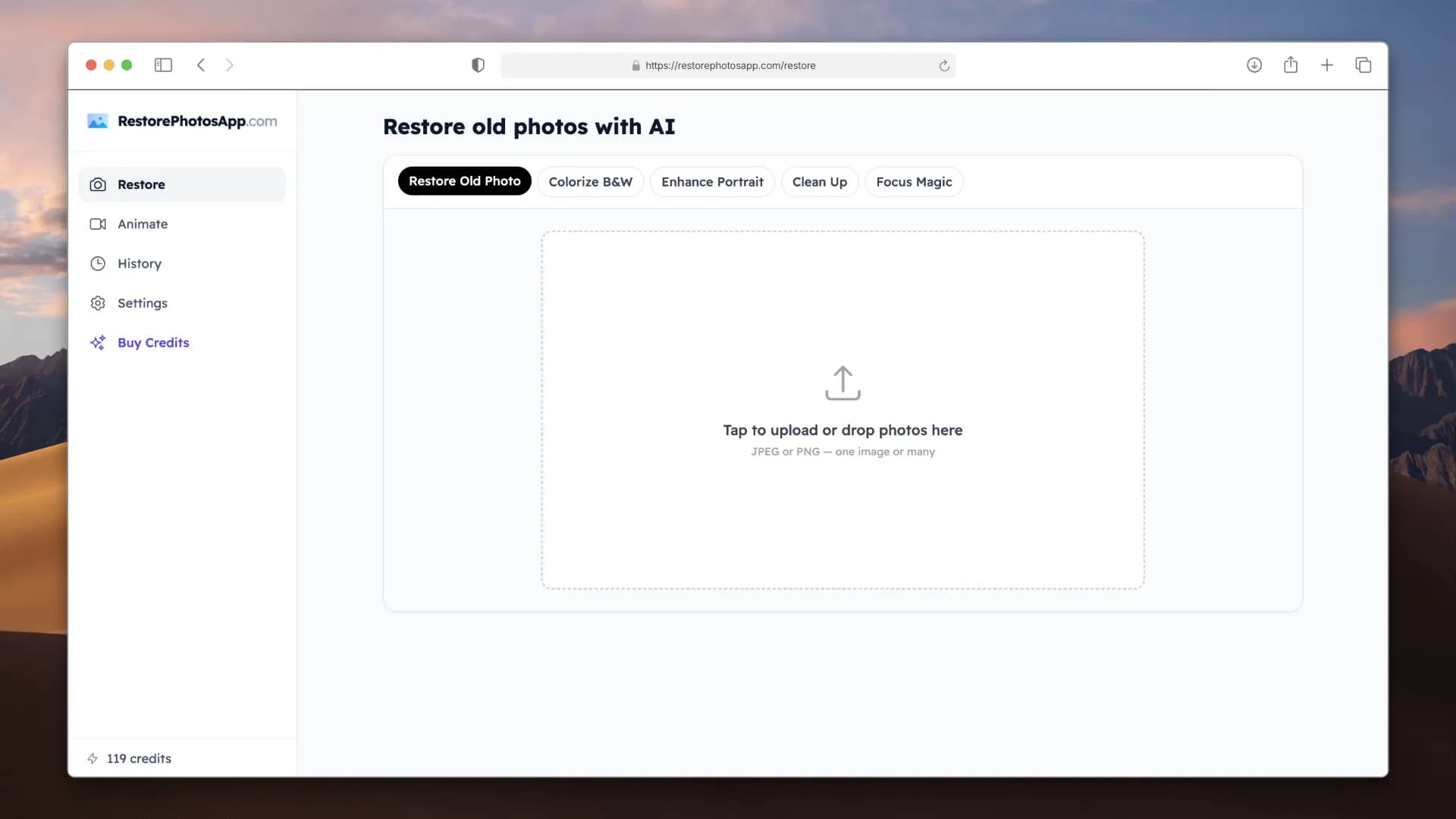
Upload to restorephotosapp.com/restore and pick the right mode. For most family photos, "Restore" is the right choice. It fixes fading, sharpens faces, and corrects color in one pass. If the photo also has scratches or tears, run "Repair" on the restored result as a second step. If you have a black-and-white photo you want in color, run "Colorize B&W" after restoring.
Check the result with the before/after slider. Zoom in on faces to see how much sharpness came back. Zoom in on areas that had scratches or stains. If you see residual damage, upload the result for a second pass, which costs one more credit. Two passes handle 95% of everything.
Download and back up. Save two copies of every restored photo: one to cloud storage (iCloud, Google Photos, Dropbox) and one to a local drive or USB stick. The whole point of digital restoration is that the restored file never degrades, but only if you keep a backup.
For printing, use a real photo lab like Nations Photo Lab, Mpix, or your local photo store. Order on archival paper. Home inkjet prints fade in a few years. Lab prints on archival paper last 100+ years, which is the whole point if you are preserving these for future generations.
For a whole album or inherited collection, use the Family plan ($29.99 for 50 restorations) or Studio plan ($54.99 for 100). Upload everything in batches, come back for the results, and download as a ZIP. A family of four can restore their entire combined photo collection in a single weekend.
Expert tips
Tips for getting the best result from family photos
Start with the photo you care about most
Your 2 free restorations are best spent on the photo that matters most, not the easiest one. Try your parents' wedding portrait, your grandmother's childhood photo, or that one group shot from the family reunion in 1985. If the AI handles your hardest photo well, the rest will be easy.
Use window light for phone captures
Natural daylight from a window is the best light for photographing prints with your phone. Ceiling lights create a warm yellow cast and cause glare on glossy paper. Lay the photo flat near a window, stand directly above, and make sure your shadow does not fall on the print.
Do not crop or edit before uploading
Upload the full photo as-is. The AI uses the edges and surrounding area as context for restoration. Cropping removes that context and gives worse results. You can crop the restored version afterwards.
Flatten curled prints before photographing
Old prints curl over time. Place the photo between two heavy books overnight. A flat print scans and photographs much better because the AI does not have to deal with shadows from curled edges.
For stuck album photos, photograph in place
Never rip a photo out of a sticky album. The emulsion will tear off with the glue. Instead, photograph or scan it while it is still on the page. The AI will work with the slightly imperfect capture and you avoid destroying the original.
Restore first, then colorize
If you have a black-and-white family photo, run "Restore" first to fix fading and sharpness, then "Colorize B&W" on the restored result. Colorizing a clean, sharp photo produces much more realistic colors than colorizing a faded original.
For damaged photos, restore then repair
If a photo has both fading and physical damage (scratches, tears, water stains), run "Restore" first for the color and sharpness, then "Repair" on the result for the physical damage. Two focused passes always beat one mixed pass.
Restore as a group project for the family reunion
Ask each family member to bring their oldest photos to the next reunion. Scan them all with a phone, restore them over lunch, and share a slideshow that evening. The Family plan ($29.99) covers 50 photos, which is enough for most extended families combined.
Pricing
One-time pricing. No subscription. Credits never expire.
Starter
Perfect for trying it out on a few precious photos.
$0.70 / credit · 10 restorations
Start Restoring Photos- 10 AI credits included
- High-Resolution Output
- Credits Never Expire
- Animate Photos with Credits
30-Day Satisfaction Guarantee
Pro
For restoring a small album of memories.
$0.68 / credit · 25 restorations
Get Pro Access- 25 AI credits included
- High-Resolution 1080P Output
- Credits Never Expire
- Animate Photos with Credits
30-Day Satisfaction Guarantee
Family
Restore your entire family photo collection.
$0.60 / credit · 50 restorations
Get Family Plan- 50 AI credits included
- High-Resolution 1080P Output
- Credits Never Expire
- Animate Photos with Credits
30-Day Satisfaction Guarantee
Studio
For entire archives, professionals, and power users.
$0.55 / credit · 100 restorations
Get Studio Plan- 100 AI credits included
- High-Resolution 1080P Output
- Credits Never Expire
- Animate Photos with Credits
30-Day Satisfaction Guarantee
Prices don't include VAT.
FAQ
Frequently asked questions
How do I restore old family photos?
Scan your photo or take a clear photo of it with your phone in daylight. Upload it to restorephotosapp.com/restore, select "Restore," and download the result in about 30 seconds. The AI fixes fading, sharpens faces, removes scratches, and corrects color casts automatically.
Do I need a scanner or is a phone photo good enough?
A phone photo works great. Lay the print flat near a window, stand directly above it, and shoot in natural daylight. Avoid ceiling lights (they add yellow cast and glare). A flatbed scanner gives a slightly sharper result, but for most family photos the difference is small.
Can the AI restore a group family photo with many faces?
Yes. The AI handles group photos, family portraits, and big family reunion shots with dozens of faces. Each face in the photo gets sharpened and restored individually. Group photos from the 1970s and 1980s with cheap camera blur improve dramatically.
What if my photo is stuck in an album and I cannot remove it?
Do not force it out. Ripping photos from sticky albums tears the emulsion and causes permanent damage. Photograph or scan the photo while it is still on the album page. The AI will work with the capture as-is and you protect the original.
Can all family photos be restored, or are some too far gone?
Most family photos can be restored significantly. Faded colors, yellow casts, scratches, creases, and moderate blur all fix well. The only photos that truly cannot be restored are ones where the image has completely dissolved (blank white or brown areas where a face used to be). If you can still see the outlines of faces, the AI can almost certainly improve it.
Is it free?
Every account gets 2 free restorations with no credit card required. Use them on your most important photos to see the quality. After that, plans start at $6.99 for 10 photos.
How much does it cost to restore a whole family album?
The Family plan is $29.99 for 50 restorations ($0.60 each), which covers most family albums. For larger collections or inherited archives, the Studio plan is $54.99 for 100 restorations ($0.55 each). Credits never expire.
My family photos are yellow and orange. Can the AI fix the color?
Yes, this is the most common restoration. Photo paper yellows over time due to acid in the paper and UV light exposure. The AI recognizes the yellow/orange cast and restores natural skin tones, blue skies, green grass, and accurate clothing colors.
Can it fix a very blurry family photo?
Moderate blur improves dramatically, especially faces that are slightly out of focus or blurred by camera shake. Extremely blurry photos (where you cannot tell who is in the photo) are harder, but the AI still makes them noticeably clearer. Try your blurriest photo with a free credit to see.
Can I restore a black-and-white family photo and see it in color?
Yes. First run "Restore" to fix fading and sharpen the photo, then run "Colorize B&W" on the restored version. The AI adds realistic skin tones, clothing colors, and background colors. Seeing grandparents or great-grandparents in color for the first time is one of the most popular uses.
What about water-damaged photos from a flood?
Air-dry the prints face-up on paper towels in a cool room for 24 hours first. No heat, no hair dryers, no direct sun. Once dry, scan and upload. The brown water stains and mold spots usually lift off well. Faces under stains typically come back clean.
Can I restore photos that have scratches or tears?
Yes. For photos with both fading and physical damage, run "Restore" first to fix the color, then "Repair" on the result to remove scratches, creases, and tears. The AI rebuilds what was under the damage rather than just painting over it.
How long does each photo take?
About 30 seconds per photo. Upload, wait, download. For a batch of 20 family photos, you can finish in about 15 minutes.
Will the restored photo look natural, not "AI-generated"?
Yes. The AI restores what is already in the photo, it does not generate new content. Faces, clothing, and backgrounds keep their original character. The result looks like the photo did when it was first printed, not like an AI creation.
Can I print the restored photos?
Yes. Restored photos are full resolution. For best results, order prints from a photo lab (Nations Photo Lab, Mpix, or your local store) on archival paper. Avoid home inkjet prints since they fade in a few years. Lab prints on archival paper last 100+ years.
Is it safe? What happens to my photos after upload?
Photos are transferred securely over HTTPS and stored privately on Cloudflare R2. Originals and restored versions stay for 30 days so you can re-download, then they are automatically and permanently deleted. We never share photos or use them to train AI.
Can I do this on my phone?
Yes. Open restorephotosapp.com in Safari or Chrome on your phone. Take a photo of the old print, upload it, pick "Restore," and save the result back to your camera roll. The whole process takes under a minute.
I inherited a box of photos from a relative. Where do I start?
Sort them first: "must restore" (faces you recognize, important moments), "nice to have," and "skip." Then use your 2 free restorations on the most important ones. If you like the results, the Family plan ($29.99 for 50) or Studio plan ($54.99 for 100) will cover the rest.