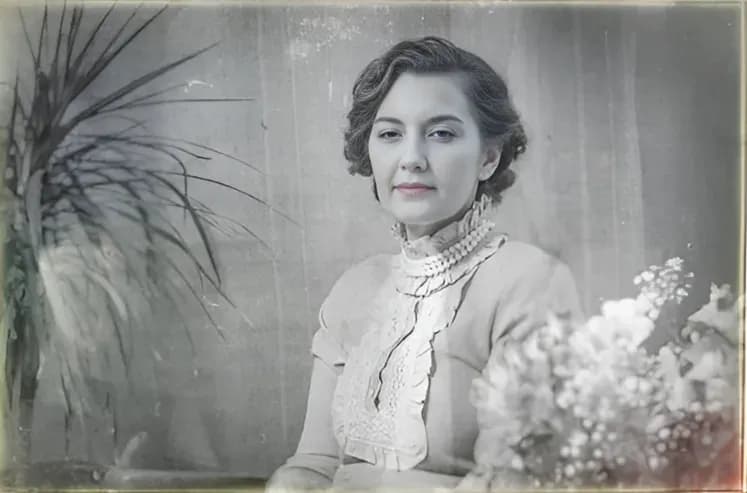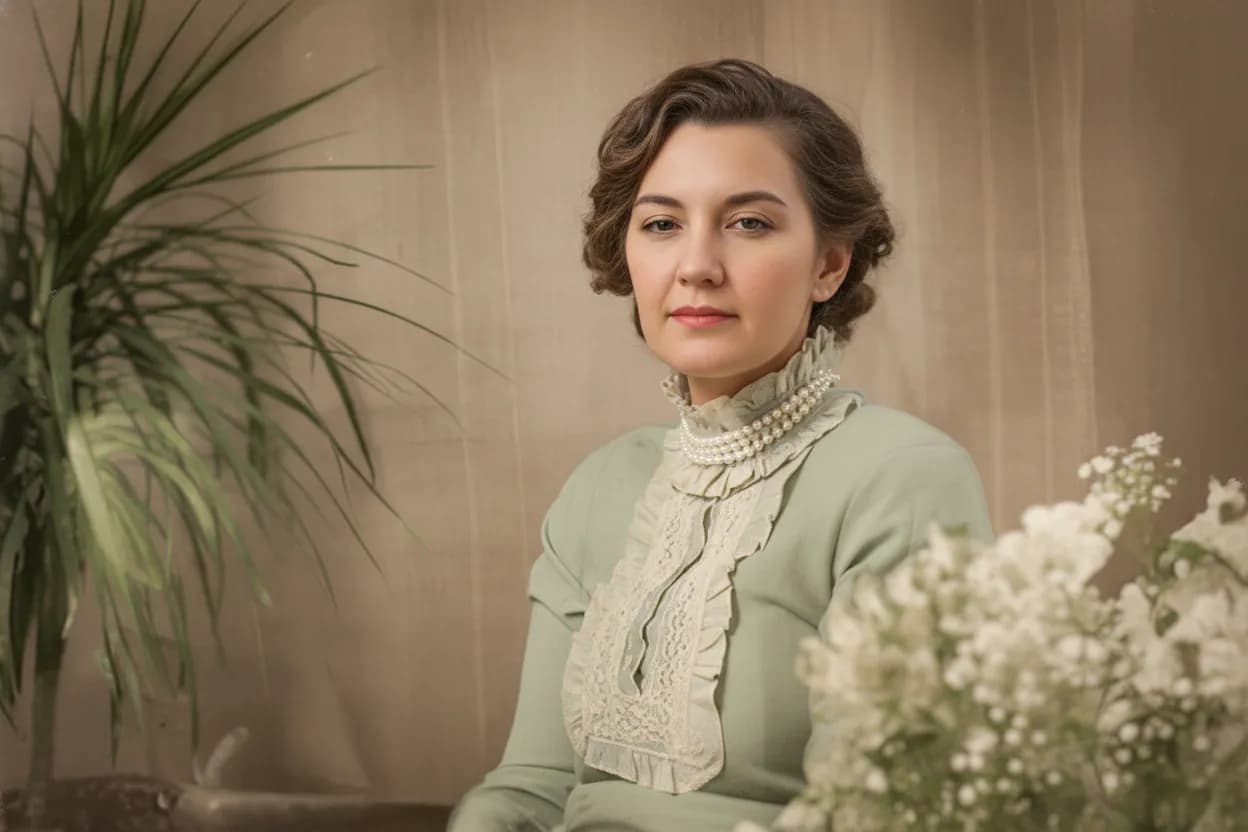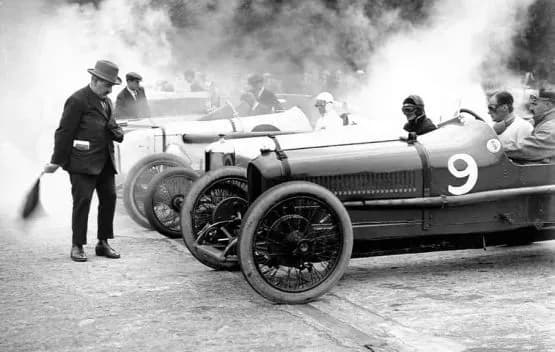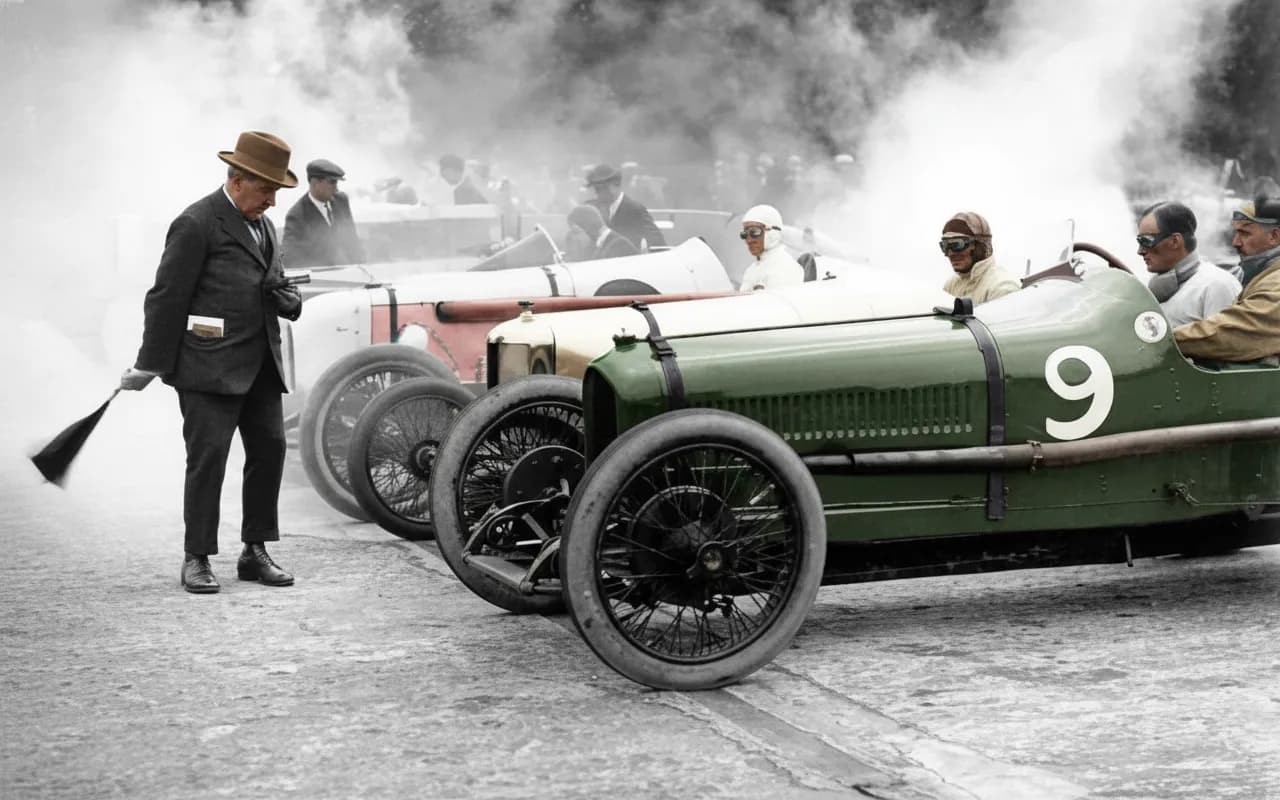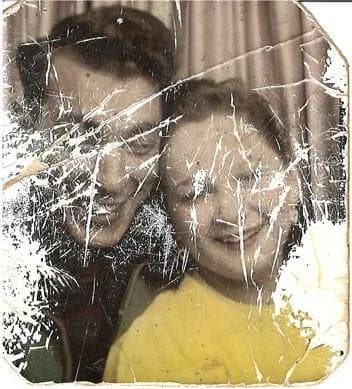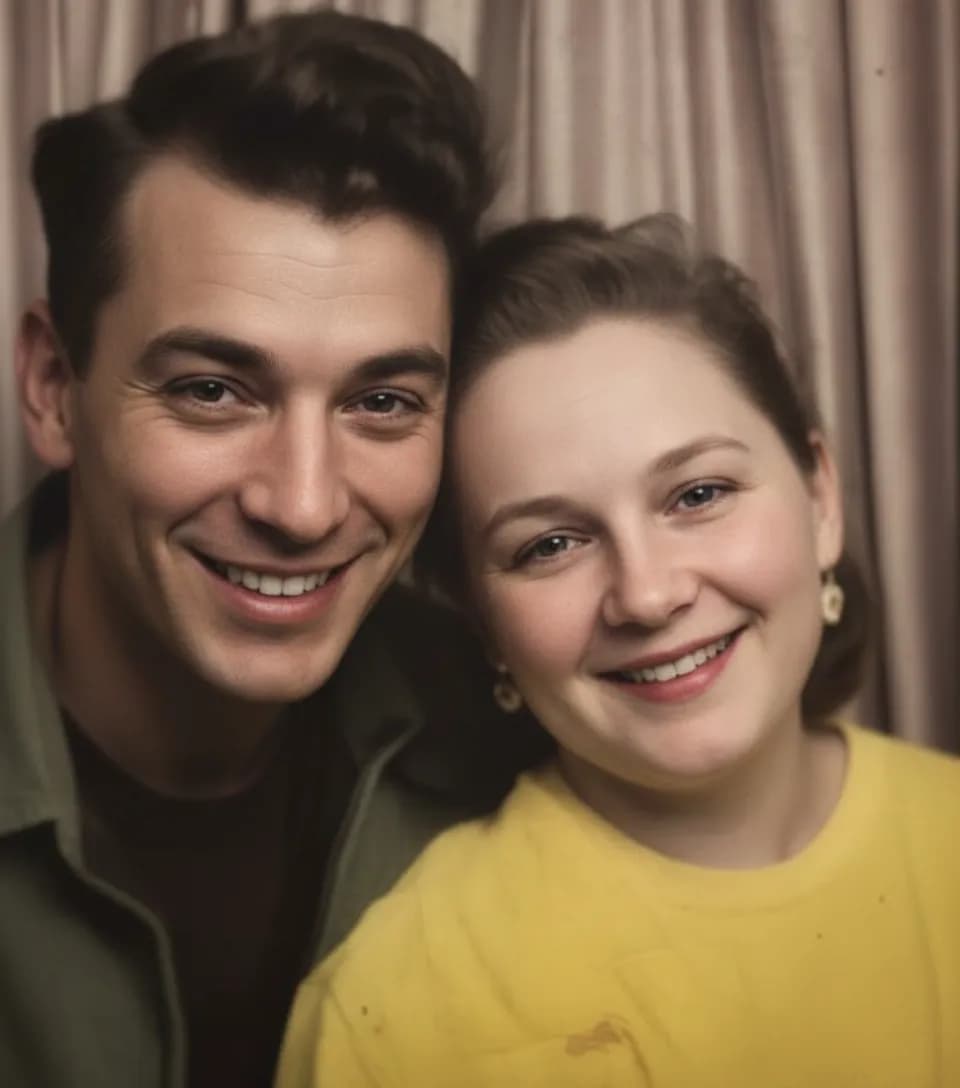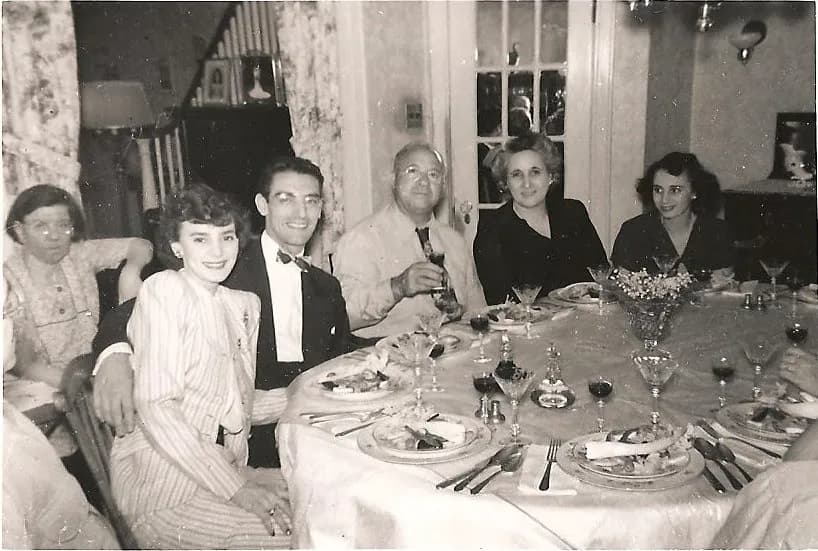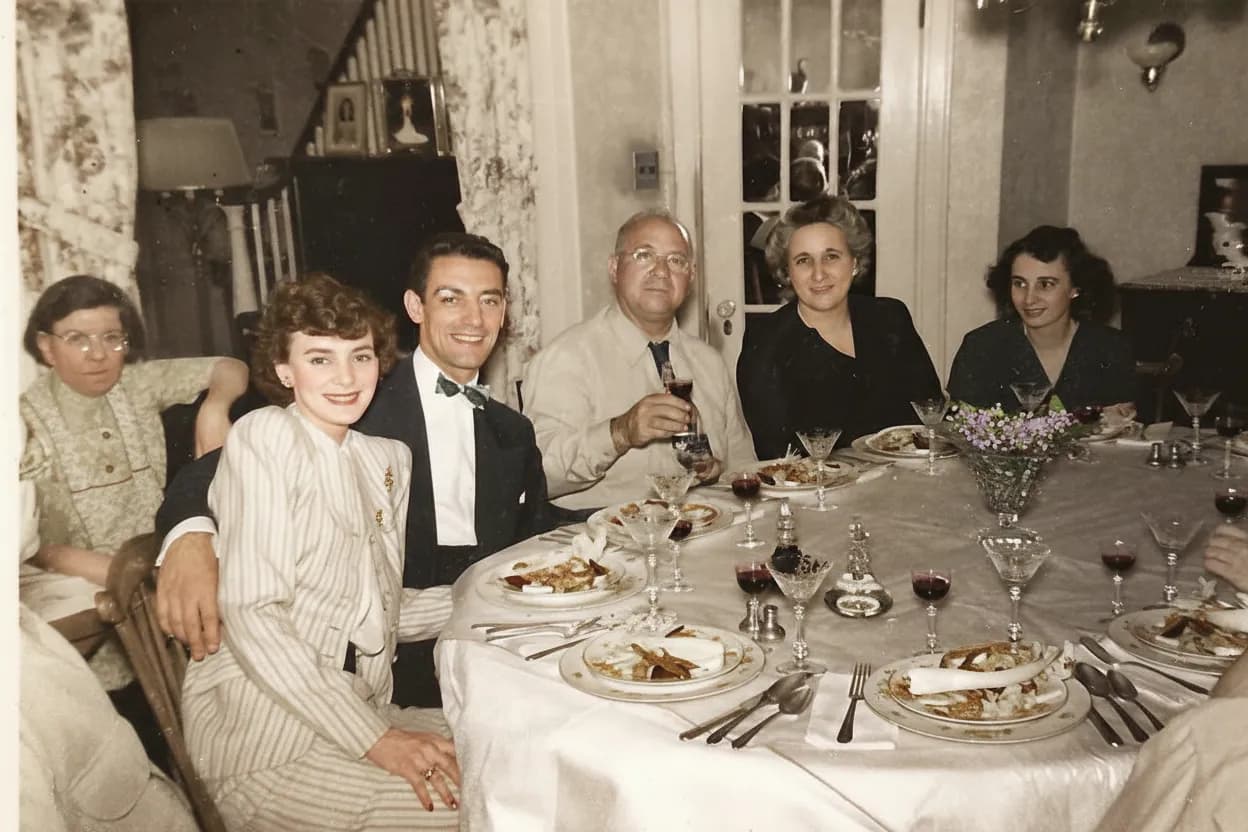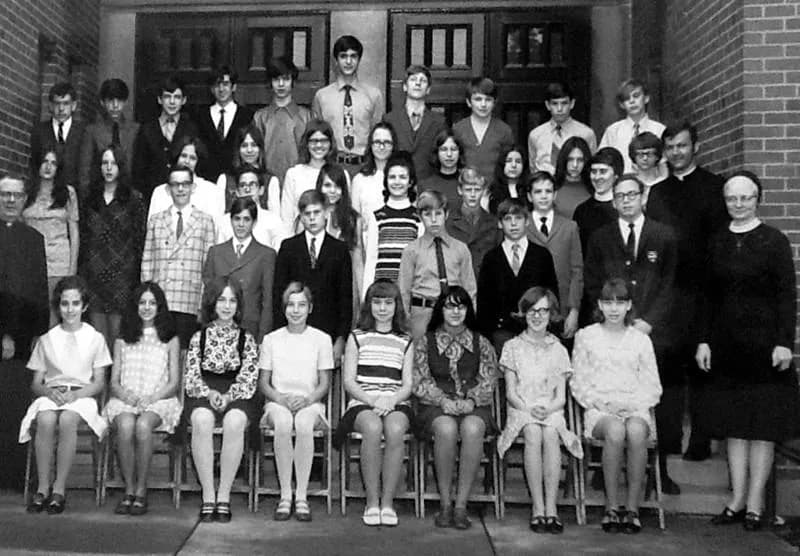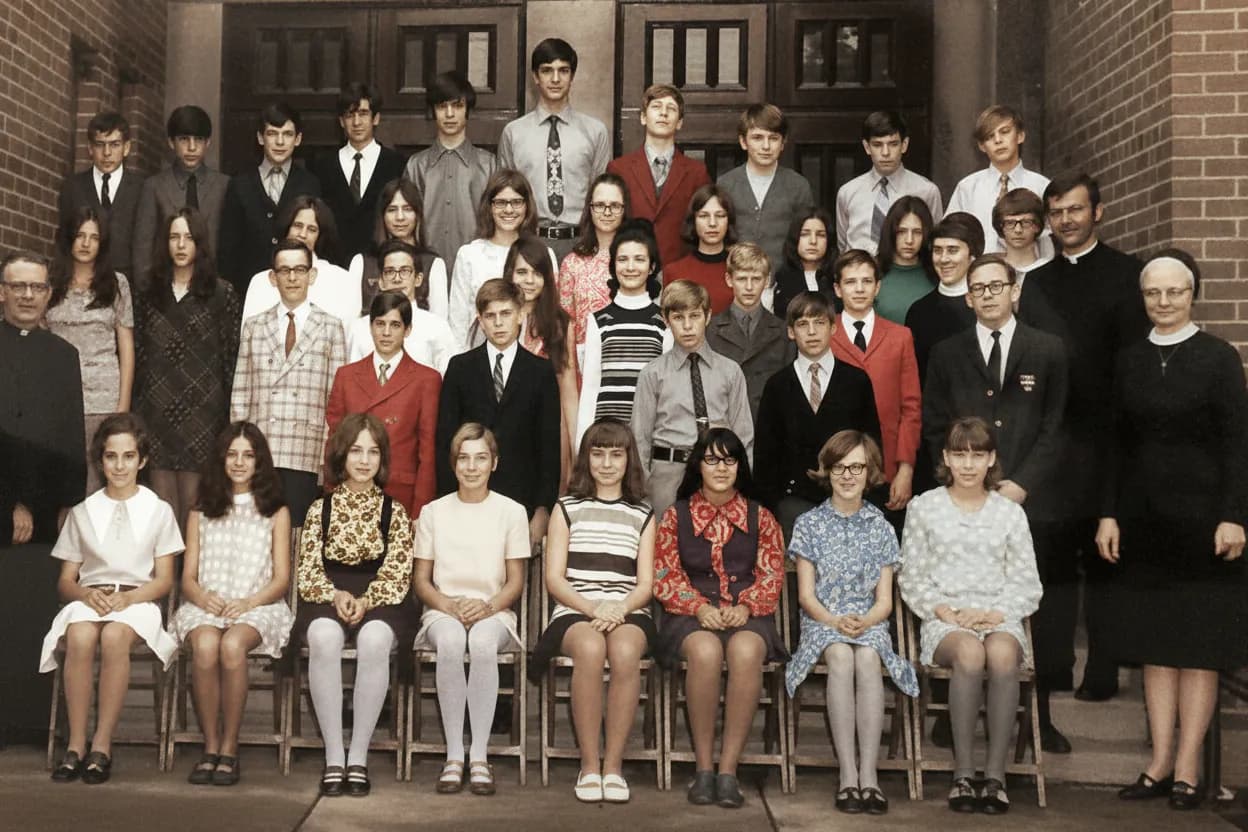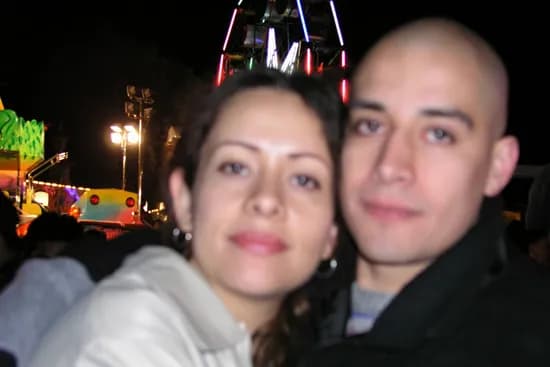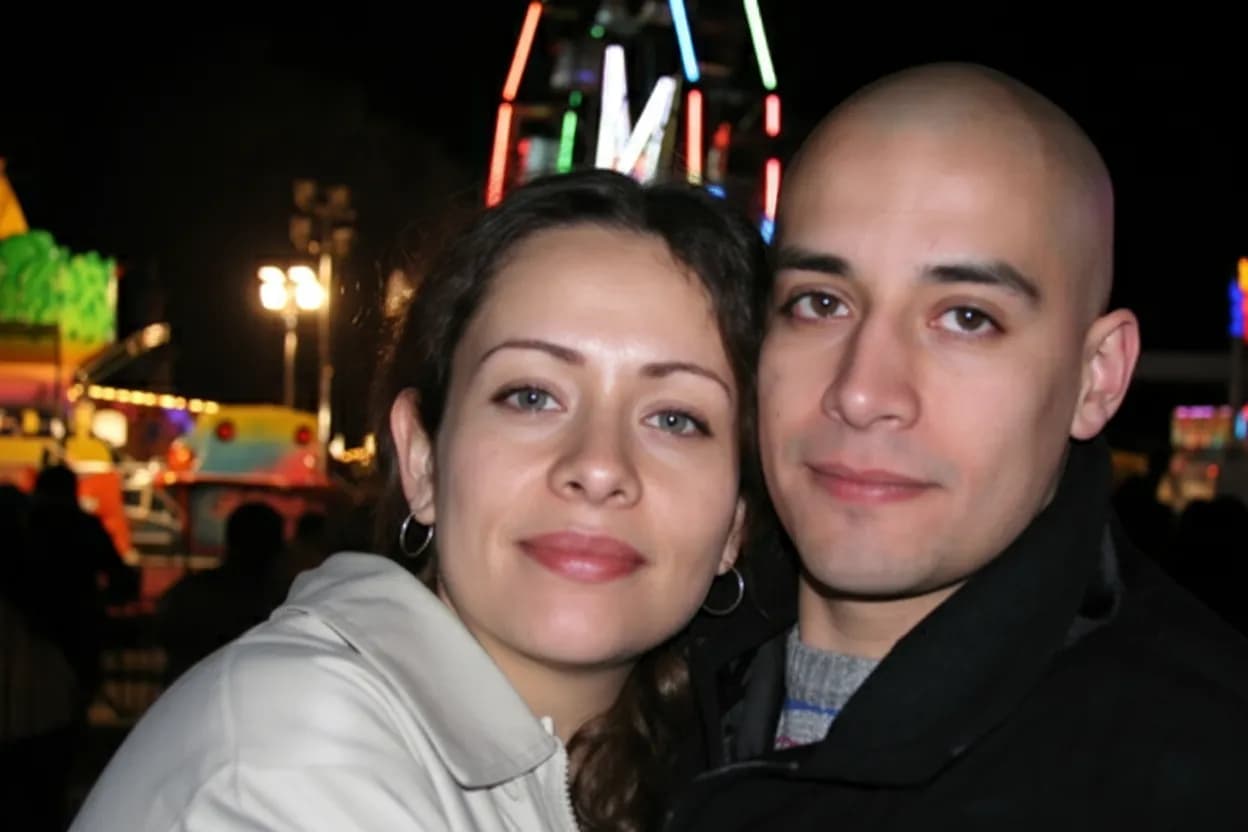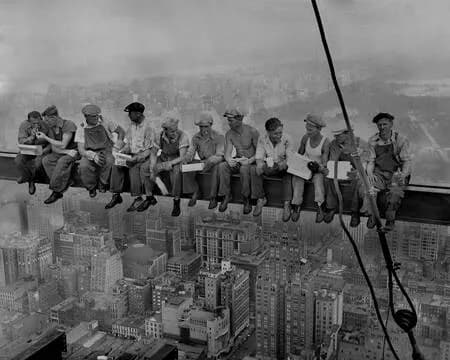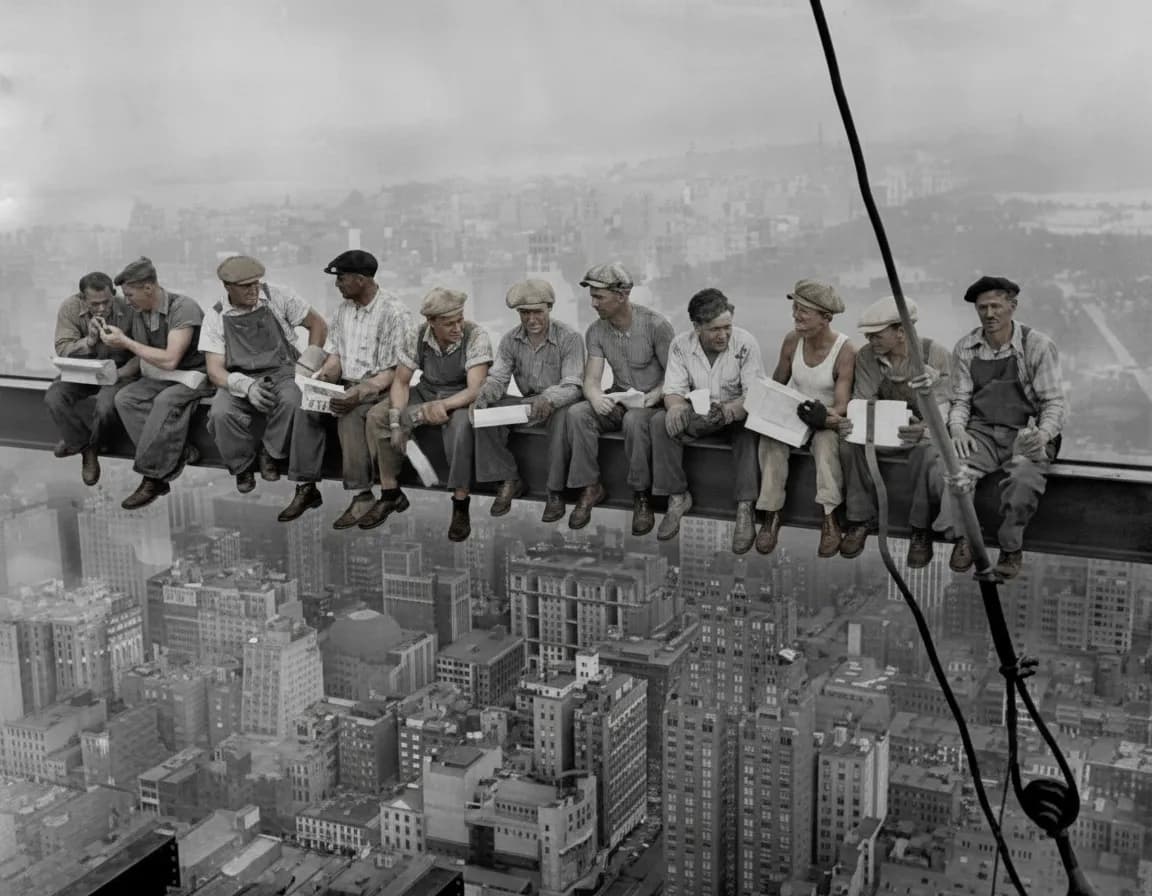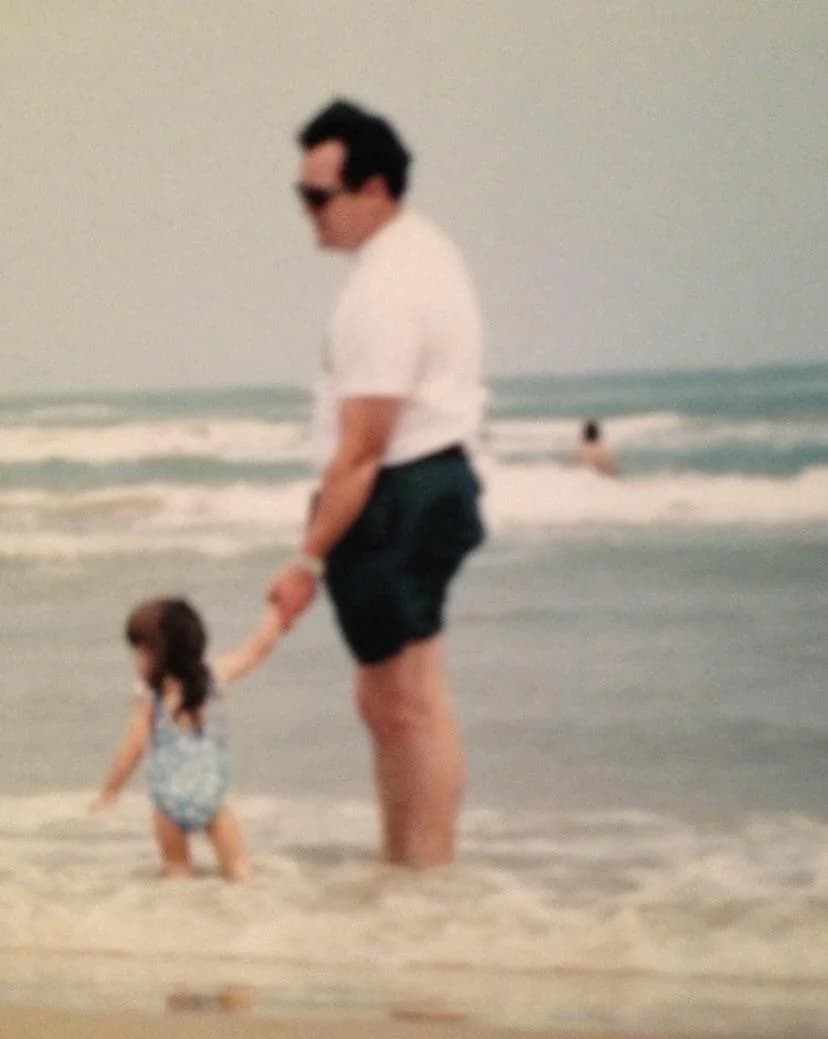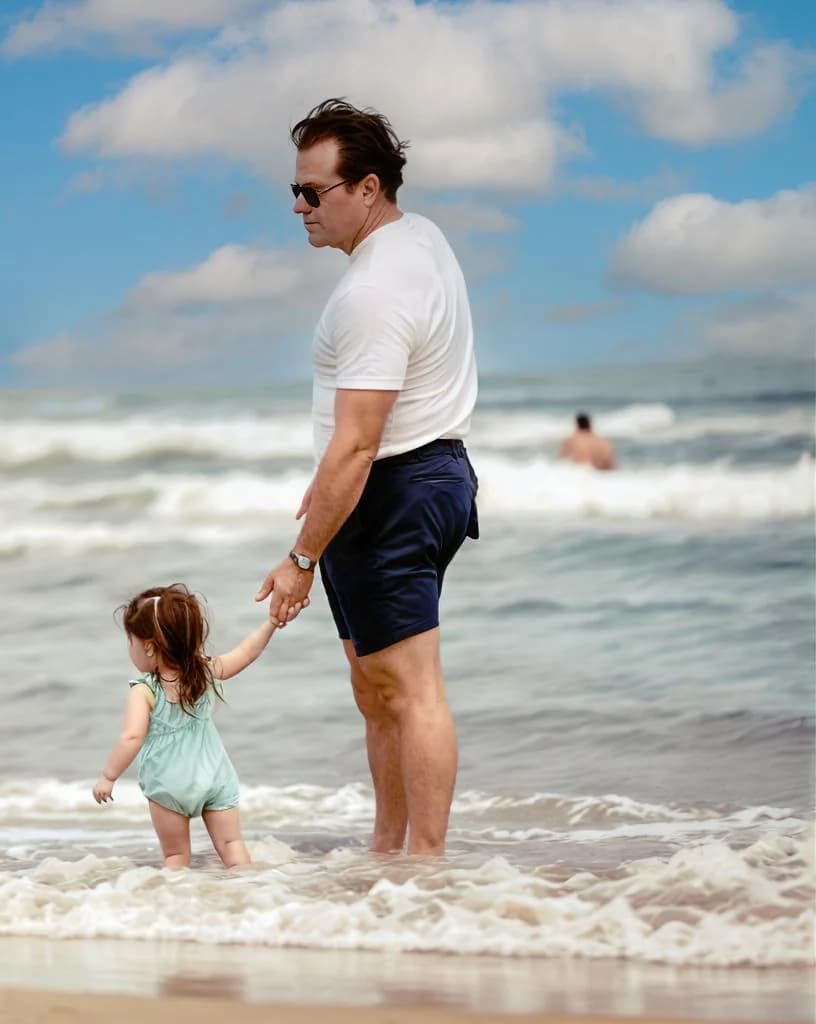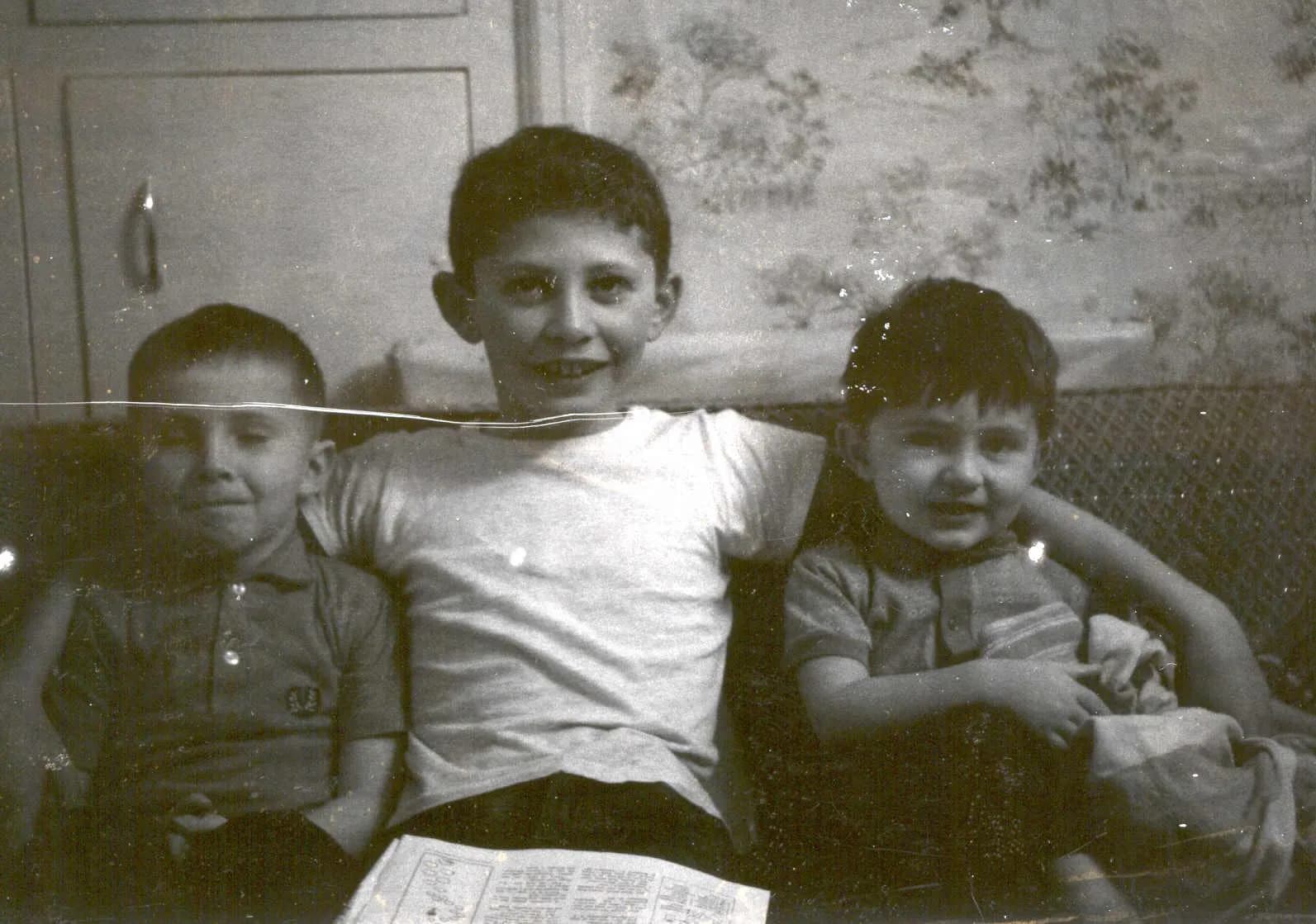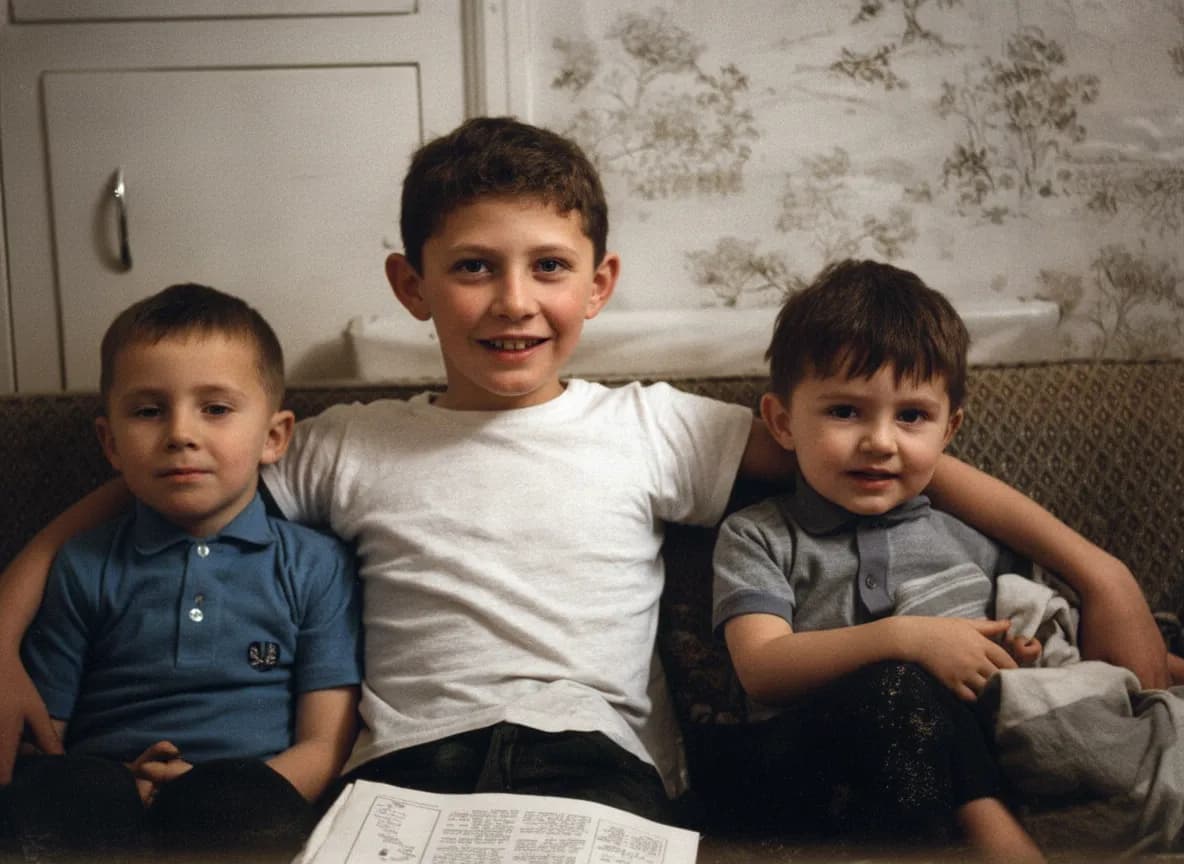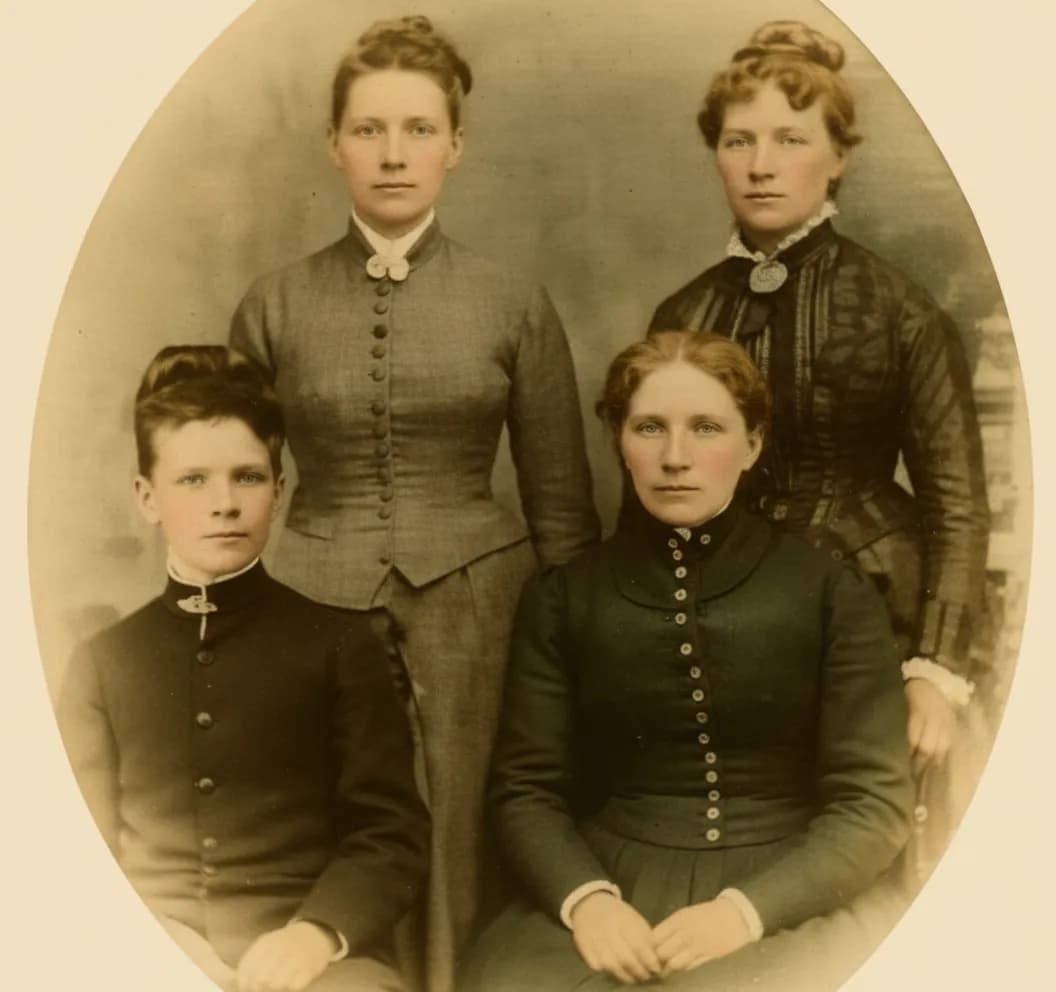
Why use AI for bulk photo restoration?
Professional restoration services charge $30 to $150 per photo and take days per image. A 100-photo album would cost $3,000 to $15,000 and take weeks. AI restoration does the same work in seconds per photo. Our bulk restore tool lets you upload an entire collection at once, the AI processes each photo automatically, and you download all results in a single ZIP file. The Family plan covers 50 photos for $29.99.
- AI restores each photo in 15 to 30 seconds instead of hours of manual Photoshop work
- Family plan: 50 photos for $29.99 (about $0.60 per photo vs $30+ at a professional service)
- Upload once, download once, instead of repeating for each photo
- AI quality is consistent across every photo, whether you restore 1 or 150

“My grandma cried when she saw her wedding photo restored. Absolutely incredible.”
Maria K.

“Uploaded a blurry photo from the 70s and got back a crystal clear image. Like magic.”
James T.

“Finally recovered old family photos I thought were lost forever. So easy to use.”
Sarah M.
How it works
3 simple steps.
Batch Processing
Upload dozens of photos at once.
Drag and drop your entire collection into the restore tool. Each photo enters a processing queue and the AI works through them one by one. You see real-time status for every photo: waiting, processing, completed, or failed.
- ✦Drag and drop or use file picker for multiple photos
- ✦Real-time status for every photo in the queue
- ✦Failed photos are skipped without stopping the batch
ZIP Download
Download all restored photos in one click.
When processing is done, download every restored photo as a single ZIP file. Original filenames are preserved so you can match each result back to its source scan without renaming anything.
- ✦One-click ZIP download for the full batch
- ✦Original filenames preserved for easy matching
- ✦Full resolution, ready to print or archive
Five Restore Modes
Pick the right mode for each group of photos.
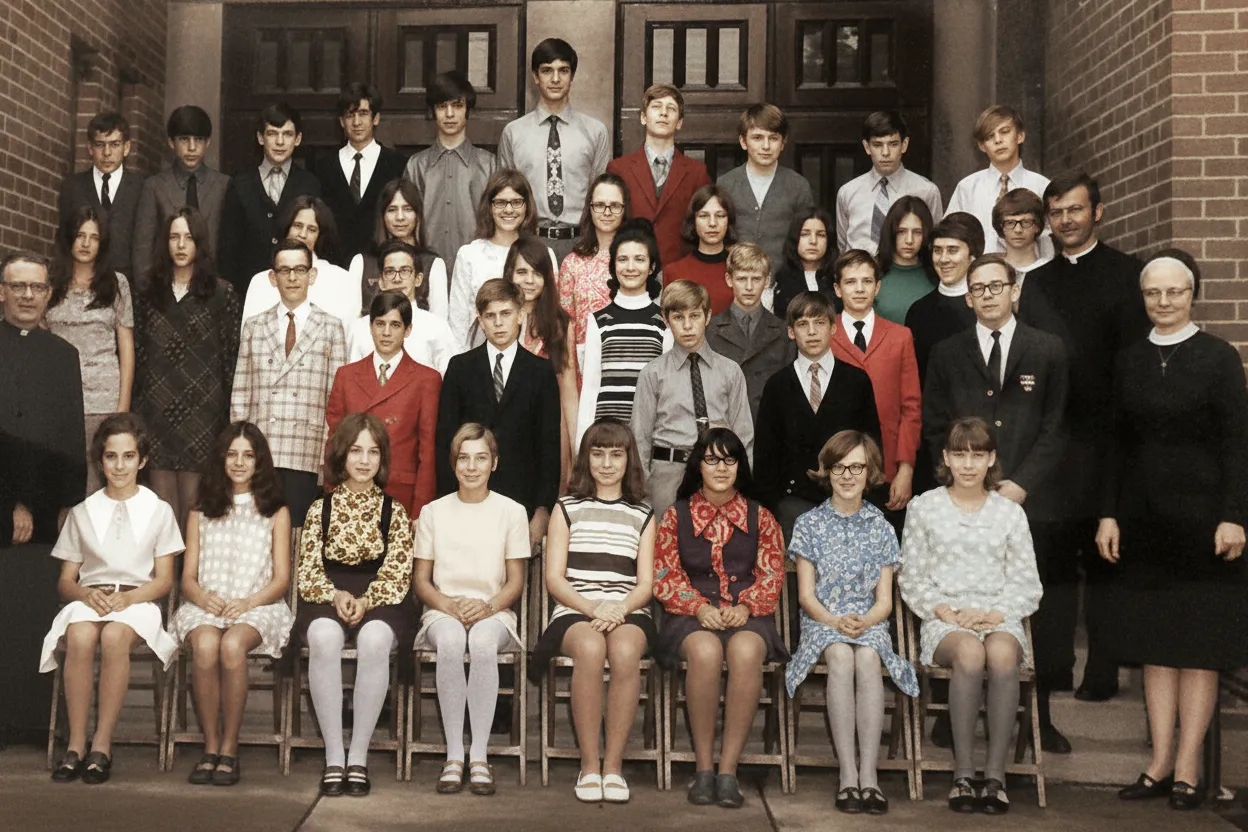
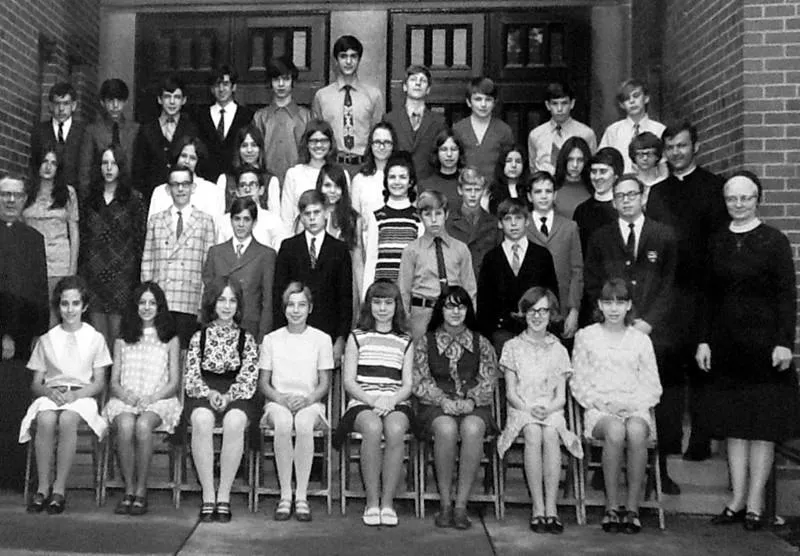
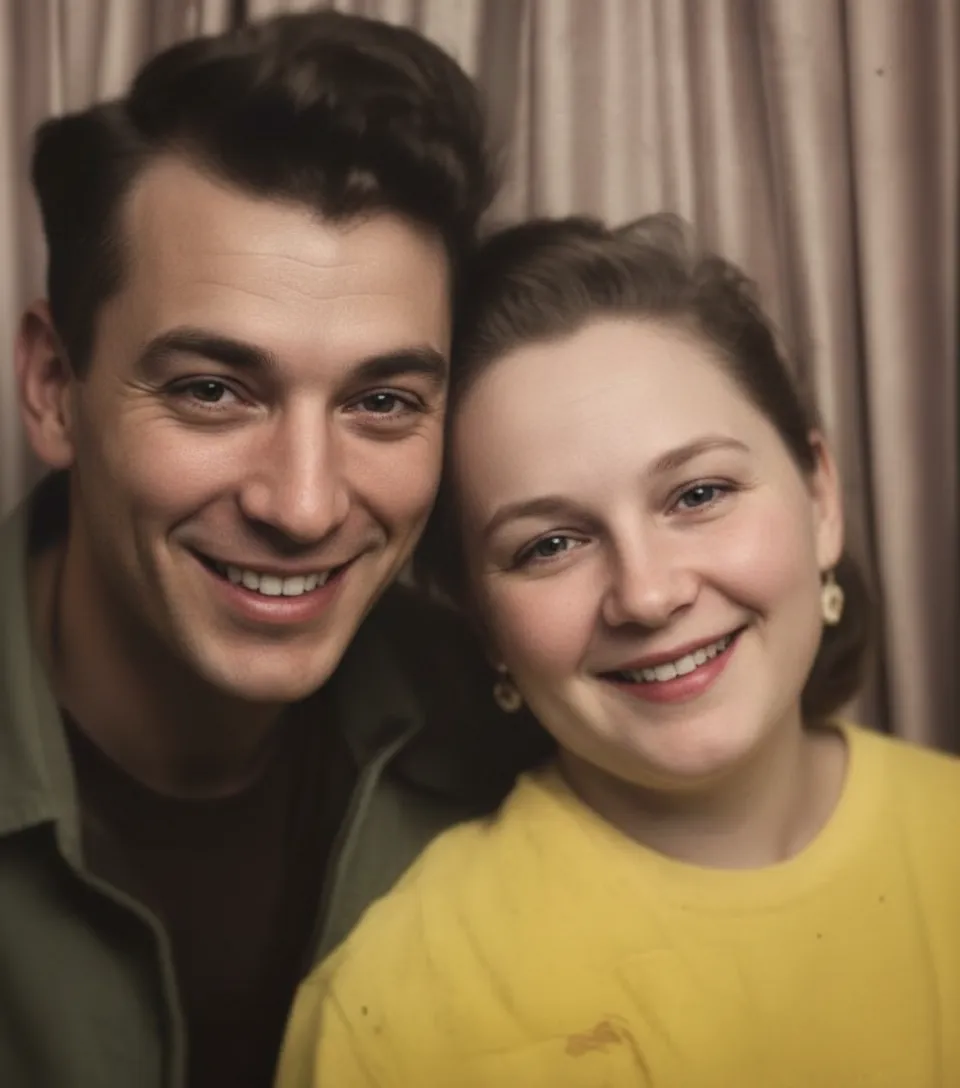
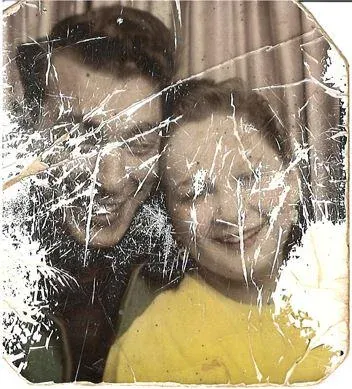
Not every photo needs the same treatment. Choose from Restore Old Photo for heavy damage, Clean Up for light scratches, Enhance Portrait for soft faces, Focus Magic for severe blur, or Colorize B&W to add color.
- ✦Match the mode to the damage type for best results
- ✦Sort your collection into groups by condition
- ✦2 free restorations to test quality first
In-depth guide
How to bulk restore photos online: step by step
First, you need digital versions of your photos. You do not need a scanner or any special equipment. Just take a picture of each old photo with your phone. Lay the photo flat on a table, hold your phone above it, and shoot. Near a window in daylight works best. Do not use flash. The photo does not need to be perfectly straight or cropped. Our AI handles tilted, slightly shadowed, and imperfect phone photos just fine. If you have a lot of photos (50 or more), you can also take them to a copy shop like FedEx or Staples and ask them to scan the stack. They will give you the files on a USB drive or by email.
Open restorephotosapp.com/restore in your web browser on your computer or phone. You will see a simple page where you can add photos. Click the upload area and select your photo files, or drag them from a folder on your computer and drop them onto the page. You can select many photos at once. There is no need to add them one by one.
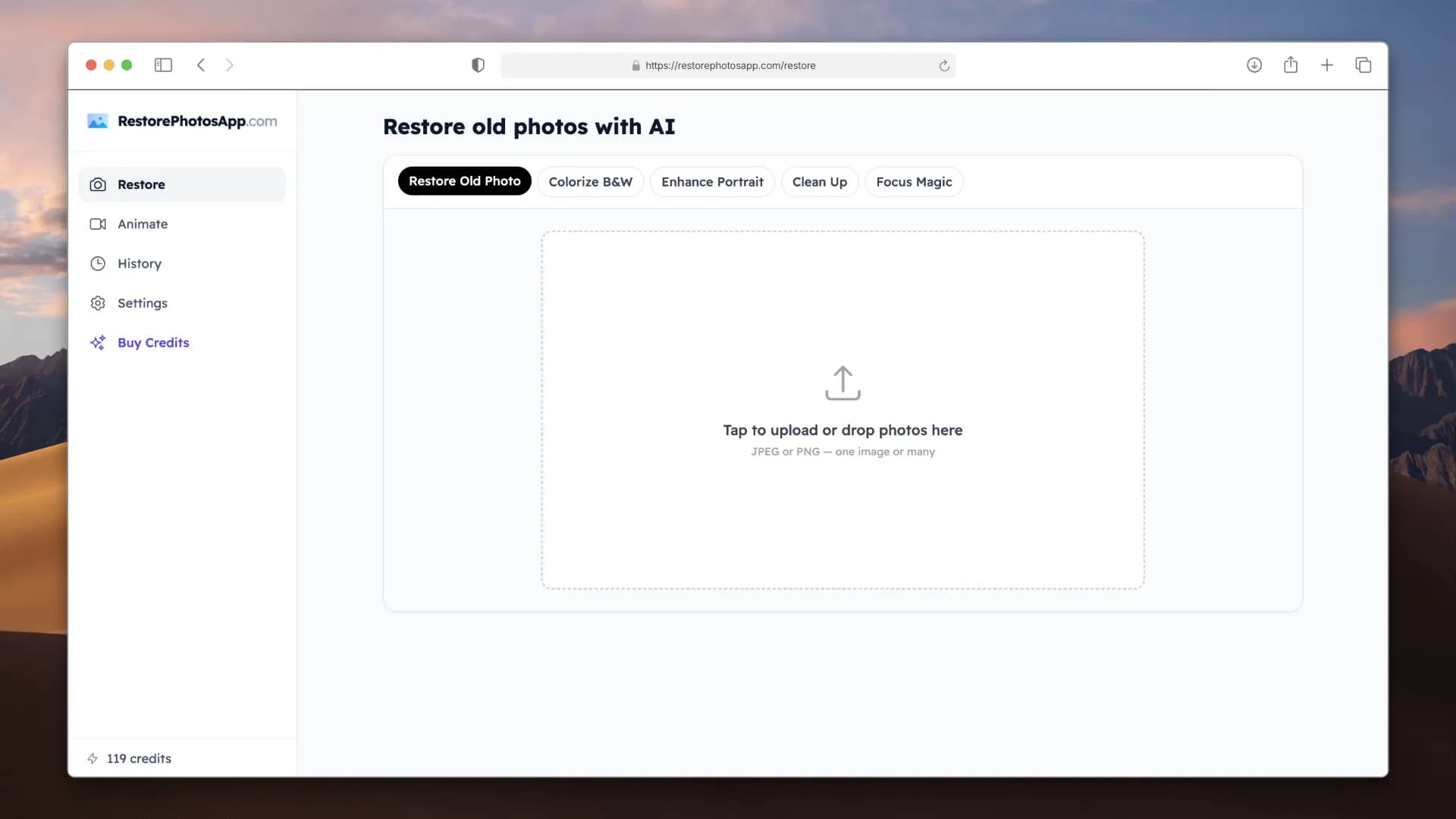
Before uploading, pick a restore mode. If you are not sure which one to use, leave it on "Restore Old Photo." This is the default and works on most old photos. It fixes fading, scratches, blur, yellowing, and water damage all at once. If your photos are not damaged but just look soft or blurry (common for 1980s and 1990s photos), try "Enhance Portrait" instead. If your photos only have scratches and the colors look fine, use "Clean Up," which removes marks without changing anything else.
Once you upload your photos, each one appears in a queue. The AI starts processing them automatically, one after another. You can see the status next to each photo: waiting, processing, or done. You do not need to sit and watch. A batch of 30 photos takes about 10 minutes. Start the batch, go do something else, and come back when it is done.
When all photos are finished, click "Download All" to get a ZIP file with all your restored photos inside. A ZIP file is just a bundled folder. On most computers you double-click it to open it and see your photos. The file names stay the same as your originals, so you can easily match each restored photo to the original.
For large collections (more than 50 photos), upload them in groups of 30 to 50. Check the results after each group. If you notice that some photos look better with a different mode, you can switch for the next group.
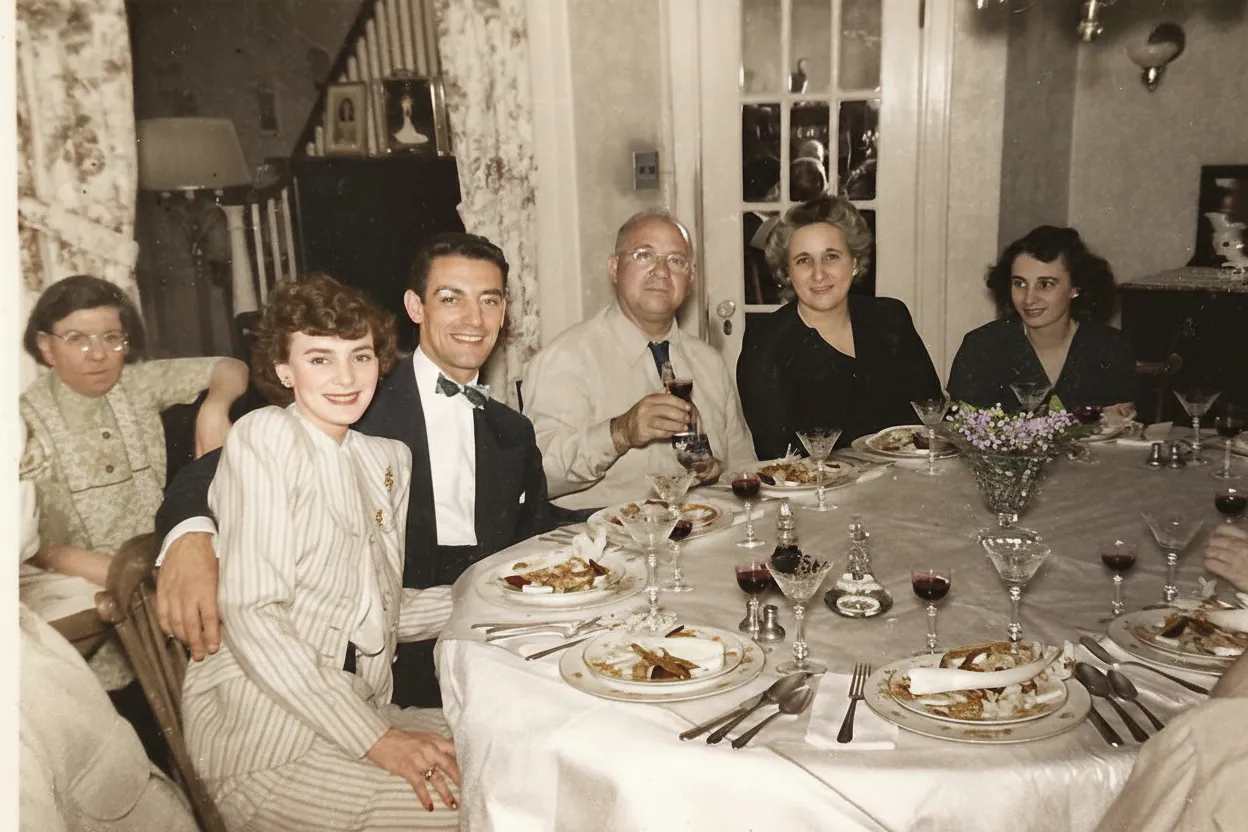
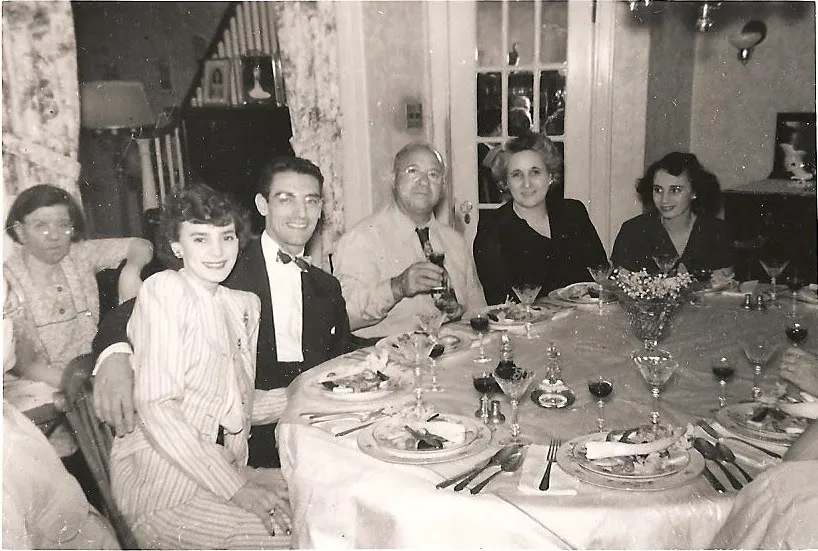
Optional: if you have black-and-white photos, you can add color after restoring. Upload the restored photos again and select "Colorize B&W." The AI adds realistic color to faces, clothing, and backgrounds. Always restore first, then colorize. The AI does a much better job adding color to a clean, sharp photo. Learn more about colorizing black-and-white photos.
Optional: for your favorite restored photos, try the Animate feature. It turns a still photo into a short video where the person gently moves, blinks, or smiles. You can choose styles like "Come to Life" (gentle natural movement) or "Cinematic" (slow camera push like in a movie). Each animation costs 3 credits. These make great gifts for family members.
Expert tips
Tips for better AI restoration results
Try it free before you buy credits
Every account gets 2 free restorations. Use them on your most damaged photo to see what the AI can do before spending anything.
Good lighting beats a good camera
When photographing old prints with your phone, natural daylight from a window makes the biggest difference. Avoid flash, avoid shadows. That is all you need for the AI to work well.
Do not pull stuck photos out of albums
If a photo is stuck to a sticky album page, photograph or scan it in place. Pulling it out tears the print. The AI restores through the adhesive marks.
Restore first, then colorize
For black-and-white photos, run "Restore Old Photo" first to clean up damage. Then run the restored version through "Colorize B&W." The AI produces much better color from a clean image.
Animate your best photos as gifts
Pick 3 to 5 of your most meaningful restored portraits and animate them. A photo where grandma gently blinks and smiles is an unforgettable gift.
Pricing
One-time pricing. No subscription. Credits never expire.
Starter
For 5 to 10 photos. A handful of favorites, done properly.
$0.70 per photo · 10 restorations
Get Starter- 10 AI credits included
- High-Resolution Output
- Credits Never Expire
- Animate Photos with Credits
30-Day Satisfaction Guarantee
Pro
A small album: around 25 photos.
$0.68 per photo · 25 restorations
Get Pro- 25 AI credits included
- High-Resolution 1080P Output
- Credits Never Expire
- Animate Photos with Credits
30-Day Satisfaction Guarantee
Family
A shoebox of family photos: around 50.
$0.60 per photoSave 14% per photo
5 Starter packs would cost $34.95
- 50 AI credits included
- High-Resolution 1080P Output
- Credits Never Expire
- Animate Photos with Credits
30-Day Satisfaction Guarantee
Studio
A big collection: 100 photos, or dozens of animations.
$0.55 per photoSave 21% per photo
10 Starter packs would cost $69.90
- 100 AI credits included
- High-Resolution 1080P Output
- Credits Never Expire
- Animate Photos with Credits
30-Day Satisfaction Guarantee
Working through a whole archive of 250 photos or more? Archive pack: 250 credits for $109.99 ($0.44 per photo)
Prices don't include VAT.
FAQ
Frequently asked questions
How do I restore multiple photos at once online?
Go to restorephotosapp.com/restore, drag and drop all your photos onto the page (or click to select them), and the AI processes each one automatically in a queue. When done, click "Download All" to get a ZIP file with every restored photo inside.
Is AI photo restoration as good as professional restoration?
For most common damage types (fading, yellowing, scratches, blur, water stains), AI produces results comparable to professional hand-restoration. The main advantage is speed and cost: AI restores a photo in 30 seconds for $0.60 instead of $50 and several days. For extreme damage where large parts of a face are missing, a professional retoucher may still produce better results.
Do I need a scanner to restore old photos?
No. You can photograph your old prints with any smartphone. Lay the photo flat, hold your phone above it in good daylight, and take a picture. No flash. That is enough for the AI to produce a good restoration. You can also take your photos to a copy shop (FedEx, Staples) and ask them to scan the stack.
How much does bulk photo restoration cost?
You get 2 free restorations to try it. After that, 10 photos cost $6.99. For larger collections, the Family plan gives you 50 restorations for $29.99, which works out to about $0.60 per photo.
How long does AI take to restore a batch of photos?
Each photo takes 15 to 30 seconds. A batch of 30 photos takes about 10 minutes. You can start the batch and walk away while the AI works through the queue.
Can AI fix water-damaged photos?
Yes. The AI handles water stains, mold spots, and moisture damage well. It removes the staining and recovers the original image underneath. Heavily water-damaged photos where the emulsion has peeled off may have areas the AI cannot fully reconstruct, but the results are still significantly better than the damaged original.
Can AI restore severely scratched photos?
Yes. The "Restore Old Photo" mode removes scratches automatically while preserving the details underneath. For photos where scratches are the only problem and you want a lighter touch, use "Clean Up" mode instead, which removes marks without altering colors or sharpness.
Which restore mode should I use?
"Restore Old Photo" works well on about 80% of old photos. It handles fading, scratches, blur, and yellowing. Use "Enhance Portrait" for photos that are just soft or blurry but not damaged. Use "Clean Up" if you only want to remove scratches without changing colors. Use "Colorize B&W" to add color to black-and-white photos.
How do I restore a whole photo album online?
Digitize the photos by photographing them with your phone or scanning them. Upload them all at once to restorephotosapp.com/restore. The AI processes each photo in a queue. Download all results as a ZIP file. For albums with more than 50 photos, upload in groups of 30 to 50.
Can I colorize black-and-white photos after restoring?
Yes. After restoring your black-and-white photos, upload them again and select "Colorize B&W." The AI adds realistic skin tones, clothing colors, and backgrounds. Restoring first and colorizing second produces the best results.
Can I print the restored photos?
Yes. The AI outputs full-resolution images ready to print at any size. You can print them at home, at a pharmacy print kiosk, or order prints online.