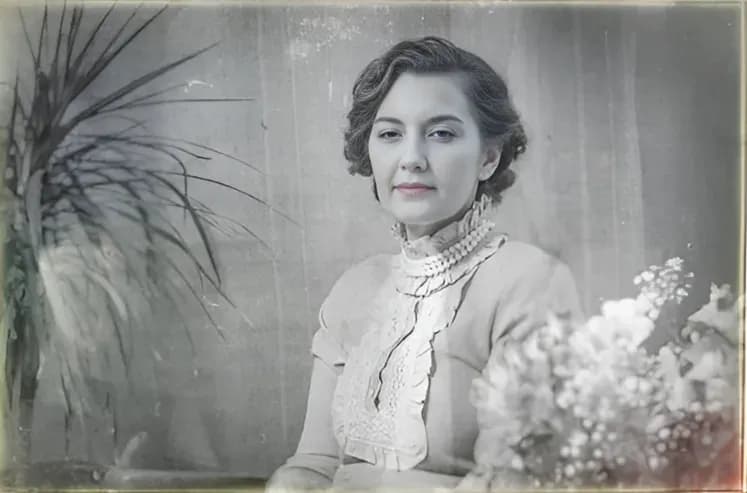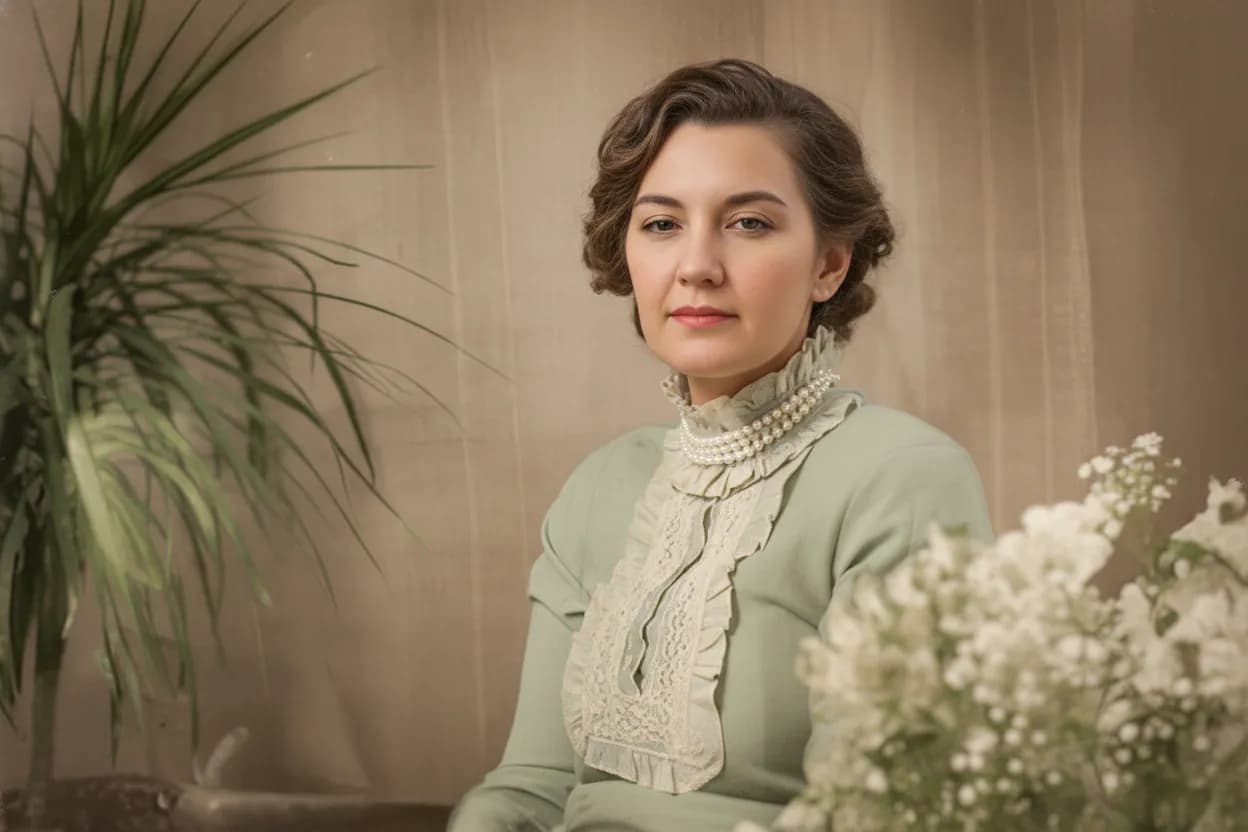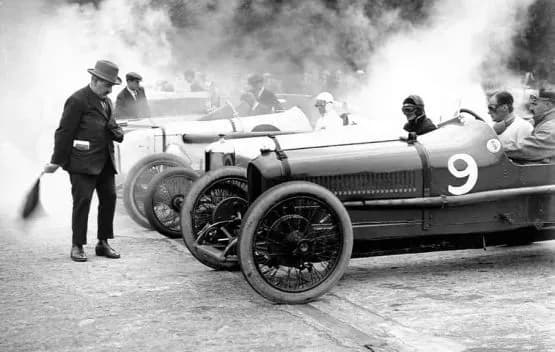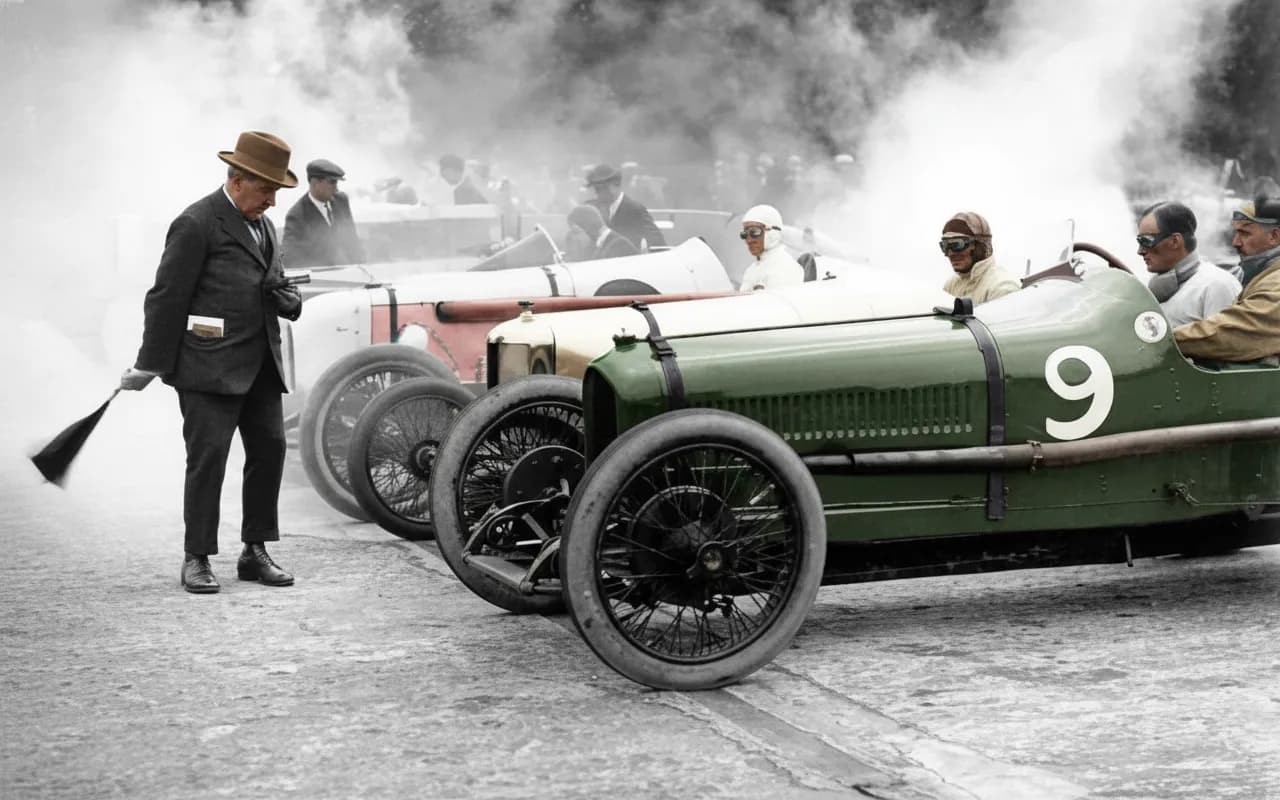
Why use an AI image enhancer?
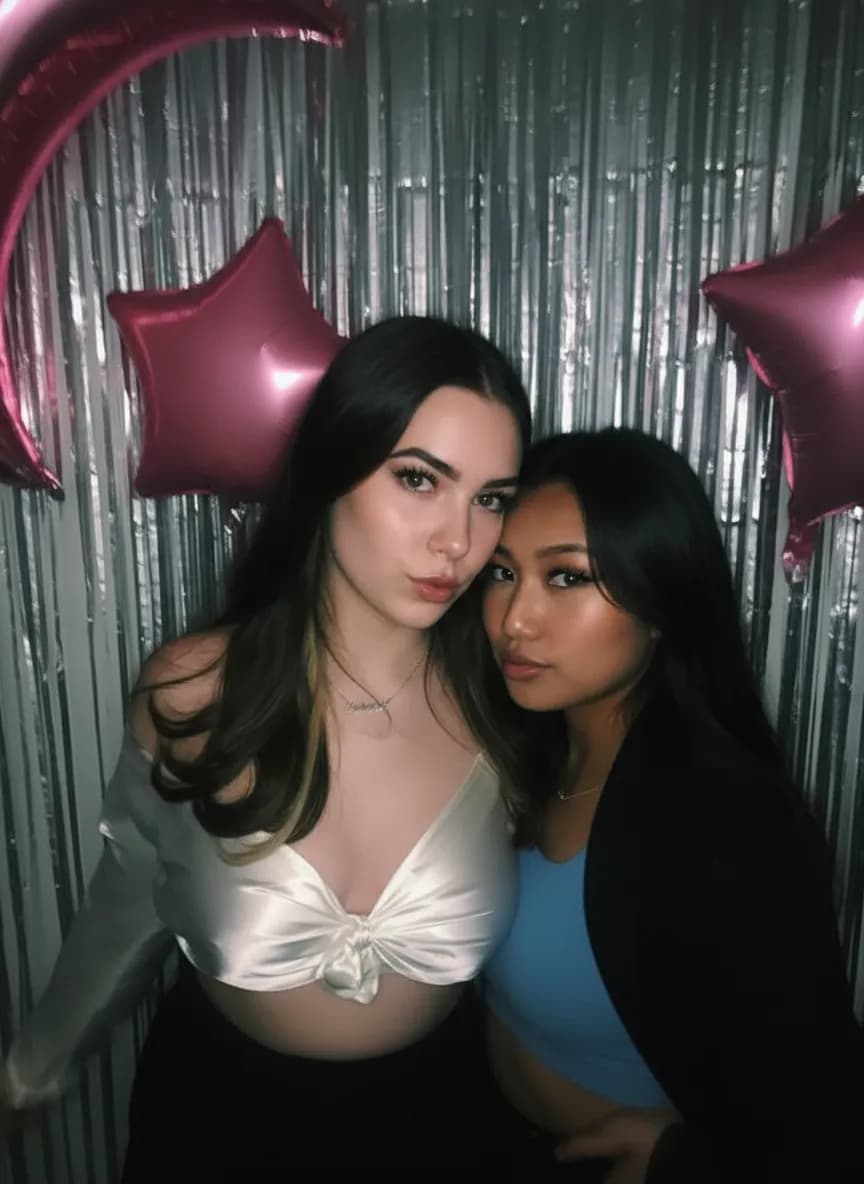
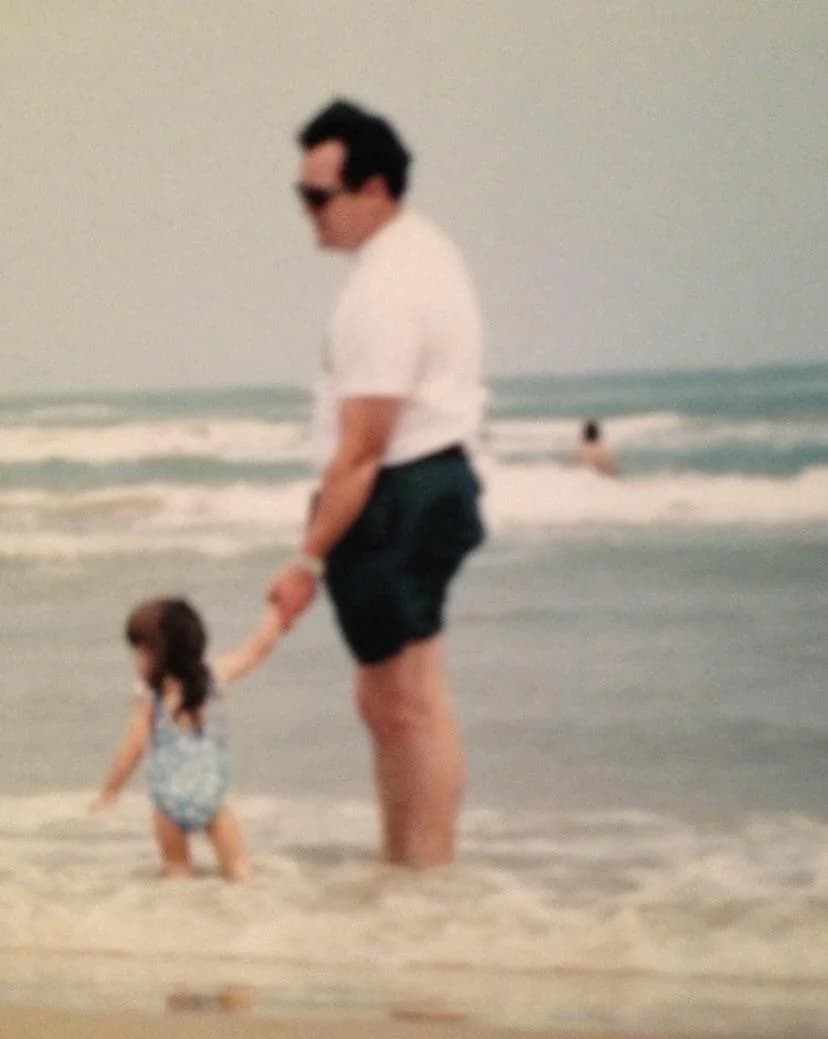
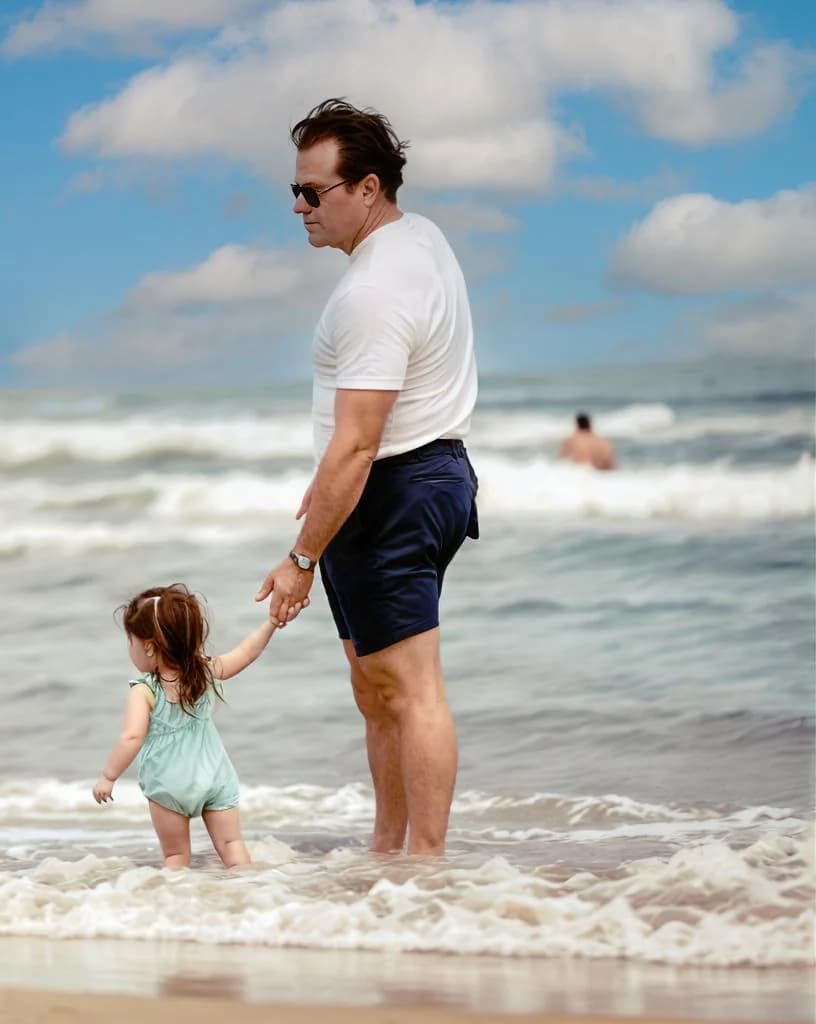
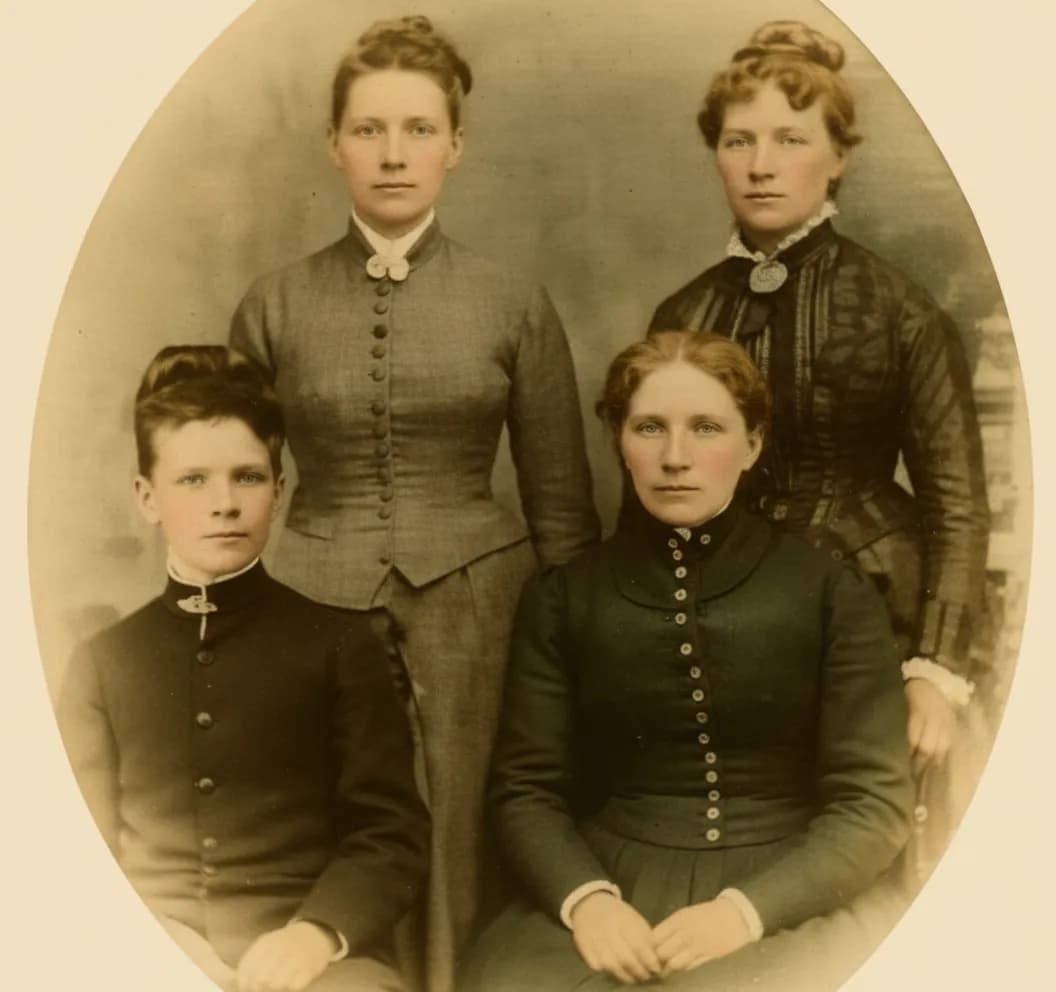
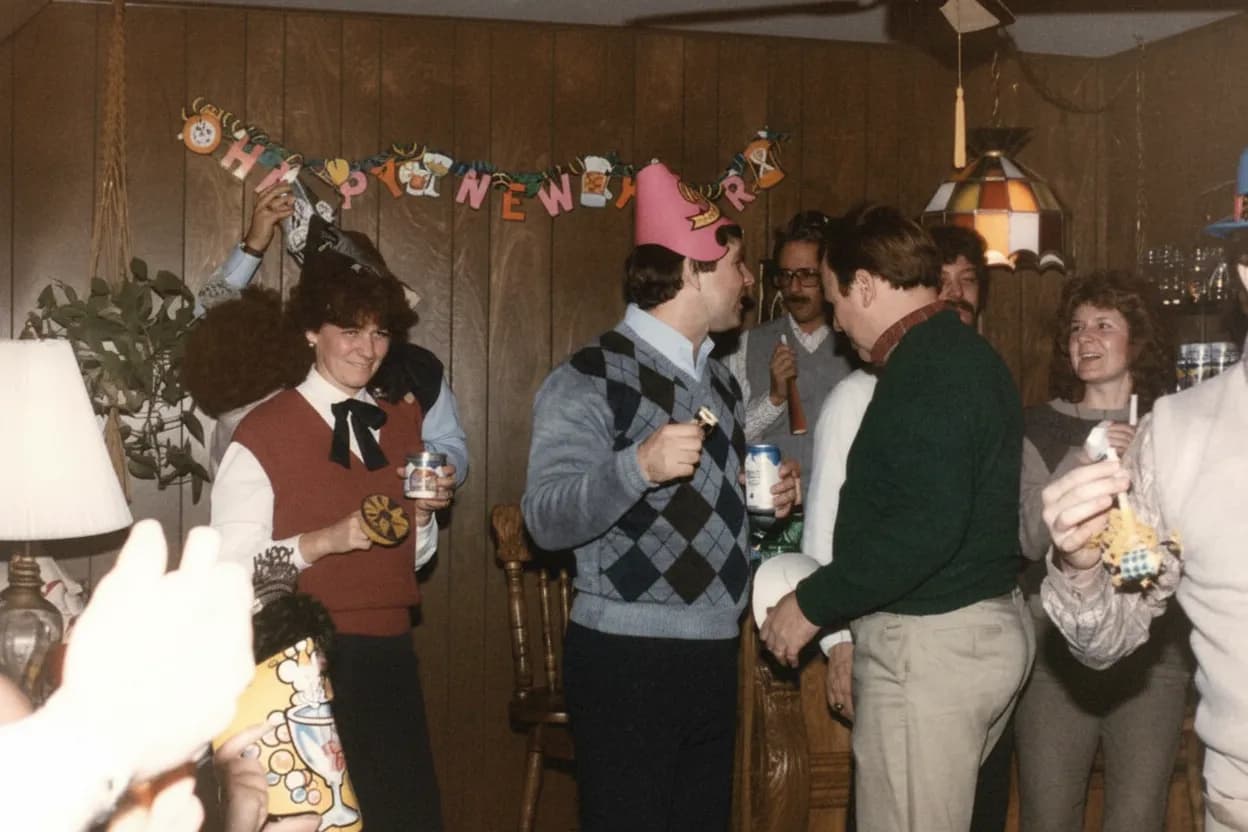
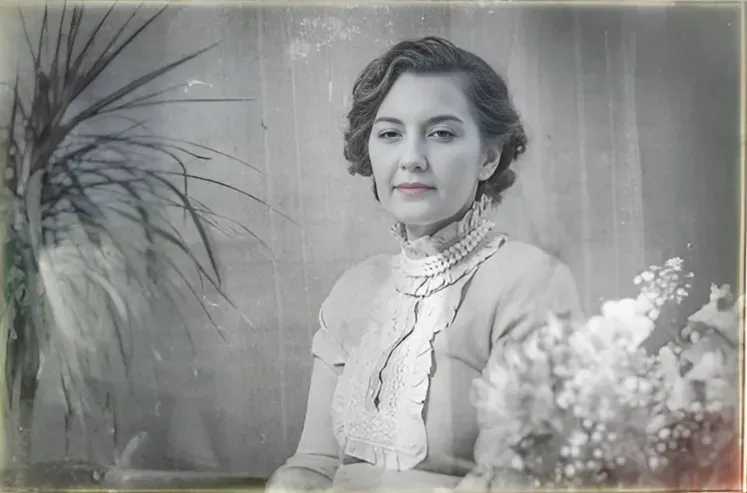
Every camera and phone has limits. Indoor shots come out noisy, sunset pictures lose their color range, and group shots in mixed lighting leave half the faces in shadow. An AI image enhancer compensates for these hardware limitations after the fact. It applies the same corrections a professional photographer would make in post-production, but in seconds instead of minutes. Whether you are a real estate agent brightening listing photos, a parent improving birthday-party snapshots, or a small business owner polishing product images, AI enhancement delivers consistent, professional-quality results without any editing skill.
- Fix underexposed, overexposed, or flat-looking photos instantly
- Sharpen soft details caused by camera shake or low-light noise
- Boost colors and contrast while keeping the look natural
- Upscale resolution so small photos are large enough to print
- Save hours of manual editing per batch of photos

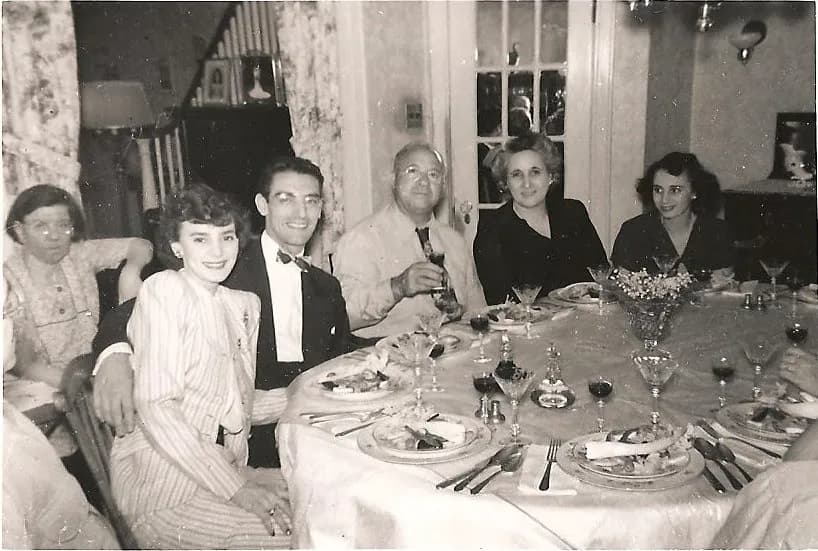
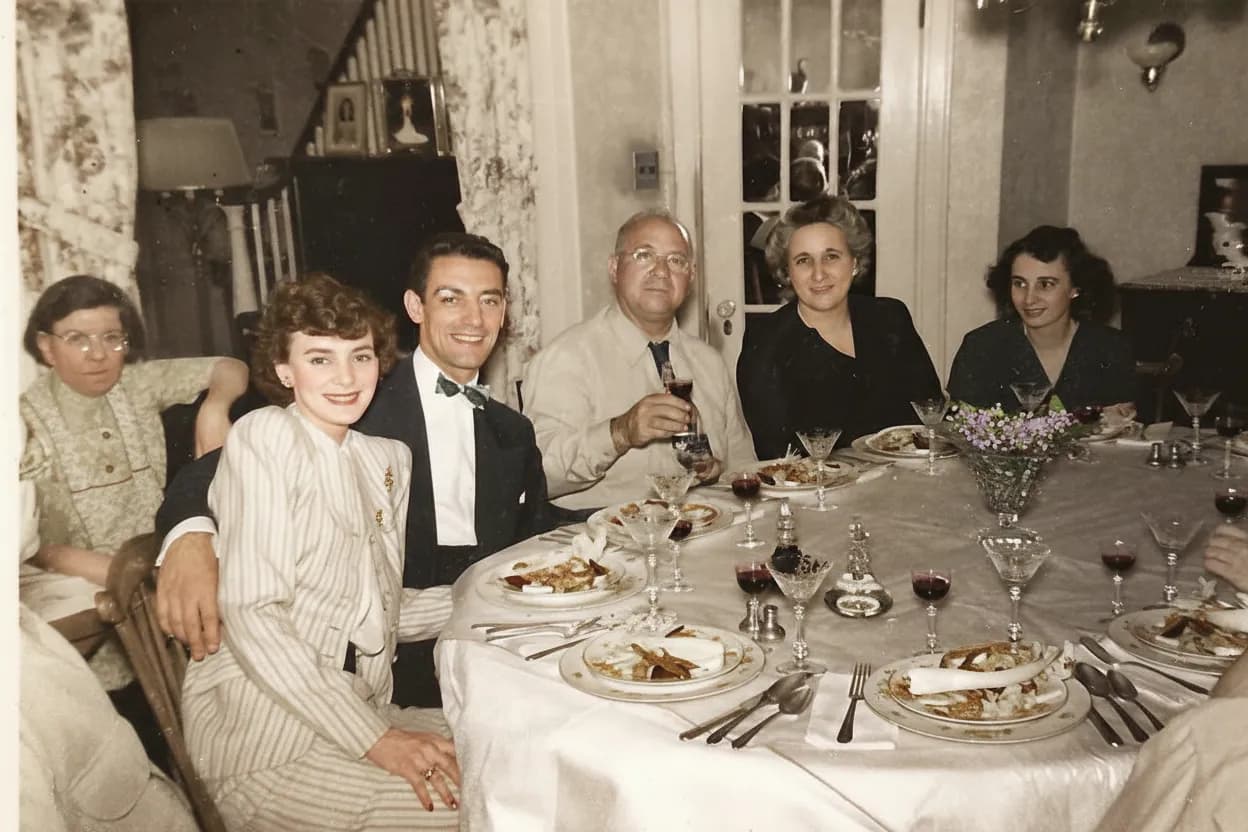
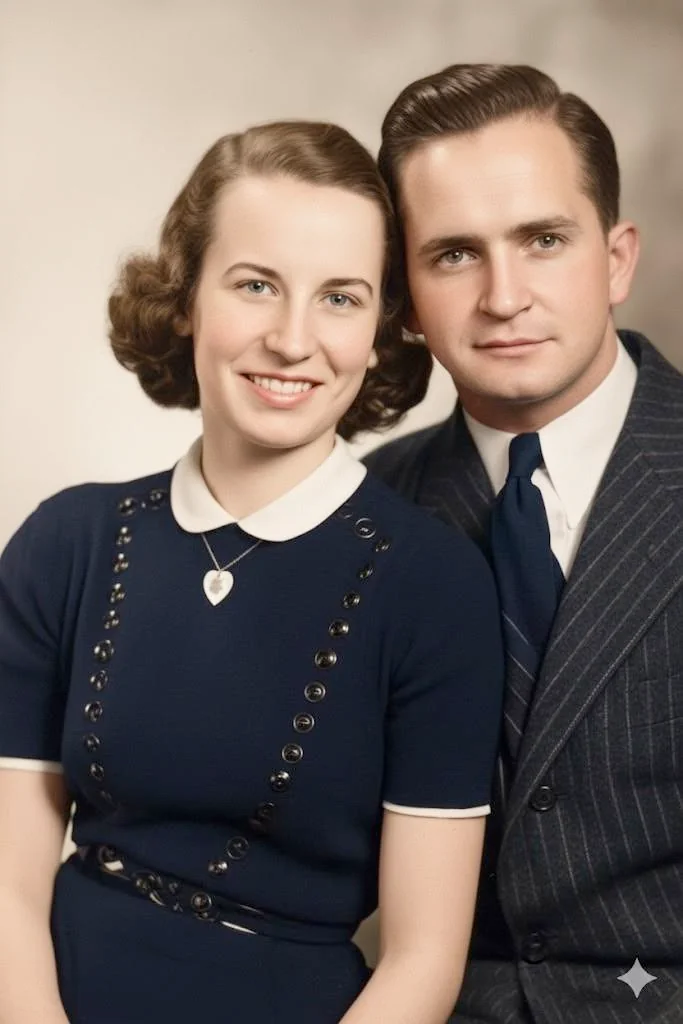
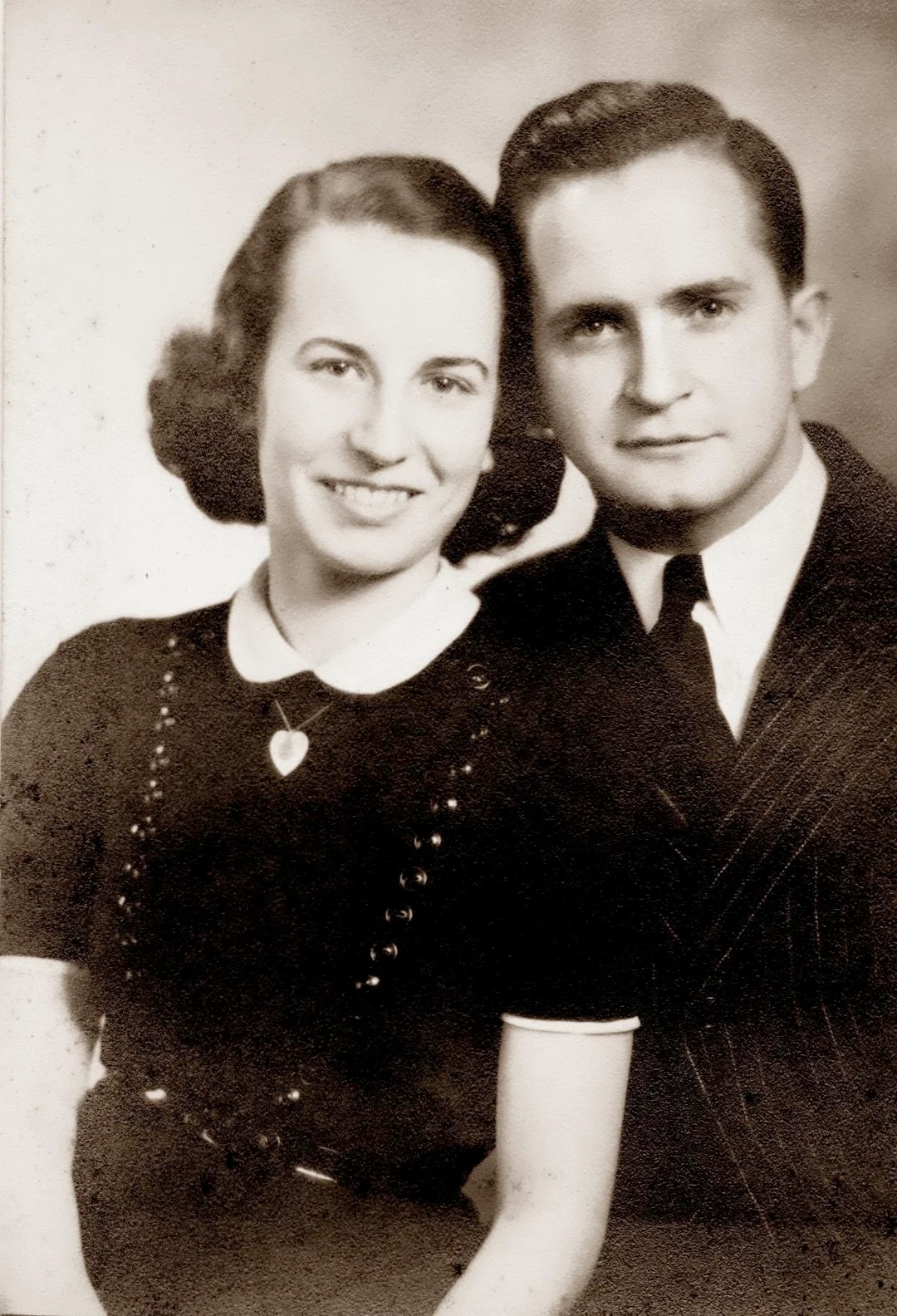
“My grandma cried when she saw her wedding photo restored. Absolutely incredible.”
Maria K.

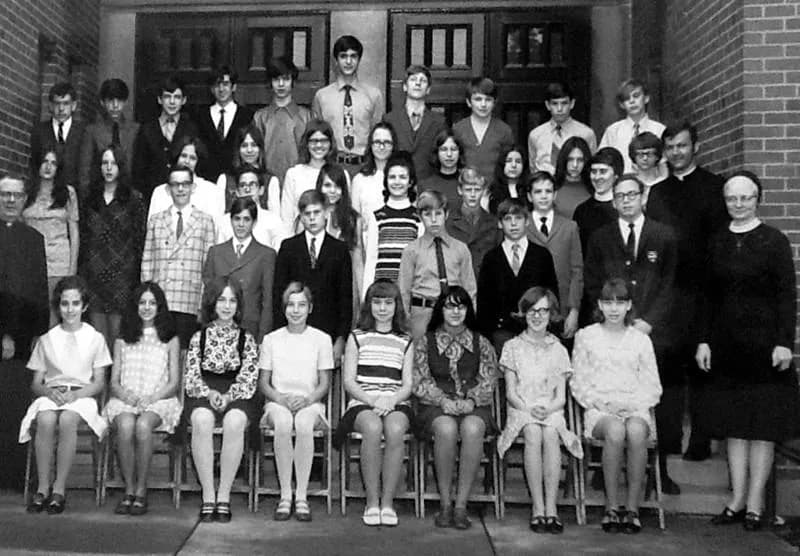
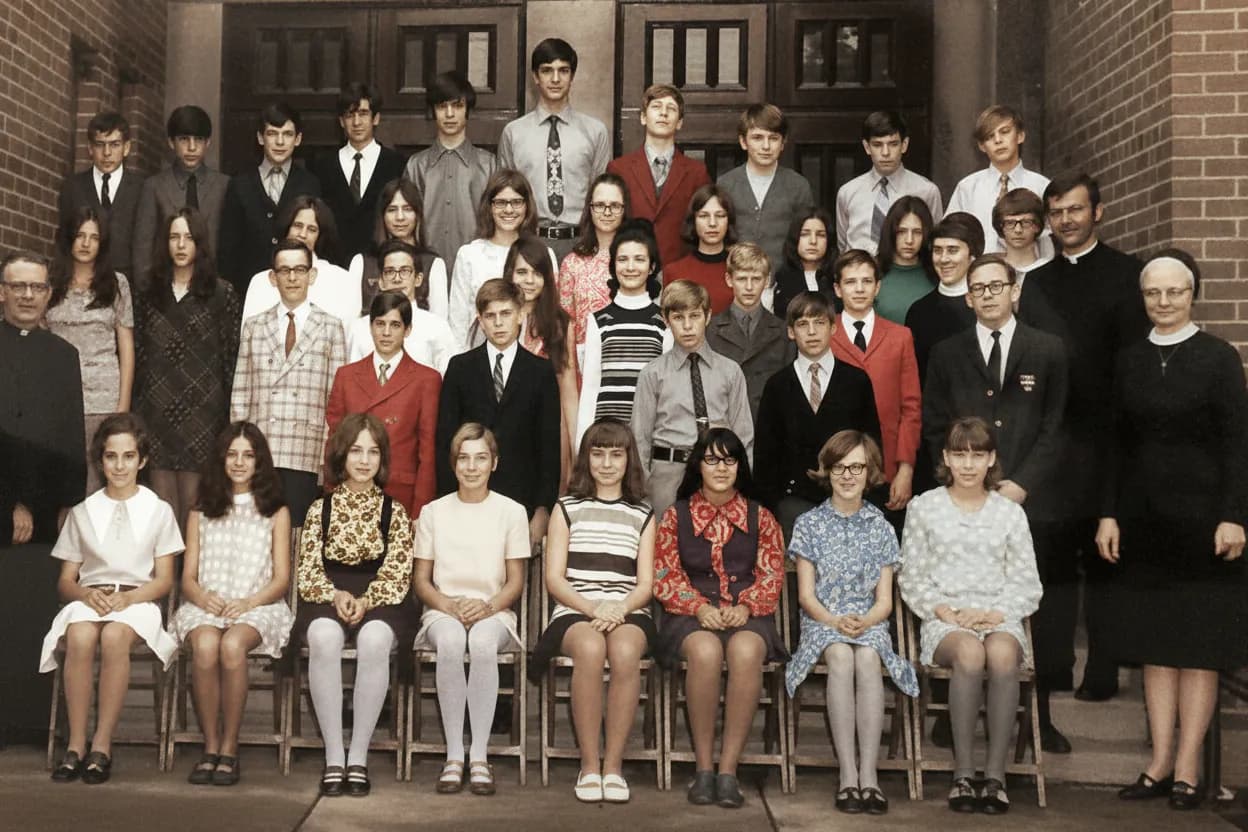
“Uploaded a blurry photo from the 70s and got back a crystal clear image. Like magic.”
James T.

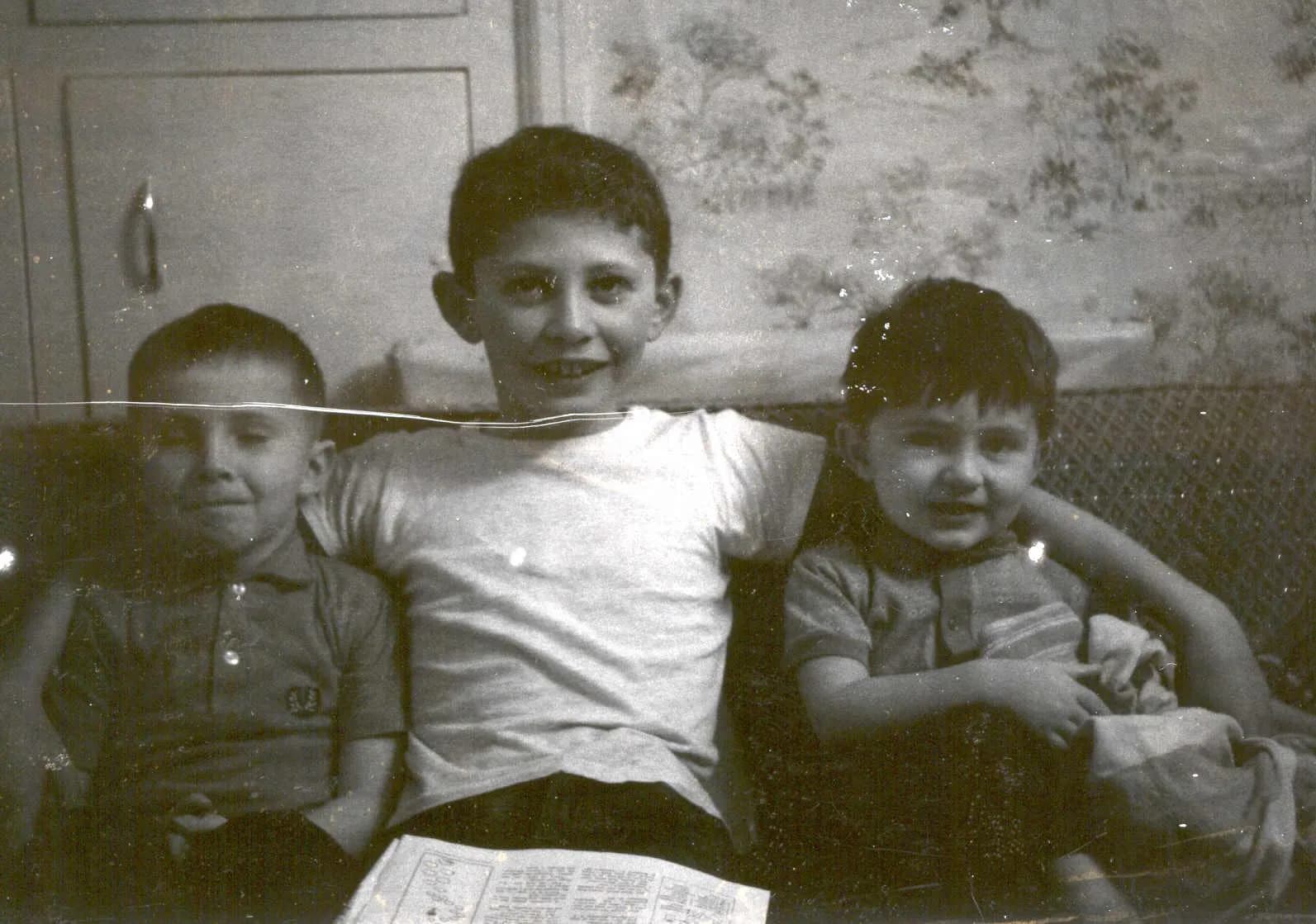
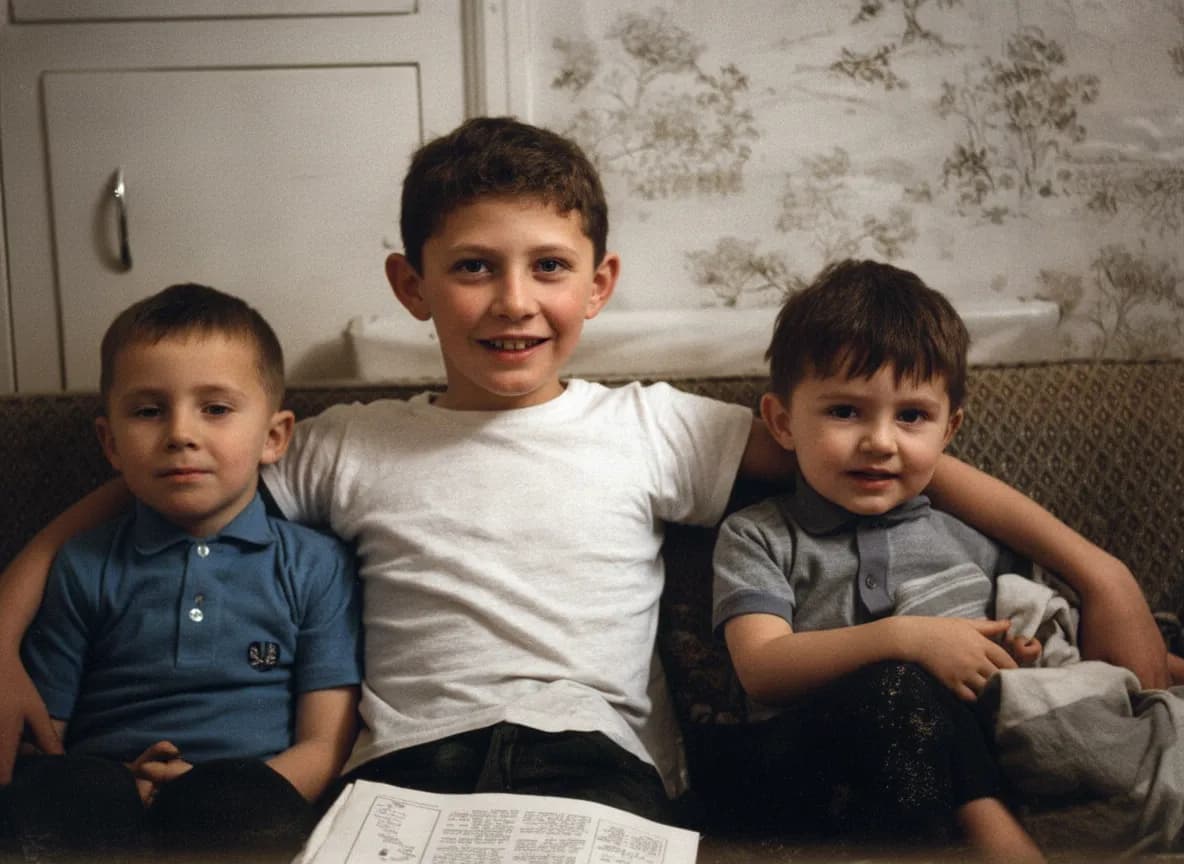
“Finally recovered old family photos I thought were lost forever. So easy to use.”
Sarah M.
How it works
3 simple steps.
Smart Enhancement
A picture enhancer that reads the whole scene.
Most auto-enhance tools just crank up brightness and saturation. Ours is different. The AI image enhancer reads the scene, identifies faces, sky, foliage, fabric, and skin, then applies targeted corrections to each region independently. Shadows open up without blowing out highlights. Skin tones stay natural while backgrounds become vivid. The result looks like a professional edit, not a filter.
- ✦Scene-aware corrections for faces, landscapes, and mixed lighting
- ✦Recovers shadow detail without clipping highlights
- ✦Balances white point and removes unwanted color casts
- ✦Enhances texture and micro-contrast for a crisp, editorial look
Image Quality Boost
Improve image quality and turn low-res into printable.
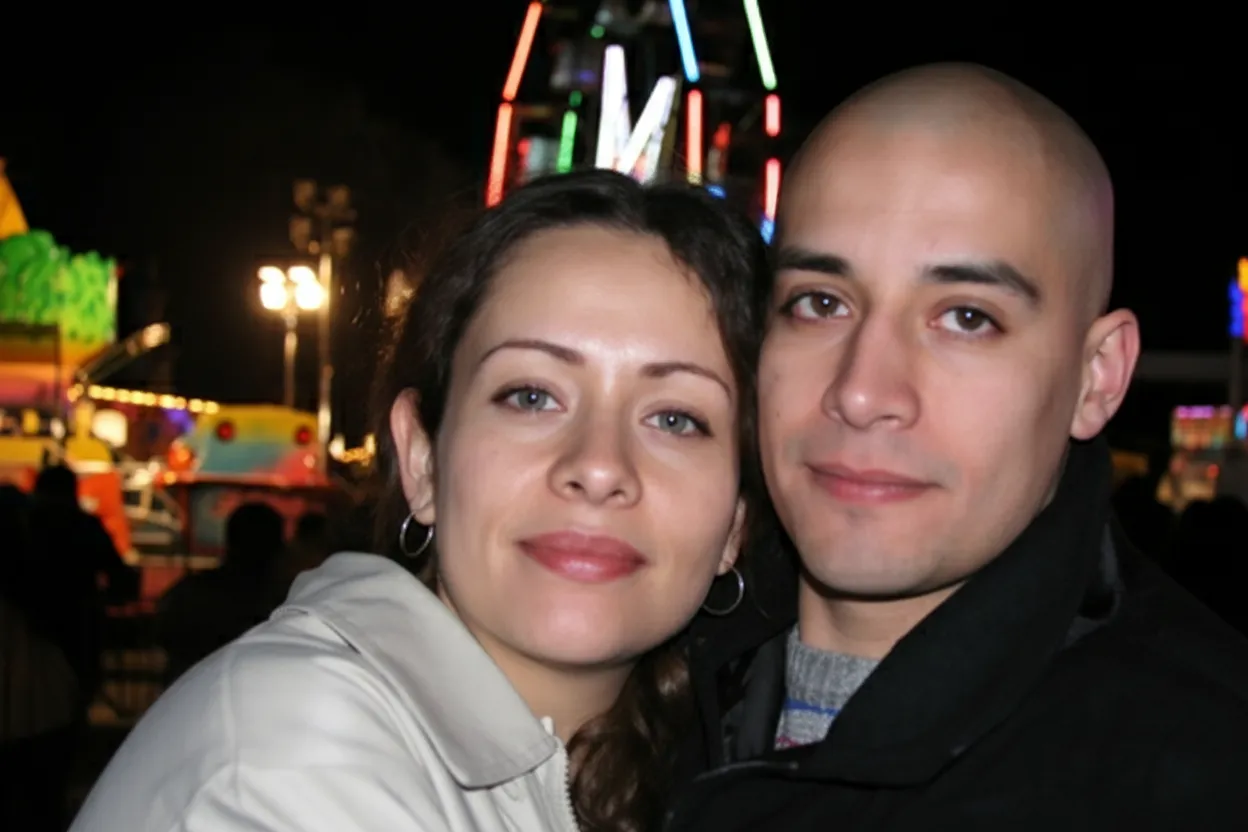
Cropped too tight or shot on an older phone? This image quality enhancer upscales your picture while adding real detail, not just larger pixels. Hair strands become visible, text in the background becomes legible, and fabric patterns emerge where there was only blur. The enhancement is trained on millions of real-world images, so it knows what genuine detail looks like versus noise.
- ✦AI upscaling adds authentic detail, not blocky artifacts
- ✦Small crops become large enough to print and frame
- ✦Ideal for social-media photos you want to use in print
- ✦Works on smartphone shots, screenshots, and web images
No Skills Needed
Professional results without learning curves.
Lightroom and Photoshop offer powerful controls, but they demand hours of practice. Our AI photo enhancer delivers a polished result the moment you upload. There are no sliders to tweak, no histograms to read, and no export settings to configure. If you can drag a file, you can enhance a photo. Every new account gets 2 free enhancements to test before committing.
- ✦Zero learning curve | upload and download, nothing else
- ✦Works in any browser on desktop, tablet, or phone
- ✦Full-resolution output ready for print or social sharing
- ✦2 free enhancements on every new account, no card required
In-depth guide
The complete guide to AI image enhancement
Image enhancement means improving the overall quality of a picture after it has been captured. Traditionally this involved adjusting exposure, contrast, white balance, sharpness, and noise reduction in software like Lightroom. Each adjustment required knowledge and judgment. An AI image enhancer automates the entire workflow. The model evaluates every region of the image and applies the right correction for that specific area, achieving in one pass what used to take dozens of manual adjustments.
The best time to enhance a photo is right after you take or receive it. Enhancement works on any digital image, but photos with more data give the AI more to work with. A high-resolution original shot in good lighting will enhance better than a tiny screenshot. That said, even low-quality images see dramatic improvement. Phone photos from five years ago, compressed social-media downloads, and scanned prints all benefit significantly from AI enhancement.
For portrait photos, the AI pays special attention to skin, eyes, and hair. It smooths digital noise without erasing skin texture, brightens eyes naturally, and adds micro-contrast to hair so individual strands are visible. The result is a portrait that looks like it was shot with a professional camera and edited by a retoucher, even if it came from a budget smartphone in bad lighting.
Landscape and travel photos benefit from targeted sky and foliage enhancement. The AI deepens sky blues without making them unnatural, recovers cloud detail that was lost in bright exposure, and boosts the greens and earth tones in vegetation. Buildings and architecture gain sharper lines and cleaner textures. The goal is always to show the scene as your eyes saw it, not as the camera limited it.
Product and real estate photos see some of the biggest improvements. A dark kitchen photo with warm tungsten lighting can be corrected to neutral, bright whites that make the space look larger. A product shot with a color cast from mixed lighting can be fixed to show the accurate product color. For e-commerce sellers and real estate agents, AI enhancement saves the cost of reshooting or hiring an editor.
Batch enhancement is where the time savings really add up. If you have 50 photos from an event, a trip, or a listing, enhancing them one by one in Lightroom could take an entire afternoon. With our AI enhancer, you upload the batch, the AI processes each image independently, and you download the results in minutes. Each photo gets individual analysis, so the corrections are tailored, not one-size-fits-all.
After enhancing, always save the original file separately. Enhancement is non-destructive in our tool, meaning we never modify your uploaded file, but keeping your own copy of the original ensures you can re-enhance later as AI models continue to improve. Store both versions in cloud storage and a local backup for maximum safety.
Expert tips
Tips for getting the best AI photo enhancement results
Start with the highest-quality original available
If you have the raw file or the original full-resolution JPEG, use that instead of a compressed version. More data gives the AI more real detail to enhance rather than amplifying compression artifacts.
Do not pre-edit before uploading
Avoid applying your own filters, sharpening, or exposure adjustments before enhancing. The AI works best on unedited files because it can read the true exposure and color data without interference from previous edits.
Enhance before cropping
Upload the full uncropped image so the AI can use surrounding context for better edge and color accuracy. Crop the enhanced result afterward if you want a tighter composition.
Use enhancement for social media repurposing
Downloaded an old Instagram or Facebook photo that looks soft and compressed? Run it through the enhancer to recover detail lost to social-media compression. The result will look sharper and more vibrant than the version on your feed.
Combine enhancement with restoration for old photos
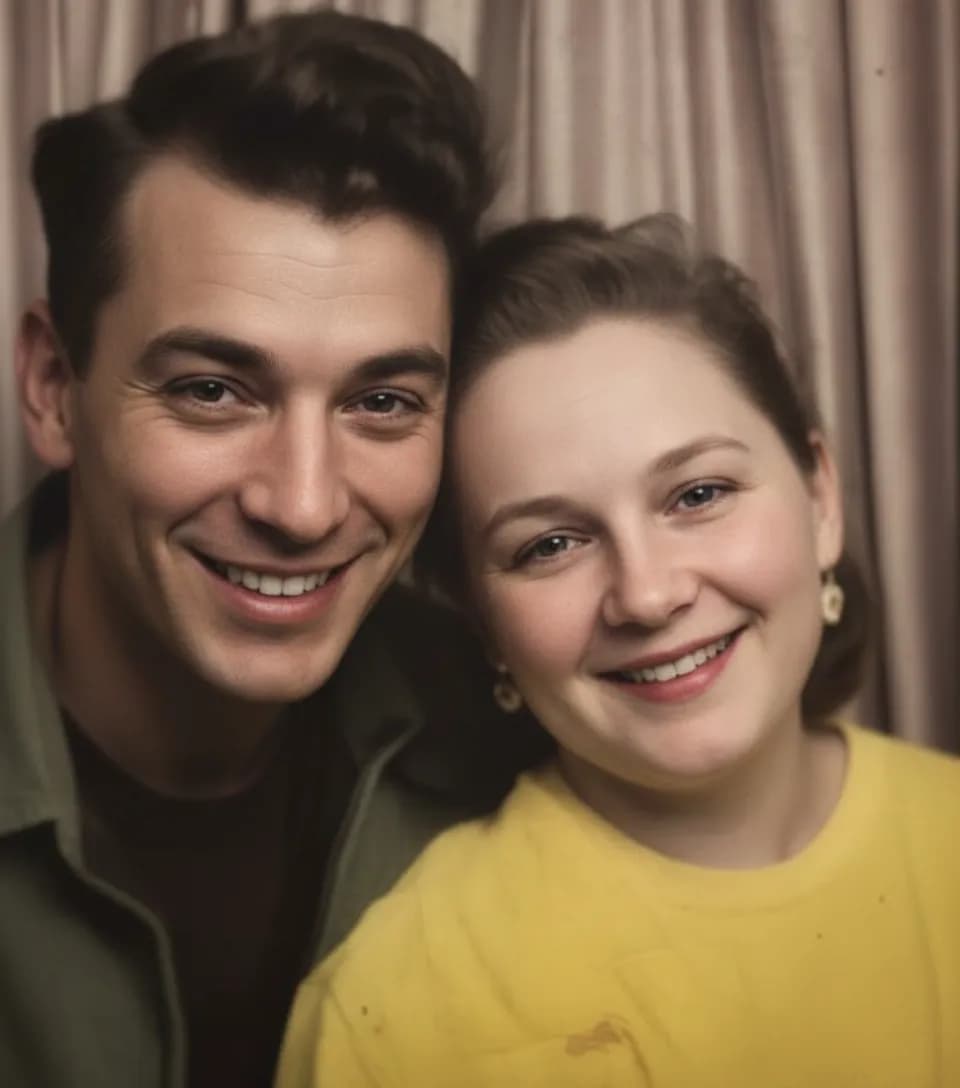
If you have a damaged old photo, restore it first to fix scratches and fading, then enhance the restored version for maximum sharpness and color accuracy. The two-step process produces the best possible result.
Check the result at full zoom
After downloading, zoom to 100% on your computer screen to see the detail the AI added. Enhancement improvements are most visible at full resolution, where sharpened textures and recovered shadow detail really stand out.
Pricing
One-time pricing. No subscription. Credits never expire.
Starter
For 5 to 10 photos. A handful of favorites, done properly.
$0.70 per photo · 10 restorations
Get Starter- 10 AI credits included
- High-Resolution Output
- Credits Never Expire
- Animate Photos with Credits
30-Day Satisfaction Guarantee
Pro
A small album: around 25 photos.
$0.68 per photo · 25 restorations
Get Pro- 25 AI credits included
- High-Resolution 1080P Output
- Credits Never Expire
- Animate Photos with Credits
30-Day Satisfaction Guarantee
Family
A shoebox of family photos: around 50.
$0.60 per photoSave 14% per photo
5 Starter packs would cost $34.95
- 50 AI credits included
- High-Resolution 1080P Output
- Credits Never Expire
- Animate Photos with Credits
30-Day Satisfaction Guarantee
Studio
A big collection: 100 photos, or dozens of animations.
$0.55 per photoSave 21% per photo
10 Starter packs would cost $69.90
- 100 AI credits included
- High-Resolution 1080P Output
- Credits Never Expire
- Animate Photos with Credits
30-Day Satisfaction Guarantee
Working through a whole archive of 250 photos or more? Archive pack: 250 credits for $109.99 ($0.44 per photo)
Prices don't include VAT.
FAQ
Frequently asked questions
What does an AI image enhancer do?
An AI image enhancer automatically improves picture quality by adjusting exposure, contrast, white balance, sharpness, and noise. It analyzes each region of the image independently and applies the right correction for that area. The result is a brighter, sharper, more colorful version of your original picture.
How do I enhance the quality of an image online?
Upload your image at restorephotosapp.com/restore, select "Enhance" mode, and click the button. The AI image enhancer analyzes the picture and improves its quality automatically — sharpness, lighting, color, and resolution — in about 30 seconds. No editing skills or software needed, and your first 2 enhancements are free.
Is there a free image enhancer?
Yes. Every new account gets 2 free image enhancements at full resolution with no watermark and no credit card required. That is enough to test the picture enhancer on your own images before buying credits, which start at $6.99 for 10.
What is the best picture enhancer for image quality?
The best image quality enhancer is one that makes targeted, scene-aware corrections rather than applying a blanket filter. RestorePhotos analyzes faces, skies, skin, and textures separately, upscales resolution with real detail, and outputs a natural-looking result — not an over-sharpened or over-saturated one. It runs in any browser with no software to install.
Is AI photo enhancement free?
Every new account gets 2 free enhancements with no credit card required. After that, credit packs start at $6.99 for 10 enhancements. This lets you test the quality on your own photos before spending anything.
Will AI enhancement make my photo look fake or over-processed?
No. Our AI is trained to produce natural-looking results, not over-saturated or artificially sharpened images. It targets specific problems like noise, soft focus, and color casts while preserving the authentic character of the photo. The goal is to make the photo look its best, not obviously edited.
Can I enhance photos taken on an old phone?
Yes. Photos from older smartphones with lower-resolution sensors and weaker processing benefit enormously from AI enhancement. The AI sharpens soft details, reduces noise, corrects the limited dynamic range, and even upscales resolution so the photo can be printed at larger sizes.
How is AI enhancement different from Instagram filters?
Filters apply the same preset adjustments to every photo regardless of content. AI enhancement analyzes the specific photo and makes intelligent, targeted corrections. A filter might over-brighten an already bright sky while an AI enhancer would leave the sky alone and only brighten the dark foreground.
Can I enhance a photo that was already edited?
You can, but results are best on unedited originals. Previous edits, especially heavy sharpening or compression, can introduce artifacts that the AI may amplify. If you only have an edited version, the AI will still improve it, but starting from the raw or original file always gives the best outcome.
Does AI enhancement increase resolution?
Yes. The enhancement includes AI upscaling that adds genuine detail as it increases the pixel dimensions. Unlike simple interpolation that just makes pixels bigger, our AI predicts and fills in real detail based on its training data. This makes small or cropped photos large enough for printing.
How long does AI photo enhancement take?
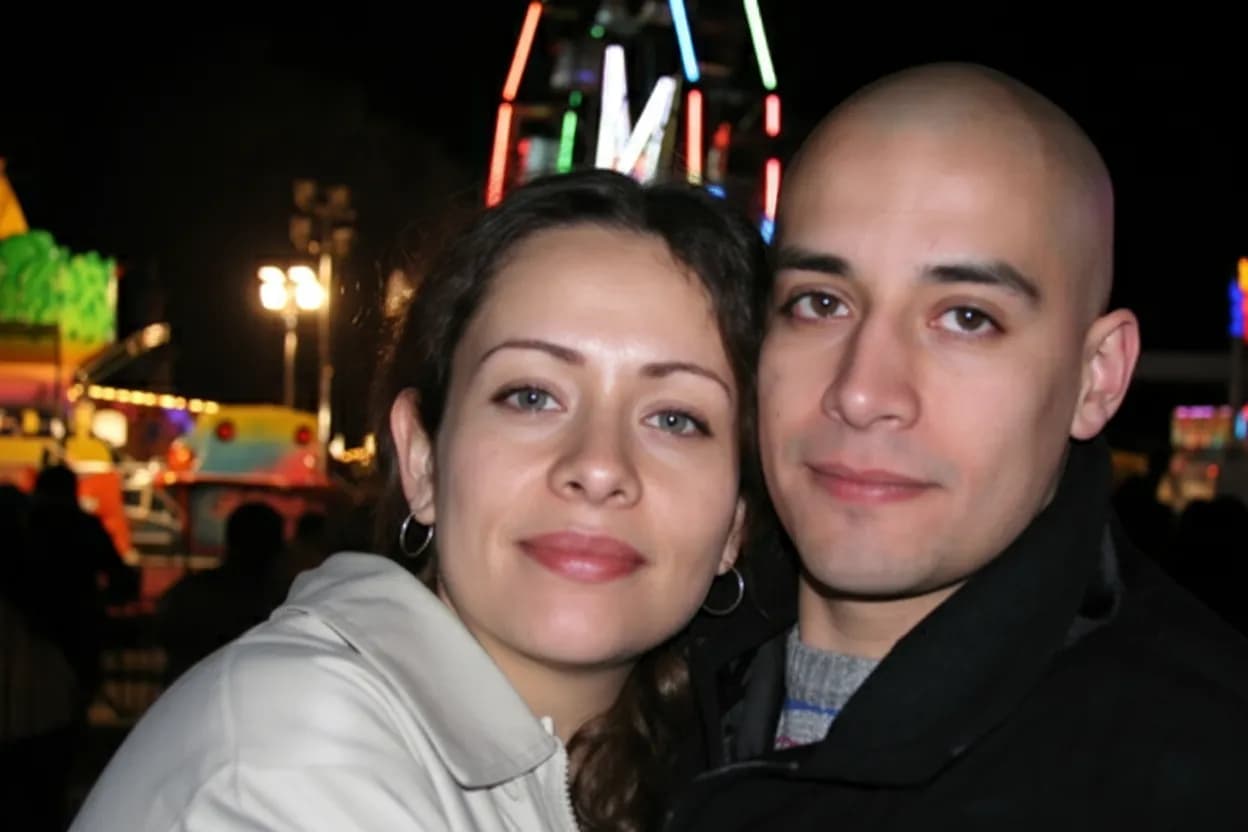
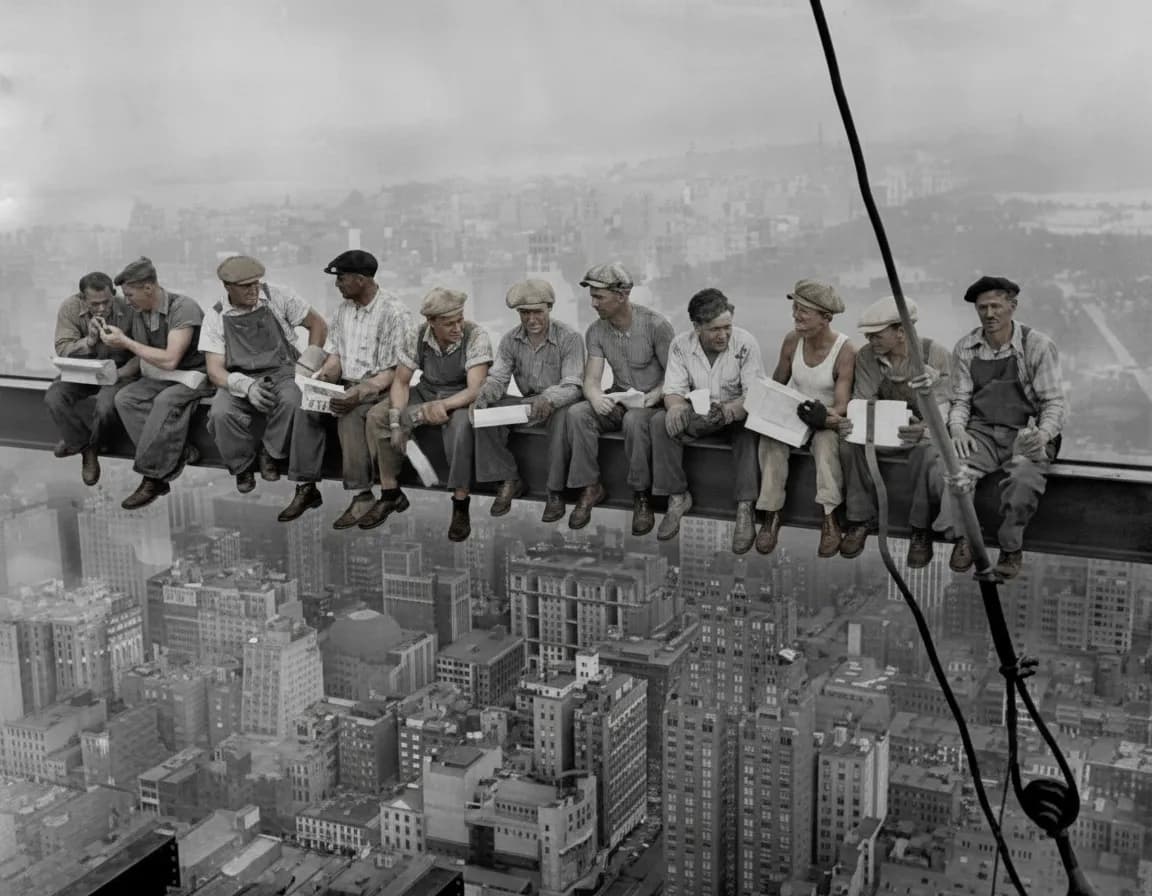
About 30 seconds per photo. Upload your image, the AI processes it, and you see the before/after comparison almost immediately. Downloading the full-resolution result is instant after that.
Can I enhance product photos for my online store?
Absolutely. AI enhancement is ideal for e-commerce. It corrects color casts so products look accurate, brightens dark shots, sharpens texture details, and ensures consistent quality across your catalog. Many sellers use it to improve phone-shot product images to a professional standard.
Is my photo private when I upload it?
Yes. All uploads are encrypted via HTTPS and stored privately on secure cloud infrastructure. Your photos are kept for 30 days so you can re-download results, then permanently deleted. We never share your images with third parties or use them for AI training.
Can I enhance multiple photos at once?
Yes. Upload a batch and the AI processes each image individually with tailored corrections. When complete, download all enhanced photos. Batch processing is especially efficient for event photos, real estate listings, or product catalogs where you need consistent quality across dozens of images.
What file formats does the AI photo enhancer support?
The enhancer accepts JPEG, PNG, and WebP files. The output is a high-quality JPEG at the enhanced resolution. For most use cases, JPEG provides the best balance of quality and file size. If you need lossless output, contact support for PNG export options on Studio plans.