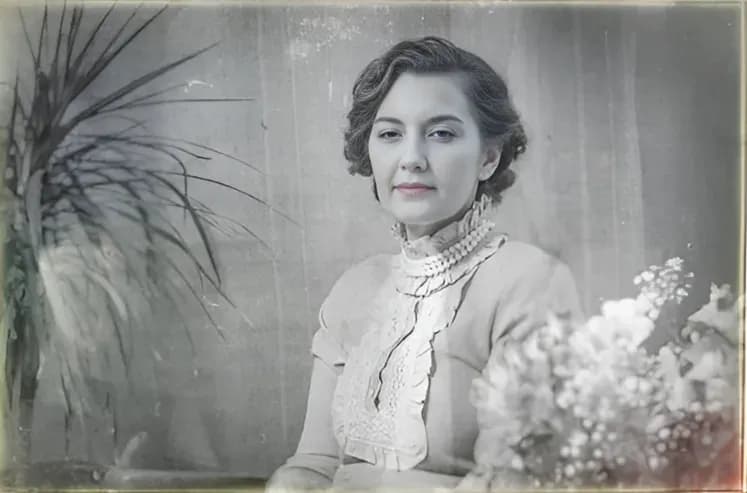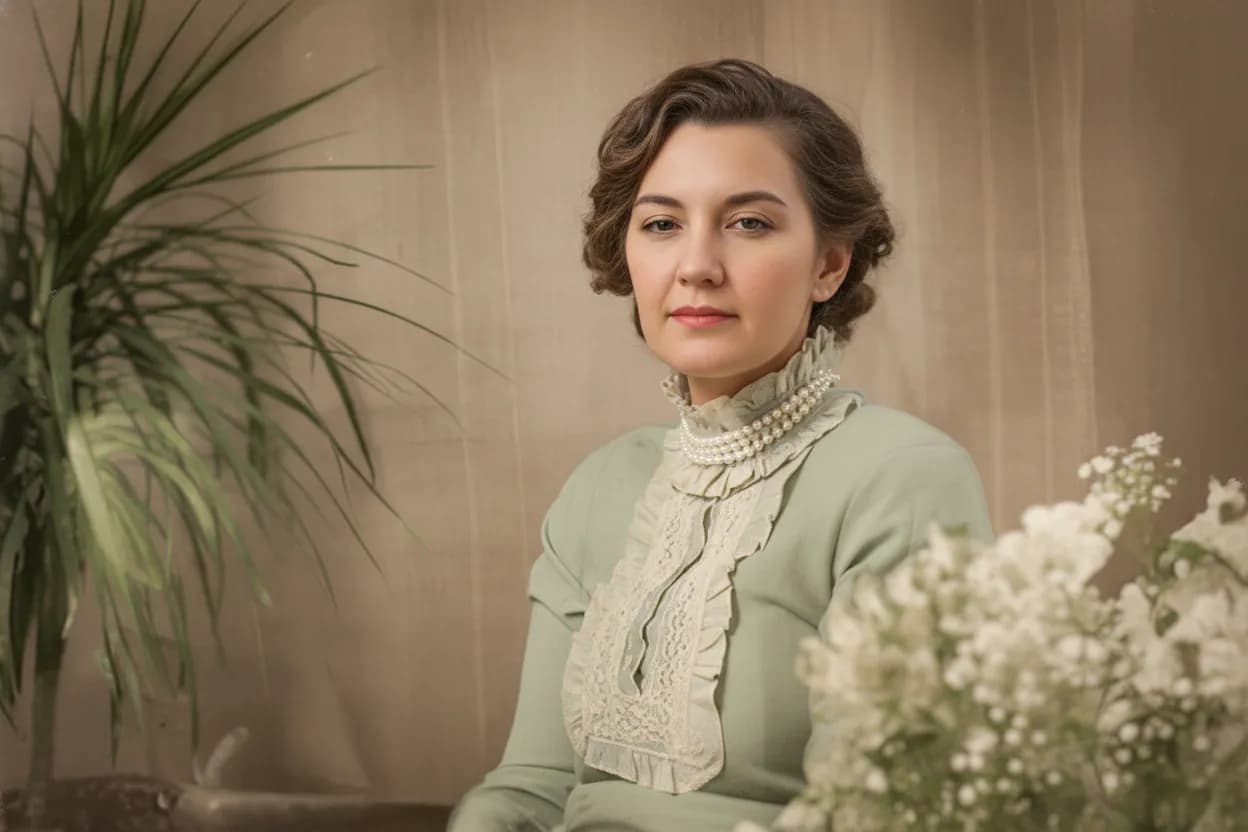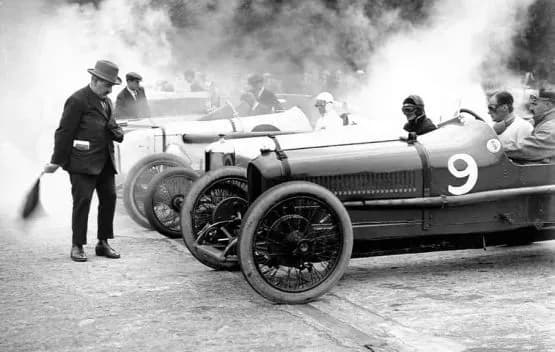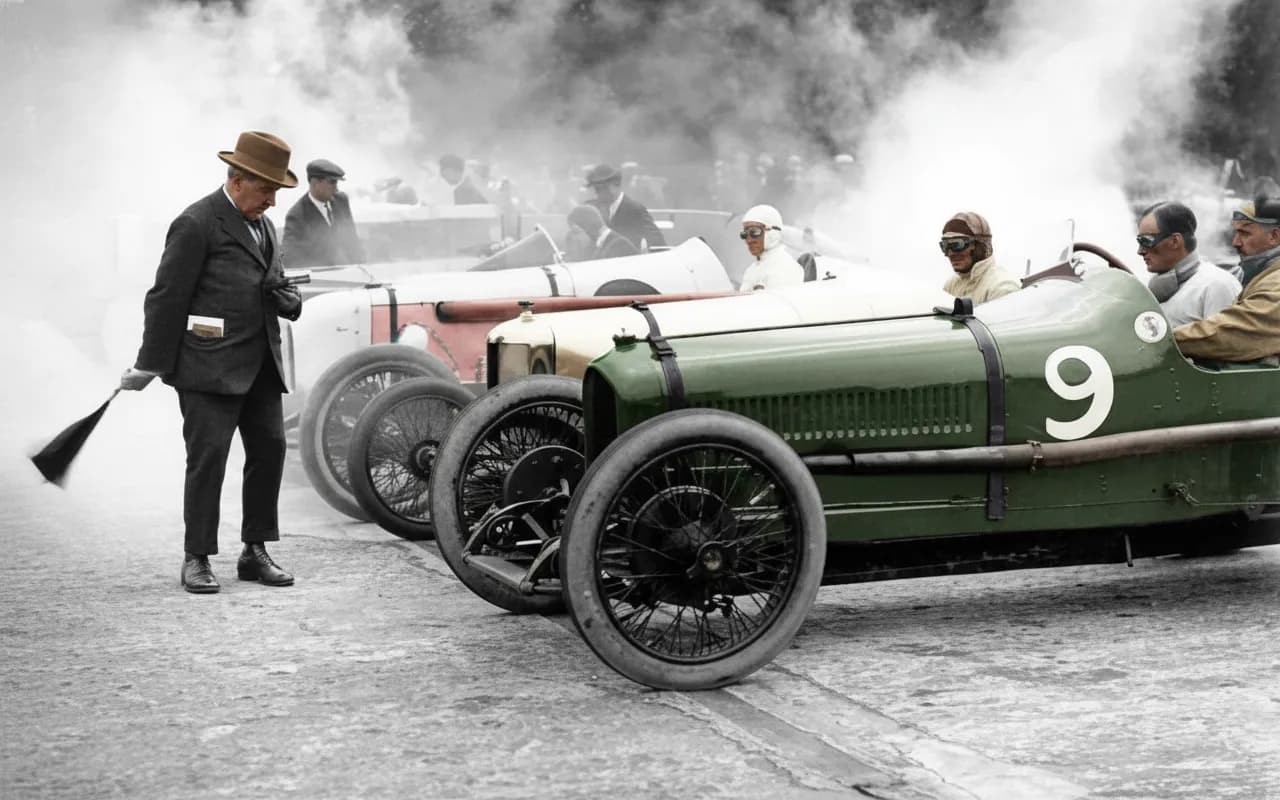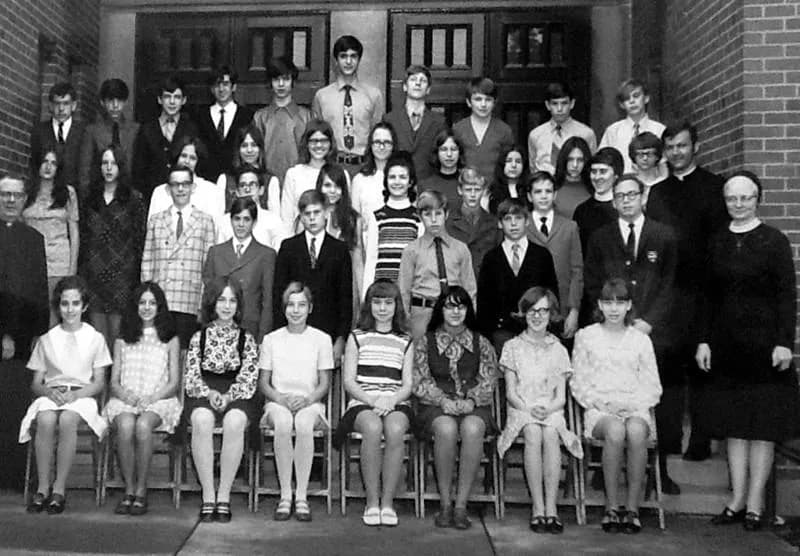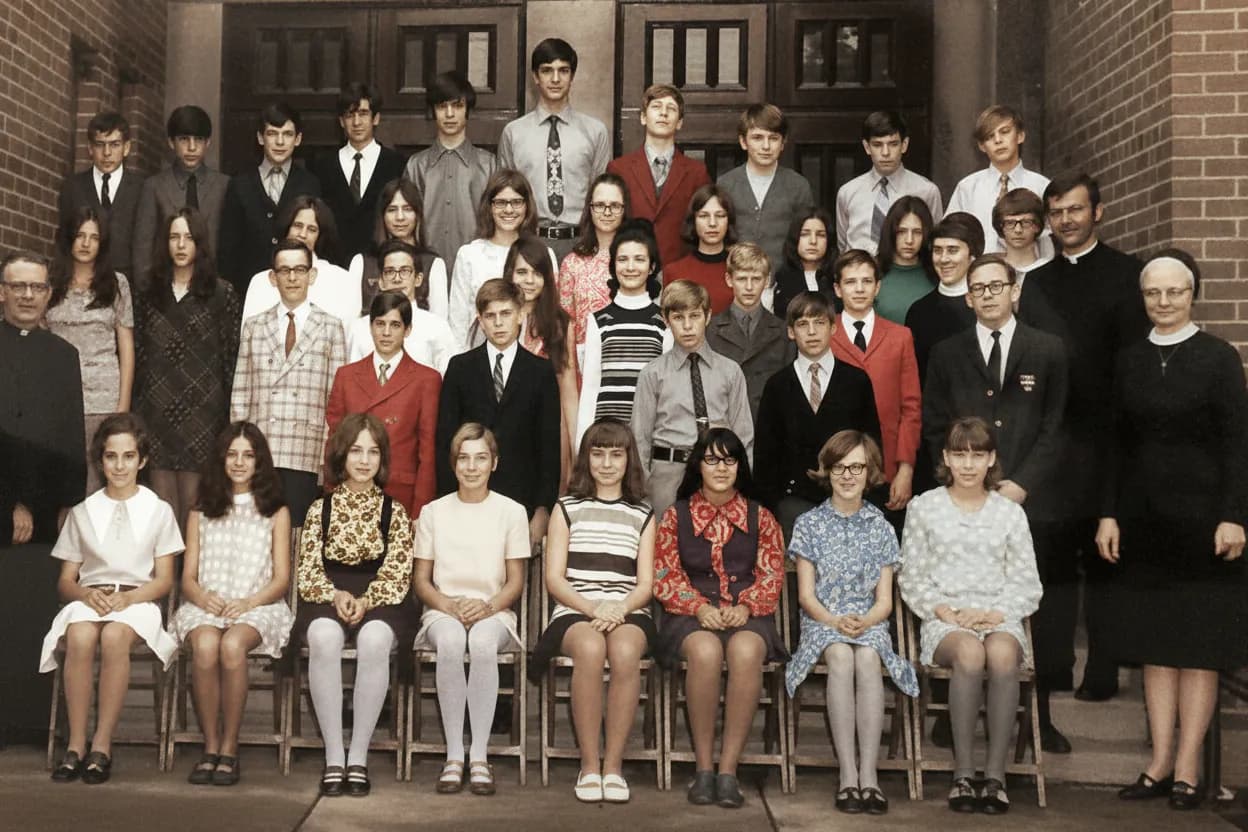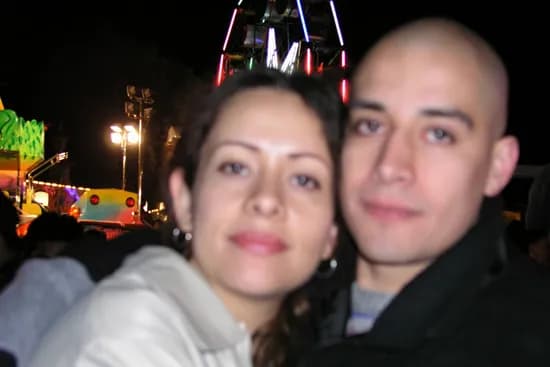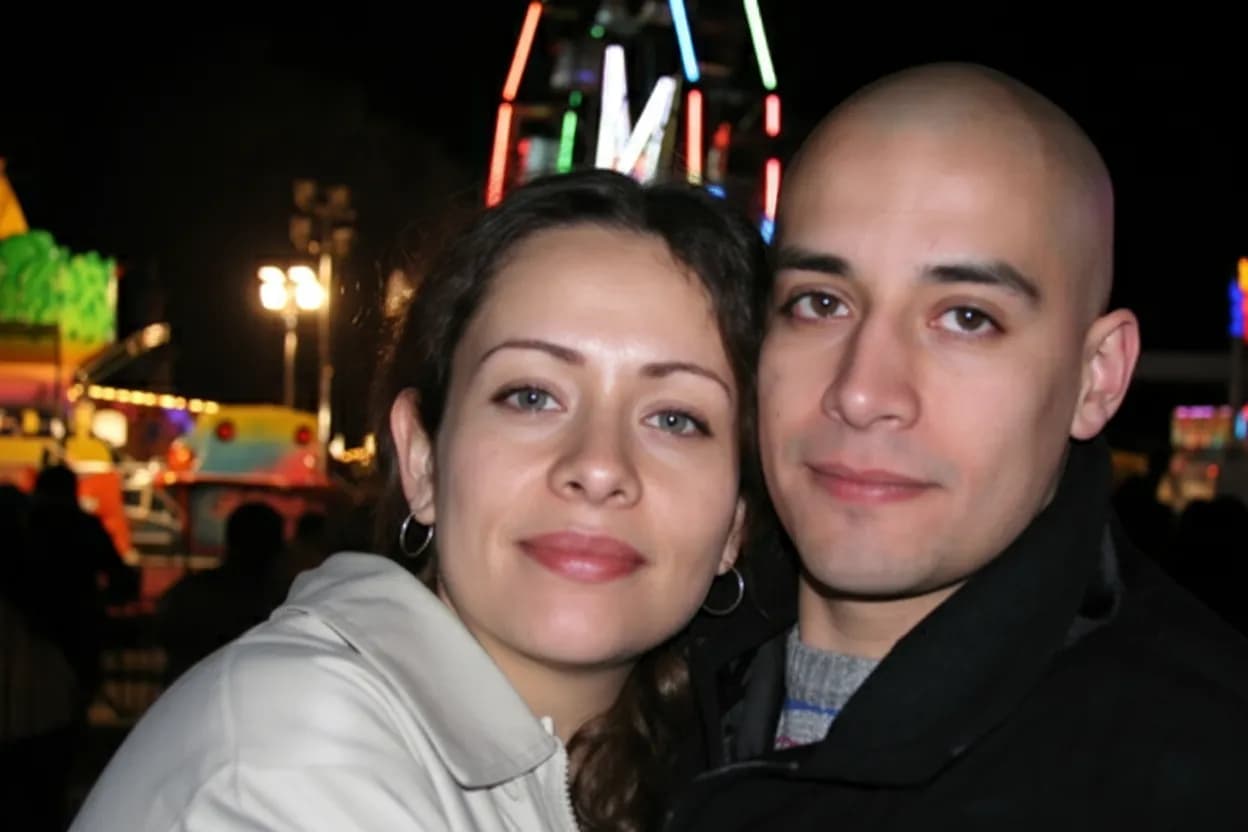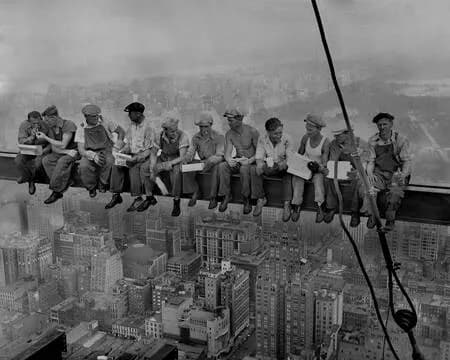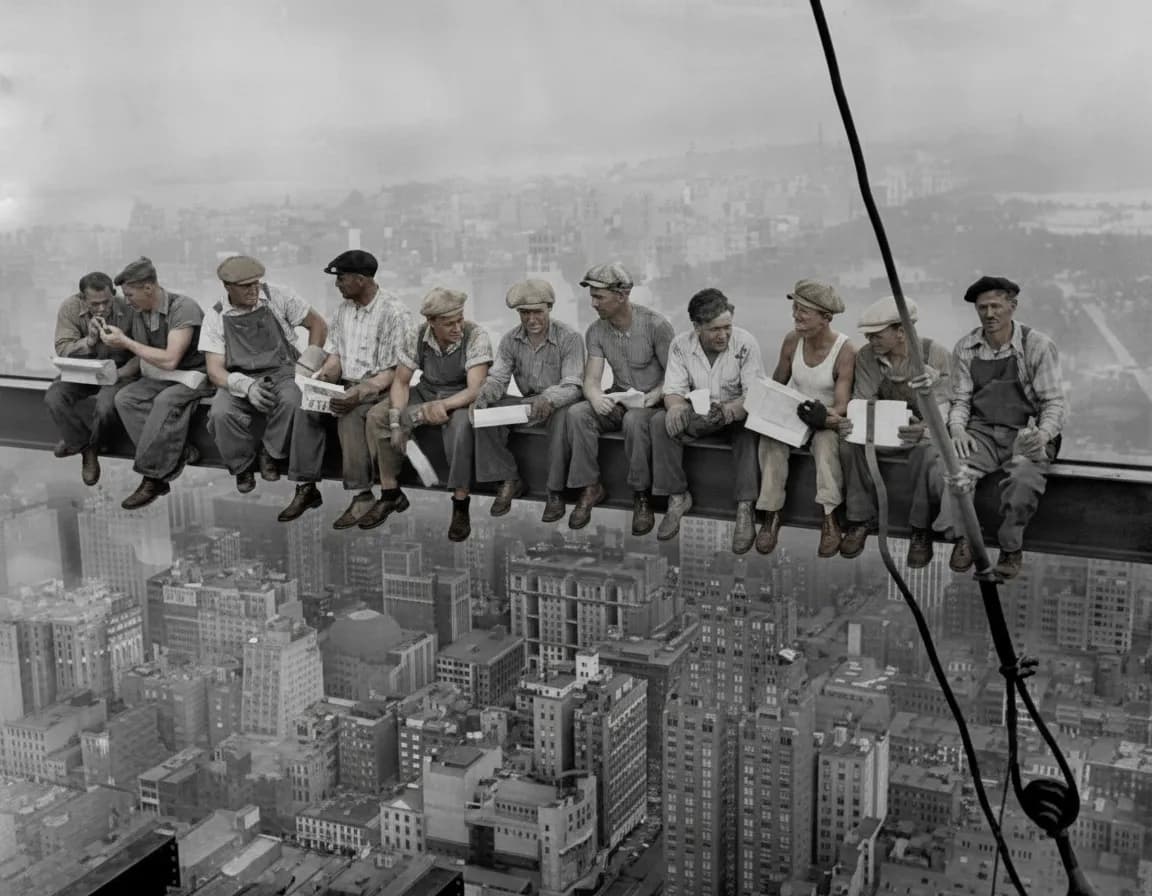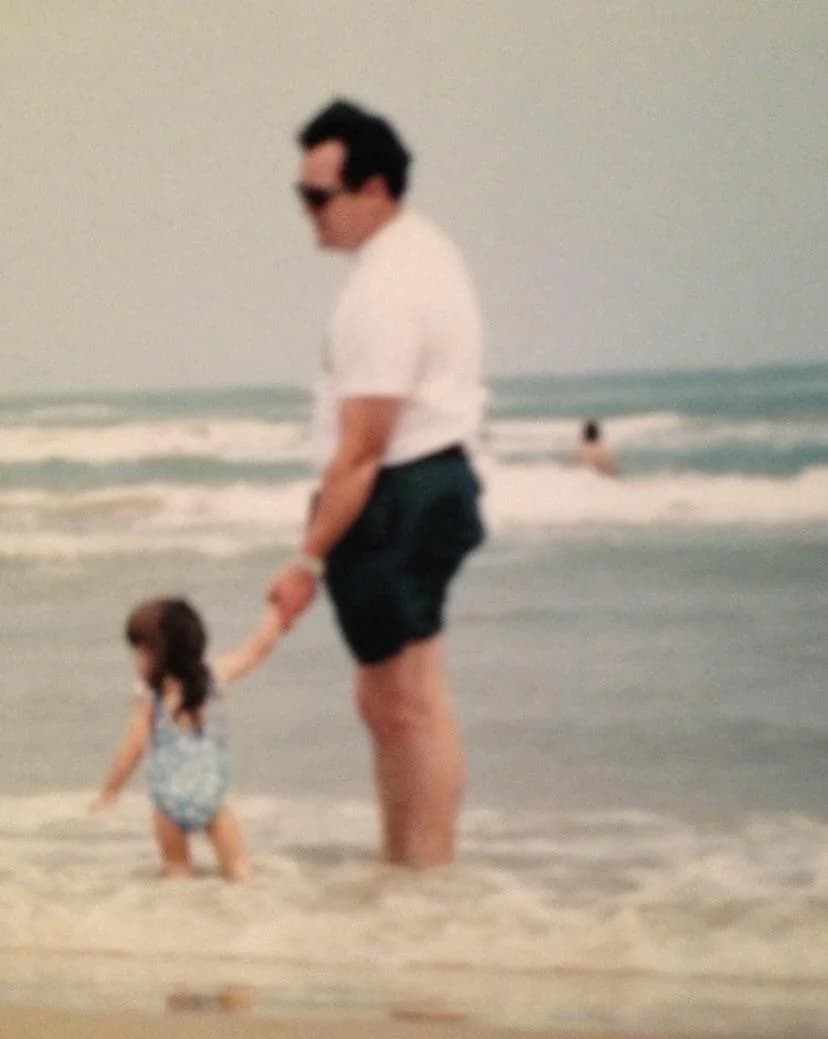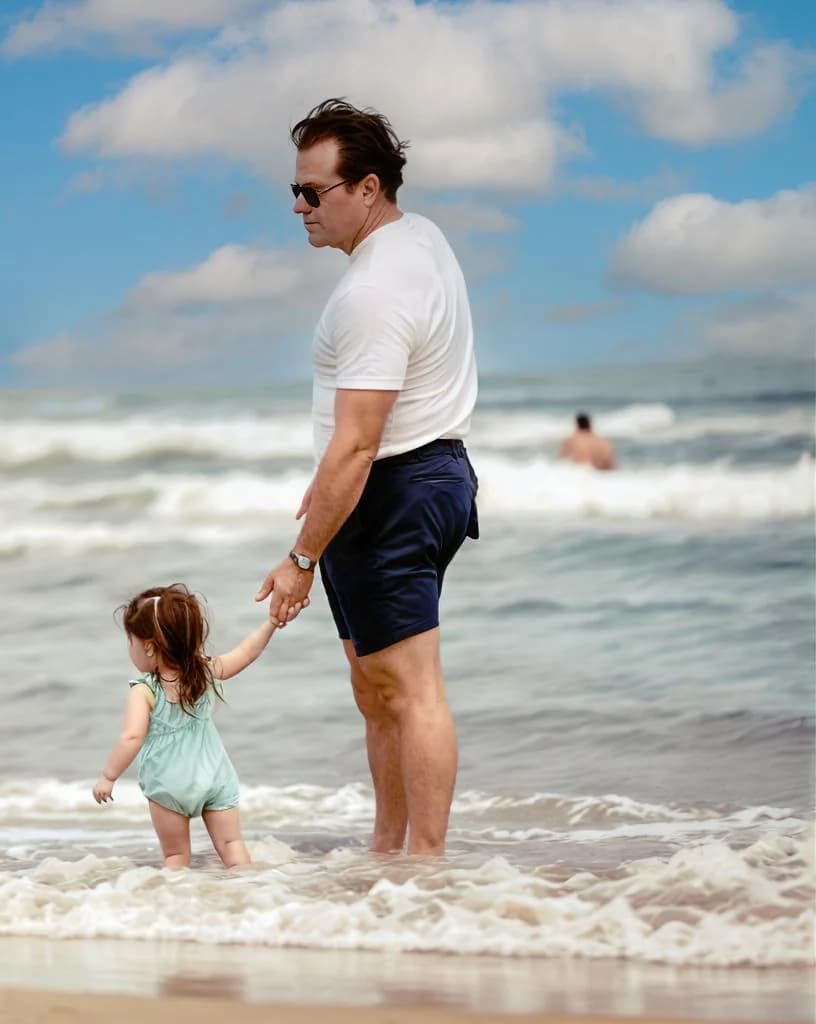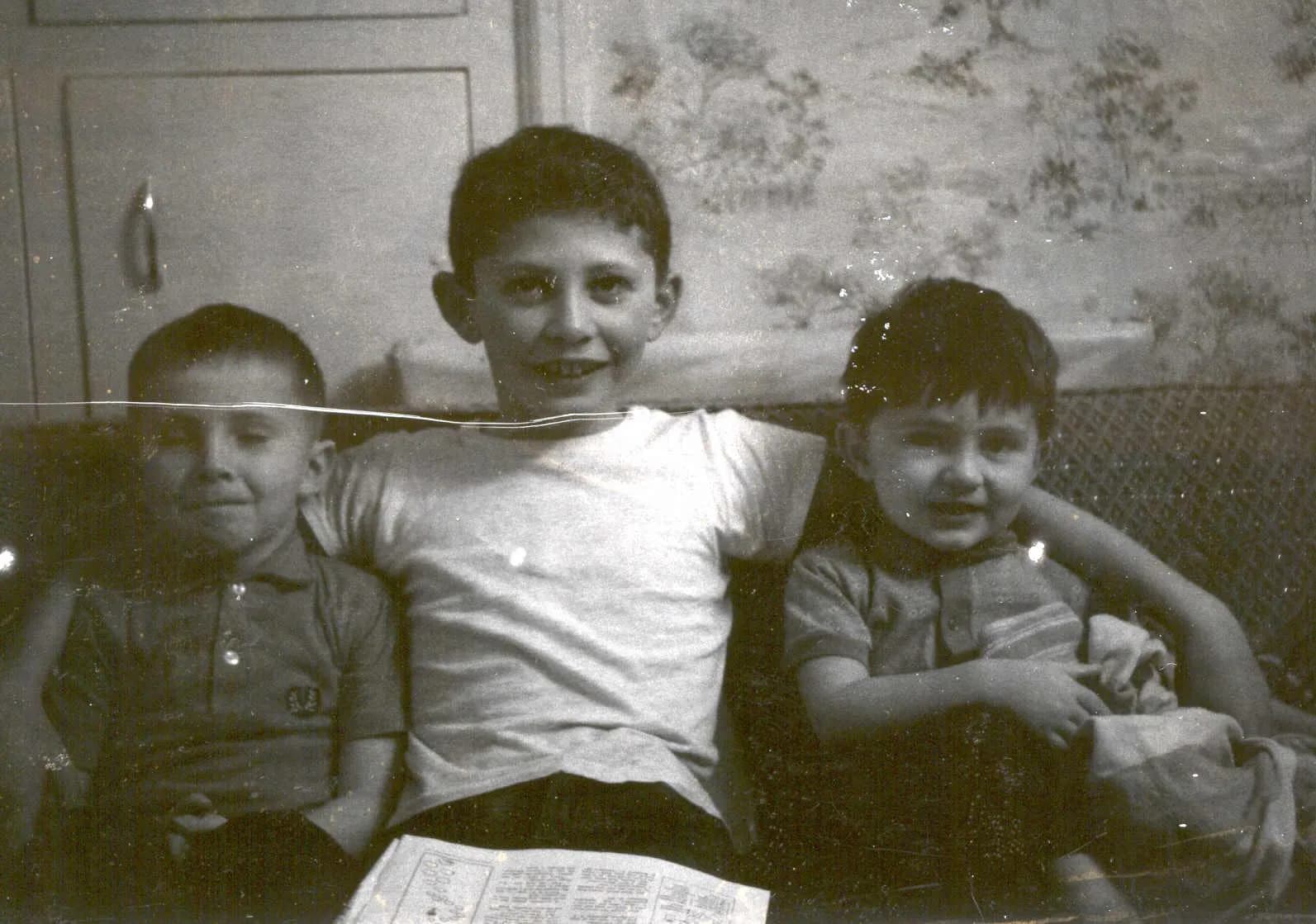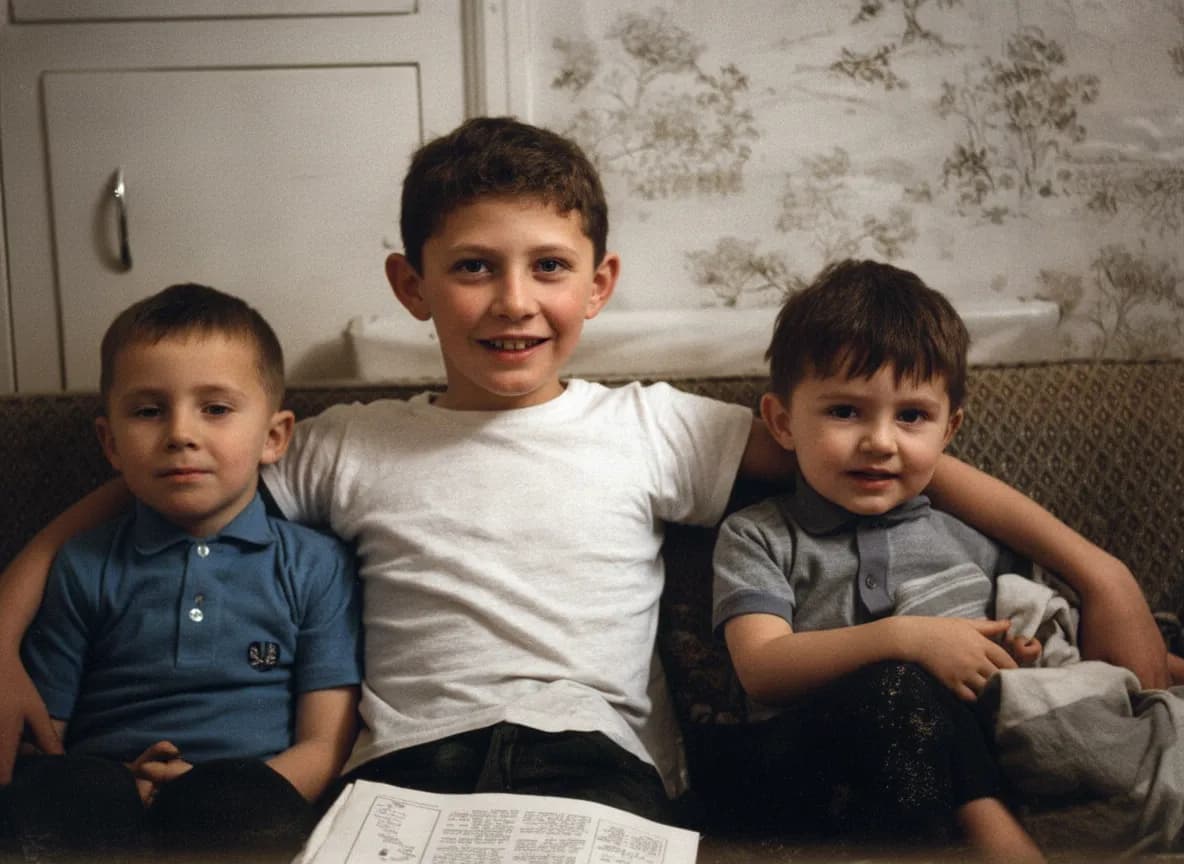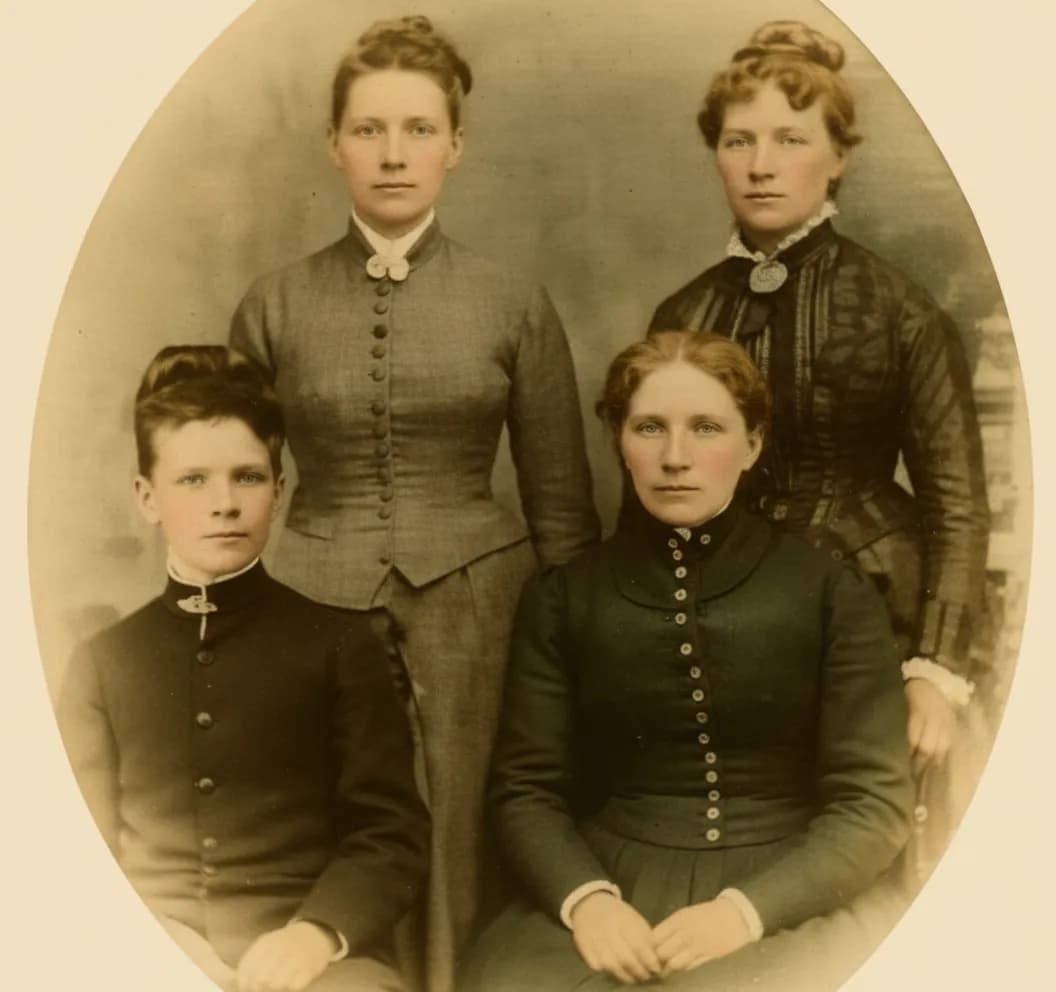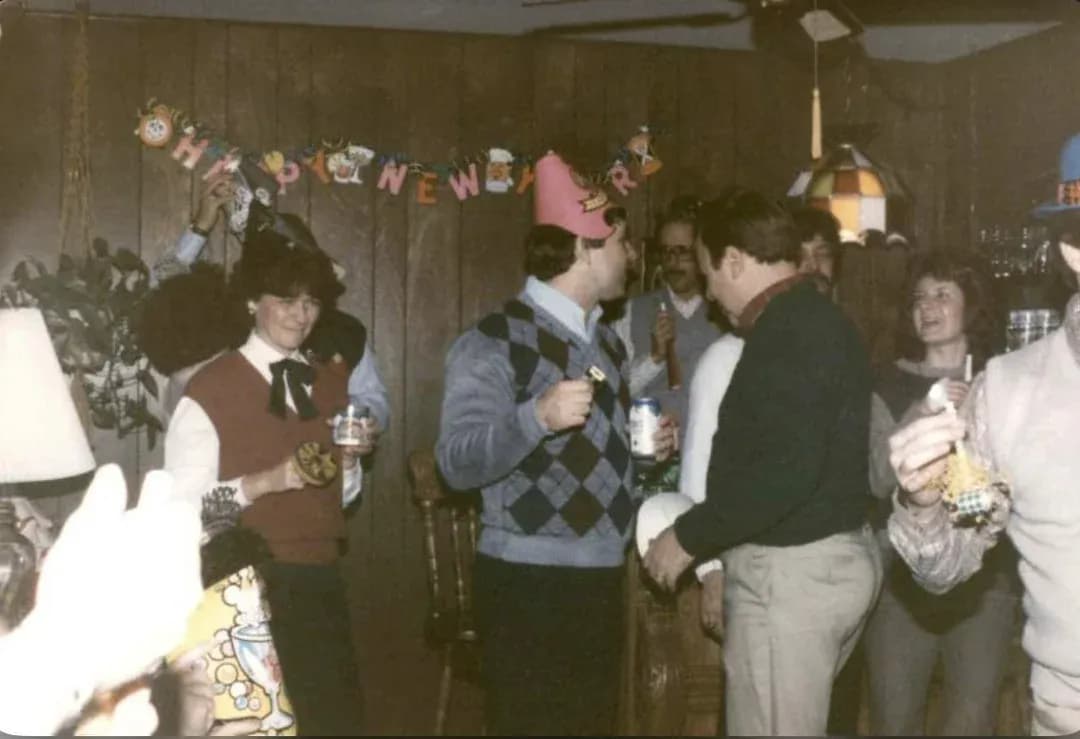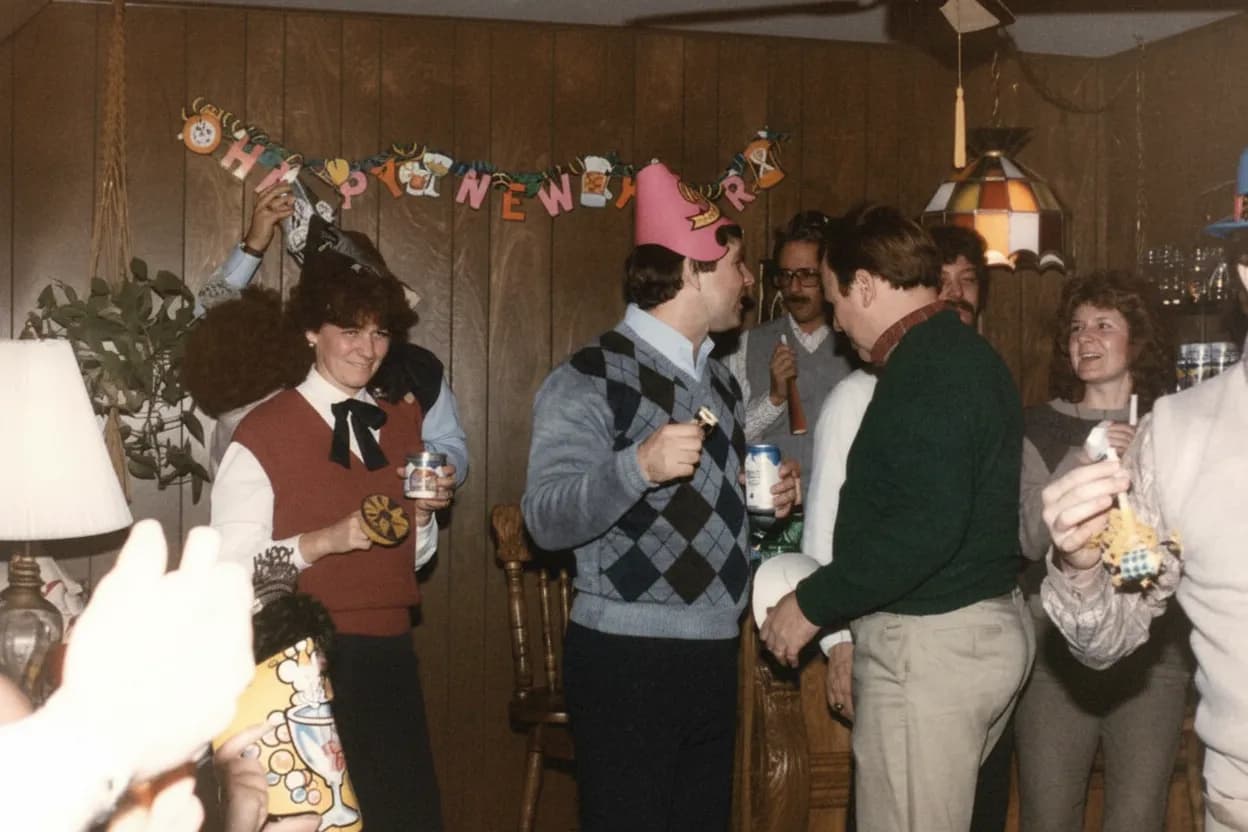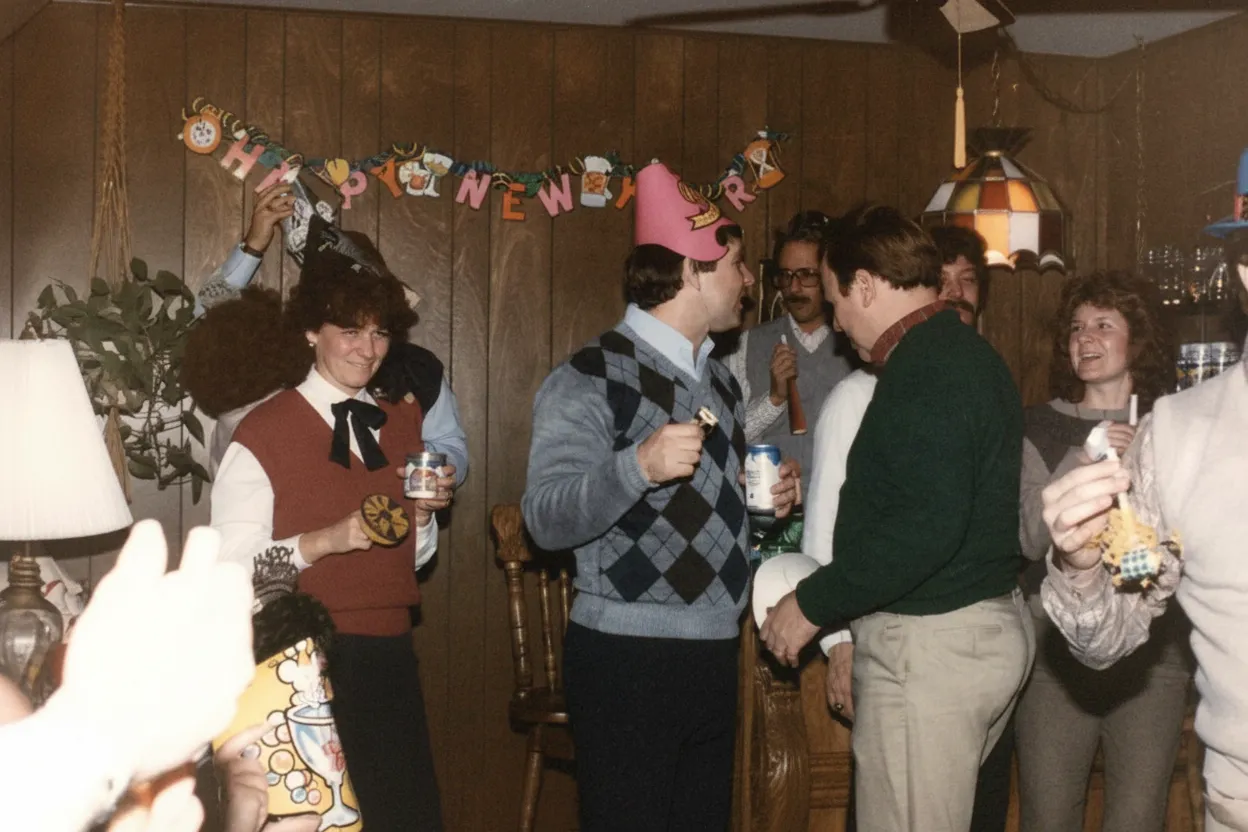
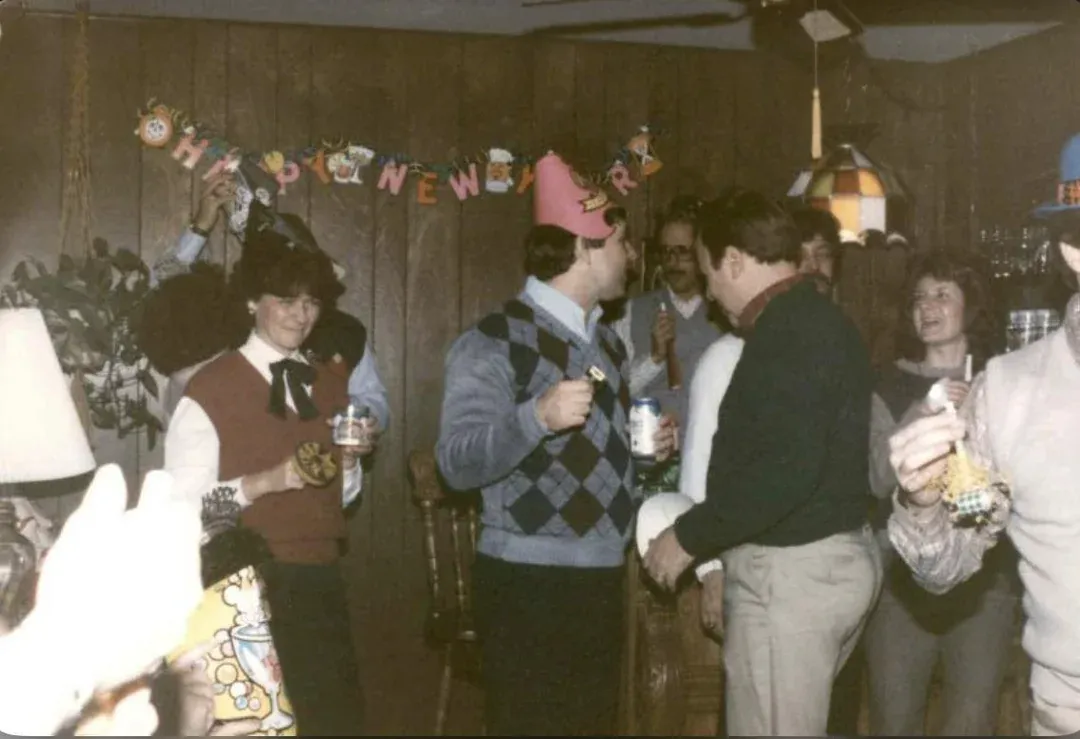
Why restore old photos with AI?
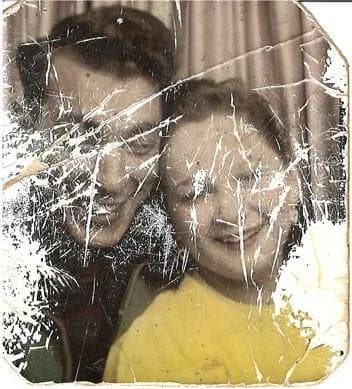
Every old photo is decaying right now. Silver prints lose contrast, color photos yellow and shift, and even photos stored in albums suffer from temperature, humidity, and handling. Within a generation, meaningful details like a grandmother's smile, your father's eyes, or a wedding dress pattern may be gone. AI photo restoration captures what remains and reconstructs what has been lost. It does the work of a professional restoration artist in seconds, at a fraction of the cost, and you can do it yourself from your phone. For anyone with a shoebox of family prints, AI is the only practical way to preserve them all before it is too late.
- Preserve irreplaceable family memories before they fade further
- Get professional-quality restoration for $0.60 per photo (vs $50–$150 at a shop)
- Restore old photos online from any device, no software or signup required
- Create permanent digital backups that will never degrade further
- Share restored photos digitally with family or print them in full quality
What to expect
What professional archivists say about digital restoration
Archivists and conservation experts agree on one thing: the single most important step for preserving old photographs is digitization. A physical print will continue to degrade no matter how carefully you store it. Humidity, light exposure, temperature swings, and even the acid in the paper itself will slowly destroy the image. A high-quality digital copy, stored in multiple locations, can last forever.
AI photo restoration extends this principle. It does not replace archival-quality storage of the original print. You should still keep your originals in acid-free sleeves in a cool, dark place. But AI restoration captures the photo at its current best state and digitally repairs the damage that has already occurred. That digital file becomes the version you share, print, and pass down. The original stays safely in storage as the historical artifact, while the restored digital copy is what everyone actually sees.
For photos with severe damage (tears, missing sections, heavy water staining), conservation specialists may still produce a slightly better result with hours of manual work. But for the vast majority of old photos with fading, yellowing, scratches, or light blur, AI restoration produces results that are indistinguishable from professional work. And it does it in 30 seconds instead of 30 days.

“My grandma cried when she saw her wedding photo restored. Absolutely incredible.”
Maria K.

“Uploaded a blurry photo from the 70s and got back a crystal clear image. Like magic.”
James T.

“Finally recovered old family photos I thought were lost forever. So easy to use.”
Sarah M.
How it works
3 simple steps.
AI Restoration
Bring faded memories back to life.
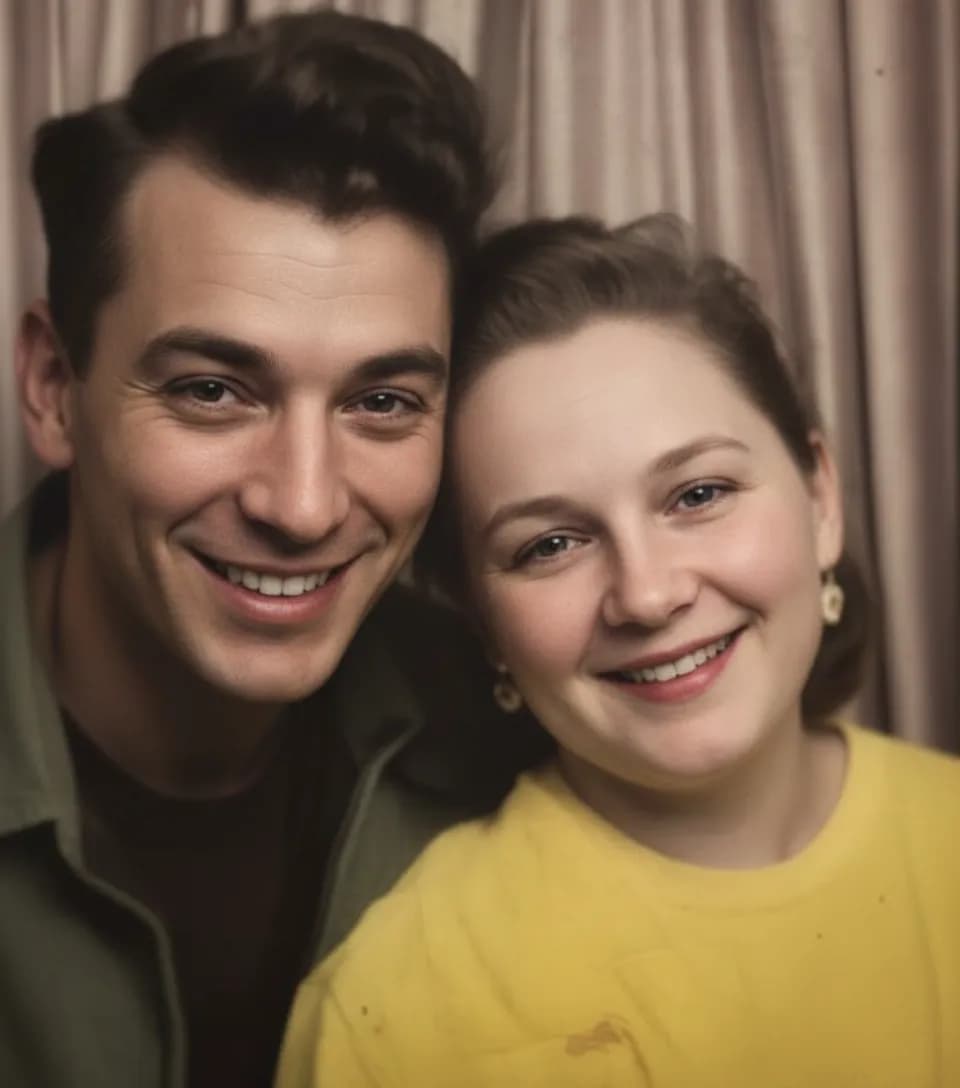
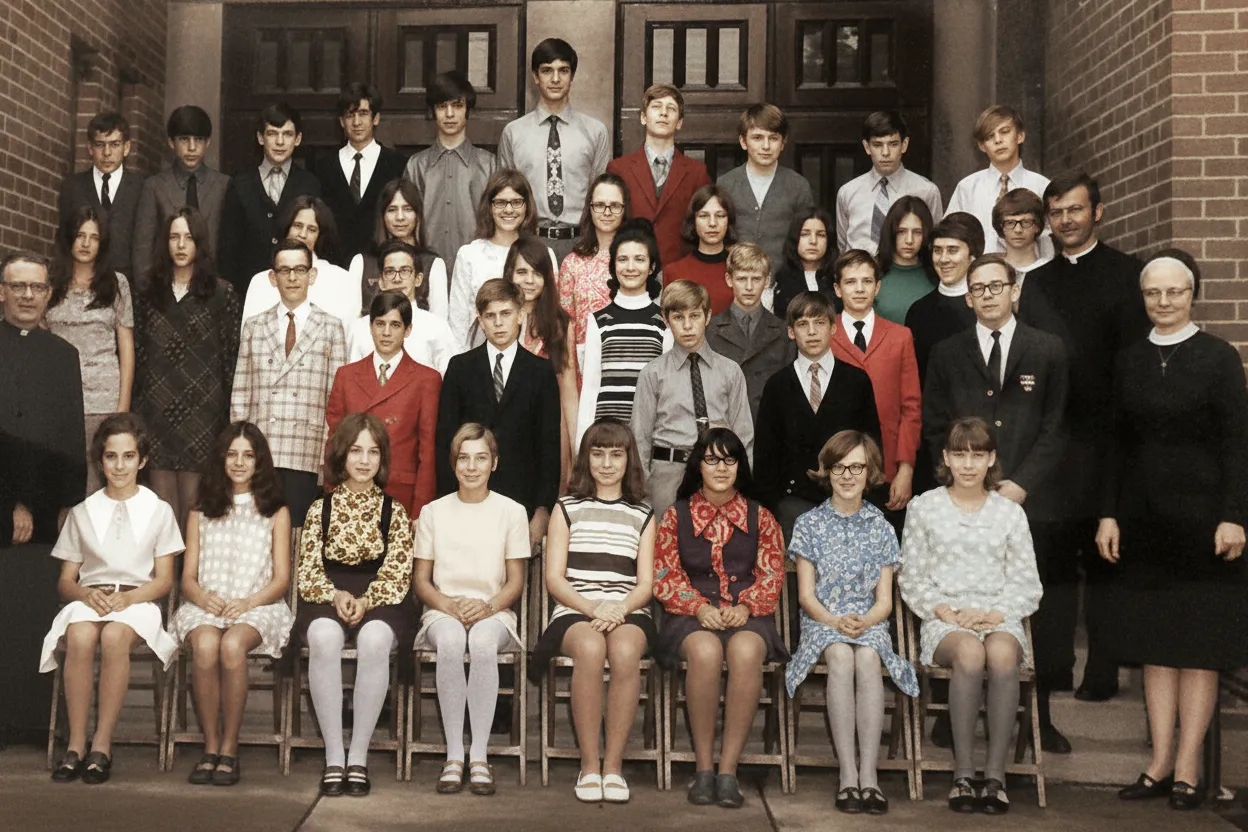
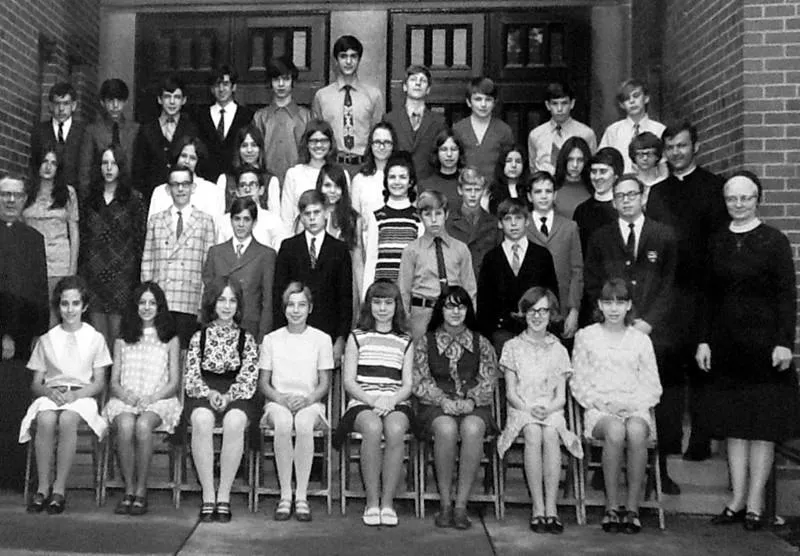
Our AI model was trained on millions of photographs spanning every decade from the 1800s to today. It understands exactly how silver-halide prints fade, how color photos shift toward yellow and magenta, and how handling causes scratches and creases. The model reverses all of this in a single pass. Facial features sharpen, skin tones return to natural, backgrounds regain depth, and the photo looks like it did the day it was developed.
- ✦Reverses decades of fading, yellowing, and color shift
- ✦Restores eyes, skin texture, hair, and facial expressions
- ✦Repairs scratches, creases, tears, and surface damage
- ✦Trained on prints from every era, 1890s to 1990s
Easy to Use
Upload. Restore. Download. No Photoshop.
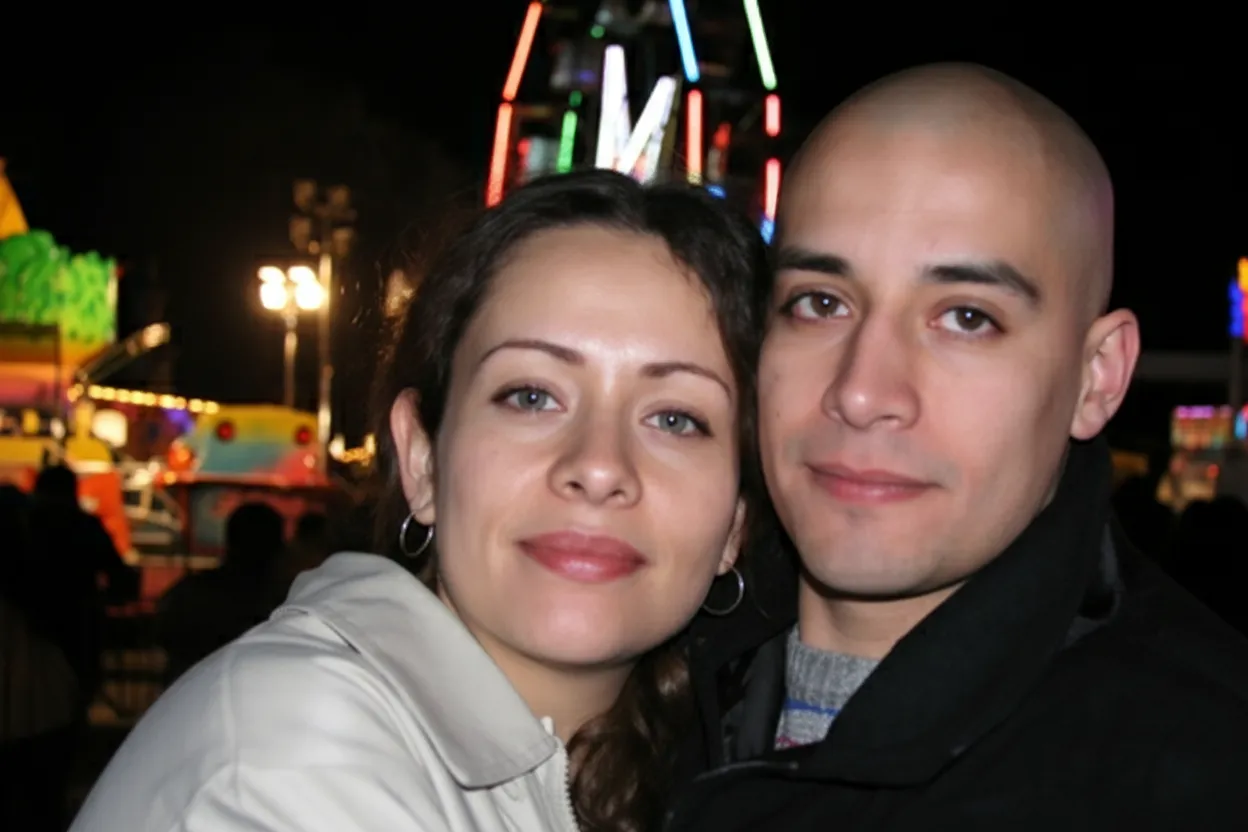
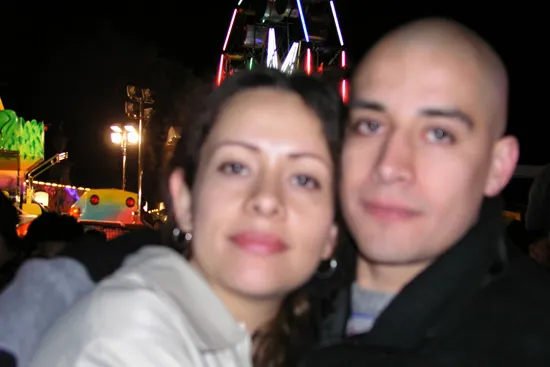
Old photo restoration used to mean sending prints to a specialist for $50–$150 per photo, or spending hours in Photoshop with the clone tool. Not anymore. Open our site on your phone or computer, drop in your old photo, and the AI handles everything. No sliders, no masks, no layers. The restored image is ready to download in full resolution about 30 seconds later. If the result needs more work, run a second pass for even sharper detail.
- ✦Works in any browser on desktop, iPhone, or Android
- ✦No software to install and no account needed to try
- ✦Phone snapshot of an old print works as well as a scan
- ✦Full-resolution download ready in under 30 seconds
Trusted
Over 470,000 people have restored their photos with us.
Whether it is a water-damaged wedding portrait from the 1950s, a scratched school picture, a faded baby photo, or a great-grandfather's only surviving portrait, our AI handles it. Every new account gets 2 free restorations, enough to try the tool on your most precious photo before spending anything. If you have a whole shoebox of old prints, our Family plan covers 50 restorations for $29.99 ($0.60 per photo, about 100x cheaper than a local restoration shop).
- ✦Works with severely damaged, faded, and blurry photos
- ✦2 free restorations on every account, no credit card
- ✦One-time pricing. No subscription. Credits never expire.
- ✦30-day money-back guarantee on all credit packs
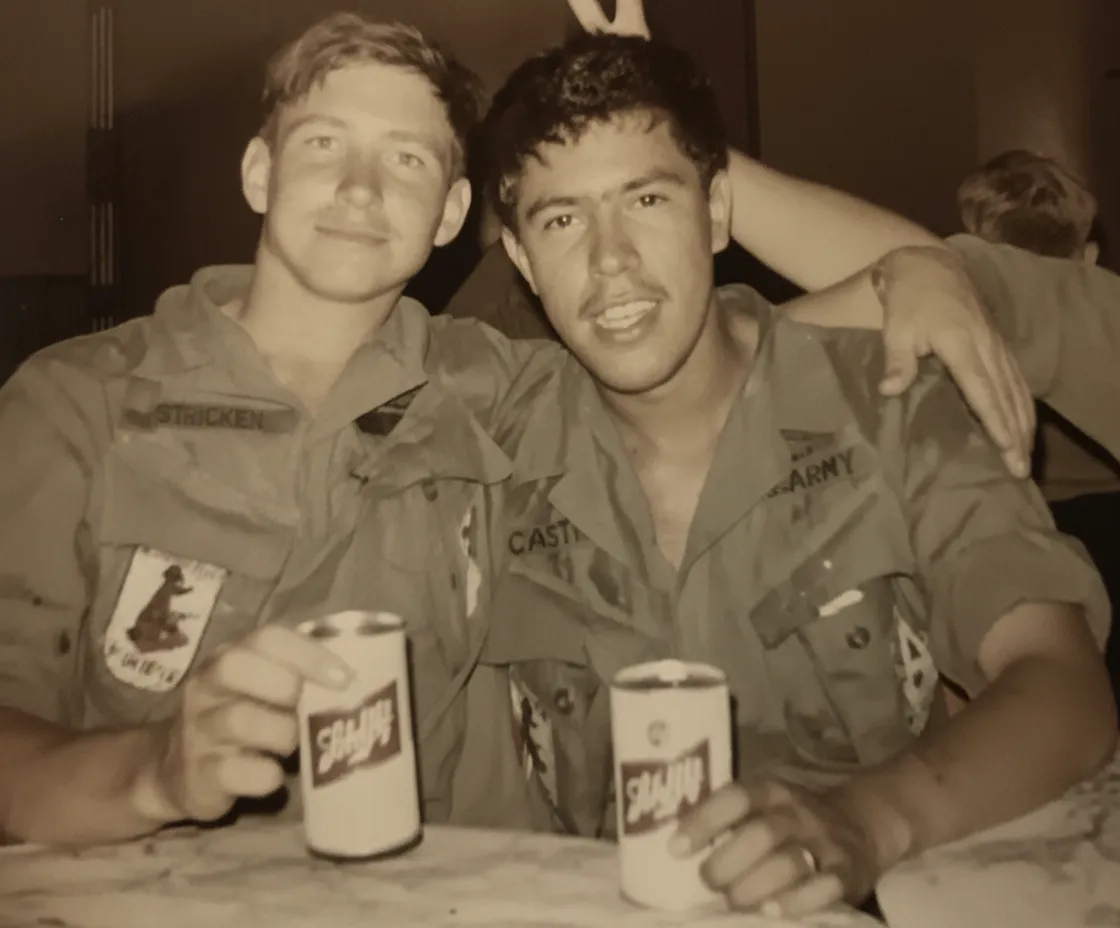
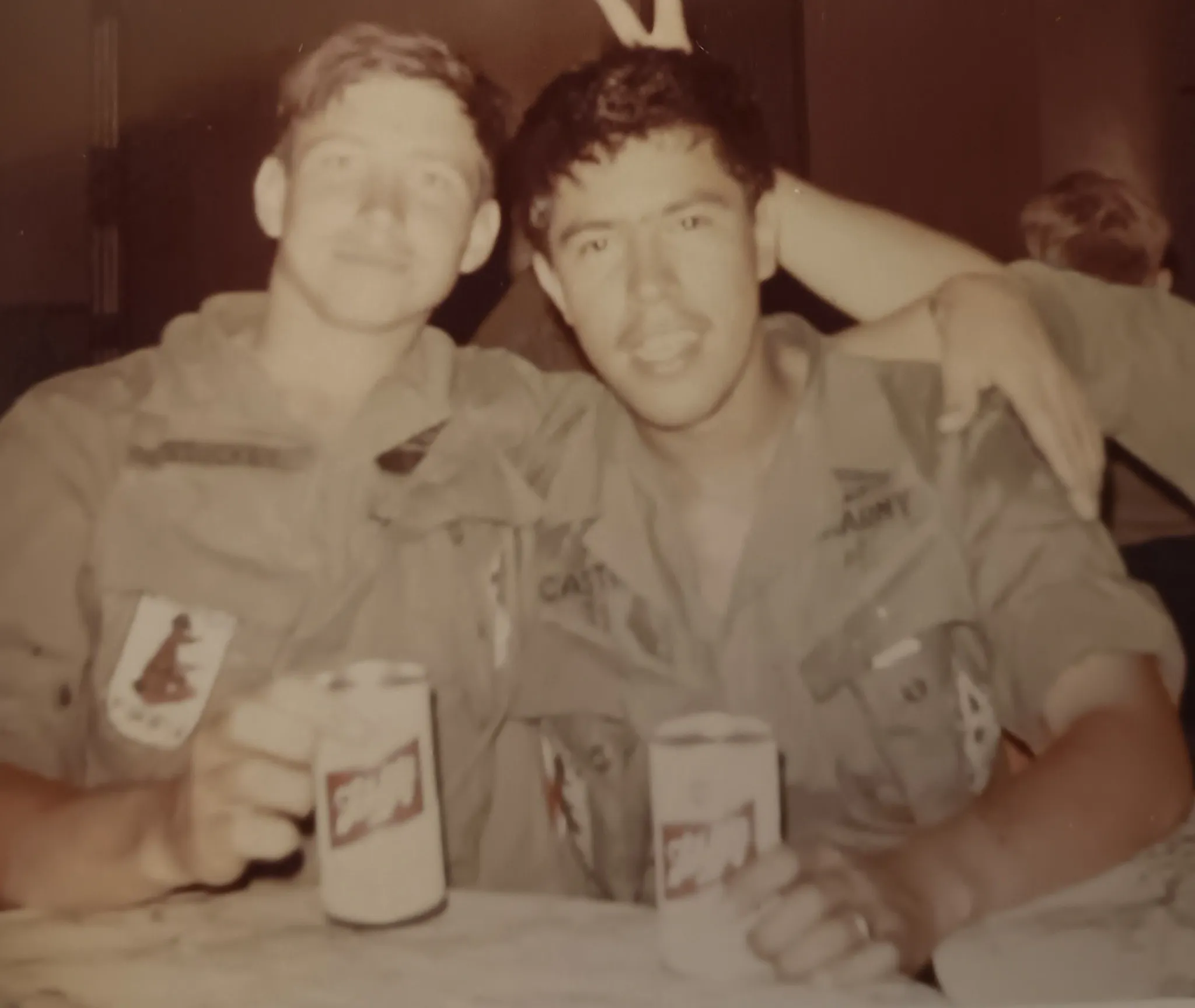
In-depth guide
How to restore old photos: a step-by-step guide
Start by gathering the photos you want to restore. Go through family albums, shoeboxes in the closet, envelopes in drawers, and frames in storage. Do not pre-sort for condition. Even photos that look hopelessly faded or scratched can be restored. Often the most damaged photos produce the most dramatic before-and-after results. Lay your selection out on a clean table in a single layer and work through them one at a time.
Next, digitize each print. The best method is a flatbed scanner at 600 DPI or higher in color mode. Even for black-and-white photos, scan in color. The subtle tonal information helps the AI. If you do not own a scanner, your phone camera works well. Shoot in bright, even, natural light near a window (not direct sunlight, which creates glare). Hold your phone flat, directly above the print, and make sure no shadows fall across the photo. Hands-free tip: stack a few books to hold your phone at the right height, or use a cheap phone tripod. A local copy shop or library will usually scan prints for $1–$2 per photo if you prefer.
Upload the photo to restorephotosapp.com/restore and select "Restore Old Photo" mode. Drag the file in or click to browse. The AI starts working immediately. You will see the before and after side-by-side in about 30 seconds. Compare them carefully. Use the slider to drag across the image and see exactly what the AI changed. If you are happy with the result, download it in full resolution. If you want to try again (maybe with a different style), you can re-upload with different settings without losing your first restoration.
Know what kind of damage you are dealing with so you can set expectations. Scratches, creases, and tears are surface damage where the underlying image is intact. The AI fills these in almost perfectly. Fading and yellowing are chemical degradation where image data is weakened but still present, and the AI recovers contrast and corrects the color. Water stains leave mineral deposits that obscure the image, and the AI separates the stain pattern from the photo and removes it. Missing sections (torn-off corners, completely blacked-out areas) are the hardest because the image data is physically gone. The AI reconstructs what was plausibly there, but cannot recover specific details it never saw.
For heavily damaged photos, run the restoration twice. The first pass removes the bulk of scratches, fading, and yellowing. Download that result, then upload it again for a second pass. The second run refines facial details, sharpens textures that were hidden under the original damage, and produces a cleaner final image. Each pass costs one credit. This two-step technique often makes the difference between a good restoration and a stunning one.
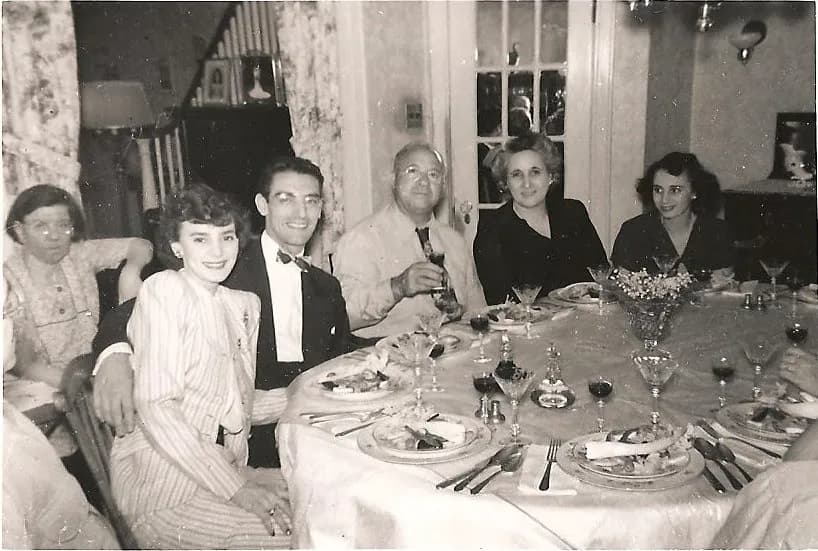
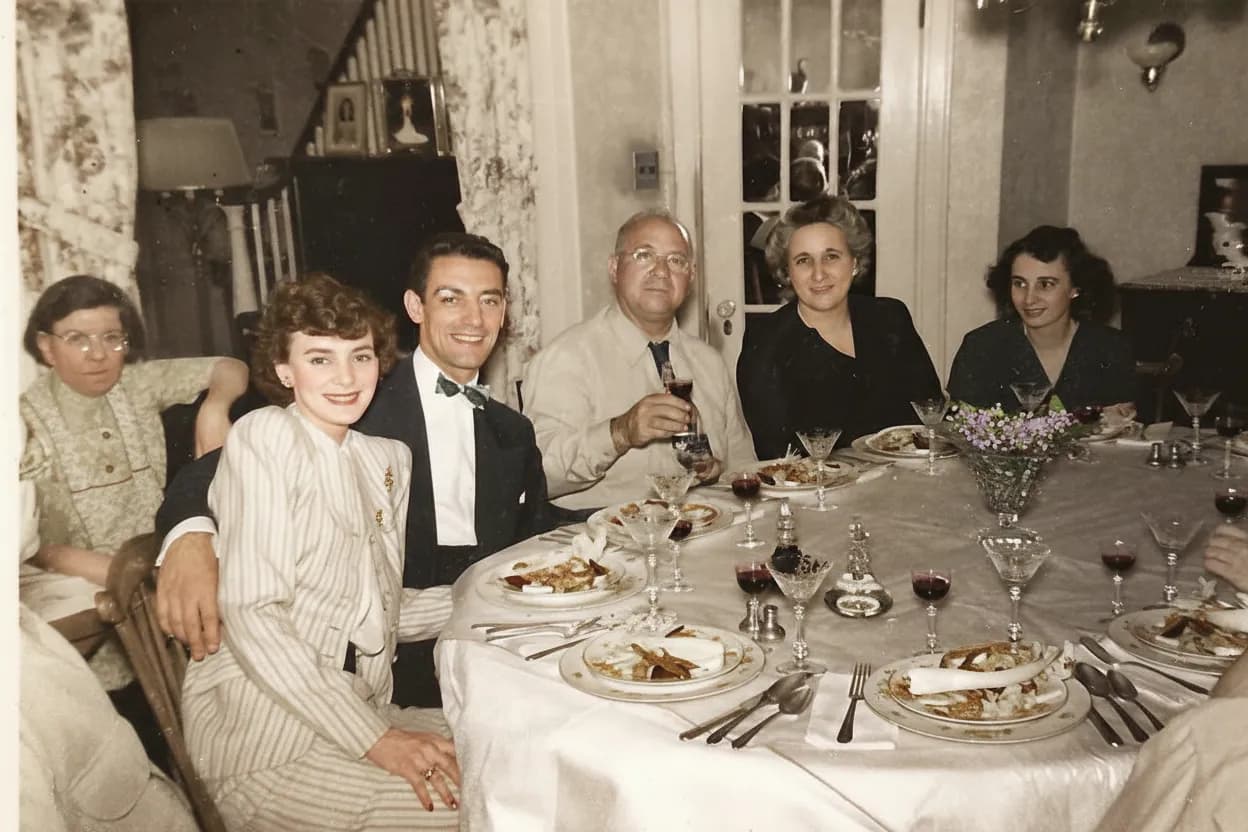
If your photo is black-and-white or sepia, consider colorizing it after restoration. First restore to fix damage, then run the restored version through "Colorize B&W" mode. This two-step flow produces the most realistic colors because the AI works with a clean, sharp image instead of a damaged one. Many families keep both versions: the restored black-and-white for historical accuracy and the colorized version to really see what their ancestors looked like.
Once you have your restored files, protect them. Save a copy to cloud storage (Google Drive, iCloud, Dropbox) and another copy to a local external hard drive. The entire point of photo restoration is creating a permanent digital record that will outlast the physical prints. One copy on one device is not enough. Hard drives fail and cloud accounts can be lost. Two copies in separate locations is the archival standard. If you plan to print the restored photos, use archival-quality photo paper from a good print lab for maximum longevity.
Want to go further? Our Animate feature turns a restored portrait into a short video where the person blinks, smiles softly, or the camera gently pushes in. Each animation costs 3 credits and produces a meaningful, moving tribute to a parent, grandparent, or lost family member. Many people use animation for Mother's Day, Father's Day, anniversaries, memorial slideshows, or holiday gifts.
Expert tips
Tips for better old photo restoration results
Scan at 600 DPI or higher
Higher resolution captures more of the remaining detail for the AI to work with. For small or heavily damaged prints, 1200 DPI is even better. The difference between a 300 DPI and a 600 DPI scan is dramatic when restoring faded faces.
Use natural daylight for phone scans
Indoor ceiling lights create yellow color casts and harsh shadows. Shoot near a bright window (but out of direct sun) for the cleanest, most color-accurate capture of your print.
Do not crop before uploading
The AI uses context from the whole image (backgrounds, clothing, surroundings) to make better decisions about faces and colors. Upload the full photo, then crop after restoration if you want to focus on a specific person.
Flatten curled prints first
Place curled photos under a heavy book for a few hours before scanning. A flat scan captures the full image without distortion. This is especially important for prints that have been rolled up in drawers for decades.
Run two passes on severely damaged photos
For photos with heavy fading, deep scratches, or extensive water damage, restore once, download, then restore that result a second time. The second pass refines details the first pass could not reach through the original damage.
Restore first, then colorize
For black-and-white or sepia photos, always restore to clean the image before colorizing. Running "Colorize B&W" on a damaged photo gives patchy colors. Running it on a clean, restored image produces natural, vivid results.
Back up restored files in two places
Save every restored photo to cloud storage AND an external drive. The goal of restoration is permanent preservation, so redundant backups are essential. One copy is no copy.
Try your free restorations on your most important photo
Every account gets 2 free restorations. Use them on the photo that matters most to you so you can evaluate the quality before buying credits. Most people are amazed by what the AI recovers from a photo they thought was beyond saving.
Pricing
One-time pricing. No subscription. Credits never expire.
Starter
Perfect for trying it out on a few precious photos.
$0.70 / credit · 10 restorations
Start Restoring Photos- 10 AI credits included
- High-Resolution Output
- Credits Never Expire
- Animate Photos with Credits
30-Day Satisfaction Guarantee
Pro
For restoring a small album of memories.
$0.68 / credit · 25 restorations
Get Pro Access- 25 AI credits included
- High-Resolution 1080P Output
- Credits Never Expire
- Animate Photos with Credits
30-Day Satisfaction Guarantee
Family
Restore your entire family photo collection.
$0.60 / credit · 50 restorations
Get Family Plan- 50 AI credits included
- High-Resolution 1080P Output
- Credits Never Expire
- Animate Photos with Credits
30-Day Satisfaction Guarantee
Studio
For entire archives, professionals, and power users.
$0.55 / credit · 100 restorations
Get Studio Plan- 100 AI credits included
- High-Resolution 1080P Output
- Credits Never Expire
- Animate Photos with Credits
30-Day Satisfaction Guarantee
Prices don't include VAT.
FAQ
Frequently asked questions
How do I restore old photos online for free?
Go to restorephotosapp.com/restore and create a free account. No credit card required. Every account gets 2 free photo restorations. Upload your old photo, select "Restore Old Photo" mode, and download the AI-restored result in about 30 seconds. You can use these free credits on any photo to test the quality.
What types of old photos can I restore?
Any photograph: faded family portraits, scratched baby pictures, water-damaged wedding albums, yellowed school photos, creased military portraits, old Polaroids, sepia prints, tintypes, daguerreotypes, negatives, slides, even phone photos of old prints. The AI adapts to the damage type and photo era automatically. Portraits and photos with visible faces produce the most dramatic results.
How do I restore old photos without Photoshop?
You do not need Photoshop at all. Our AI handles everything automatically. Upload the photo, wait 30 seconds, download the result. No layers, no masks, no manual color correction, no clone tool. The only skill required is knowing how to upload a file.
How long does it take to restore an old photo?
Under 30 seconds per photo. Upload your scan or phone snapshot, and the AI delivers a restored version almost instantly. The full process, from photographing the print to downloading the restored file, takes about two minutes per photo.
How much does it cost to restore old photos?
Your first 2 restorations are free. After that, credits start at $6.99 for 10 restorations ($0.70 each). The Family plan is the best value at $29.99 for 50 restorations ($0.60 each), and our Studio plan offers 100 restorations for $54.99 ($0.55 each), ideal for entire family archives. Compare that to $50–$150 per photo at a local restoration shop. See our full photo restoration cost breakdown.
Can AI restore severely damaged photos?
Yes. The AI handles severe scratches, deep creases, tears, water stains, mold spots, heavy fading, and extensive yellowing. For the most damaged photos, run the restoration twice. The second pass refines details the first could not reach. Even photos that look nearly blank can reveal clear faces after restoration.
How do I scan old photos for restoration?
For best quality, use a flatbed scanner at 600 DPI or higher in color mode. If you do not own a scanner, your phone camera works well. Hold the phone directly above the print in bright natural daylight, avoiding shadows and glare. Local libraries, copy shops, and pharmacies often offer scanning services for $1–$2 per photo.
Can I restore old photos from my phone?
Yes. Our tool works in any mobile browser. No app to install. On your iPhone or Android, open restorephotosapp.com, take a photo of your old print (or upload from your camera roll), and the AI restores it right on your phone. You can then save the restored version, text it to family, or print it from your phone. See our guide to restoring old photos on iPhone.
Is online AI photo restoration as good as a professional service?
For most old photos with fading, scratches, blur, and yellowing, AI produces results indistinguishable from professional restoration at a fraction of the cost and time. Professional restorers still have an edge on extreme cases (large missing sections, heavily cracked emulsion), but for 90% of typical family photos, AI matches or exceeds manual work.
Can I restore black and white old photos to color?
Yes. First restore the photo in "Restore Old Photo" mode to fix damage and sharpen details. Then upload the restored version again and select "Colorize B&W" to add realistic full color. This two-step workflow produces much better color than colorizing a damaged photo directly.
Will restoring damage or change the original photo?
No. The AI works on a digital copy. Your original physical print (or original digital file) is never modified. You download a new, restored version as a separate file. You can restore the same photo multiple times with different settings if you want to compare results.
Can I restore old family photos in bulk?
Yes. Upload a batch of photos at once and the AI processes each one individually. When done, download all results as a ZIP file. Bulk restoration is perfect for digitizing entire family albums or shoeboxes of prints. Our Family plan at $0.60 per photo makes it affordable to restore hundreds of photos.
What resolution will my restored photo be?
The restored photo is output at the same dimensions as your upload, in full resolution. Pro, Family, and Studio plans include high-resolution 1080P output, which is ideal for printing at 8x10 or larger. The restored file is a standard JPEG that opens in any photo viewer or printing service.
Is my old photo safe and private when I upload it?
Yes. Photos are transferred securely over HTTPS and stored privately on Cloudflare R2. Originals and restored versions are kept for 30 days so you can re-download them, then automatically and permanently deleted. We never share your photos with third parties and never use them to train AI models.
What is the best way to restore very old photos from the 1800s?
Photos from the 1800s (tintypes, daguerreotypes, ambrotypes, cabinet cards, and early albumen prints) all work with our AI. These photos often have low contrast, heavy fading, and oxidation spots. The AI recovers facial details and sharpens the image dramatically. For genealogy projects, this often reveals ancestor faces clearly for the first time in generations.
Restore old photos near me vs online: which is better?
Local photo restoration shops typically charge $30–$150 per photo and take days or weeks. Online AI restoration costs under $1 per photo and takes 30 seconds. For typical damage (fading, scratches, blur, yellowing), the results are comparable. Local professionals may still be worth it for extreme cases with large missing sections, but for most family photos, online AI is faster, cheaper, and just as effective. We compared all the options in our where to restore old photos guide.
Can I animate a restored old photo?
Yes. After restoring a portrait, use our Animate feature to turn it into a short video where the person blinks, smiles gently, or the camera slowly pushes in. Each animation costs 3 credits. Animated restored photos make powerful gifts for parents and grandparents, memorial slideshows, and family anniversaries.
Do I need to create an account to restore an old photo?
You need a free account to claim your 2 free restorations and to download the restored files. Sign-up takes 10 seconds with Google or email. No credit card is required to try the tool. Your account also stores your restoration history so you can re-download results for 30 days.