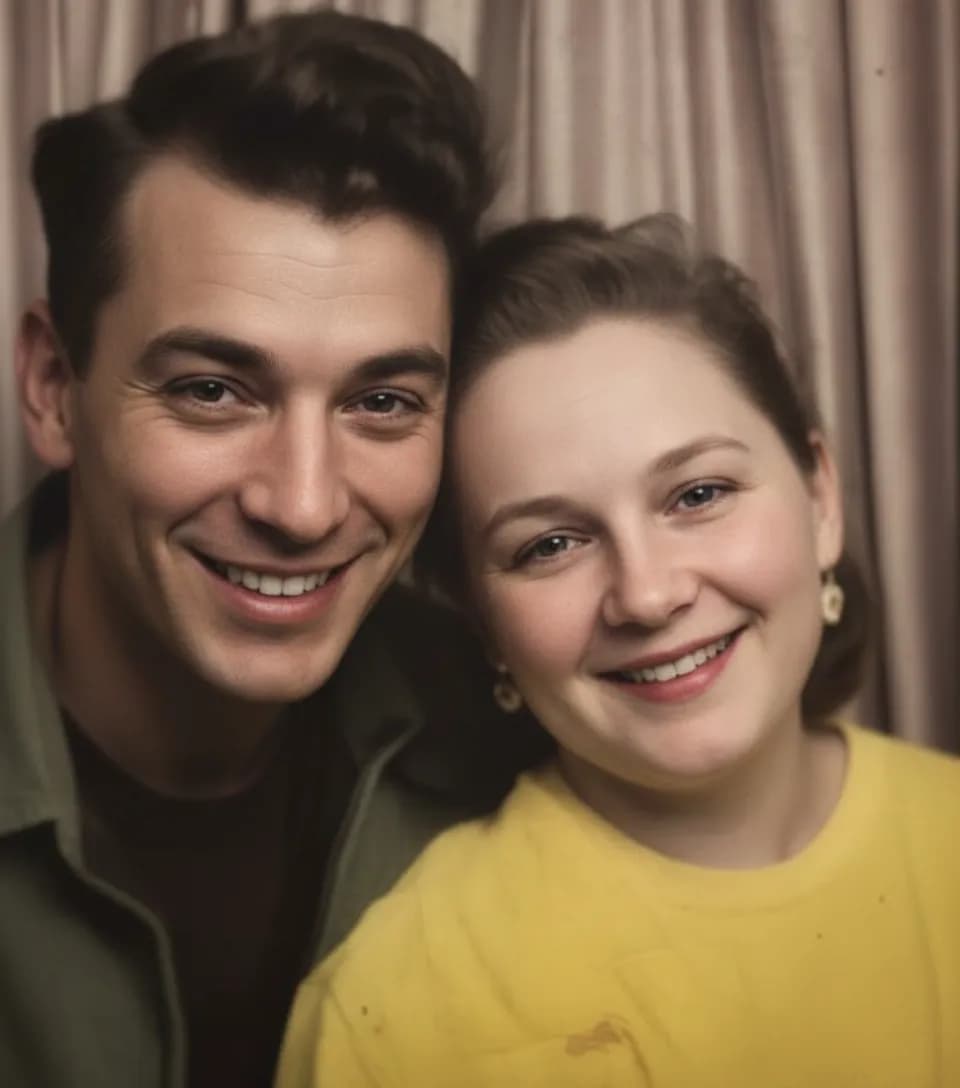
On this page
Why restore old photos on your iPhone?
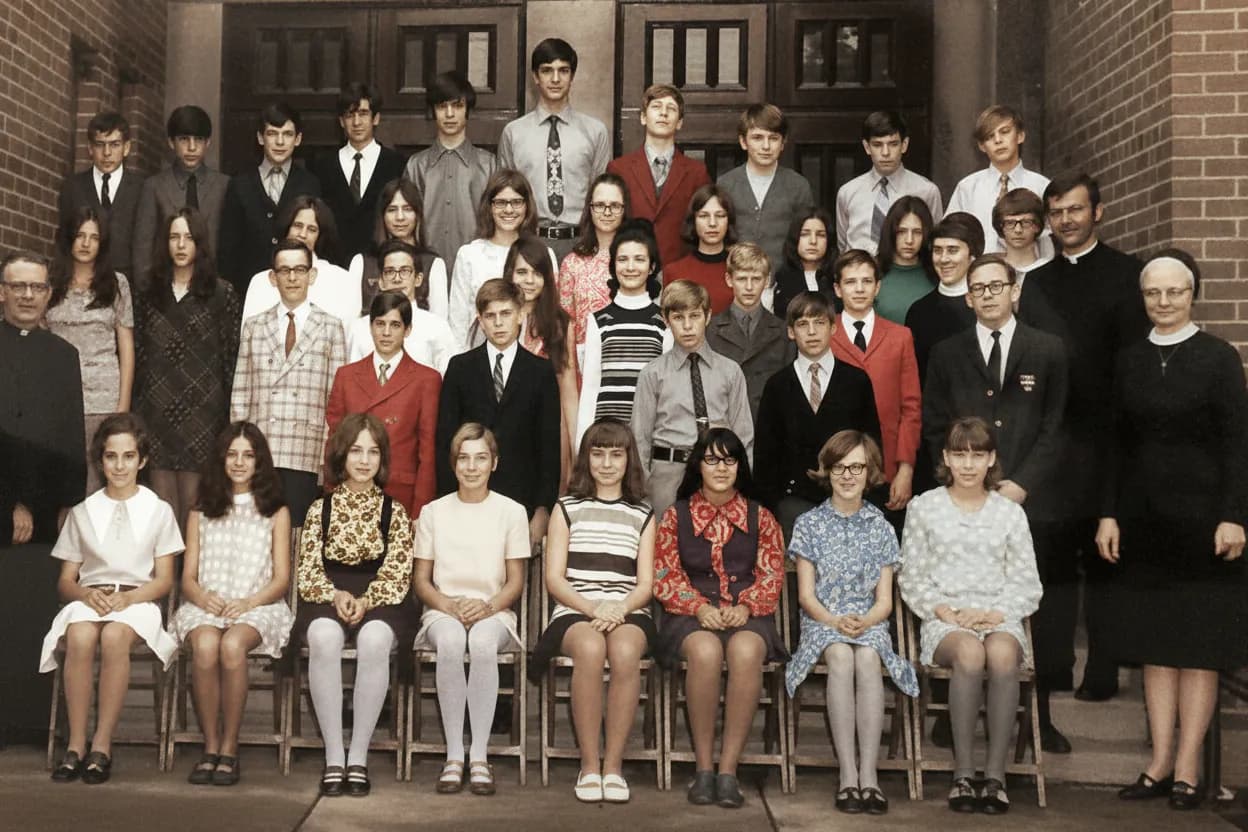
Most people have old printed photos sitting in shoeboxes, albums, or drawers, fading a little more every year. Physical prints degrade over time no matter how carefully they are stored. Light, humidity, and even the acids in the paper break down the image. Your iPhone is already in your pocket, and restoring a photo takes less than five minutes from scan to finished result. You do not need a computer, a Photoshop subscription, or any editing experience. AI restoration technology has advanced to the point where a phone-based workflow produces results that rival professional studios at a fraction of the cost.
- Scan and restore anywhere: at your parents' house, at a family reunion, or at home
- AI handles scratches, fading, yellowing, and blurriness automatically
- Get results in 30 seconds instead of hours of manual Photoshop work
- Free to try with 2 restorations and no credit card required
- Send restored photos directly to family members via Messages or AirDrop
- Preserved digitally so the photo never degrades further
- No technical skills required, just upload and let AI do the work
- Restore a shoebox of 20 photos in one afternoon instead of spending weeks on Photoshop
What to expect
Which scanning method should you use on iPhone?
For glossy prints (the shiny kind that stick to album pages), use Google PhotoScan. It captures the photo from multiple angles and removes the bright glare spots that overhead lighting creates on glossy surfaces. This makes the single biggest quality difference when scanning with an iPhone. PhotoScan is free and available on the App Store. The multi-capture approach is unique: it takes four separate shots from slightly different angles and merges them to remove reflections that would appear in a single-shot photo.
For matte prints (flat, non-reflective), the built-in Notes scanner is perfectly fine. It auto-detects edges, adjusts perspective, and saves a clean crop. It is faster than PhotoScan because it captures in one shot. Open the Notes app, create a new note, tap the camera icon, and select "Scan Documents." The scanner highlights the photo boundaries with a yellow overlay and captures when you hold steady.
For a quick one-off, you can simply photograph the print with your regular iPhone camera. Just make sure you shoot in natural light, hold the phone flat above the photo, and avoid any shadows falling across the print. This works well for matte photos in good lighting, but it will not remove glare from glossy prints. If you go this route, enable the grid overlay in Camera settings so you can align the phone parallel to the photo surface.
What about using a flatbed scanner instead? A 600 DPI flatbed scan will technically capture more detail than any phone camera. But for most family photos, the difference is not visible after restoration. Phone scans work perfectly well for typical 4x6 and 5x7 prints. The only time you really need a flatbed scanner is for very small prints (wallet-size or smaller) where every bit of resolution matters.
Whichever method you choose, do not crop the photo before restoring it. Upload the full image including borders. The AI uses context from the entire photo to understand what is damage and what is original content. Cropping tightly removes that context and can cause the edges of the restored photo to look unfinished.
One more detail: set your iPhone to capture in JPEG rather than HEIF if you plan to upload to web-based restoration tools. Most AI restoration services accept JPEG natively, while HEIF sometimes requires conversion. You can change this in Settings, Camera, Formats, and select "Most Compatible."

“My grandma cried when she saw her wedding photo restored. Absolutely incredible.”
Maria K.

“Uploaded a blurry photo from the 70s and got back a crystal clear image. Like magic.”
James T.

“Finally recovered old family photos I thought were lost forever. So easy to use.”
Sarah M.
How it works
3 simple steps.
Step 1. Scan
Scan the print with your iPhone camera
You do not need a flatbed scanner. Google PhotoScan (a free app) captures glare-free scans of glossy prints by photographing them from multiple angles. For matte photos, the built-in Notes scanner works just as well. Place the photo on a flat surface in natural light, hold your phone directly above it, and let the app handle the rest.
- ✦Google PhotoScan removes glare from glossy prints automatically
- ✦iPhone Notes scanner auto-detects edges and crops for you
- ✦Always shoot in natural daylight and avoid using flash
- ✦Capture the full print including borders for the best AI results
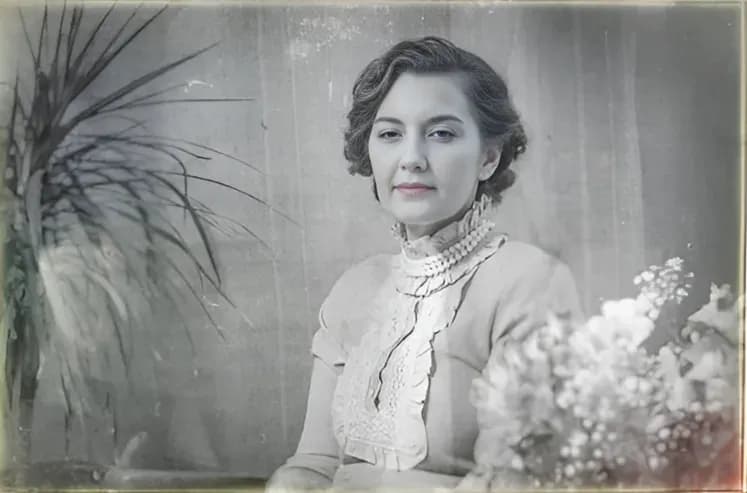
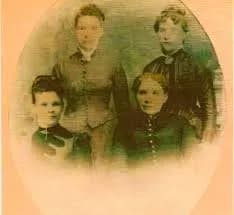
![How to Restore Old Photos on iPhone (Free & Paid Apps) [2026] example: photo after step 1. scan](/effect/scratches-after-1.webp)
![How to Restore Old Photos on iPhone (Free & Paid Apps) [2026] example: photo before step 1. scan](/effect/scratches-before-1.webp)
Step 2. Restore
Fix damage with AI in 30 seconds
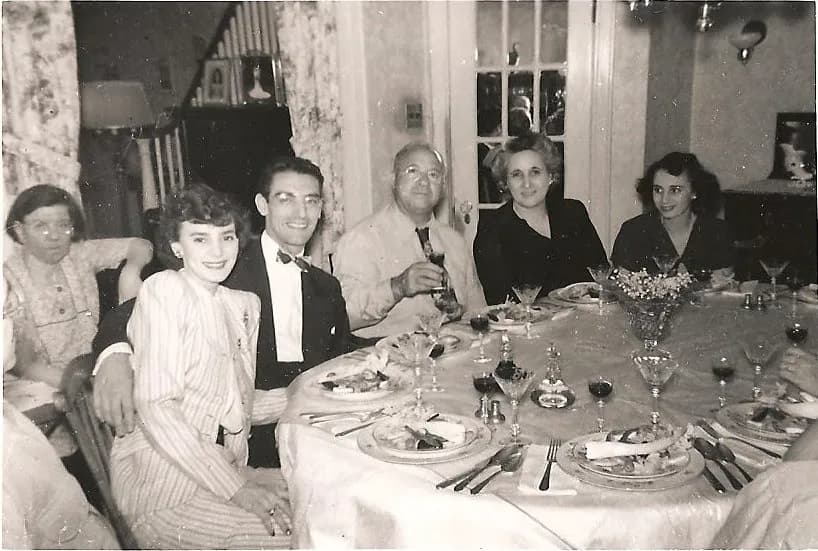
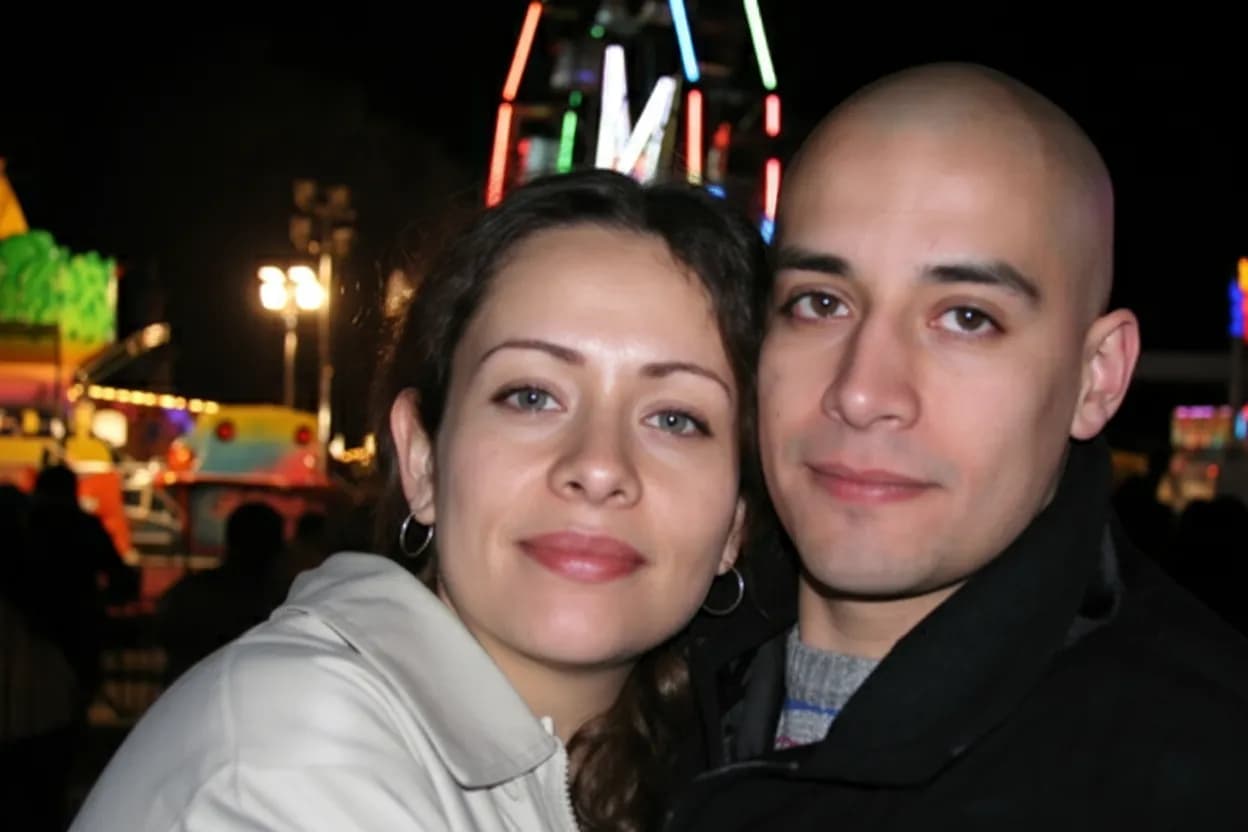
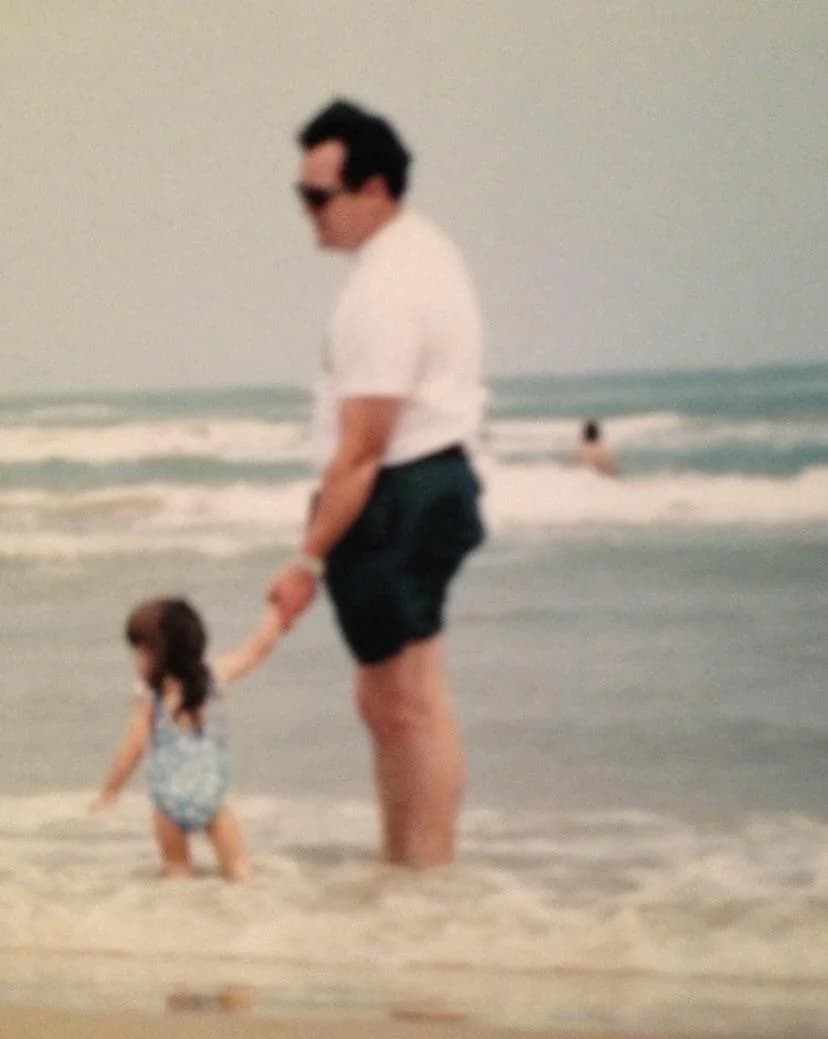
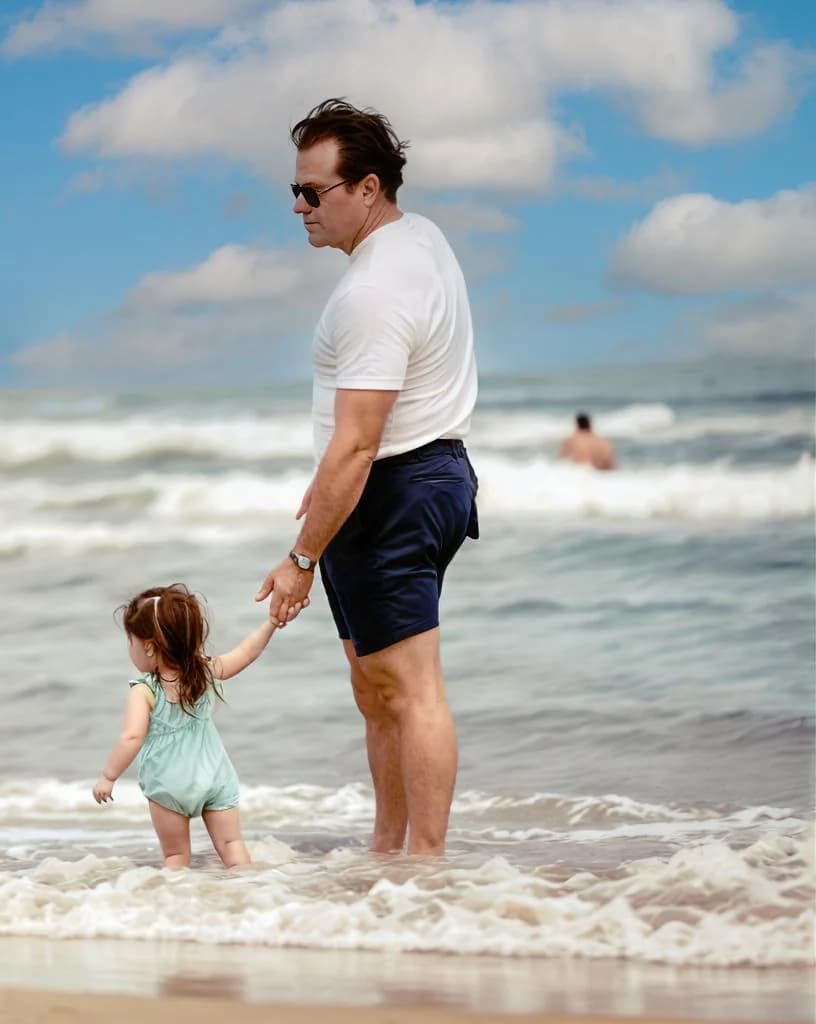
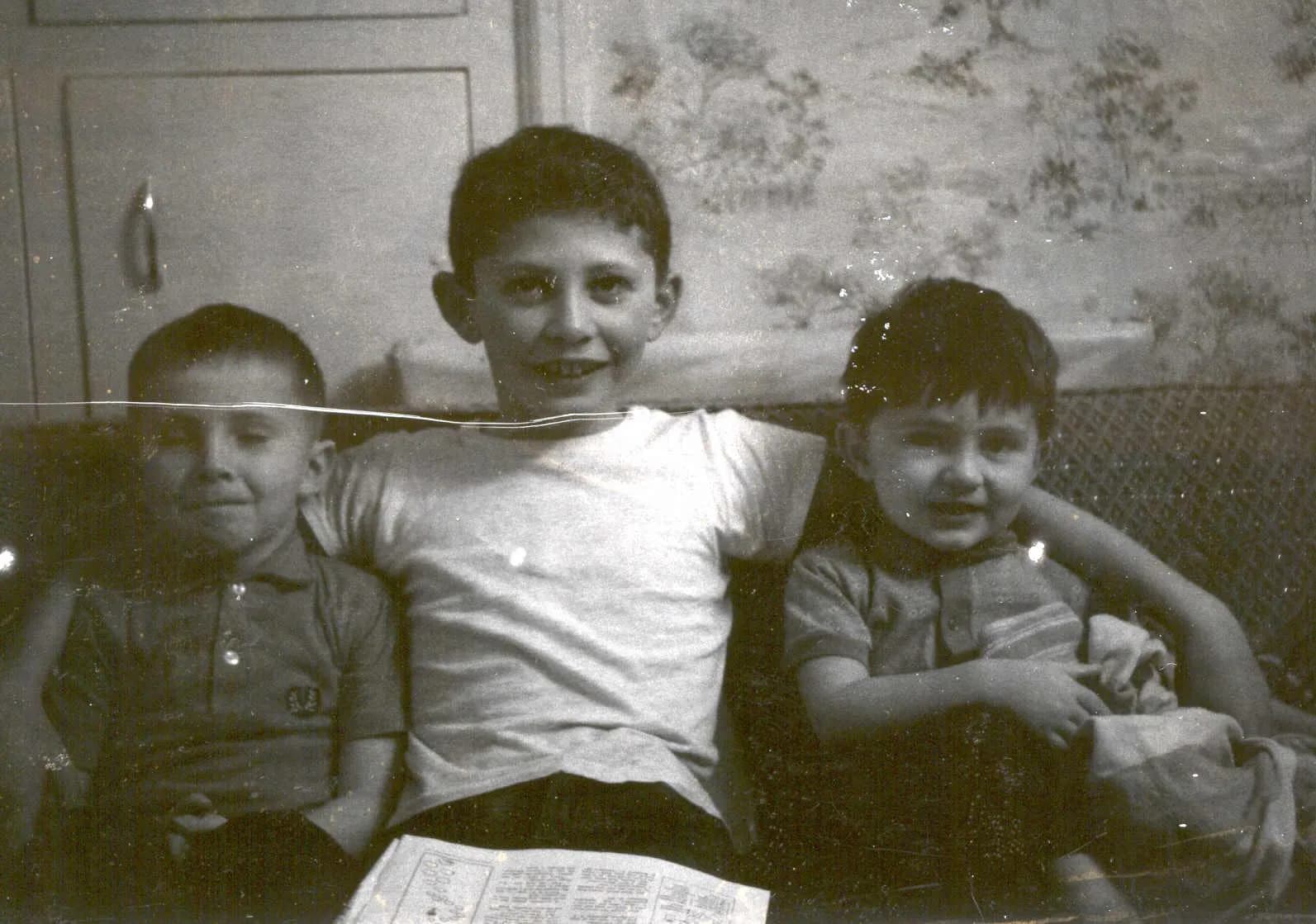
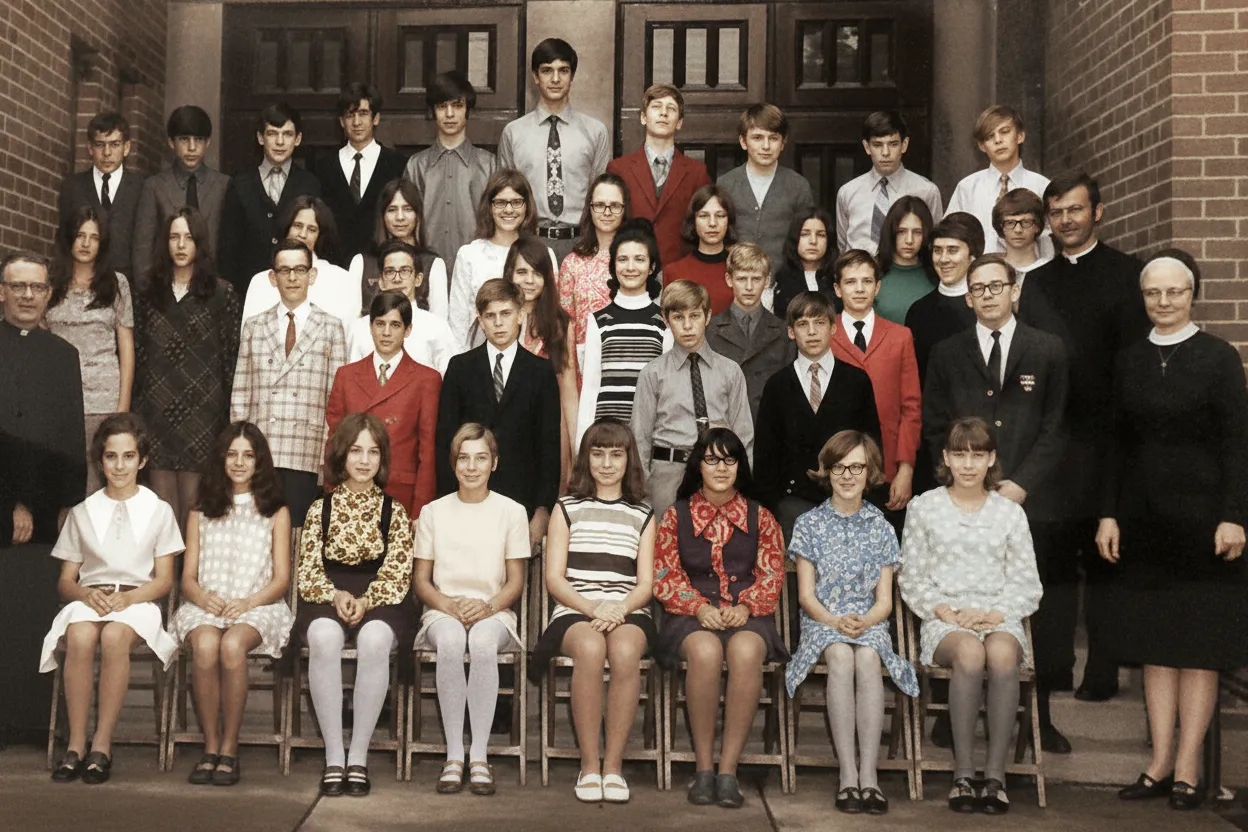
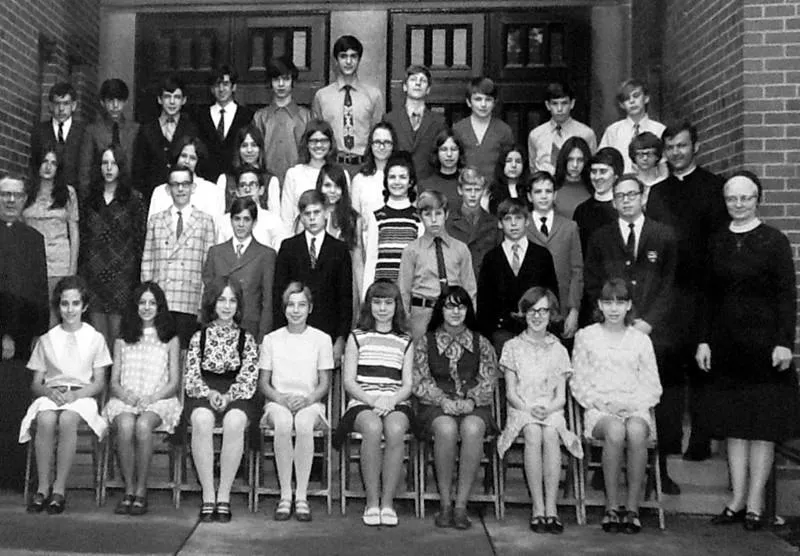
Upload the scanned photo to our AI restoration tool in Safari. The AI identifies scratches, reverses fading, sharpens faces, and corrects color balance automatically. It works on black-and-white prints, color photos, Polaroids, and even water-damaged images. No editing skills are needed.
- ✦Removes scratches, creases, and dust spots automatically
- ✦Reverses decades of fading and yellowing
- ✦Sharpens blurry faces to reveal lost details
- ✦Works in Safari on any iPhone with no app download required
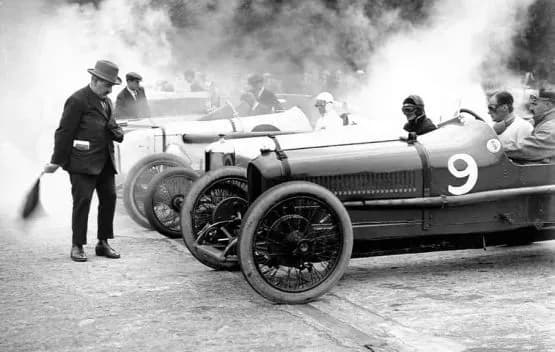
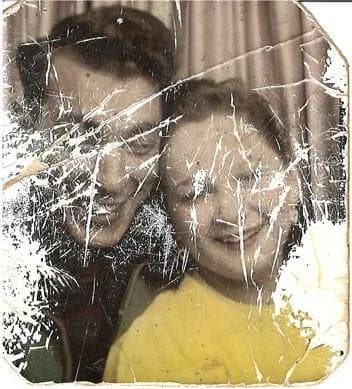
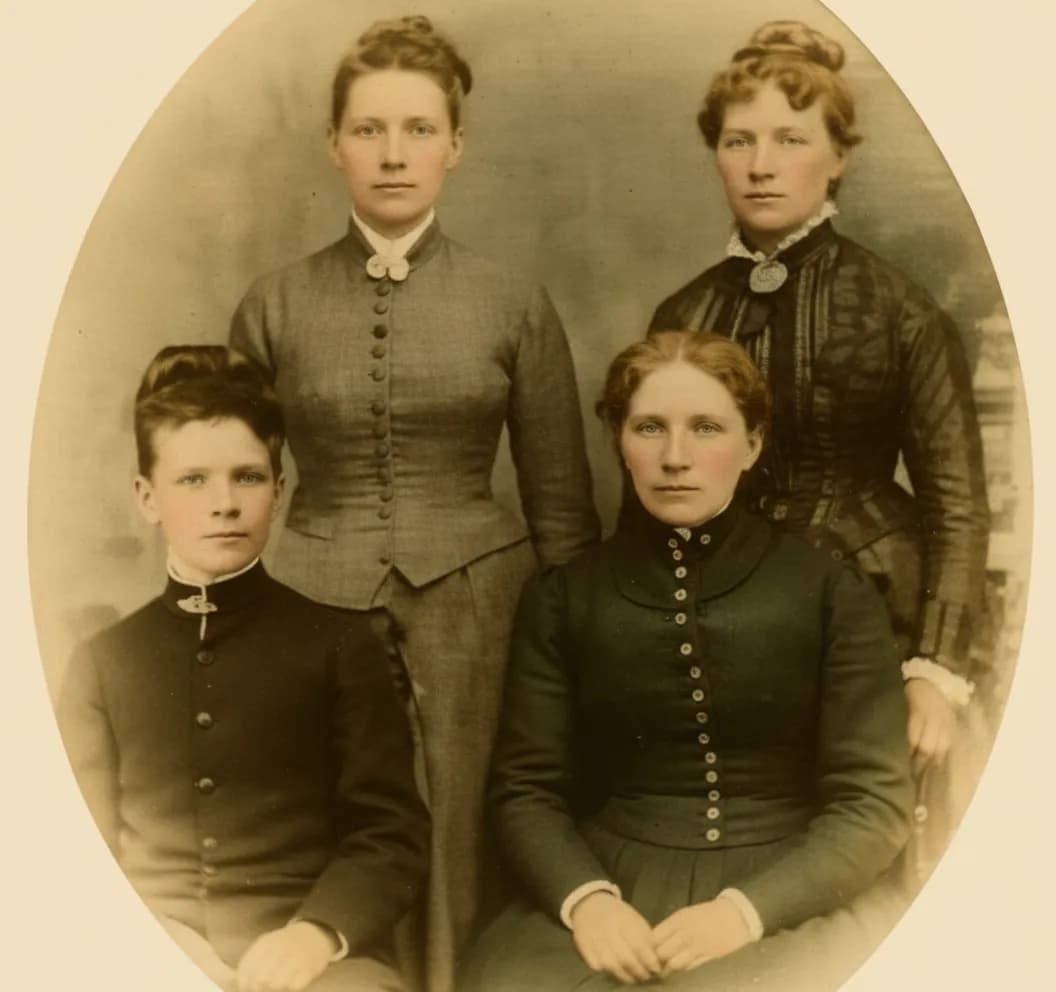
![How to Restore Old Photos on iPhone (Free & Paid Apps) [2026] example: photo after step 2. restore](/effect/restore-old-after-2.webp)
![How to Restore Old Photos on iPhone (Free & Paid Apps) [2026] example: photo before step 2. restore](/effect/restore-old-before-2.webp)
Step 3. Enhance
Sharpen further or add color (optional)
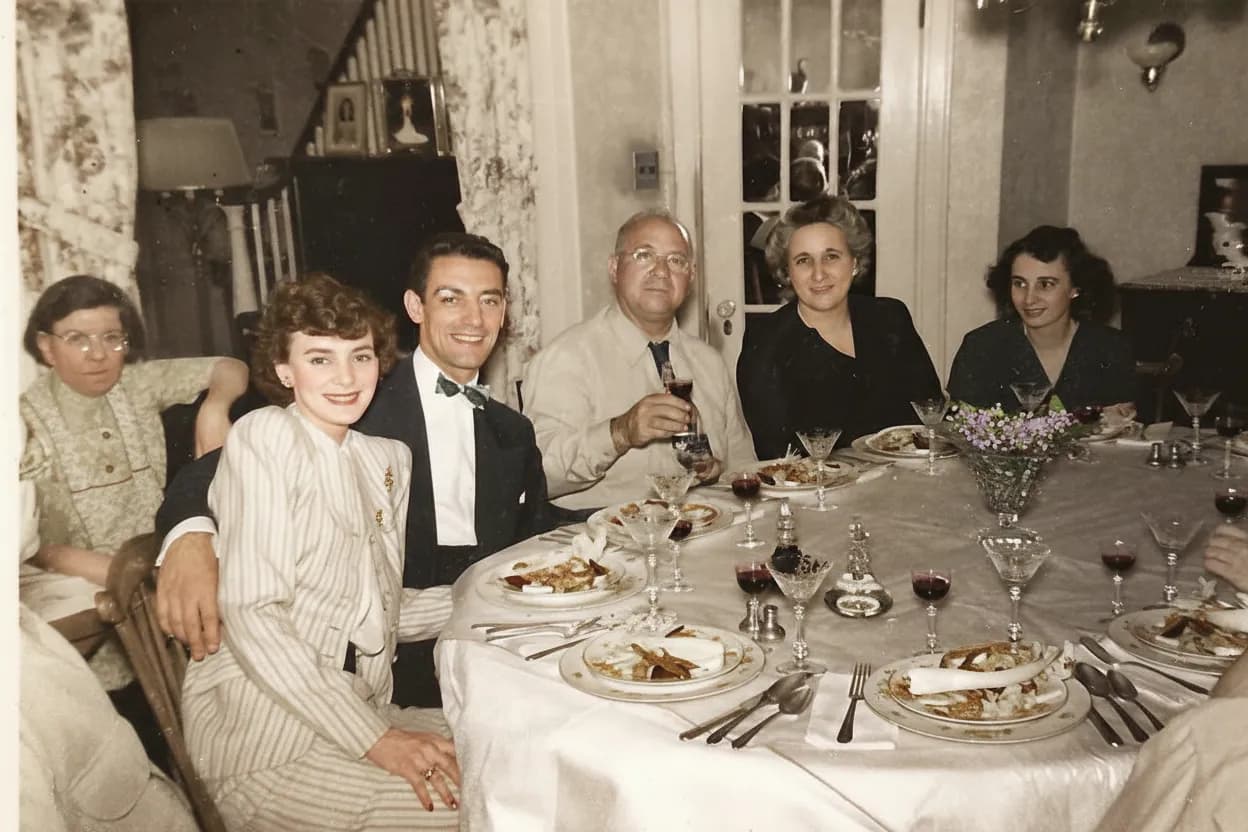
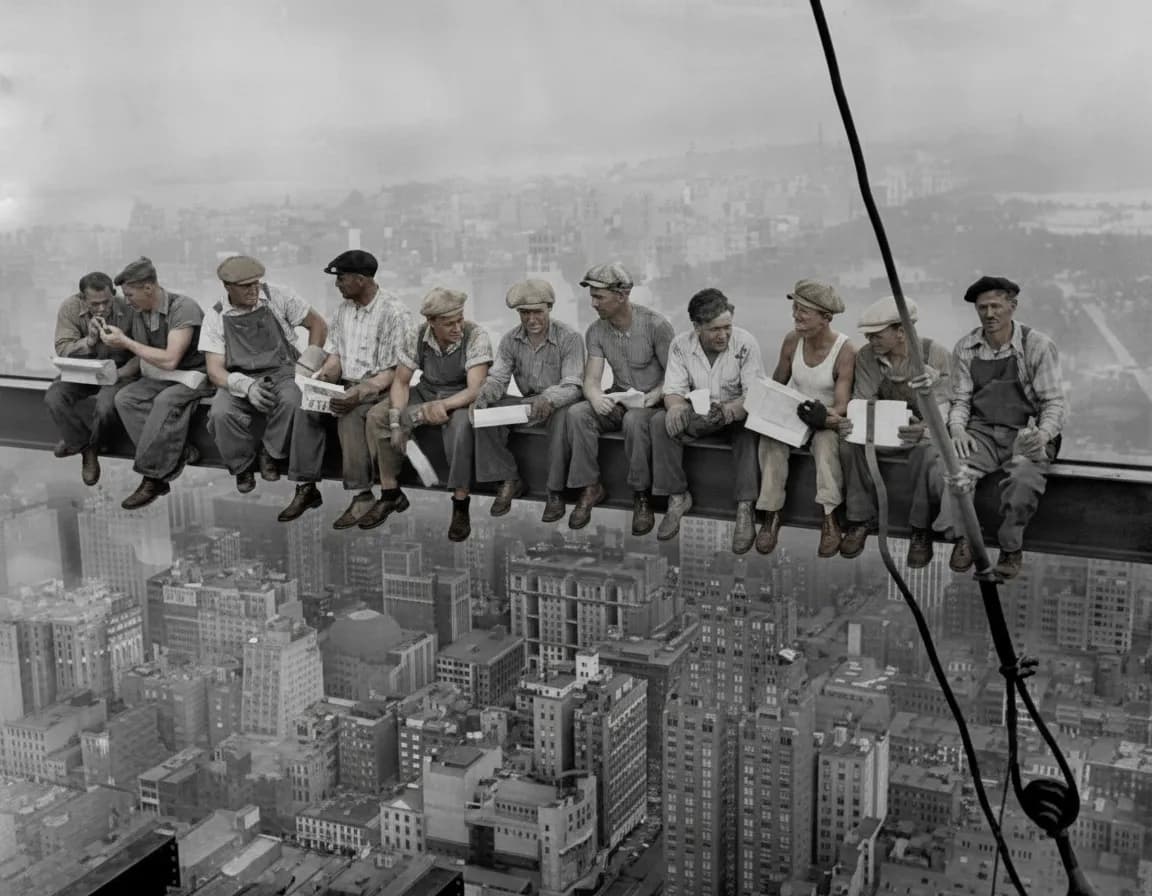
Once the damage is fixed, you can take the photo a step further. Increase the resolution to sharpen small prints, or add realistic color to a black-and-white photo. For the cleanest results, always restore damage first and colorize second.
- ✦AI upscaling increases resolution for small or wallet-size prints
- ✦Colorization adds historically accurate colors to B&W photos
- ✦Always restore first, then colorize for the best outcome
- ✦Download the result directly to your Camera Roll
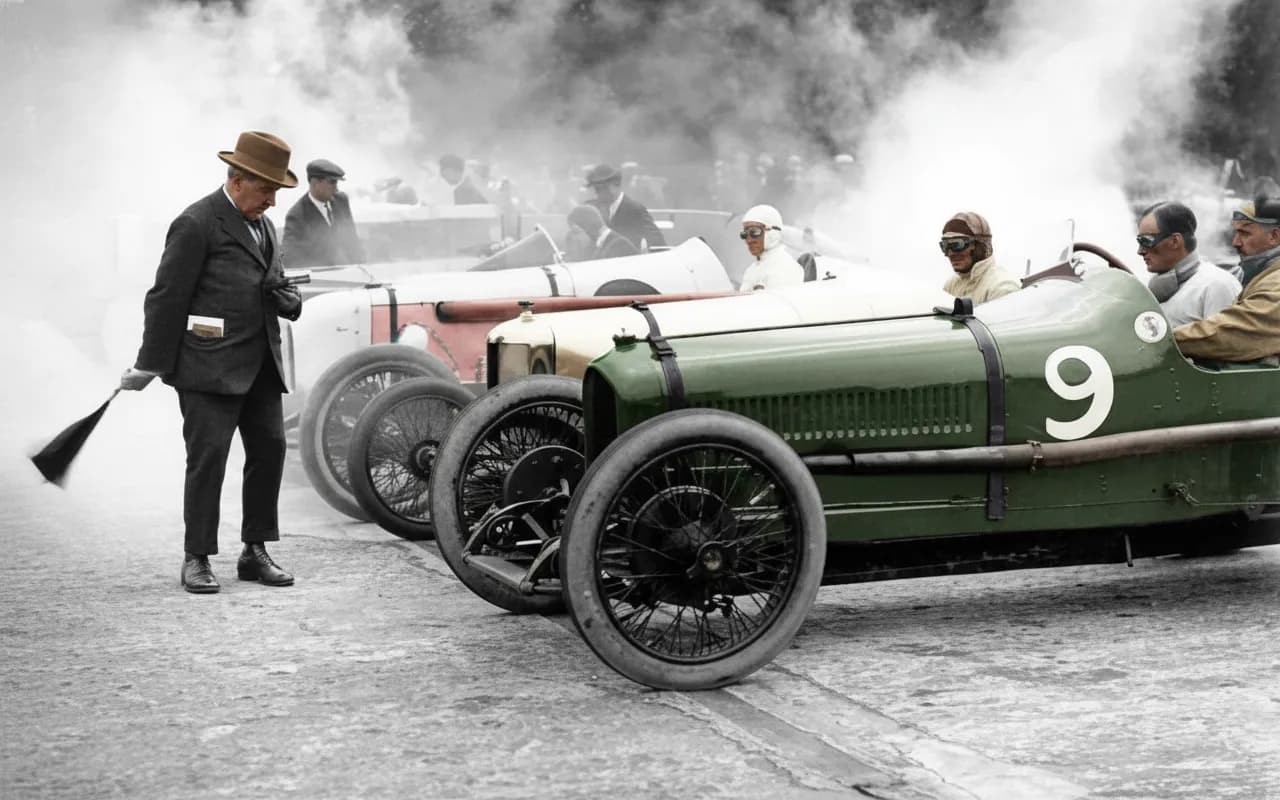
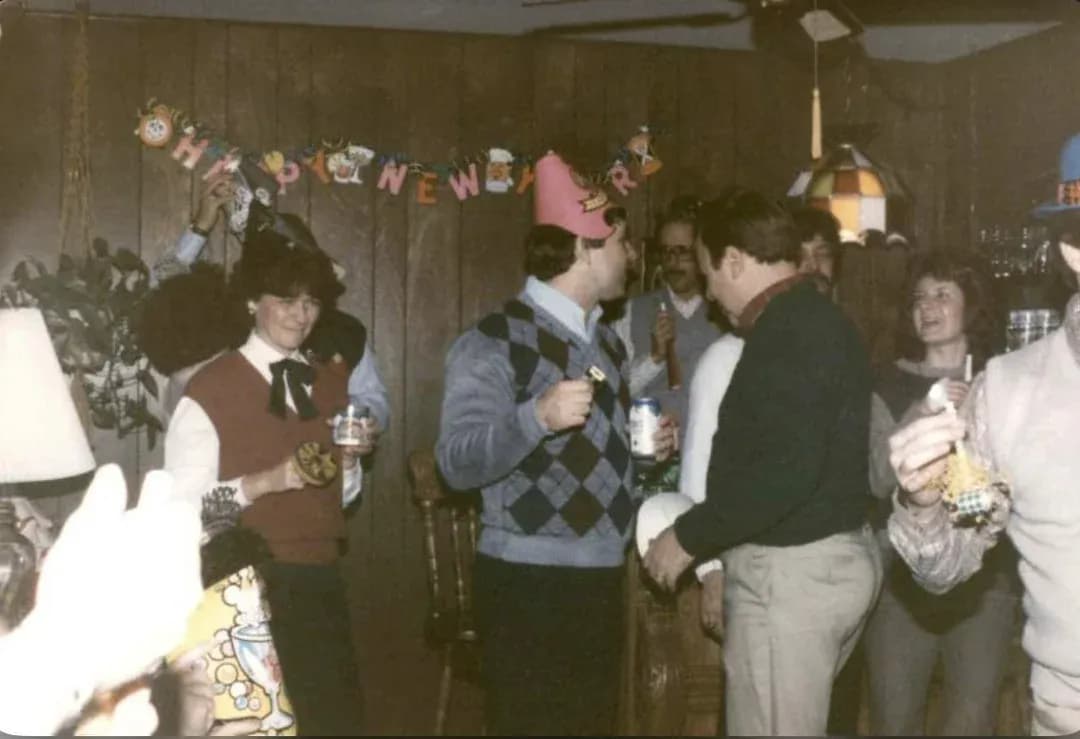
![How to Restore Old Photos on iPhone (Free & Paid Apps) [2026] example: photo after step 3. enhance](/effect/colorize-after-1.webp)
![How to Restore Old Photos on iPhone (Free & Paid Apps) [2026] example: photo before step 3. enhance](/effect/colorize-before-1.webp)
In-depth guide
Complete guide to restoring old photos on iPhone
Start by finding a well-lit spot near a window. Overcast daylight works best because it eliminates harsh shadows. Place the photo flat on a table or on the floor. Any flat, non-reflective surface will do. Avoid placing photos on glass tables because the AI may pick up reflections from underneath. A white or light-gray surface works well as a background. If your only option is a dark or patterned table, place a blank sheet of white paper under the photo first.
If you are using Google PhotoScan, open the app and point your iPhone at the photo. A white circle appears in the center. Tap to capture, and then four dots appear near the corners. Move your phone over each dot in sequence. The app stitches the captures together into a single glare-free image and saves it to your Photos app. The whole scanning process takes about 10 seconds per photo once you get the hang of it.
Next, open Safari and go to the restoration page. Tap the upload button and select the photo from your Camera Roll. The AI processes the photo in roughly 30 seconds. You will see a before-and-after comparison where you can drag a slider to check the result. If you are satisfied, download the restored photo. The tool works entirely in the browser, so there is nothing to install on your phone.
For severely damaged photos with deep scratches, water stains, or large creases, download the result and upload it again for a second AI pass. Each pass catches different details, and two passes typically cover about 95 percent of fixable damage. If you are still not satisfied after two passes, the remaining damage may require manual editing in an app like Snapseed.
Restoring different types of old photos on iPhone requires slightly different approaches. Standard color prints from the 1980s through 2000s are the easiest to restore because they have good color data that just needs refreshing. The AI does an excellent job of reversing the yellow or red tint that develops when color prints are stored in warm environments.
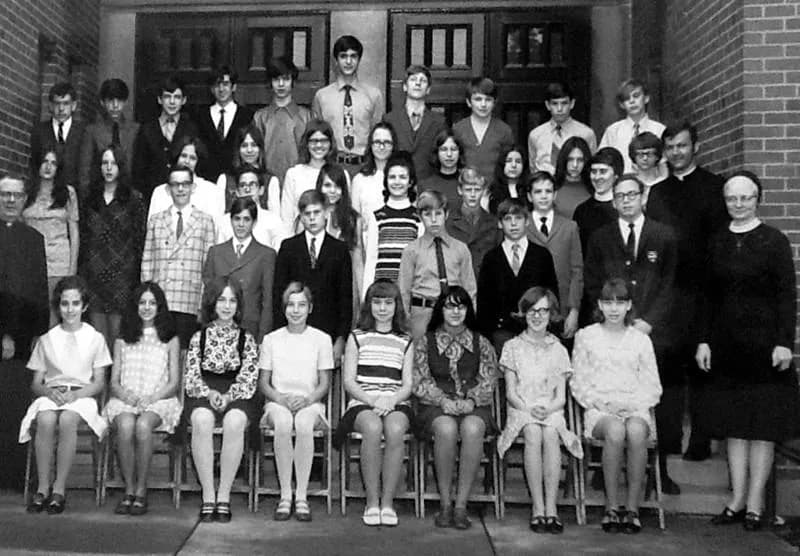
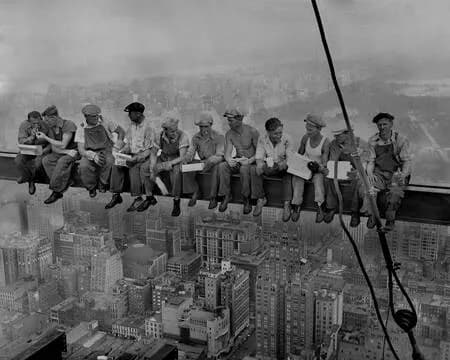
Black-and-white photos from the 1940s through 1970s typically have simpler damage patterns. Scratches, fading, and foxing (the small brown spots that appear on old paper) are the most common issues. AI restoration handles these very well, usually in a single pass. After restoration, you have the option of adding realistic color to bring the photo to life.
Polaroid prints present a unique challenge. The square format and thick white border are distinctive, and the image itself tends to fade unevenly, often going pink or purple over time. When scanning a Polaroid, include the full white border in the scan. The AI uses that border area to calibrate its understanding of the fading pattern. After AI restoration, the original Polaroid colors come through surprisingly well.
Wallet-size prints and photo booth strips are small, which means any phone scan will have limited resolution to work with. For these, hold your iPhone as close as possible while keeping the whole image in frame. After AI restoration, upscale the resolution to add sharpness. This two-step approach (restore then upscale) makes small prints look remarkably sharp.
Water-damaged photos are some of the trickiest to restore. Water causes the emulsion layer to wrinkle, and mold can eat away at the image underneath. If the print is still wet, let it air dry face-up on a clean surface before scanning. Do not use heat to speed up drying because it can cause the emulsion to crack. For light water stains, AI restoration removes most of the discoloration. For severe warping or mold damage, AI can improve the photo but may not fully restore the affected areas.
If the photo is black and white and you want to add color, use the colorization tool after the restoration is complete. The AI analyzes skin tones, sky, foliage, and clothing to apply realistic colors. Always restore damage first and colorize second, because this order produces much cleaner results. The colorization AI works best on photos where faces are clearly visible, since it uses facial features to anchor its color decisions.
For photos where faces are blurry or very small, you can sharpen them further after the main restoration. The AI face enhancement works on faces as small as 64 pixels wide in the original scan, which covers most group photos and full-body shots taken from a reasonable distance.
Beyond AI tools, Snapseed (free from Google) is the best manual editing app for iPhone photo restoration. The Healing tool lets you tap on individual blemishes, dust spots, or small scratches that the AI might have missed. The Tune Image controls let you adjust brightness, contrast, and color balance after AI restoration if you want to fine-tune the final look. Snapseed is especially useful for fixing localized issues that the AI may not catch on the first or second pass.
Remini is another popular iPhone app for photo restoration. It specializes in face enhancement and works well on portraits where the face is the main focus. The free version adds a watermark, and the quality is limited to standard resolution. For full photos with backgrounds, landscapes, or group shots, an AI restoration service like RestorePhotos typically produces better overall results because it treats the entire image rather than focusing only on faces.
Once you are finished, make sure the restored photo is backed up. Turn on iCloud Photos in Settings for automatic cloud backup. As a second copy, share it to Google Photos or email it to yourself. The whole point of digital restoration is creating a permanent copy that will not degrade further. A single copy on a single device is not a real backup. If your phone is lost or damaged, you want the restored photo safely stored in at least two cloud locations.
You can also share the restored photo right away. Use AirDrop to send it to a family member nearby, or send it through Messages, WhatsApp, or email. Restored family photos make excellent gifts, especially for grandparents who may have never seen their old photos looking this clear. Some people create photo books or framed prints from their restored collections using services like Shutterfly, Mixbook, or Apple Photos' built-in print ordering.
For organizing a large restoration project, create a dedicated album in the Photos app called "Restored Photos" or "Family Archive." This keeps your originals and restored versions together and makes it easy to share the whole collection later. If you are working through a shoebox of old prints, tackle them in batches of five or ten rather than trying to do everything at once.
The entire process from scan to save takes about five minutes per photo. For a shoebox of 20 photos, that is roughly an afternoon of work. Compare that to $50 to $150 per photo at a professional restoration shop, where you also have to wait days or weeks for results. The iPhone workflow puts you in control: you see the result instantly, and you can re-run the restoration or try different approaches if the first attempt is not perfect.
When should you skip the iPhone workflow and hire a professional? If the photo is torn into multiple pieces that need to be reassembled, a human retoucher will get better results than AI alone. The same applies to photos where important areas (like a face) are completely missing due to severe physical damage. For everything else, from fading and yellowing to scratches, creases, water stains, and moderate tears, iPhone-based AI restoration handles the job remarkably well.
Expert tips
Tips for getting the best results on iPhone
Use PhotoScan for glossy prints
Glare spots on glossy photos look like additional damage to AI tools. Google PhotoScan eliminates glare before you even start the restoration, giving the AI a much cleaner starting point. It is free and available on the App Store.
Do not crop before restoring
Upload the full image including borders and edges. The AI uses context from the entire photo to distinguish between damage and original image content. Cropping tightly removes that context and can result in artifacts along the edges.
Run two passes for heavy damage
If the first restoration does not fully fix the photo, download the result and upload it again. The AI catches different details on each pass, and two passes usually cover about 95 percent of fixable damage.
Restore first, then edit or colorize
Run AI restoration on the raw scan before making any manual adjustments in Snapseed or adding color. Editing first can confuse the AI about what the damage actually looks like. The correct order is: scan, restore, enhance/colorize, then final edits.
Shoot in natural daylight, never with flash
Camera flash creates a bright white hotspot in the center of the photo that no software can remove. Position the photo near a window in even, diffused daylight for the cleanest scan. Overcast days are ideal.
Clean the photo gently before scanning
Wipe dust off the print with a soft, dry cloth before photographing it. Dust spots on the surface show up in the scan and make the AI work harder. Removing them physically first gives you a better starting image.
Include the full white border on Polaroids
When scanning Polaroid prints, keep the entire white border in the frame. The AI uses that uniform border area to gauge how much the image has faded and adjusts its restoration accordingly.
Back up to two cloud services
After restoring a photo, save it to both iCloud Photos and Google Photos. A single backup is not enough. If one service has an issue, you still have a copy. Email the photo to yourself as a third option.
Handle stuck album pages carefully
If a photo is stuck to a sticky album page, do not force it out. Scan it in place with the album page open and flat. Pulling a stuck photo out almost always tears part of the image away. A good AI restoration can work with the album page still visible in the background.
Use Snapseed for touch-ups after AI restoration
The free Snapseed app from Google has a Healing tool that lets you tap on small blemishes the AI missed. It also has Tune Image controls for fine-tuning brightness, contrast, and warmth after the restoration is done.
Pricing
One-time pricing. No subscription. Credits never expire.
Starter
Perfect for trying it out on a few precious photos.
$0.70 / credit · 10 restorations
Start Restoring Photos- 10 AI credits included
- High-Resolution Output
- Credits Never Expire
- Animate Photos with Credits
30-Day Satisfaction Guarantee
Pro
For restoring a small album of memories.
$0.68 / credit · 25 restorations
Get Pro Access- 25 AI credits included
- High-Resolution 1080P Output
- Credits Never Expire
- Animate Photos with Credits
30-Day Satisfaction Guarantee
Family
Restore your entire family photo collection.
$0.60 / credit · 50 restorations
Get Family Plan- 50 AI credits included
- High-Resolution 1080P Output
- Credits Never Expire
- Animate Photos with Credits
30-Day Satisfaction Guarantee
Studio
For entire archives, professionals, and power users.
$0.55 / credit · 100 restorations
Get Studio Plan- 100 AI credits included
- High-Resolution 1080P Output
- Credits Never Expire
- Animate Photos with Credits
30-Day Satisfaction Guarantee
Prices don't include VAT.
FAQ
Frequently asked questions
Can I restore old photos directly on my iPhone?
Yes. You can scan a printed photo with your iPhone camera or Google PhotoScan, then upload it to an AI restoration tool in Safari. The entire workflow from scanning to restoring to downloading works on your phone without a computer.
What is the best free app to restore old photos on iPhone?
For AI-powered restoration, RestorePhotos offers 2 free restorations with no credit card required. For manual editing, Snapseed (free from Google) has healing, sharpening, and color correction tools. For scanning prints, Google PhotoScan is free and removes glare from glossy photos.
How do I scan old photos with my iPhone?
The best method is Google PhotoScan, a free app that captures multiple angles and removes glare from glossy prints. You can also use the Notes app document scanner or simply photograph the print in natural light with your rear camera held directly above.
Can AI fix scratched and faded old photos on iPhone?
Yes. AI restoration tools identify scratches, fading, yellowing, and other damage, then digitally repair the photo in about 30 seconds. Scratches and fading are the easiest types of damage to fix, with a success rate above 90 percent. The AI produces the same results on iPhone as it does on desktop.
How do I colorize a black-and-white photo on iPhone?
First restore any damage using AI restoration. Then upload the clean result to the colorization tool in Safari. The AI analyzes the scene content like skin tones, sky, and clothing, then applies realistic colors. Always restore damage first and colorize second.
Is the iPhone camera good enough for scanning old photos?
Yes. Any iPhone from iPhone 8 or newer has enough camera resolution for good restoration results. Use Google PhotoScan for glossy prints to remove glare. A flatbed scanner at 600 DPI gives slightly better detail, but for typical family photos a phone scan is perfectly adequate.
How do I remove scratches from old photos on iPhone?
For automatic scratch removal, upload the photo to an AI restoration tool and the scratches are removed in about 30 seconds. For manual removal, use the Healing tool in Snapseed (free) to tap on individual scratches one by one.
How much does it cost to restore old photos on iPhone?
RestorePhotos offers 2 free AI restorations. After that, credit packs start at $6.99 for 10 photos, which works out to $0.70 per photo. Snapseed for manual editing is completely free. Compare that to $50 to $150 per photo at a professional restoration shop.
Can I restore water-damaged photos on iPhone?
Yes. AI restoration can separate water stain patterns from the original image and remove them. For light to moderate water damage, one AI pass usually works. For severe water damage with warping or mold, you may need two passes or professional help for the worst areas.
What format does the restored photo save in?
Restored photos download as high-quality JPEG files at the full resolution of your original. They save directly to your Camera Roll. From there you can share via AirDrop, Messages, email, or upload to cloud storage like iCloud or Google Photos.
Can I restore a photo that is stuck to an album page?
Yes. Do not try to peel the photo out of the album because that often tears part of the image. Instead, scan the photo while it is still on the album page. Open the album flat, hold your iPhone directly above, and capture it in natural light. The AI restoration can work with the scan even if part of the album page is visible around the edges.
How do I restore old Polaroid photos on iPhone?
Scan the Polaroid with the full white border included. The AI uses the border area to calibrate its understanding of how much the image has faded. Polaroids tend to shift toward pink or purple over time, and the AI corrects that color cast effectively. After restoration, the original Polaroid colors look remarkably vivid.
Is AI restoration as good as a professional photo retoucher?
For common damage like fading, scratches, yellowing, and mild water stains, AI restoration produces results comparable to professional work at a fraction of the cost and time. Professional retouchers still have an edge on severely torn photos where pieces are missing, or on photos that need creative reconstruction of damaged faces. For the vast majority of family photos in a shoebox, AI handles the job very well.
Which iPhone models work for photo restoration?
Any iPhone from iPhone 8 or newer has sufficient camera quality for scanning and restoring old photos. The restoration itself happens on cloud servers, so your iPhone model does not affect the AI processing quality. Newer iPhones with better cameras will capture slightly sharper scans, but the difference is minimal for standard-size prints.