On this page
Why old pictures keep getting worse (and why now is the time to act)
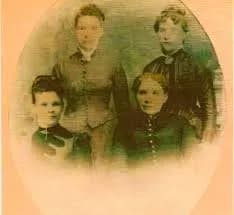
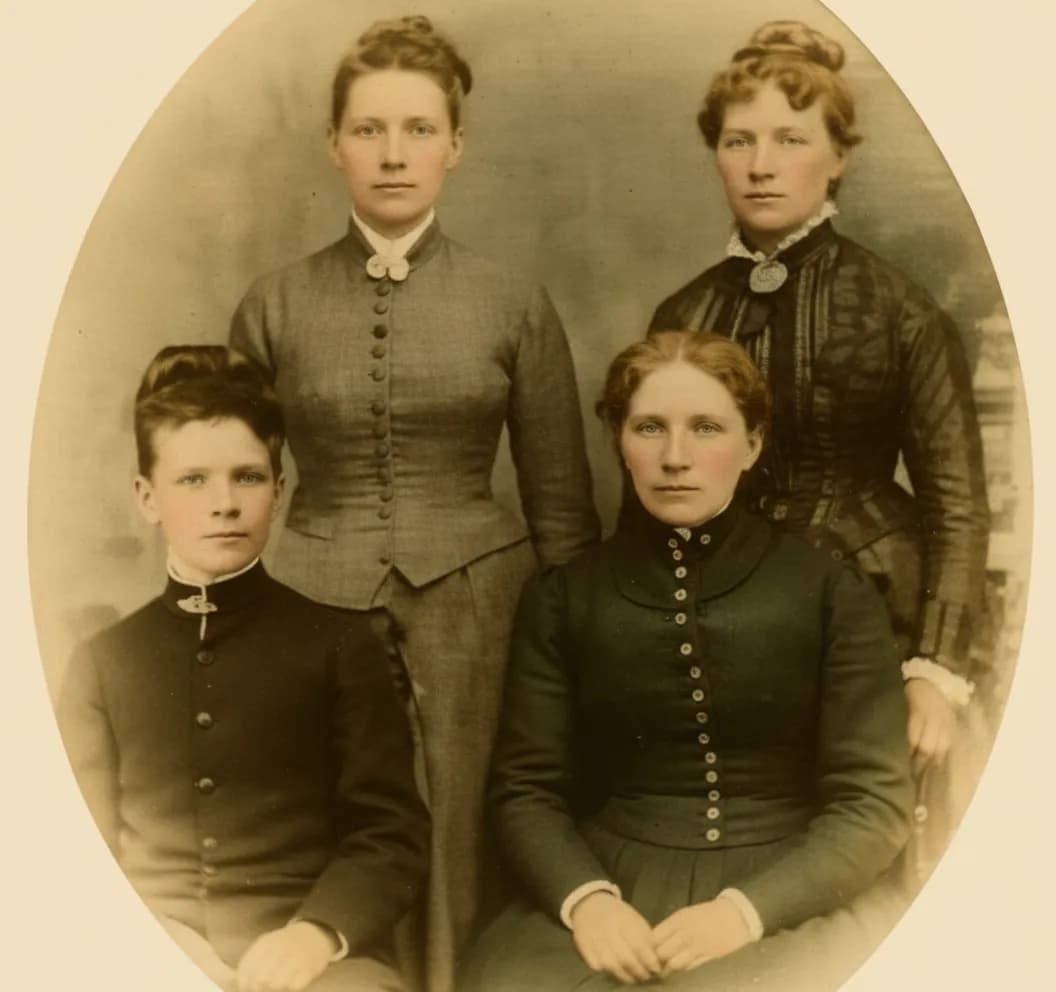
Photo degradation is not linear. It accelerates. A print that looked fine for 30 years can visibly deteriorate in the next 5 because the remaining dye molecules are fewer and break down faster. Silver gelatin prints stored in warm, humid environments lose measurable contrast every single year. Color prints from the Kodak era are already past the midpoint of their expected dye life. If you have old pictures you care about, they look worse today than they did last year, and they will look worse next year than they do today. Making them look new now captures whatever detail remains before the next round of decay takes it.
- Dye fading accelerates over time — a print degrading slowly for decades can collapse quickly
- Humidity above 60% doubles the rate of silver image oxidation in black-and-white prints
- Every handling event (pulling from album, scanning, passing around) adds new scratches
- A digital restoration freezes the image at peak recovered quality permanently
- Restoring now gives AI the most remaining detail to work with
What to expect
What AI can and cannot make look new
AI photo restoration is remarkably good, but it is not magic. Setting realistic expectations helps you decide which photos are worth restoring and which might need professional help.
AI excels at: fading and color shift (even extreme yellowing), moderate scratches and creases, facial blur and softness, grain and noise, water stains that have not destroyed the emulsion, and general loss of contrast and vibrancy. For these damage types, the AI result often looks better than what a human retoucher could achieve manually, especially for face sharpening.
AI struggles with: large missing areas (a torn-off corner, a hole burned through the photo), photos where 90%+ of the image is obliterated by water or fire, images where the face is completely obscured (covered by a stain, folded over, or worn away), and photos where only a tiny fragment of the original remains. In these cases, the AI does not have enough surrounding context to reconstruct what was there.
A good rule of thumb: if you can still make out the general composition and see some hint of facial features, the AI will almost certainly produce a dramatic improvement. If the photo is so damaged that you cannot tell what you are looking at, the AI will try, but the result may not be usable without additional manual work.

“My grandma cried when she saw her wedding photo restored. Absolutely incredible.”
Maria K.

“Uploaded a blurry photo from the 70s and got back a crystal clear image. Like magic.”
James T.

“Finally recovered old family photos I thought were lost forever. So easy to use.”
Sarah M.
How it works
3 simple steps.
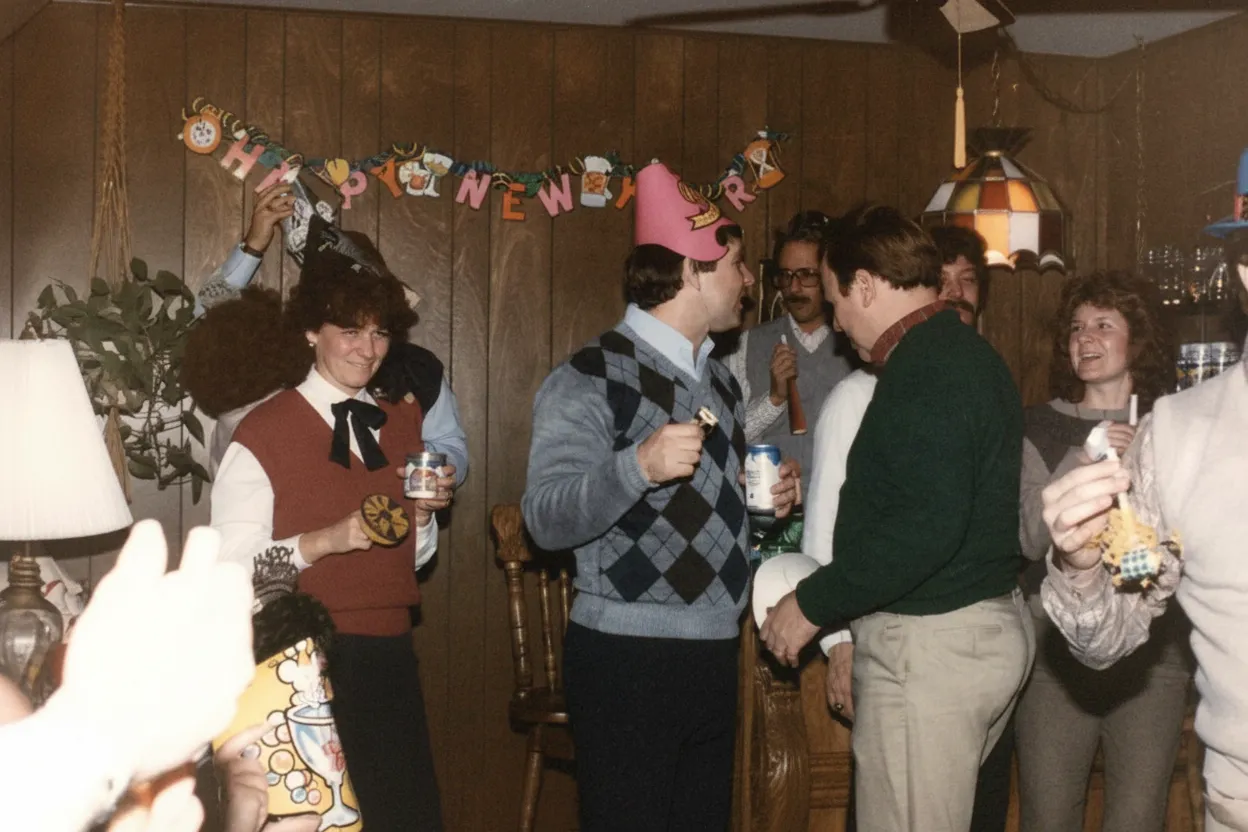
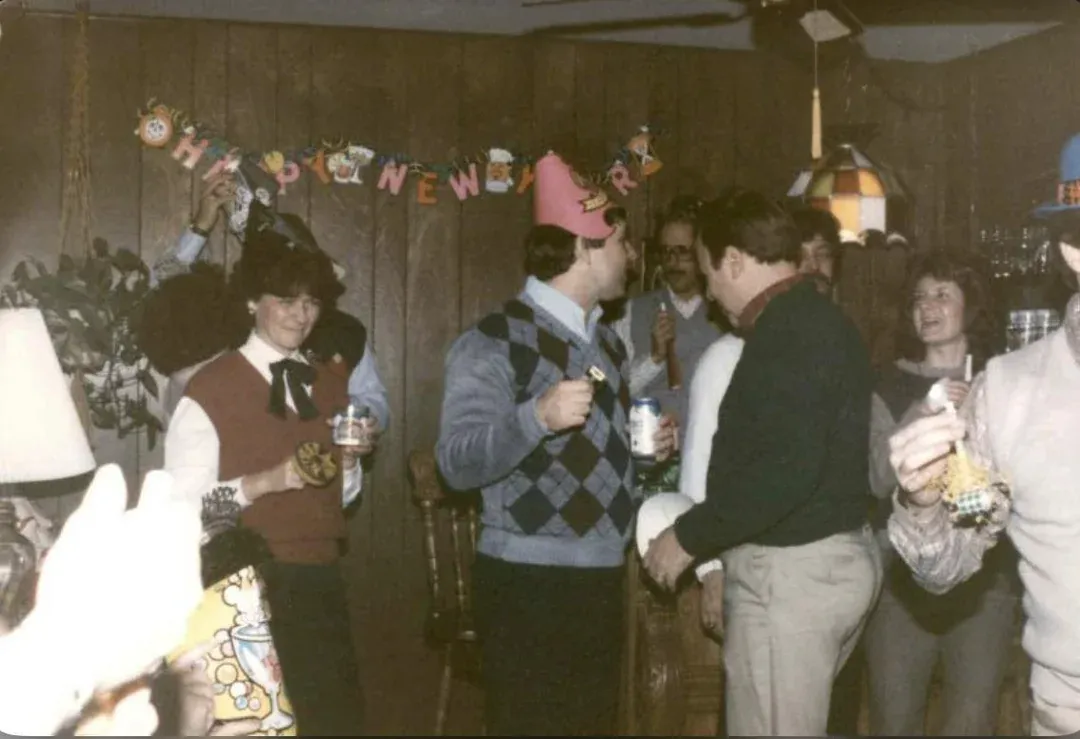
Reverse Fading & Color Loss
Undo decades of yellowing in one click.
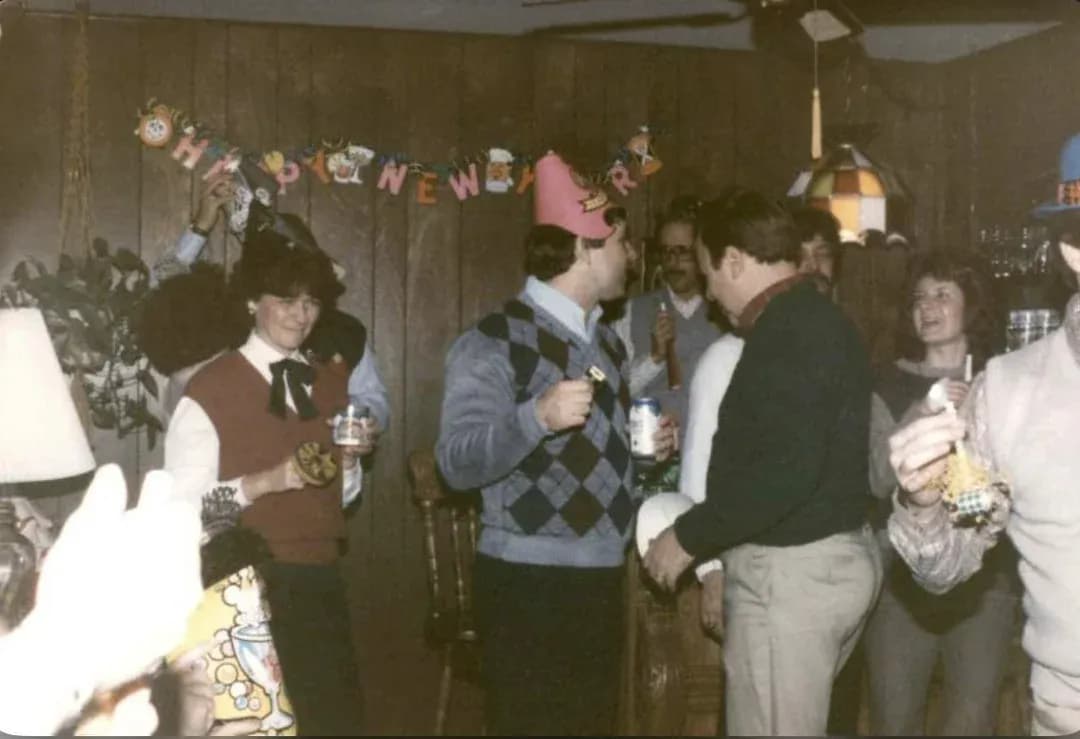
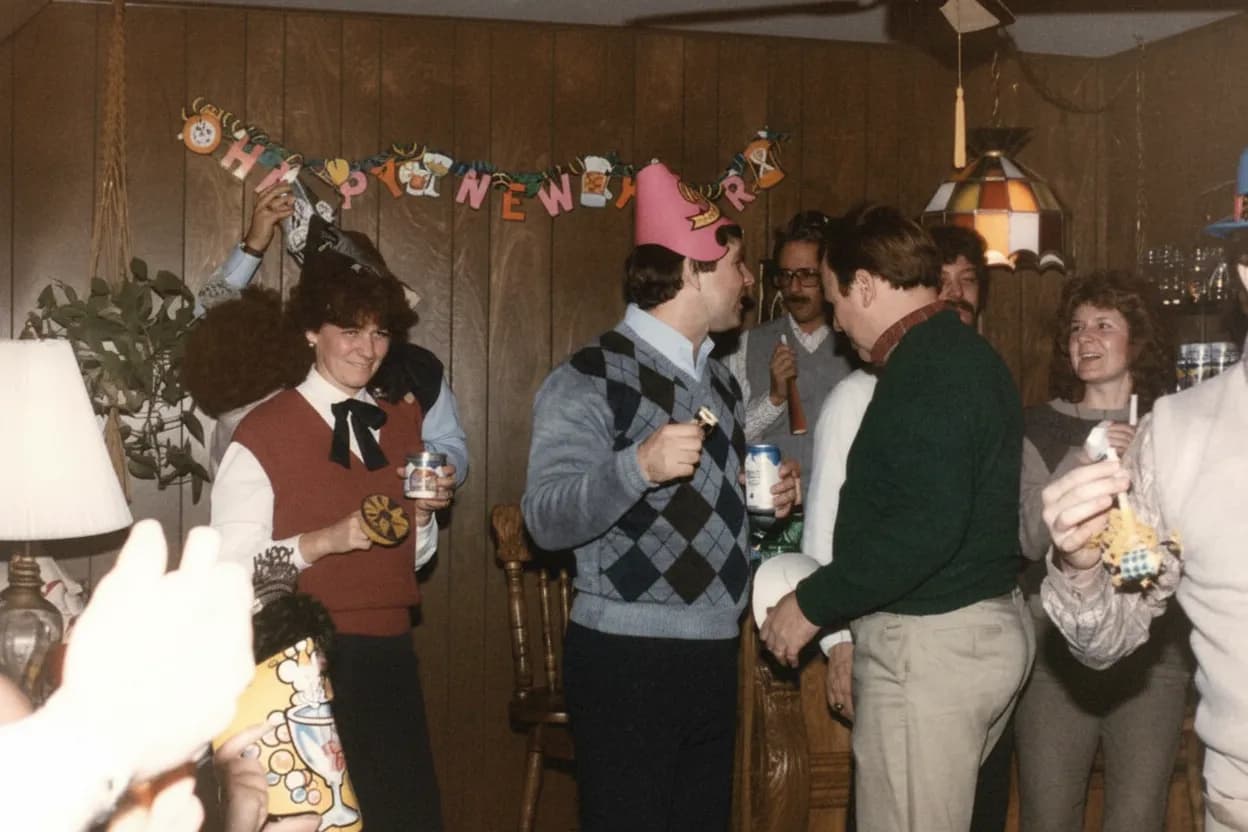
The most visible sign of age on any photograph is color shift. Chromogenic prints from the 1960s–1990s lose cyan dye first, which pushes the image toward yellow and magenta. Black-and-white silver gelatin prints lose shadow density and turn a flat, muddy grey. Our AI identifies the era and print chemistry of your photo, then applies the exact inverse color correction to bring the original palette back. Skin tones return to natural, blue skies reappear, and the milky haze that makes old pictures look washed out is gone.
- ✦Detects the print type and applies era-specific color correction
- ✦Reverses the cyan-dye loss that causes yellow/magenta tint
- ✦Recovers shadow density in faded black-and-white prints
- ✦Restores natural skin tones without over-saturation
Sharpen Blurry Faces
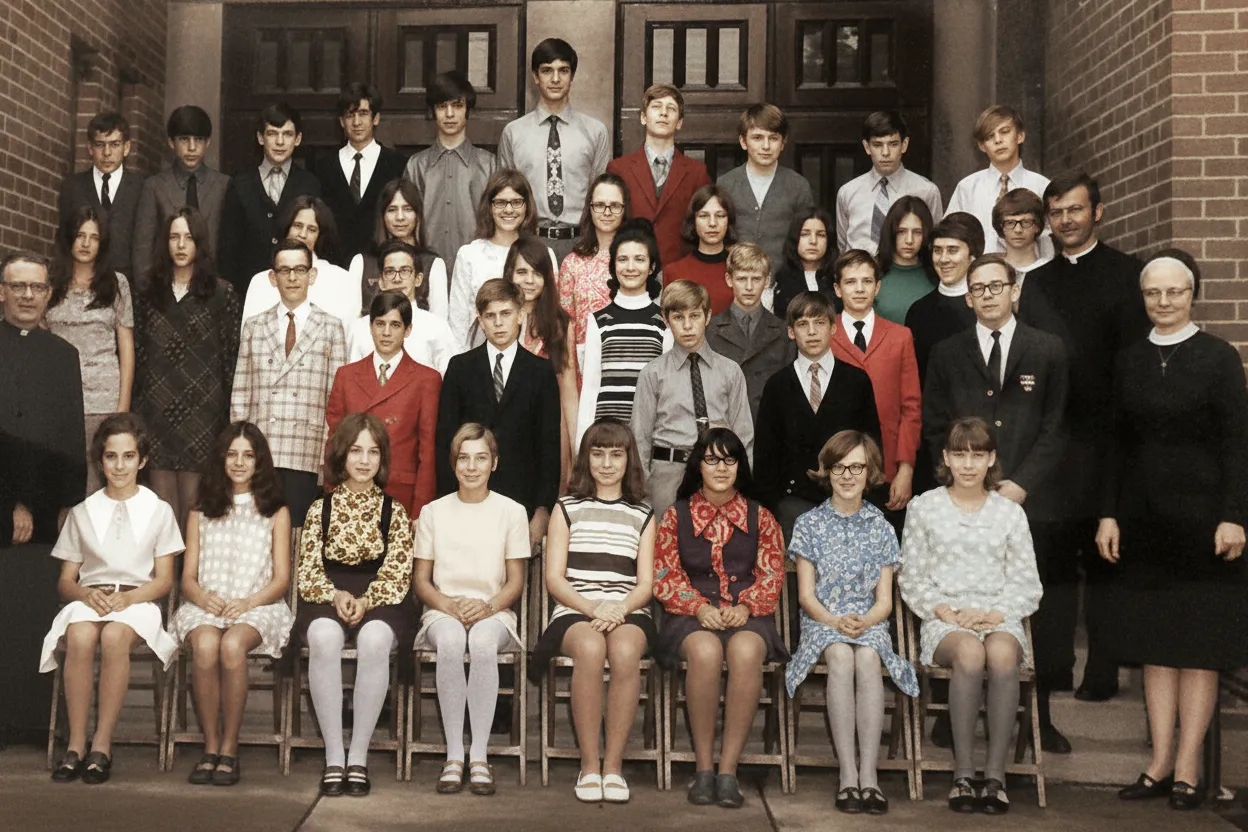
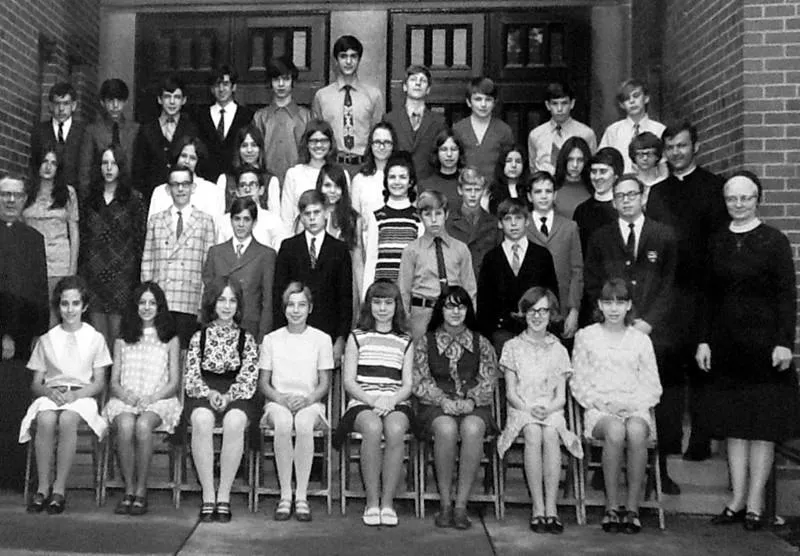
Recover faces your eyes can barely make out.
Blurry faces are the number one reason old pictures look old. Motion blur from long exposure times, soft focus from cheap lenses, and resolution loss from small prints all contribute. Classical sharpening (Unsharp Mask in Photoshop) only enhances edges that already exist — it cannot invent missing detail. AI face restoration is fundamentally different: it generates plausible facial detail (iris texture, individual eyelashes, skin pores) based on patterns learned from millions of high-resolution portraits. The result is a face that looks like it was photographed yesterday.
- ✦Generates facial detail that sharpening tools cannot recover
- ✦Reconstructs eyes, eyebrows, lips, and hair texture
- ✦Works on faces as small as 64x64 pixels in the original
- ✦Preserves the person's actual appearance — no glamour filter
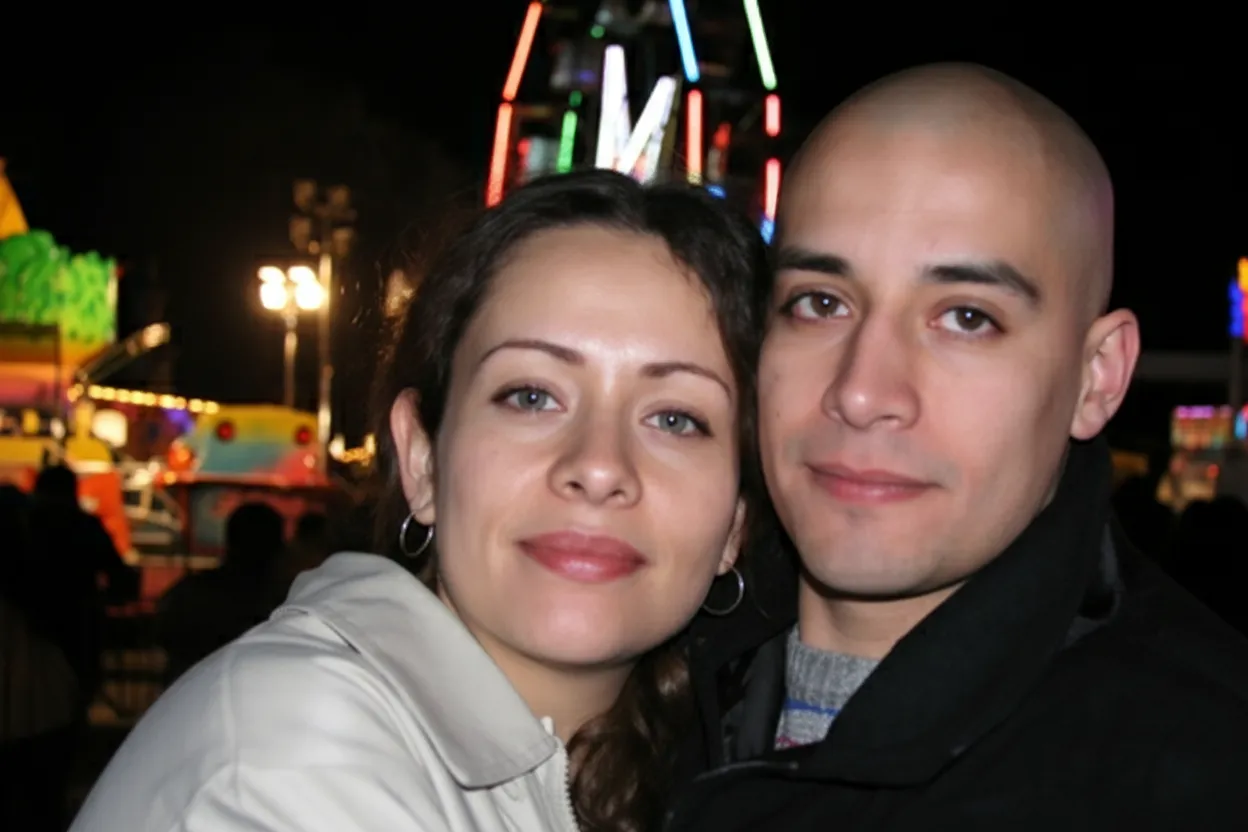
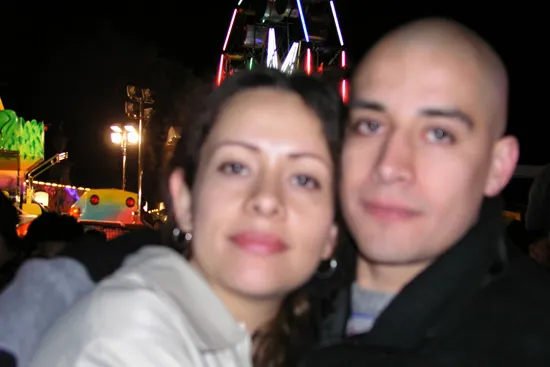
Erase Physical Damage
Scratches, creases, and stains disappear.
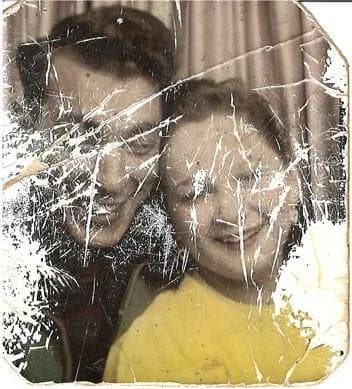
Physical damage — scratches from sliding prints across a table, creases from folding, water stains from a basement flood, foxing spots from mold — is what makes old pictures look handled and neglected. The AI treats each type of surface damage differently. It fills scratches by extending the surrounding texture across the gap. It reconstructs creased areas by referencing symmetrical features on the opposite side of the face. It removes stains by separating the stain color from the underlying image. The result looks like a print that was stored in a museum, not a shoebox.
- ✦Removes scratches, creases, tears, and fold marks
- ✦Cleans water stains, foxing, and mold discoloration
- ✦Fills damaged areas using context from surrounding pixels
- ✦Handles multiple damage types in a single pass
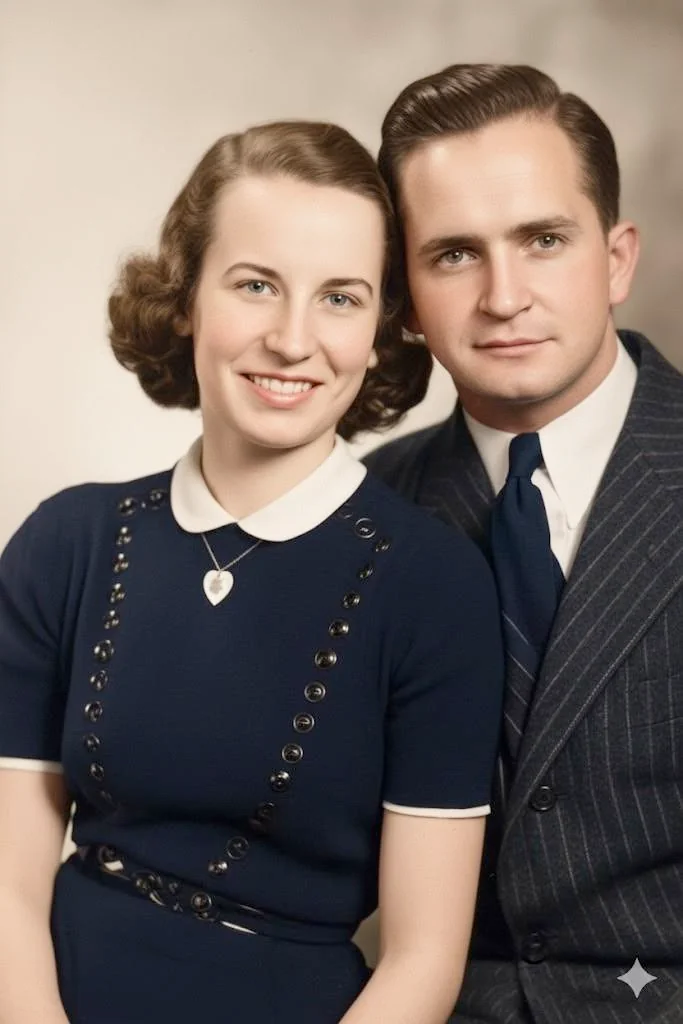
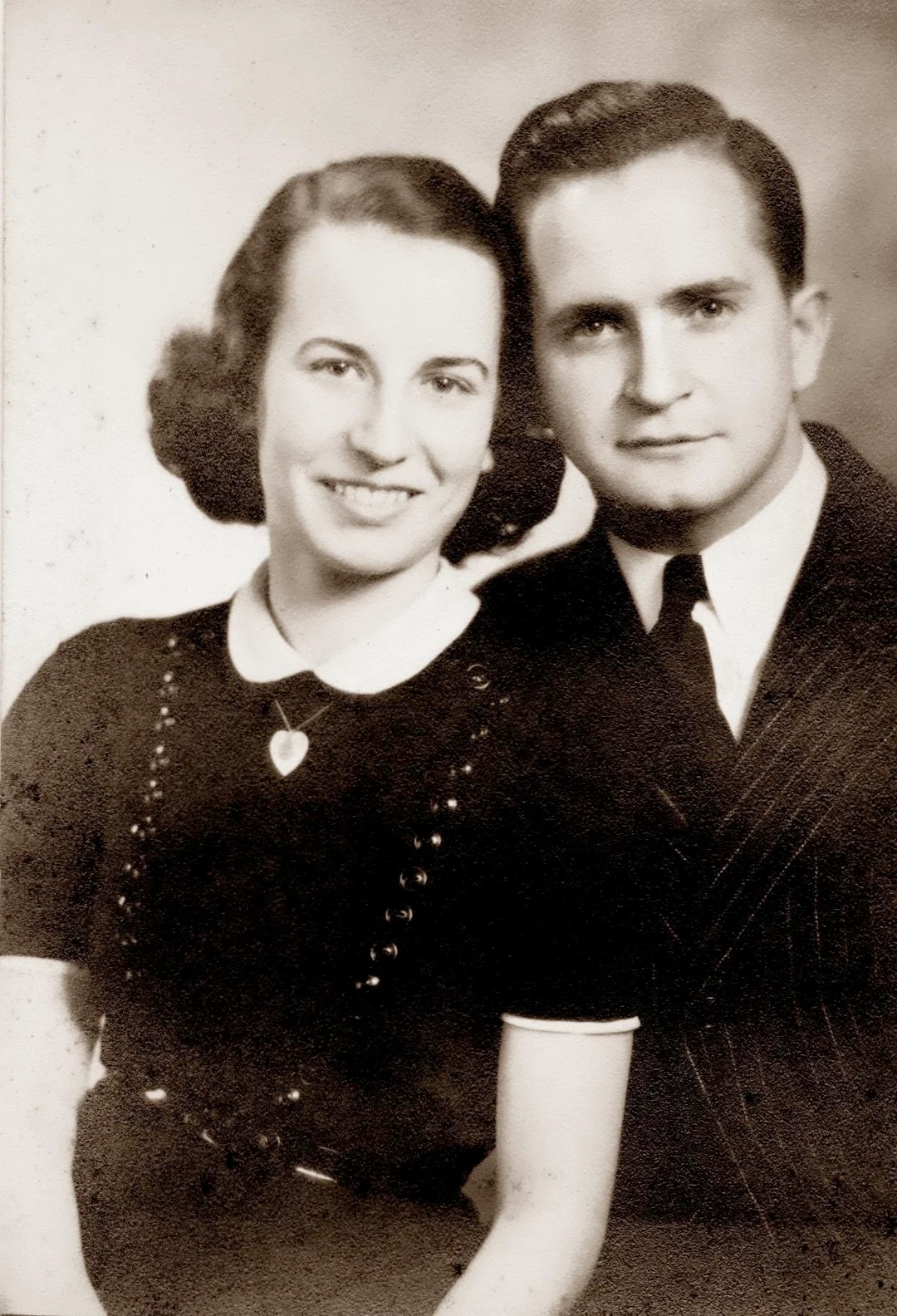
In-depth guide
What makes old pictures look old (and how AI reverses each one)
There are exactly five things that make an old picture look old: color shift, contrast loss, facial blur, surface damage, and grain. Every aged photograph has at least two of these, and most have all five. Understanding each one explains why a single AI pass can turn a 50-year-old print into something that looks like it was taken last week.
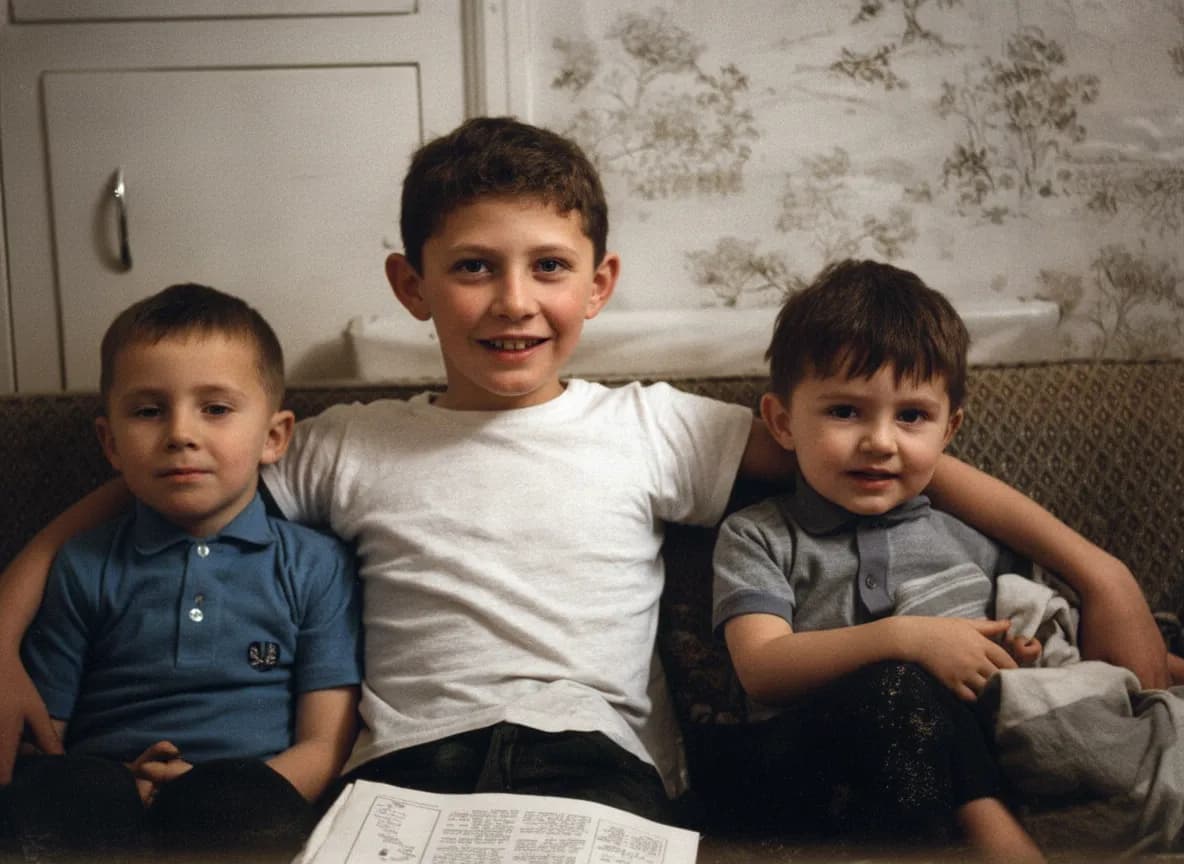
Color shift happens because photographic dyes are organic molecules that break down when exposed to light, heat, and humidity. In Kodak-era color prints (1960s–1990s), the cyan dye fades first, which pushes the entire image toward yellow and magenta. That warm, sepia-like cast people associate with "old photos" is not an aesthetic choice — it is chemical decay. The AI knows what the original dye balance should have been and applies the inverse shift, effectively undoing decades of chemistry in a fraction of a second.
Contrast loss is what makes old pictures look flat and lifeless. In black-and-white prints, the metallic silver that forms the image oxidizes over time, turning dark blacks into dull greys. In color prints, the overall dye density drops as molecules break apart. Either way, the range between the lightest and darkest parts of the image compresses, and the photo loses its depth — a problem we cover in detail in our fix faded photos guide. The AI expands the tonal range back to full, restoring deep shadows and bright highlights without blowing out detail.
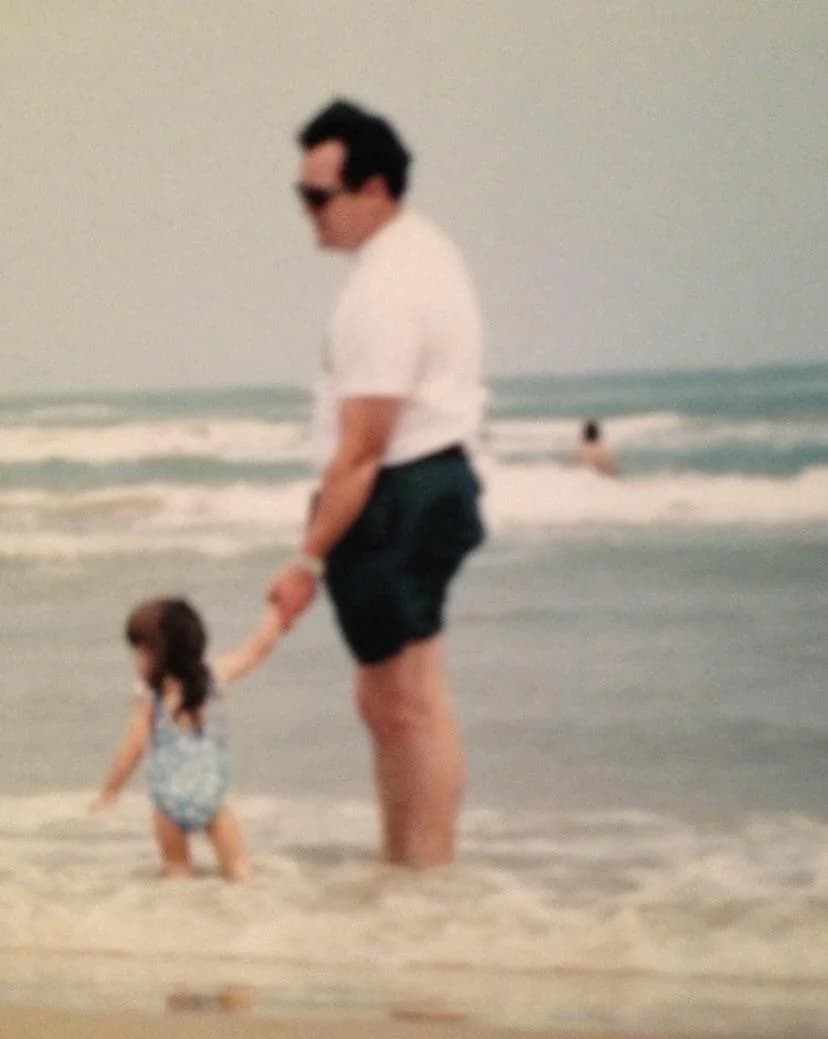
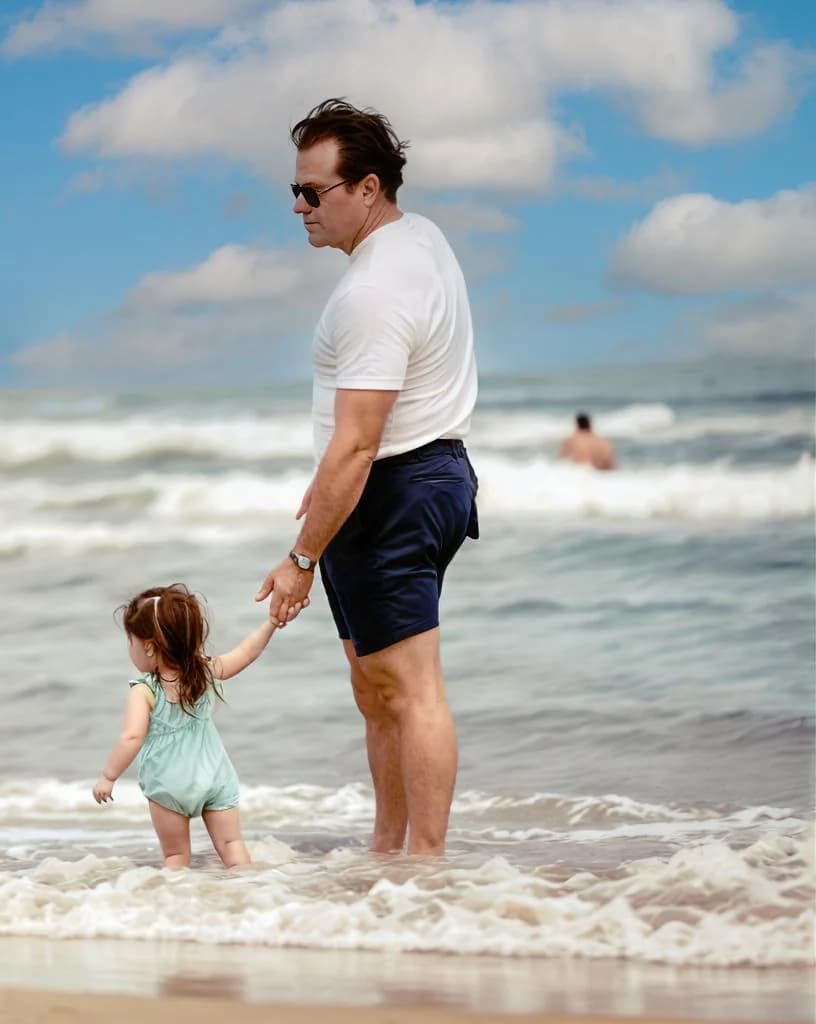
Facial blur is the most emotionally damaging type of degradation because faces are what people care about most. Old pictures often have soft faces for reasons that have nothing to do with damage: long exposure times caused motion blur, cheap lenses had soft focus, and small prints (wallet-size, 3x5) simply did not have enough resolution to capture fine facial detail. Classical sharpening cannot help because there is no edge detail to enhance. AI face restoration solves this by generating plausible facial detail — iris patterns, individual hairs, skin texture — based on patterns learned from millions of modern high-resolution portraits. This is the single biggest reason AI-restored photos look dramatically newer than the originals.
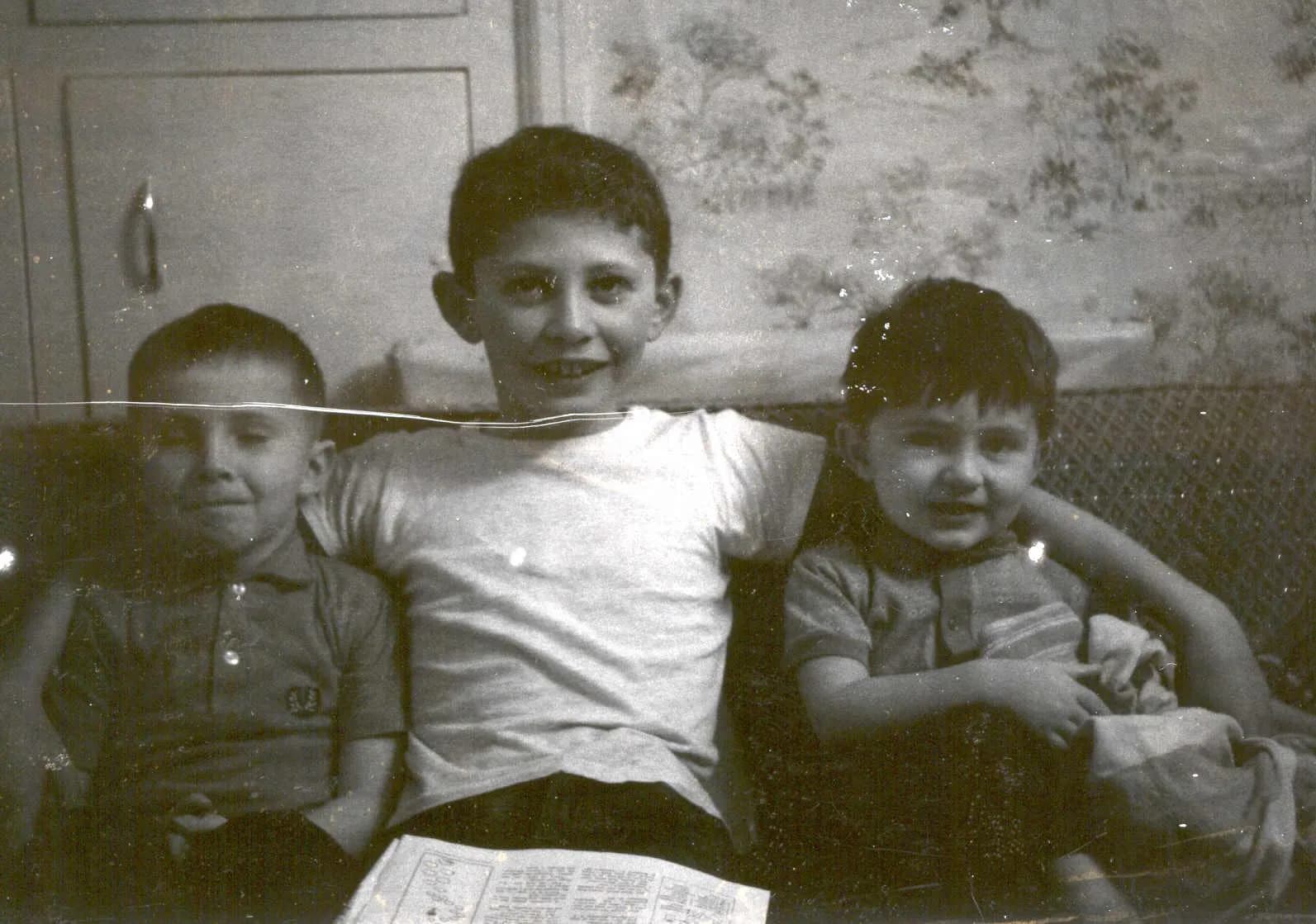
Surface damage is the physical layer: scratches from handling, creases from folding, water stains from storage, foxing spots from mold, and tears from accidents. These are the marks that make a photo look neglected. The AI handles surface damage by separating it from the underlying image — it recognizes that a white scratch line running through a face is not part of the face and fills it in using surrounding texture. This is similar to Photoshop's Content-Aware Fill but applied automatically to every damaged pixel in the image simultaneously.
Grain is the texture of the photographic emulsion itself. High-speed films (ISO 400+) and underexposed negatives produce visible grain that looks noisy and rough when scanned. The AI reduces grain while preserving real detail, a balance that manual noise reduction in Lightroom or Photoshop rarely achieves without also softening the image. The result is a clean, smooth image that looks like it was shot on a modern digital camera.
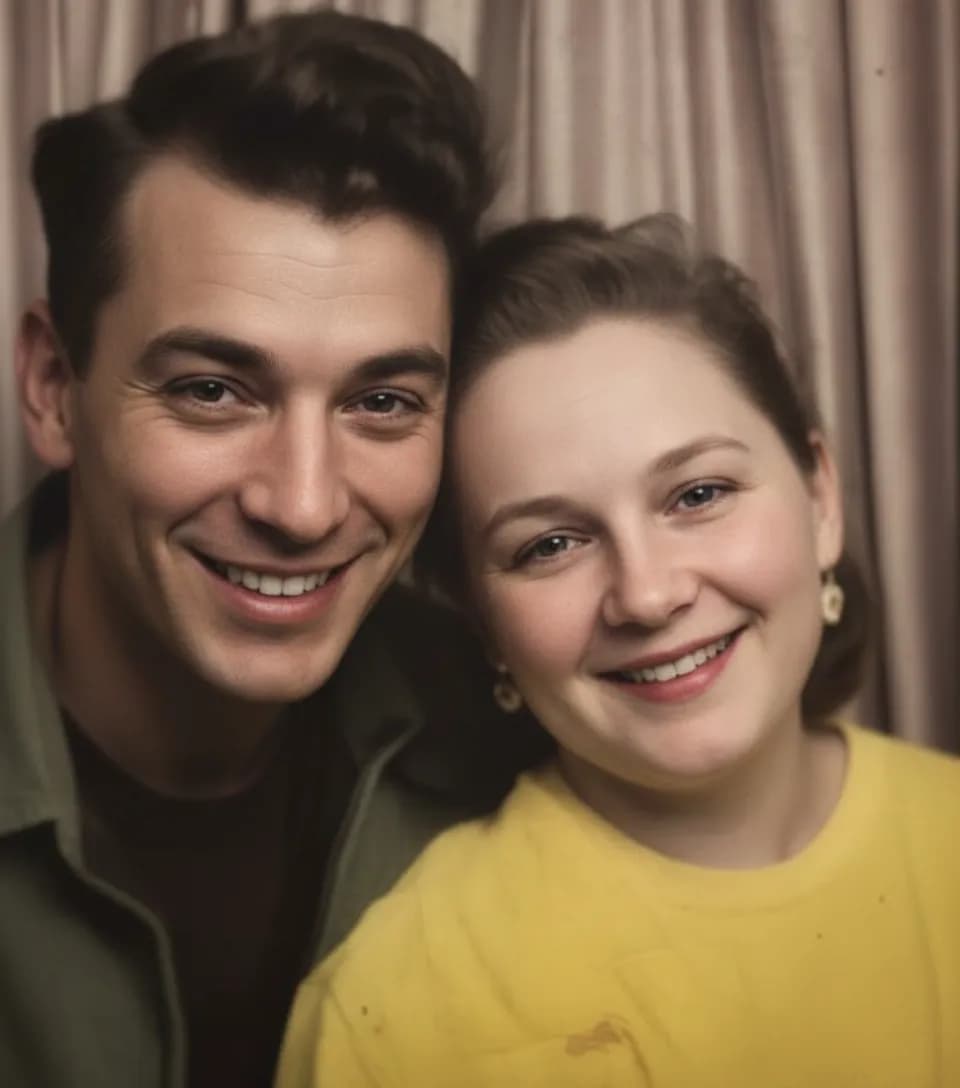
When all five corrections happen in a single pass — color restored, contrast expanded, faces sharpened, damage removed, grain cleaned — the cumulative effect is striking. The picture does not look "restored." It looks new. That is the difference between old restoration tools that addressed one problem at a time and modern AI that understands the full picture.
Expert tips
Get the most dramatic before/after transformation
Start with your most faded photo
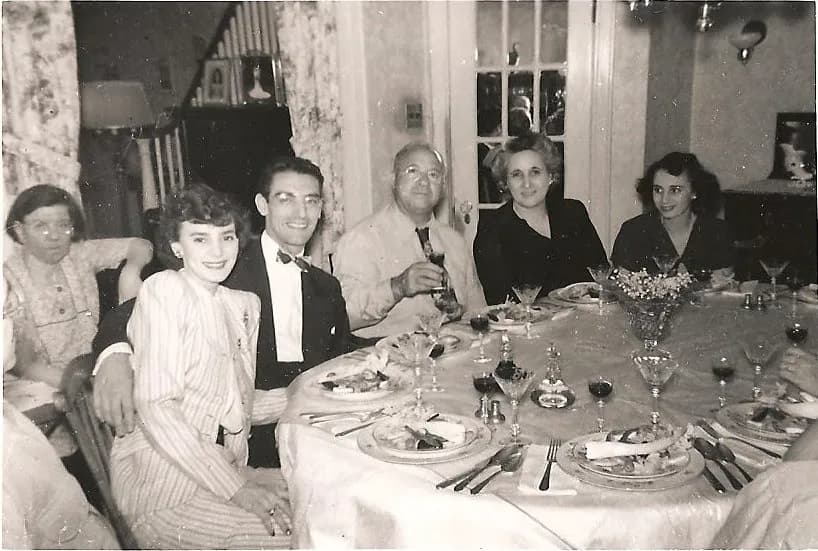
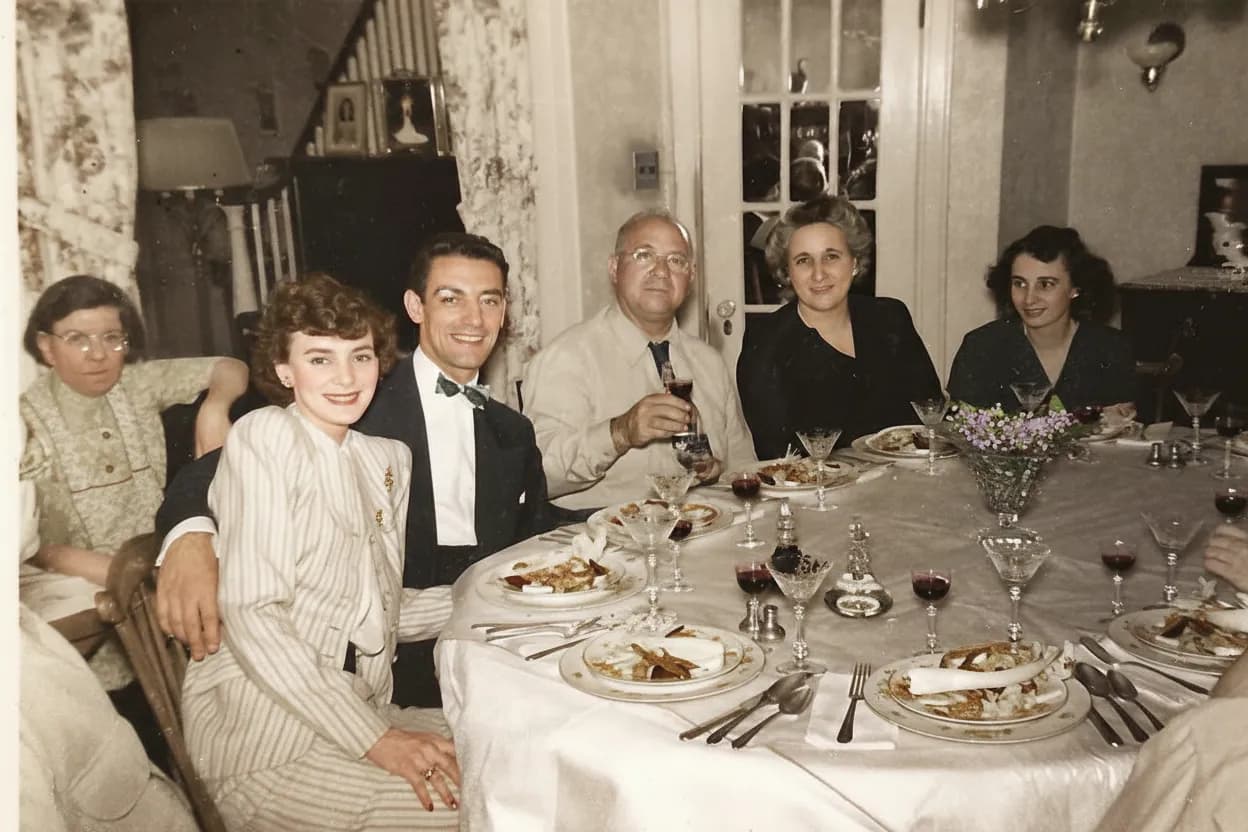
Heavily faded photos produce the most dramatic before/after result because the AI has the most room to improve. A photo that is already in decent shape will improve subtly; a washed-out, yellowed print will transform completely.
Upload the full uncropped image first
Give the AI the full context of the photo before cropping. Background detail, clothing, and scene context all help the model understand what the faces and colors should look like. Crop the restored version afterward.
Run severely damaged photos twice
For photos with heavy damage, the first AI pass removes the worst degradation. Running the result through a second pass lets the model focus on finer detail recovery and face sharpening now that surface damage is gone.
Group photos need the most resolution
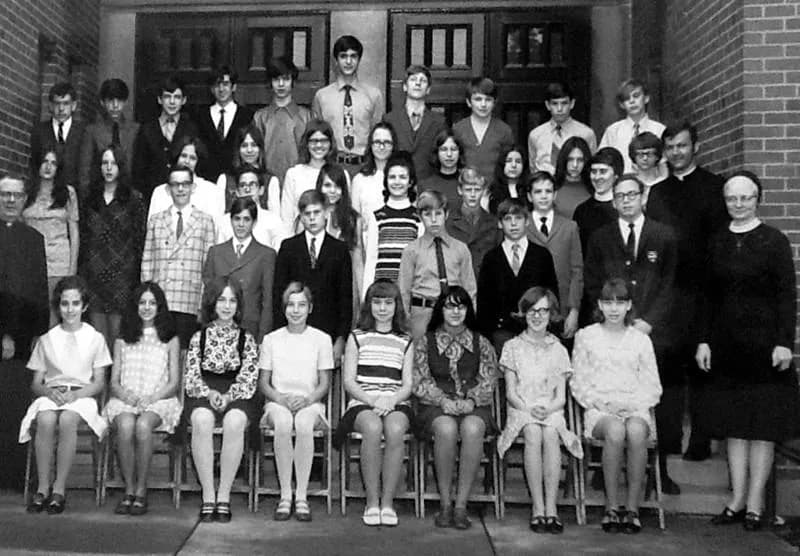
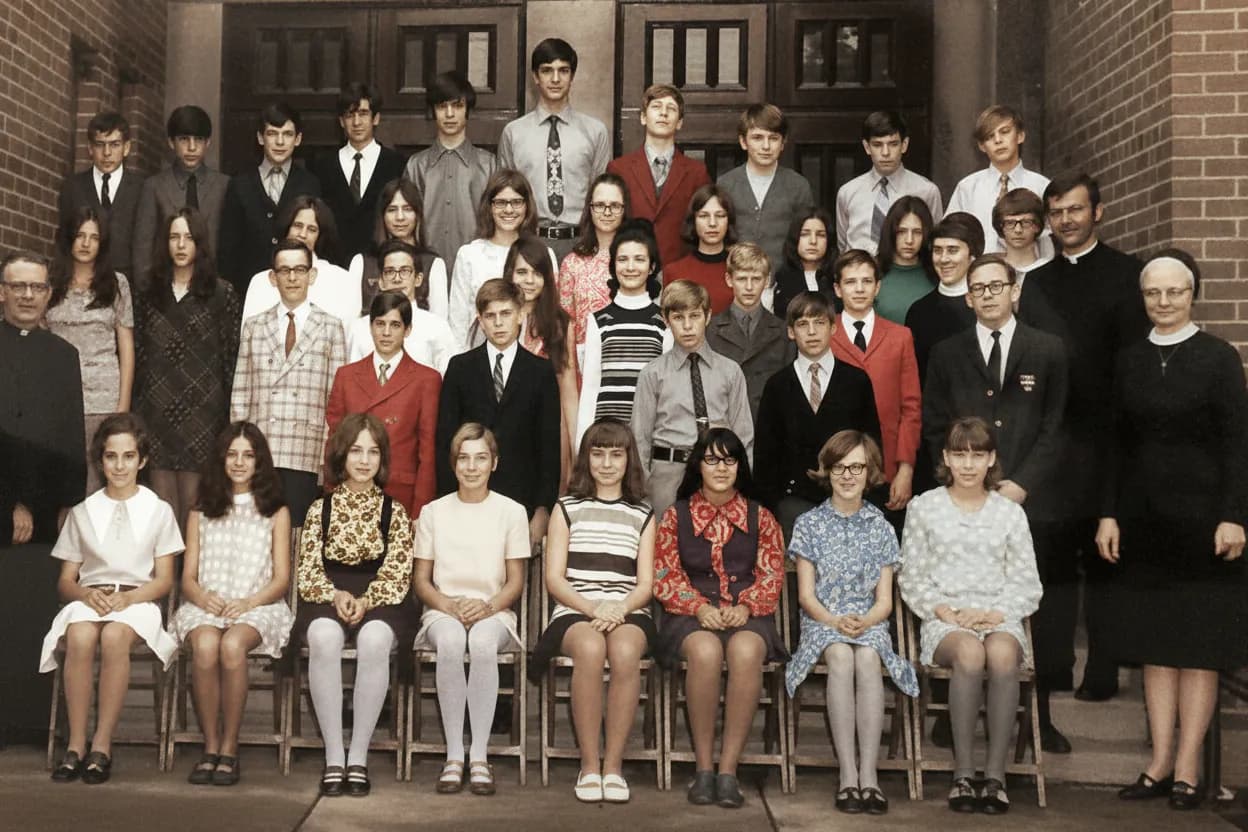
In group shots, individual faces are small. The smaller the face in pixels, the harder it is for the AI to reconstruct detail. Scan group photos at 1200 DPI or take the closest, sharpest phone photo you can.
Do not pre-edit with filters or auto-enhance
Phone cameras sometimes auto-apply sharpening, HDR, or color correction when you photograph a print. These edits can fight with the AI restoration. Turn off auto-enhance in your camera settings for the cleanest input.
Compare with the original side by side
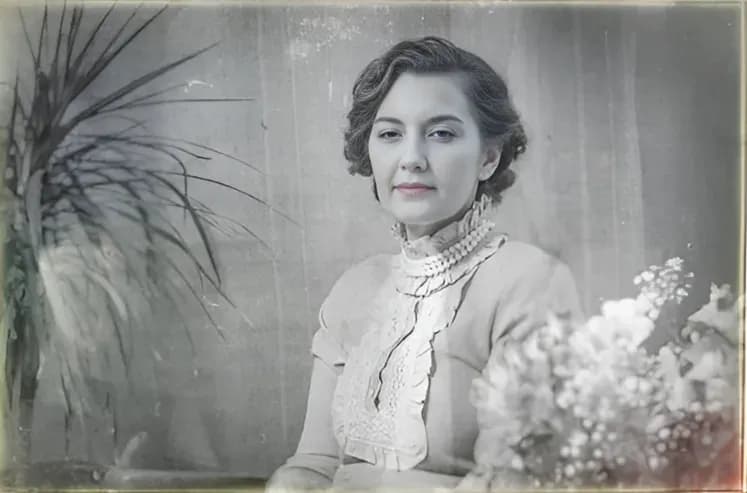
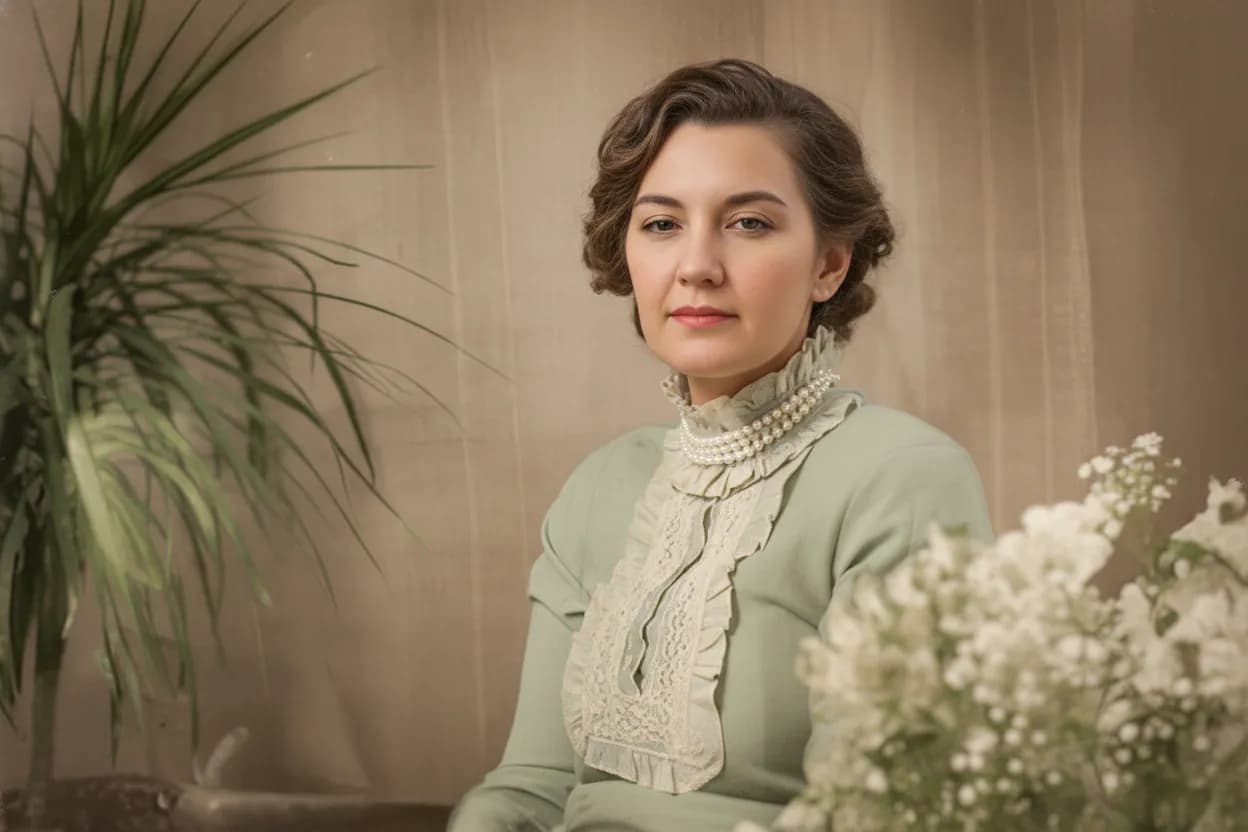
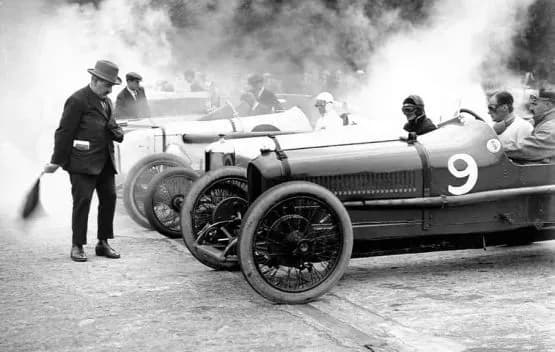
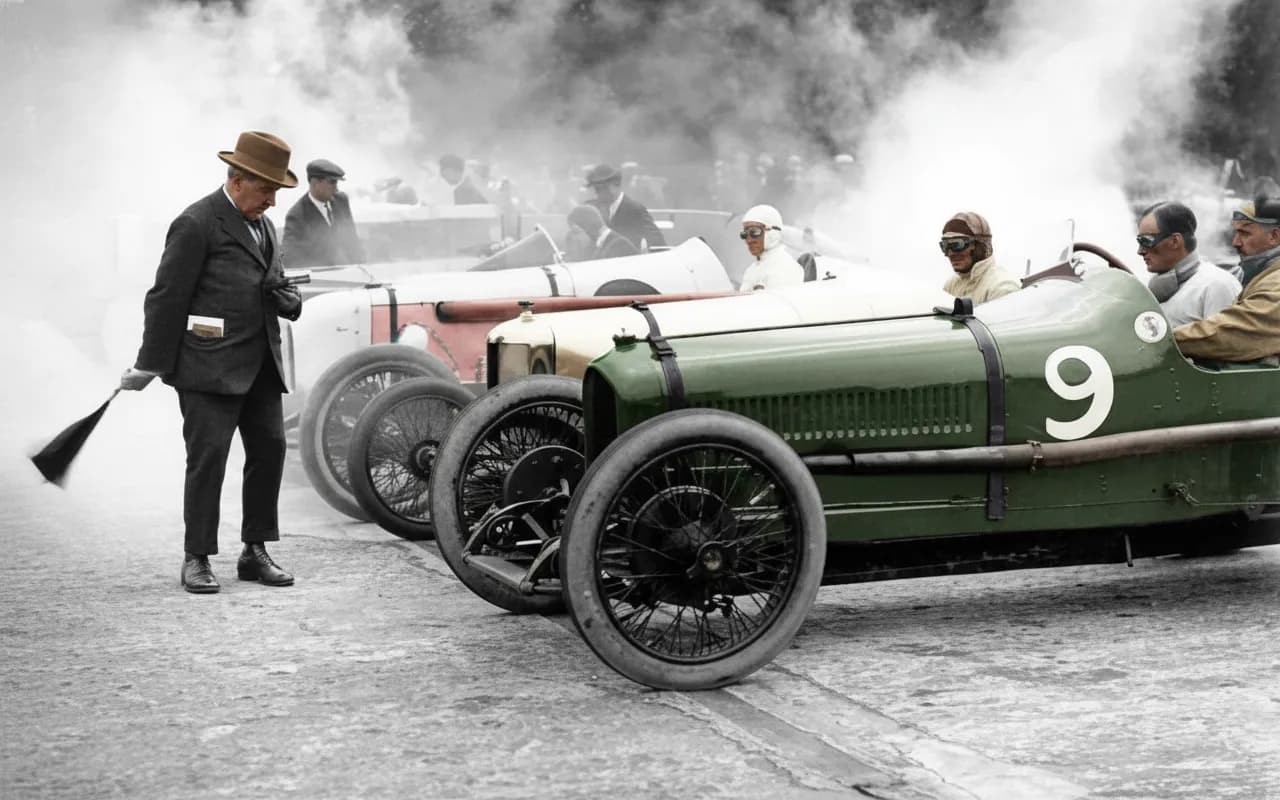
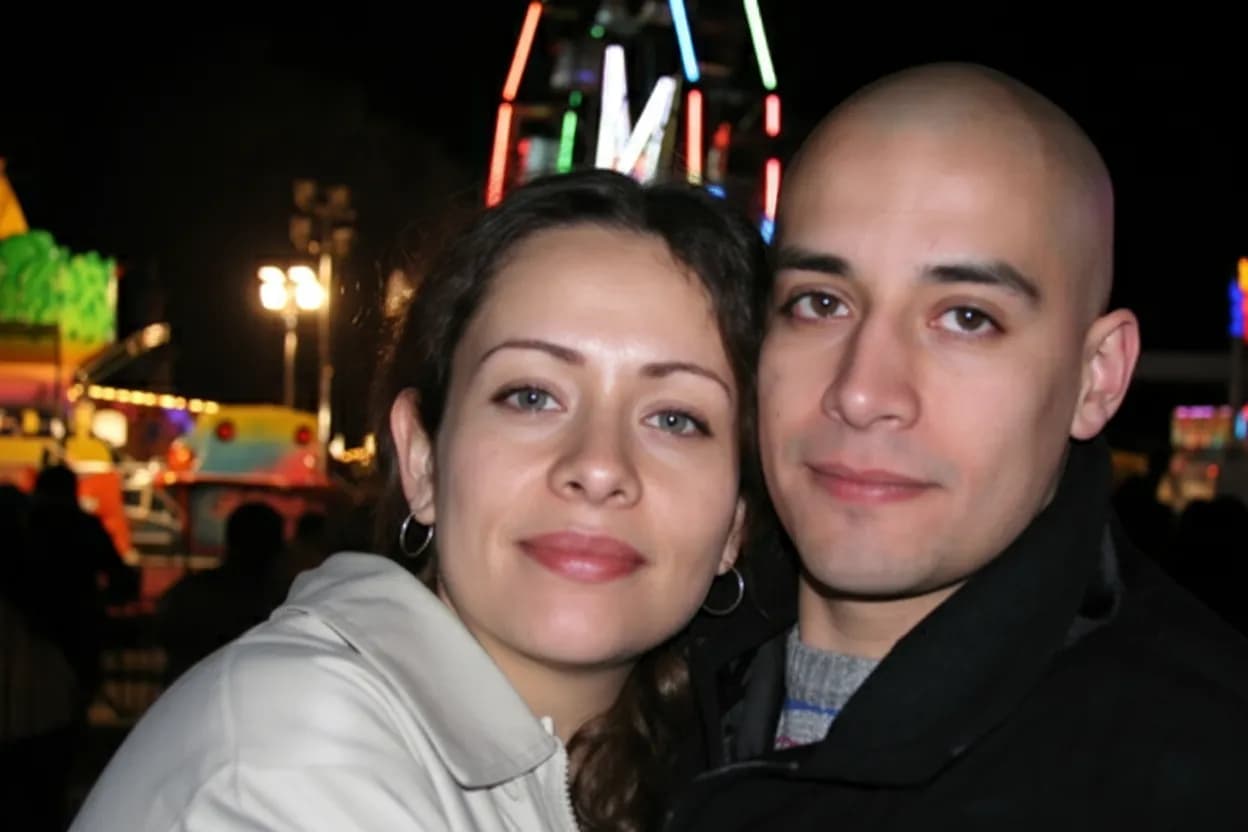
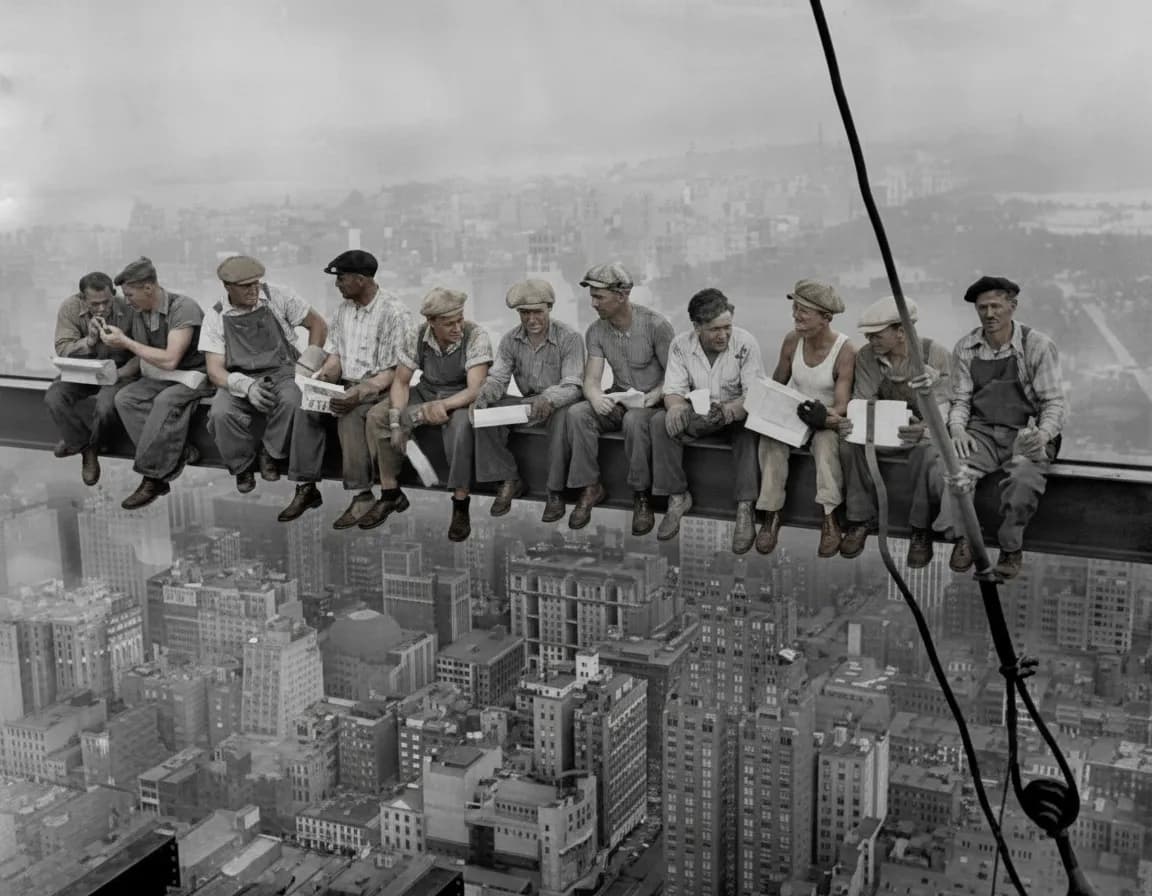
After restoring, view the before and after together. Sometimes the transformation is so complete that people do not realize how much changed. The side-by-side comparison is also the most impactful way to share the result with family.
Pricing
One-time pricing. No subscription. Credits never expire.
Starter
Perfect for trying it out on a few precious photos.
$0.70 / credit · 10 restorations
Start Restoring Photos- 10 AI credits included
- High-Resolution Output
- Credits Never Expire
- Animate Photos with Credits
30-Day Satisfaction Guarantee
Pro
For restoring a small album of memories.
$0.68 / credit · 25 restorations
Get Pro Access- 25 AI credits included
- High-Resolution 1080P Output
- Credits Never Expire
- Animate Photos with Credits
30-Day Satisfaction Guarantee
Family
Restore your entire family photo collection.
$0.60 / credit · 50 restorations
Get Family Plan- 50 AI credits included
- High-Resolution 1080P Output
- Credits Never Expire
- Animate Photos with Credits
30-Day Satisfaction Guarantee
Studio
For entire archives, professionals, and power users.
$0.55 / credit · 100 restorations
Get Studio Plan- 100 AI credits included
- High-Resolution 1080P Output
- Credits Never Expire
- Animate Photos with Credits
30-Day Satisfaction Guarantee
Prices don't include VAT.
FAQ
Frequently asked questions
Why do old pictures look yellow?
The yellow cast on old color prints is caused by cyan dye fading. Color photographs use three dye layers (cyan, magenta, yellow). Cyan is the least stable and breaks down first when exposed to light, heat, or humidity. When cyan disappears, the remaining magenta and yellow dyes dominate, giving the print its characteristic warm, yellowish tint. AI reverses this by adding the missing cyan back digitally.
Can you make a black-and-white photo look new?
Yes. Black-and-white photos age differently than color prints — they lose contrast as the silver image oxidizes, turning deep blacks into flat greys. The AI restores the full tonal range, re-establishing rich blacks and clean highlights. You can also colorize the photo after restoration to add realistic color, which makes it look even more modern.
Why are faces blurry in old photos?
Three reasons: long exposure times caused motion blur if the subject moved, older lenses had softer focus than modern glass, and small print sizes (wallet, 3x5) did not have enough resolution for fine facial detail. AI face restoration generates plausible facial features (iris texture, skin pores, individual hairs) that sharpening tools cannot recover because the detail was never captured in the first place.
Will the restored photo look exactly like the original did when it was new?
Very close, but not pixel-perfect. The AI reconstructs what the original likely looked like based on the era, print type, and remaining detail. Colors, tones, and facial features are recovered with high accuracy, but some artistic interpretation is involved — especially for heavily damaged areas. For typical family photos, most people cannot tell the restored version from a modern photograph.
Can AI make a photo from the 1800s look new?
Yes. 19th-century photographs (daguerreotypes, tintypes, albumen prints) present unique challenges — tarnish, oxidation, emulsion cracking — but the AI handles these effectively. The restored result will look dramatically clearer, though the original composition and lighting style will still reflect the era. You can optionally colorize the result for an even more modern appearance.
What happens to scratches and creases during restoration?
The AI identifies surface damage as separate from the image underneath. It fills scratches by extending surrounding texture across the gap and reconstructs creased areas by referencing intact regions of the photo. Small scratches vanish completely. Deep creases or tears that have removed emulsion may leave faint traces, but the improvement is significant.
Can I make a water-damaged photo look new?
It depends on severity. If the water caused staining, color bleeding, or waviness but the image is still visible underneath, AI restoration produces excellent results — stains are separated from the image and removed. If the water dissolved the emulsion entirely (leaving blank white or brown areas), the AI cannot reconstruct what was never there. Try the free restoration first to see how much the AI recovers.
Why does my restored photo look better than the original ever did?
Because AI face sharpening generates detail that the original camera never captured. A wallet-size print from a 1970s point-and-shoot had soft focus and visible grain. The AI replaces that softness with sharp, realistic facial detail based on patterns from millions of modern portraits. The result can genuinely look better than the day the photo was printed.
How do I make a whole album of old pictures look new?
Upload them one at a time (batch upload is coming soon). The Family plan covers 50 restorations for $29.99 — enough for a full shoebox. Each photo takes about 30 seconds, so a 50-photo album is done in under 30 minutes. Download all the restored versions and you have a complete digital album that looks like it was shot recently.
Can I make old Polaroids look new?
Yes. Polaroids age in a distinctive way: the colors fade unevenly, the white border yellows, and the protective layer can crack or bubble. AI restoration handles the color fading and surface damage effectively. The integral film chemistry of Polaroids (SX-70, 600, Spectra) degrades faster than traditional prints, so restoring them sooner preserves more recoverable detail.